Run script before starting SSH

Hello,
Could you please help me with the following problem?
I need to start IAP tunnel before I start SSH session using this IAP tunnel.
On Windows I resolved it by running bat file in Events/Before open/Command Line.
Bat file looked like this:
call gcloud config configurations activate target_config
call gcloud compute start-iap-tunnel target_project 22 --local-host-port=localhost:60002 --zone=europe-west1-b --project=tunnel_project
I tried to do the repeat the same for Macos. Changed bat to sh:
#!/bin/sh
gcloud config configurations activate target_config
gcloud compute start-iap-tunnel target_project 22 --local-host-port=localhost:60002 --zone=europe-west1-b --project=tunnel_project
Made it executable for all.
Sh file itself works perfect - tunnel starts, I can connect to the internal SSH session.
But if i add it to Events/Before open/Command Line nothing happens - RDM thinks for some time, then it opens SSH session that eventually times out. Ports aren't listened by anything.
I tried adding path in the form
/users/user/tunnel.sh
and
sh /users/user/tunnel.sh
But the result was the same.
Would be grateful for any help. Probably there is easier and more correct way to achieve this... Thank you.
All Comments (9)
Hi ec,
If I do the following, this seems to work fine for me: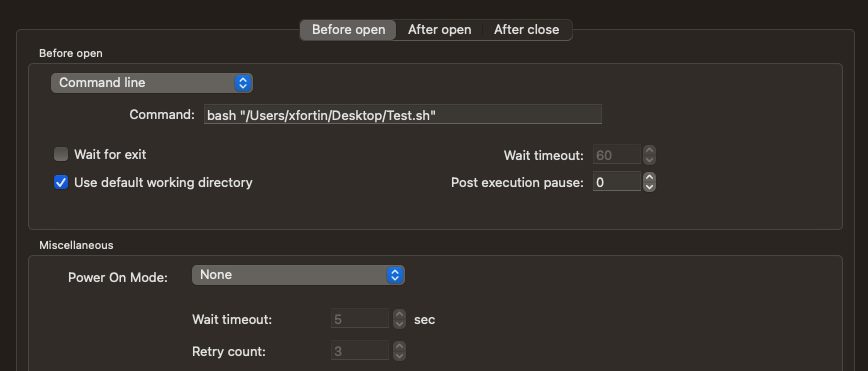
Obviously, Test.sh is just opening an application so I can confirm that it works, I haven't tried your specific command (as I can't), but this should be irrelevant. I've also tried with "sh", and it also works.
You could try with a different script (that does something entirely different), just to confirm that the content is not the issue (to my knowledge, it shouldn't, but maybe there are some permissions that we are not taking into account).
Best regards,
Xavier Fortin
bash.png
Hi Xavier,
Thank you for the response.
It turns out the problem is with the code. After i added to my script line:
open -a TextEditor
I started seeing popup TextEditor window, but nothing else happens.
So I have the following script:
open -a TextEditor # just to test that the script starts
ls -l # random command that I expect to open terminal window and run there.
The problem is with the second part - terminal doesn't start and ls command isn't run.
I think if I understand why ls doesn't run, it'll fix my problem with gcloud.
I also checked my script by adding extension .command (https://stackoverflow.com/questions/5125907/how-to-run-a-shell-script-in-os-x-by-double-clicking)
So when I run it (double-click) form Finder, it runs as expected: texteditor and terminal window appears.
But no luck running it from RDM...
Just to see if we can get a bit more information on what is going on, could you try to run your script in the RDM local terminal? It can be open from the Tools -> Terminal ribbon button.
Best regards,
Xavier Fortin
It works from the terminal the following way:
- texteditor window appears
- ls is run inside RDM terminal:

I'm pretty sure "ls" also works when you launch it with a On Before Connect event, there's just no command line interface associated with the event, so the output is just lost. If you really want a terminal window to explicitly be opened when running your command, you would probably need to do something like this:
#!/bin/bash
osascript -e 'tell app "Terminal"
    do script "ls -l"
end tell'
Best regards,
Xavier Fortin
It works this way - it seems when there is no explicit terminal window, gcloud (like ls) doesn't work as expected.
Thank you so much for your help!
I also would like to ask: do you know, if there are any plans to support IAP tunnels as it was discussed here https://forum.devolutions.net/topics/32392/support-for-gcp--google--cloud-iap-authentication?
Glad to have been of help!
Hmmm... good question. I can't seem to find an opened ticket link to the forum thread on this, so it looks like we settled on using command line as an appropriate workaround. If it's because you want dedicated entries for this, you could use the Custom VPN entry and use the command lines you are already familiar with (although it might requires some tweaking like what you had to do here).
Best regards,
Xavier Fortin
It's not like I need dedicated entry for this.. I could try custom VPN but not sure which one is for it:
You can create a Custom VPN entry as you would for a RDP or SSH entry: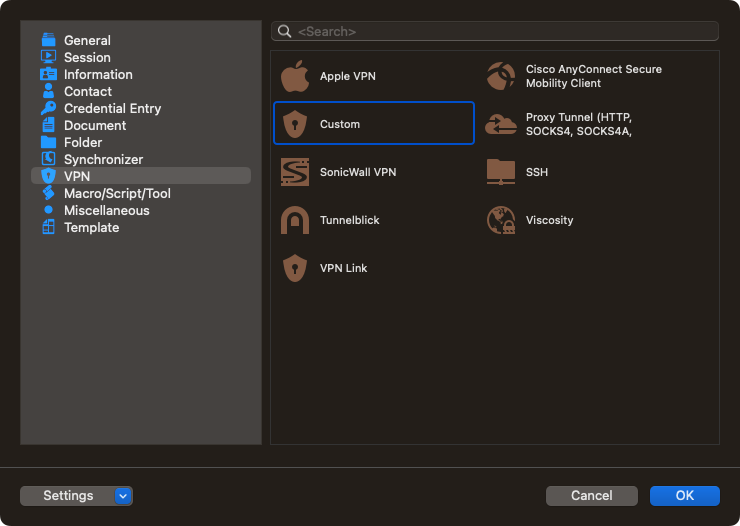
And then you could reference this entry in the panel you've shown a screenshot of by selecting "Existing" in the Type field.
Best regards,
Xavier Fortin
CustomVPN.png