RDM on Mac not sizing RDP screens

RDM Version 2022.2.15.0
When using Mac, the remote screen sizes is not scaling/sizing to the workspace window.
Have tried:
Remote desktop size: default, Screen sizing mode: Default
Remote desktop size: Current work area size, Screen sizing mode: Default
Is there a combination that will make this work?
Running on a MacBook Air M2 issue is on both internal screen and external screen
All Comments (5)
Hi,
To allow the RDP session screen to adjusts dynamically you have to use any "Screen sizing mode" other than "Default" and "Scrollbar".
With "Dynamic resolution", on a resize, it will trigger the remote resolution to be changed to the corresponding dimension following the resize. This is most likely what you want. It is however only supported on Windows 8.1, Windows Server 2012 R2, and any version later to those two.
With "Smart reconnect", on a resize, it will trigger a reconnection of the session, allowing us to define new initial resolution (corresponding to the resize). This is what you would use if you want a similar result to "Dynamic resolution" but is not supported by the host version.
With "Smart sizing", a static resolution is set, but instead of showing scrollbars when reducing the size of the workspace, the image is resized to fit the available space. Since the resolution does not change, the quality of the image will vary.
I hope this answers your question. Do not hesitate if you need further assistance.
Best regards,
Xavier Fortin
Thanks for this.
I have set the properties to the below but still get scrollbars and no resizing, not sure what i have missed, far end is a Windows 2016 Server.
Scrollbars show
Did you possibly changed the corresponding settings in the Preferences (Types -> RDP -> Display)? Here's what I mean: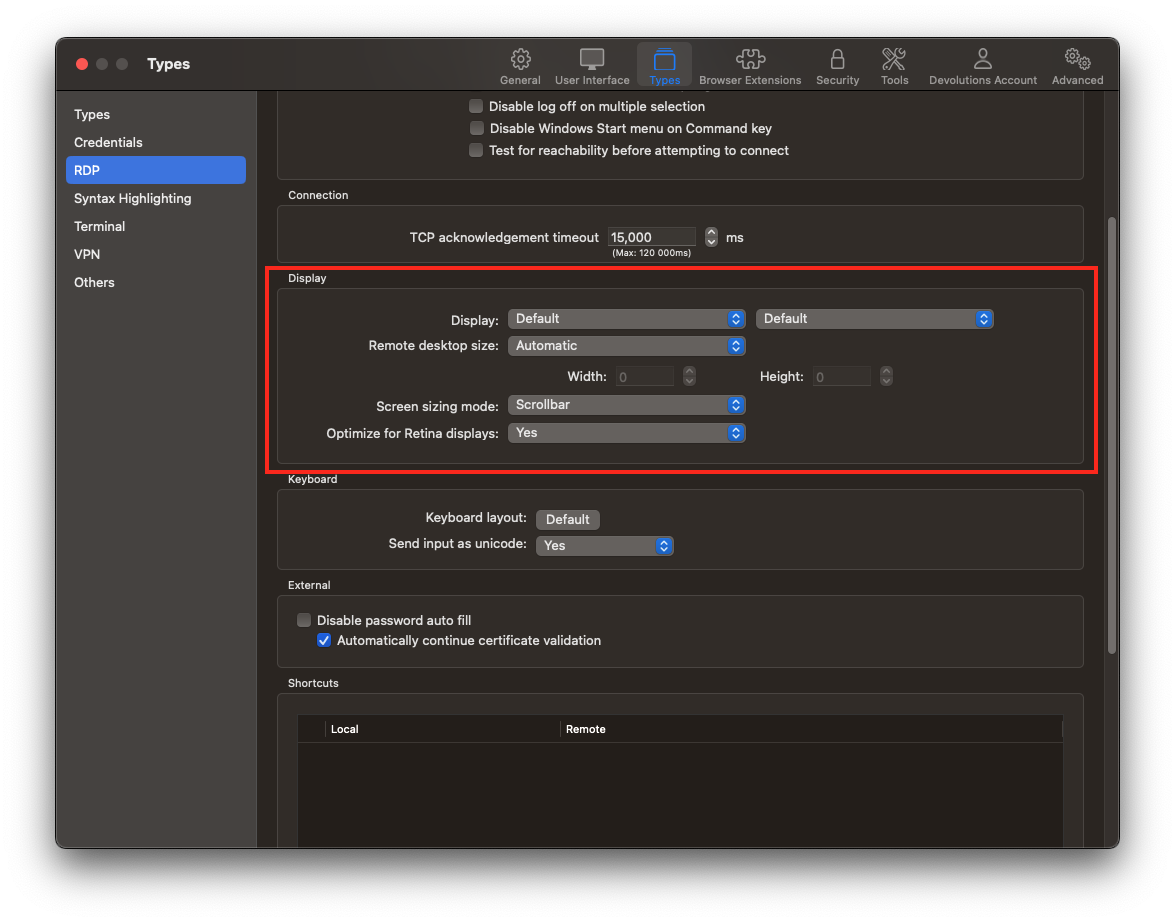
Best regards,
Xavier Fortin
Display.png
Hi,
Just checked and nope below is the setting I have in prefs.
Well, then I don't quite know what to say. With the exact same configuration as you, it works pretty well on my side. Do you perhaps have User/Local Specific Settings on the entry that overrides those display settings (under the settings tab)?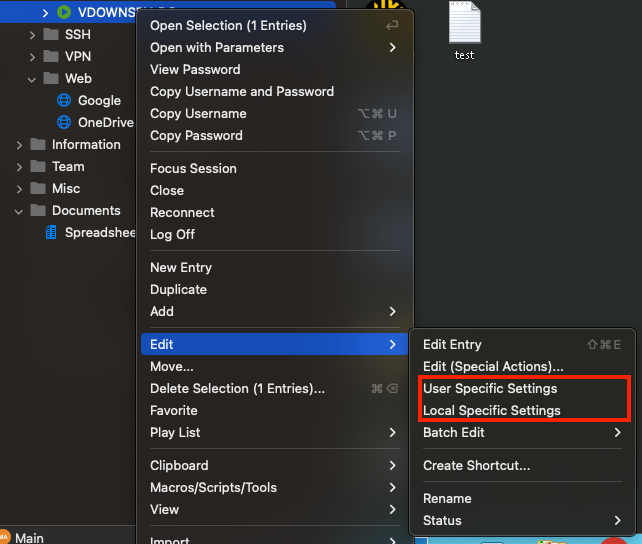
If you create a new entry from scratch, those it also not work?
Best regards,
Xavier Fortin
UserLocalSpecificSettings.png