Blank Dashboard/Overview tab

Hi everyone,
We are having a problem with blank Dashboard/Overview tab, as nothing is shown there.
I am sending a screenshot of an issue, and the same thing happens for all entires, folders, VPNs, etc.
I found similar problems on forum, so we tried to reset view, delete all .lty files from LocalAppData, update to newest version, and also to delete whole Devolutions folder from LocalAppData, but even after new folder is created, the issue is the same.
So our question is what else we can try to fix it?
Thanks in advance!
Bruno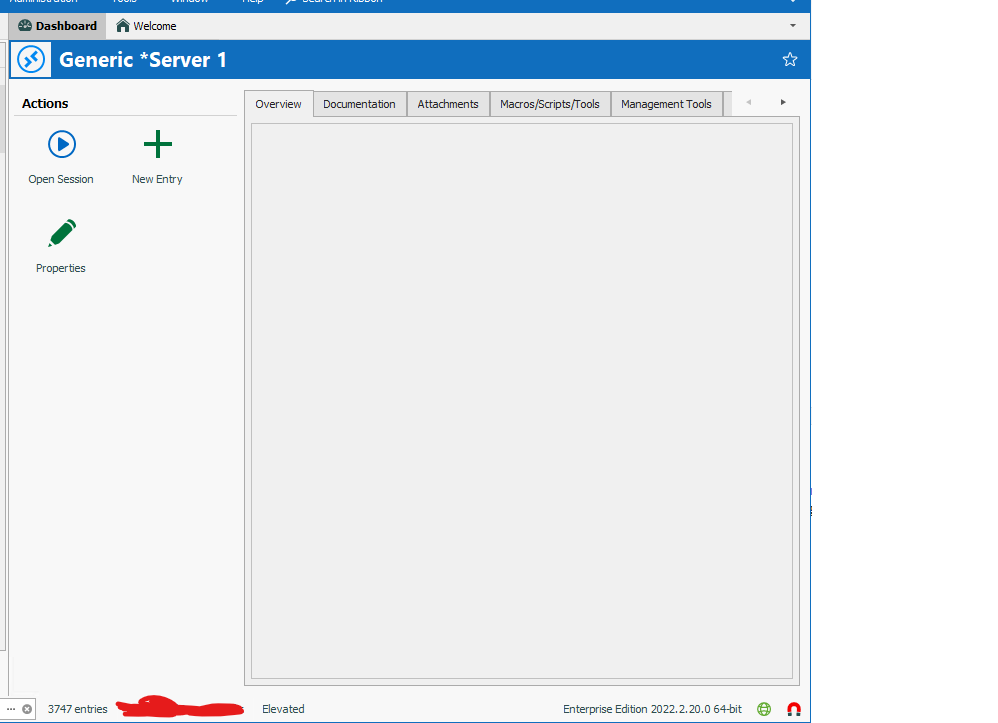
Blank Overview Tab.png
All Comments (10)
Hello,
Thank you for contacting us on that matter!
I suspect that this issue might be related to WebView2, which is a component that is used to display some of RDM's tabs, including the Overview.
Could you please make try downloading and installing WebView2 to make sure it is properly installed on your workstation?
You can download the installer for WebView2 using the following link :
https://developer.microsoft.com/en-us/microsoft-edge/webview2/#download-section
Best regards,
Gabriel Degrandpré
Hi Gabriel and thank you for a quick response.
Unfortunately I checked for WebView2, and it is already installed. In the meantime we figured out that this problems occurs only using RemoteApp.
We have multiple virtual machines with installed RDM, and then we are connecting to them using Remote app. When we are using Hyper V and we connect directly to the virtual machine everything works ok, and the dashboard is visible. Everything is ok also when we use Remote Desktop Connection and connect to some of our virtual machines via RDC, but running it as remote app gives us this problem.
Is there maybe some protocol issue that affects display or something else?
Hello,
Thank you for your reply! Our engineering team provided me some additional information on your case. It would seem that there are some known issues with WebView2 and RemoteApp (and similar) environments.
Based on a comment on the following page, it would seem that enabling the Compatibility Mode for Windows 8 for all users can solve the issue. I would invite you to try that out and see if it also solves the problem for you as well.
https://github.com/MicrosoftEdge/WebView2Feedback/issues/890#issuecomment-802272392
If the problem persists afterward, we also have a workaround to offer within RDM. Disabling WebView2 usage in RDM will cause it to fall back to the previous mode of display for the affected tabs. This can be done by going to File > Options > Advanced. There are four main options you would want to disable in this case :
- Use embedded Microsoft Edge for documentation and markdown
- Use embedded Microsoft Edge for overview panel
- Use embedded Microsoft Edge for release notes
- Use embedded Microsoft Edge for reports

Let us know how that goes!
Best regards,
Gabriel Degrandpré
Hi Gabriel and thanks once again.
Unfortunately we could not make it out. The problem is, we have a template on which we are doing changes and then we rebuild our Virtual Machine based on that template. We did all those changes on template,but after rebuild those "Embedded Edge settings" are checked again.So I guess those settings are being overwritten from somewhere, maybe some config file? Can we change those settings on any other way?
Thanks once again.
Hello,
If you have to deploy the configuration, I would invite you to consult the following help topic, more specifically the "Procedure" section, to make sure they are deployed correctly :
https://help.remotedesktopmanager.com/installation_terminalservices.html
Simply make sure that, in step #2, you have the "Use embedded Microsoft Edge" options enabled so they are included in your master configuration file when you deploy it in the following steps.
Best regards,
Gabriel Degrandpré
That worked :) Thank you so much.
Now my problem is that the popup window "There is a new configuration file...." is shown every time we start a remote App. This is because our virtual machine is back to its start state every time we close the Remote App. Is there a way to turn that pop up window in that case?
Hello,
It is possible through a Group Policy to specify what option should be selected from this popup window, so it does not show up anymore. We have two policies, one to always force the loading of the RDM instance's current configuration file and one for force the loading of the default.cfg file.
Force the loading of the current configuration file
%Root%\SOFTWARE\Policies\Devolutions\RemoteDesktopManager\ForceCurrentConfigurationLoading
Force the loading of the default.cfg file
%Root%\SOFTWARE\Policies\Devolutions\RemoteDesktopManager\ForceDefaultConfigurationLoading
https://kb.devolutions.net/rdm_group_policies.html
Configuring either of these policies should normally stop the pop up from occurring.
Best regards,
Gabriel Degrandpré
Hi Gabriel, and sorry for the slow response as we did not have time to test it and rebuild it before.
We did as you said, and the popup is not appearing anymore, but now we have a problem of the Remote app not starting as expected.
The problem is that the virtual machine starts, but RDM is not running, and we need to repeat the starting process 3-4 times to get everything working.
I wanted to ask if it is possible to have some online meeting (Teams, zoom...) where we could demonstrate it to you because it is not very convenient to describe situation through messages.
If yes, could you please provide us date and time for the meeting?
Thanks in advance,
Bruno
Hello,
I will open a support ticket shortly to organize a remote session with you so we can take a recording of the issue in action and gather some information on the issue. You should receive an email shortly from the ticket to schedule the session!
Best regards,
Gabriel Degrandpré
Thank you Gabriel, I just responded to a scheduling app.
Hear from you on Monday!