After Upgrade to 2021.2.13.0 all my settings and connections are gone
After Upgrade to 2021.2.13.0 all my settings and connections are gone

Upgraded to 2021.2.13.0 dur to RDM showing message. After install, RDM started just fine. I deleted my WHfB container, logged off, logged on....and RDM start with messagebox, saying "Can't save" or like this (it's in german)
I only see "Local Datasource" and none of my former connections is there.
Very, very, very bad.
All Comments (25)
Hello,
I'm sure that your data is not gone. Usually it's located in %localappdata%\Devolutions\RemoteDesktopManager or %localappdata%\Devolutions\RemoteDesktopManagerFree
What data source type did you use before the update?
Regards
David Hervieux
Hi,
thank you for pointing me there. I can see data and one of these files is my former storage "SomeName.db".
I am not sure what data source type I used before, for it has been running quite a while and so I forgot. Could it be local database or so?
But what to do now: every time I start RDM it shows me an empty little box
After clicking OK RDM shows up - please guide me - how can I load/import/restore my data?
BTW: ending RDM the little box comes up again, this time with some text saying "Error while saving"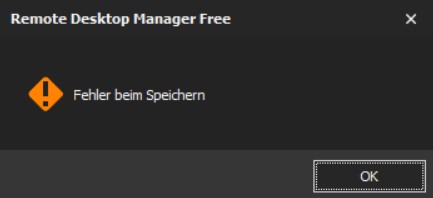
Screenshot 2021-10-04 234537.jpg
Screenshot 2021-10-04 234259.jpg
Hello,
I've just released a new version .14 with a potential fix. Could you give it a try?
https://remotedesktopmanager.com/home/download
Regards
David Hervieux
Hi, same behavior with 14 as was with 13. Sorry.
Could you try to start the application with the switch /profiler
remotedesktopmanagerfree.exe /profiler
and let me know if you see any error in the dialog?
Regards
David Hervieux
You can also go in Help->Application Logs if you have access to the Ribbon menu
Regards
David Hervieux
Ypu can also backup the configuration folder. Delete it and start RDM to see if the empty configuration load. If it works, you could copy back your .db file in the folder and configure the SQLite data source linked to the file.
Regards
David Hervieux
Could you try to start the application with the switch /profiler
remotedesktopmanagerfree.exe /profiler
and let me know if you see any error in the dialog?
Regards
Starting with /profiler switch gives same result as above: an empty error/warning box.
Help -> Application Log shows two errors:
Saying:
System.UnauthorizedAccessException: Der Zugriff auf den Pfad "C:\Users\MyUserName\AppData\Local\Devolutions\RemoteDesktopManagerFree\RemoteDesktopManagerFree.stv" wurde verweigert.
bei System.IO.__Error.WinIOError(Int32 errorCode, String maybeFullPath)
bei System.IO.FileStream.Init(String path, FileMode mode, FileAccess access, Int32 rights, Boolean useRights, FileShare share, Int32 bufferSize, FileOptions options, SECURITY_ATTRIBUTES secAttrs, String msgPath, Boolean bFromProxy, Boolean useLongPath, Boolean checkHost)
bei System.IO.FileStream..ctor(String path, FileMode mode, FileAccess access, FileShare share)
bei Devolutions.Utils.FileUtils.ReadAllBytes(String path)
bei Devolutions.RemoteDesktopManager.Managers.OptionManager.cacdea74f06794e013c0cf46ed24bd5e9()
The second error message is for same file name but ending with .stb instead of .stv.
Screenshot 2021-10-05 073030.png
Ypu can also backup the configuration folder. Delete it and start RDM to see if the empty configuration load. If it works, you could copy back your .db file in the folder and configure the SQLite data source linked to the file.
Regards
Great - this worked!
What I couldn't copy for it required administrative permissions despite the fact that these files are in my %localappdata% folder and my account has "Full access" permissions as of File Explorer:
RemoteDesktopManagerFree.enb
RemoteDesktopManagerFree.enc
RemoteDesktopManagerFree.stb
RemoteDesktopManagerFree.stv
Not so great!
After logging off and on again, starting RDM brings up the same empty box and all settings are gone, again. Now I know, that I only need to configure the Data Source, but guess what: saving the Data Source configuration throws the "error while saving" dialog box. In the end this leads to configuring the Data Source *each time one starts RDM*.
Could you try to execute RDM as administrator?
Do you have an idea why the application is unable to access the .stv file? By the way this contains the sensitive information encrypted. What's strange is that RDM is able to create the stv and stb (it's the sensitive encryption data backup) but is unable to read it back.
You could also try to install RDM in a specific folder like C:\RDM
The configuration files are saved in the installation folder when RDM is not installed in C:\program files
Regards
David Hervieux
Hi!
I saw in your first message that you deleted your WHfB containers, which I suspect deletes your DPAPI keys and renders the .enc and .stv files unreadable and un-writable.
Are you able to manually read the content of the RemoteDesktopManagerFree.enc file?
If this is the issue, you could try the following workaround:
- Delete all the configuration files in the %localappdata% folder (RemoteDesktopManagerFree.cfg, .bak, .ext, .exb, .stv, .stb, .enc, .enb)
- Open RDM and go to Options->Security->Other. From there you can check the "Disable DPAPI cryptography on local files" box.
- If you still have any issue from there, delete RemoteDesktopManagerFree.enb, RemoteDesktopManagerFree.enc, RemoteDesktopManagerFree.stv and RemoteDesktopManagerFree.stb.
- Re-set up your data source and local database as David mentioned.
I hope this helps!
Philippe Dugré
Hi!
I saw in your first message that you deleted your WHfB containers, which I suspect deletes your DPAPI keys and renders the .enc and .stv files unreadable and un-writable.
Are you able to manually read the content of the RemoteDesktopManagerFree.enc file?
If this is the issue, you could try the following workaround:
- Delete all the configuration files in the %localappdata% folder (RemoteDesktopManagerFree.cfg, .bak, .ext, .exb, .stv, .stb, .enc, .enb)
- Open RDM and go to Options->Security->Other. From there you can check the "Disable DPAPI cryptography on local files" box.
- If you still have any issue from there, delete RemoteDesktopManagerFree.enb, RemoteDesktopManagerFree.enc, RemoteDesktopManagerFree.stv and RemoteDesktopManagerFree.stb.
- Re-set up your data source and local database as David mentioned.
I hope this helps!
TOP! This time it worked and even survived a reboot. I only had to do steps 1,2 and 4. It hasn't been necessary to do 3.
Thanks a lot.
I had the same issue
This issue is a nightmare - it's happening for nearly every user that has RDMS installed, so there's definitely a bug somewhere.
Disabling the DPAPI on local files has worked for most users, but some are now getting this error:
BTW, should'nt it say: "...and then reenable DPAPI." For I suspect, that secrets might be unprotected / less secure protected, if DPAPI is not enabled on those files?!
And another BTW: I don't understand how deleting WHfB Container would affect DPAPI in such a way, for (1) DPAPI for RDM could have been initialized using a password based login and (2) computer is member of domain, so DC could/should deliver DPAPI master key restore.
So the reason to this behavior is still untold - maybe.
Hello,
There is definitively something to investigate. Could you check in the Application Logs if your users get an AuthorizeAccess exception or any other errors?
Since RDM 2021.2, we generate an encryption key to protect the sensitive data (.stv) including the DVLS OAuth token. When you use Windows Hello or an application password, we encrypt this sensitive key. We have also extracted the data source configurations from the cfg file and stored it in the stv.
To ensure a much better protection with also use the DPAPI to encrypt locally te .stv and it's there that something seems to happen.
Regards
David Hervieux
Hi David,
only can see and report what I already did 6 days ago - pls see above. No other errors I can see. Also my "new" Application Log reaches only back to 4th of October - new Installation of RDM.
Hello,
There is definitively something to investigate. Could you check in the Application Logs if your users get an AuthorizeAccess exception or any other errors?
Since RDM 2021.2, we generate an encryption key to protect the sensitive data (.stv) including the DVLS OAuth token. When you use Windows Hello or an application password, we encrypt this sensitive key. We have also extracted the data source configurations from the cfg file and stored it in the stv.
To ensure a much better protection with also use the DPAPI to encrypt locally te .stv and it's there that something seems to happen.
Regards
Error message below. It appears to be a simple file access issue. Doesn't explain why it was running fine until installing the latest versions of Devolutions though.
UnauthorizedAccessException - Access to the path 'D:\Users\*****\AppData\Roaming\Devolutions\RemoteDesktopManager\RemoteDesktopManager.enc' is denied.
at System.IO.__Error.WinIOError(Int32 errorCode, String maybeFullPath)
at System.IO.FileStream.Init(String path, FileMode mode, FileAccess access, Int32 rights, Boolean useRights, FileShare share, Int32 bufferSize, FileOptions options, SECURITY_ATTRIBUTES secAttrs, String msgPath, Boolean bFromProxy, Boolean useLongPath, Boolean checkHost)
at System.IO.FileStream..ctor(String path, FileMode mode, FileAccess access, FileShare share, Int32 bufferSize, FileOptions options, String msgPath, Boolean bFromProxy, Boolean useLongPath, Boolean checkHost)
at System.IO.File.InternalWriteAllBytes(String path, Byte[] bytes, Boolean checkHost)
at Devolutions.RemoteDesktopManager.Managers.OptionManager.cd1adf20c5a73c9aa47fd59c09857488a(Option c39f48e16824a57dbb0bf9f65b84df59f)
at Devolutions.RemoteDesktopManager.Managers.OptionManager.c817cf4847ff0cff890d82c9d77ada47d()
at Devolutions.RemoteDesktopManager.Managers.OptionManager.LoadOptions()
at Devolutions.RemoteDesktopManager.Managers.ApplicationManager.InitializePhaseOne(String[] args)
at Devolutions.RemoteDesktopManager.Program.Main(String[] args)
Hello,
Do you have an idea why the user is unable to write a file in the specified path?
Regards
David Hervieux
BTW, should'nt it say: "...and then reenable DPAPI." For I suspect, that secrets might be unprotected / less secure protected, if DPAPI is not enabled on those files?!
And another BTW: I don't understand how deleting WHfB Container would affect DPAPI in such a way, for (1) DPAPI for RDM could have been initialized using a password based login and (2) computer is member of domain, so DC could/should deliver DPAPI master key restore.
So the reason to this behavior is still untold - maybe.
Hi!
Unfortunately, it seems like DPAPI causes an issue in your case, so it cannot really be used. Can you try to encrypt a test file manually to see if the same issue exists without RDM? This can be done by right clicking on the file->Properties->Attributes->Advanced and checking the "Encrypt contents to secure data" box. After that, delete your WHfB container, reboot and see if you're able to read the content of the file without admin access.
DPAPI is there to protect local data if there is a file permission issue(if another user can read the sensitive files) or if the hard drive is stolen and not encrypted via BitLocker. However, there is another arguably stronger alternative: If you set up an Application Password on your RDM instance(in File->Options->Security->Application Security(Local)), the data will be encrypted with your application password, which would protect the file from anyone that doesn't have the password.
Philippe Dugré
Hello,
Do you have an idea why the user is unable to write a file in the specified path?
Regards
He can write to the path without any issues whatsoever. There is no operating system issue here. The steps below solve the issue with no OS modifications required.
- Delete the Devolutions folder in %localappdata%
- Options->Security->Other->Disable DPAPI cryptography on local files-Enable
- Re-set up data source
- Options->Security->Other->Disable DPAPI cryptography on local files-Disable
Something with the upgrade corrupts the local files or renders them unaccessible.
Hello,
Do you have an idea why the user is unable to write a file in the specified path?
Regards
He can write to the path without any issues whatsoever. There is no operating system issue here. The steps below solve the issue with no OS modifications required.
- Delete the Devolutions folder in %localappdata%
- Options->Security->Other->Disable DPAPI cryptography on local files-Enable
- Re-set up data source
- Options->Security->Other->Disable DPAPI cryptography on local files-Disable
Something with the upgrade corrupts the local files or renders them unaccessible.
Hi!
I suspect something external to RDM might be messing with the DPAPI keys. Can you try the manipulation I described in my last message?
Unfortunately, it seems like DPAPI causes an issue in your case, so it cannot really be used. Can you try to encrypt a test file manually to see if the same issue exists without RDM? This can be done by right clicking on the file->Properties->Attributes->Advanced and checking the "Encrypt contents to secure data" box. After that, delete your WHfB container, reboot and see if you're able to read the content of the file without admin access.
Philippe Dugré
Hello,
Do you have an idea why the user is unable to write a file in the specified path?
Regards
He can write to the path without any issues whatsoever. There is no operating system issue here. The steps below solve the issue with no OS modifications required.
- Delete the Devolutions folder in %localappdata%
- Options->Security->Other->Disable DPAPI cryptography on local files-Enable
- Re-set up data source
- Options->Security->Other->Disable DPAPI cryptography on local files-Disable
Something with the upgrade corrupts the local files or renders them unaccessible.
Hi!
I suspect something external to RDM might be messing with the DPAPI keys. Can you try the manipulation I described in my last message?
Unfortunately, it seems like DPAPI causes an issue in your case, so it cannot really be used. Can you try to encrypt a test file manually to see if the same issue exists without RDM? This can be done by right clicking on the file->Properties->Attributes->Advanced and checking the "Encrypt contents to secure data" box. After that, delete your WHfB container, reboot and see if you're able to read the content of the file without admin access.
RDMS has run fine for 5 years, we do an upgrade and immediately after performing the upgrade RDMS has those errors. Highly unlikely it's something external to RDM. If we didn't run the upgrade to the latest version, the problem wouldn't have occurred. A number of different Devolutions customers have reported the issue in this forum.
We've already resolved all the issues using the workaround and not experiencing it anywhere, so I'm unable to do any further testing of the problem.