Unable to execute embedded script
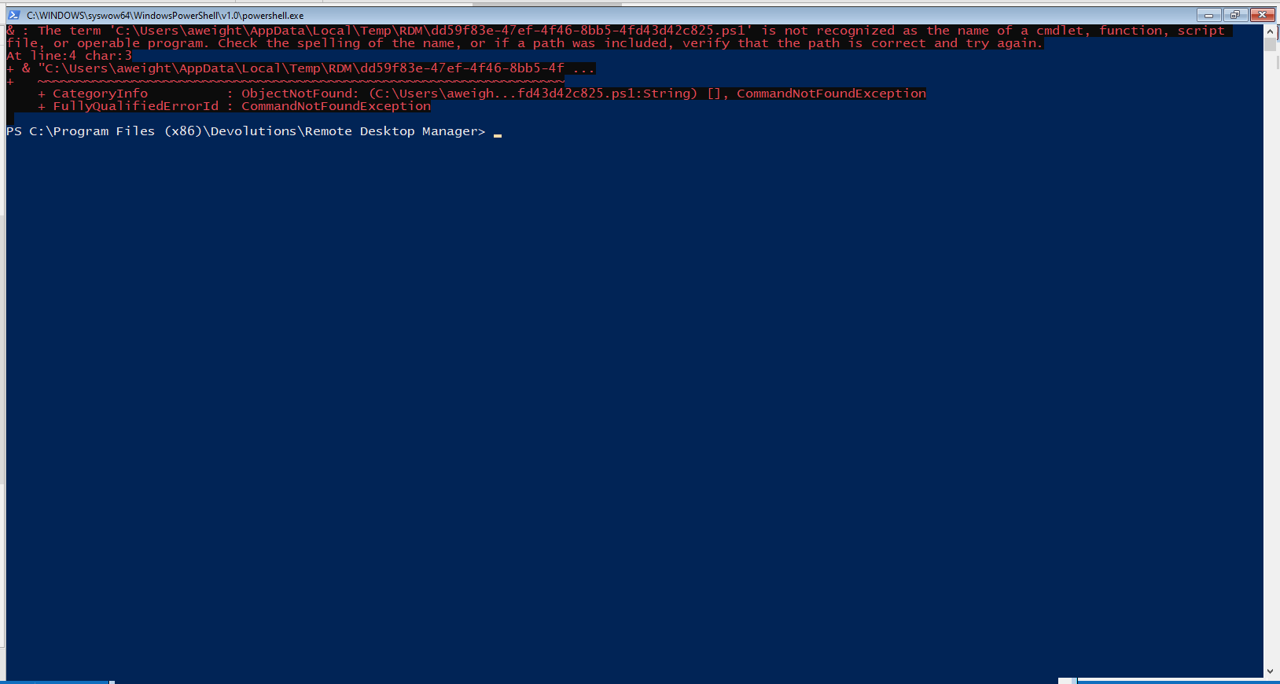
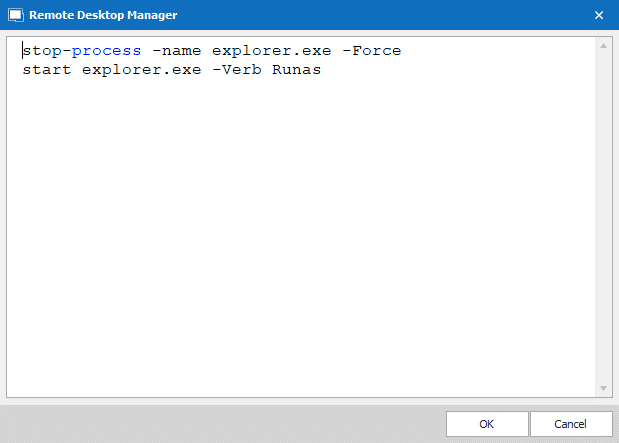
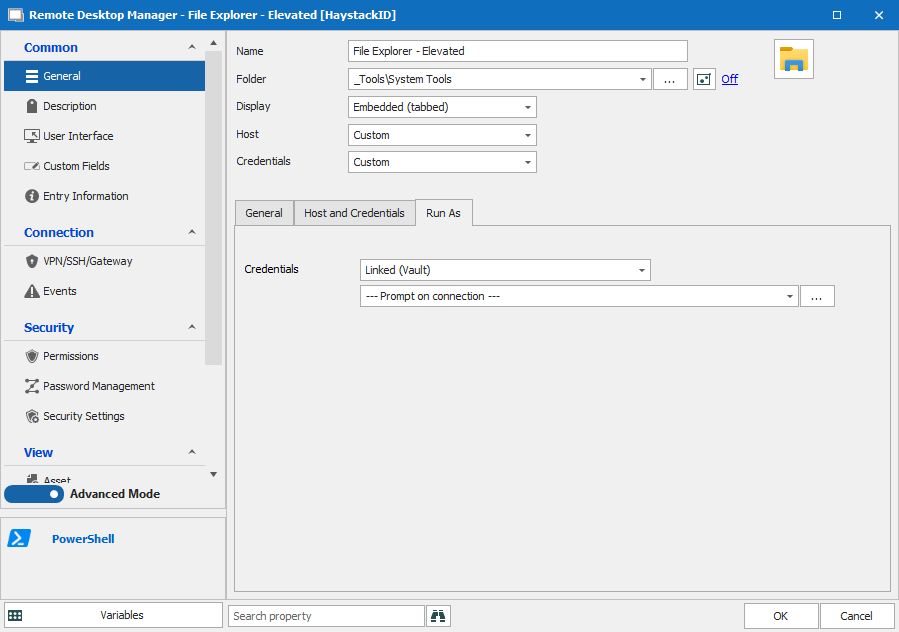
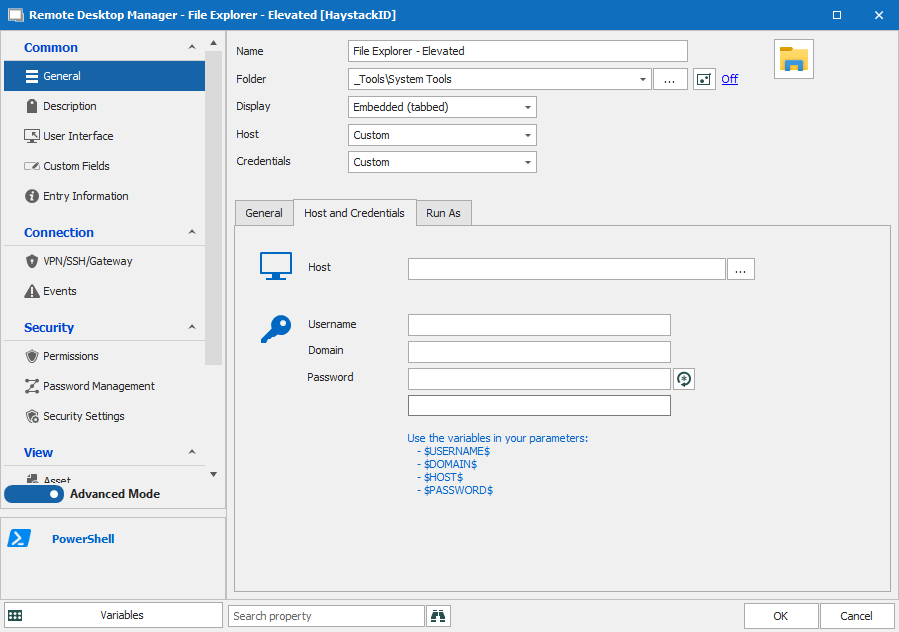
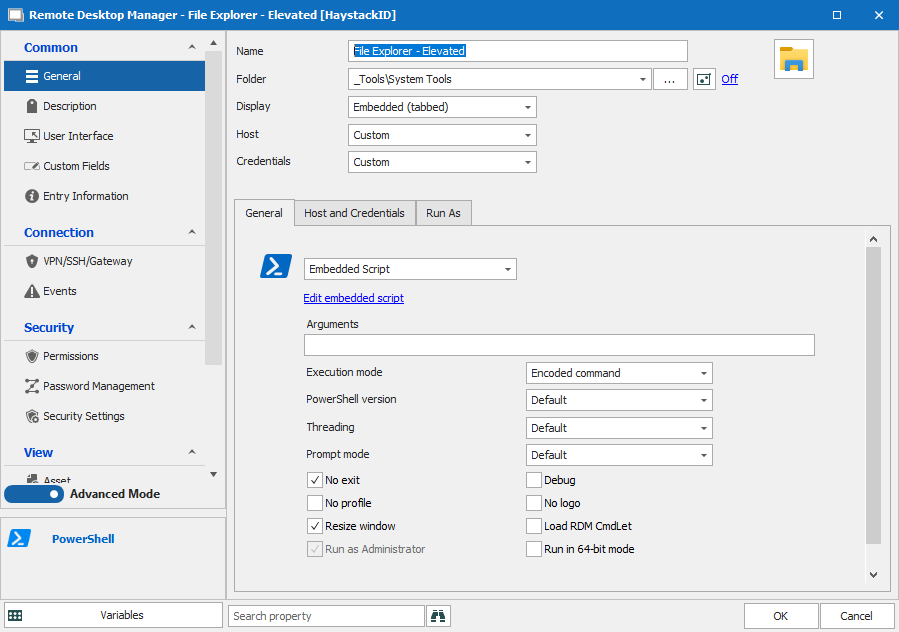 I have a PS embedded script in RDM I am trying to run which terminates explorer.exe then launches it again as admin using a credential from a repository.
When I launch the entry, I receive the error:
The term 'C:\Users\aweight\AppData\Local\Temp\RDM\54084fdc-c19f-43b8-9835-a1ce6811176f.ps1' is not recognized as the name of a cmdlet, function, script file, or operable program.
This seems to happen whenever I use the embedded script option in RDM regardless of the commands run. I can execute a single line command (not embedded script) without any issues.
I checked the directory it is pointing out, and the file does exist. Attached screenshots of configuration and error.
05 error.png
04 embedded script.png
03 Run As.png
02 Host & Cred.png
01 General.png
All Comments (10)

Hello,
Thank you for contacting Devolutions Support.
Could you please confirm your Remote Desktop Manager version and which Data Source you are using ? (Note: If Devolutions Server, which version?)
Best regards,
Eric St-Martin
The version is 2021.1.36.0
Data source is internal SQL Server database.
Hello,
Can you please remove the ".exe" from the command ? Should work after that.
Best regards,
Eric St-Martin
That does not work. I get the same error message.
Can you try removing any trailing spaces to see if it changes anything ?
Your credential entry is using Username/Password type of Entry or something else?
There is an '&' symbol causing the issue for some reason. Could you maybe also create a new one and see if it works.
The command is working on my end exactly as shown on a fresh install and an older install.
Eric St-Martin
There are no trailing spaces. As far as creating a new one, I tested that and same issue.
In addition, just as a test, I created a new one that only has one line (same line that works when not an embedded script). It still has the same error. There are no trailing or prepended spaces.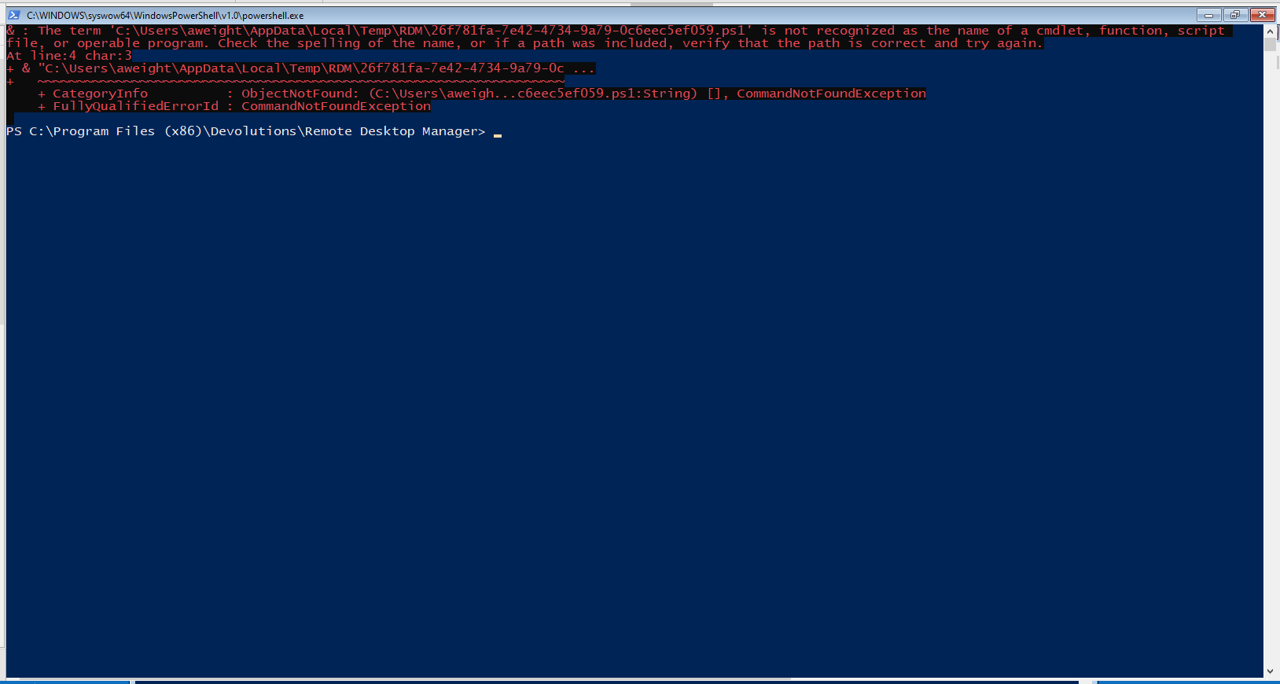
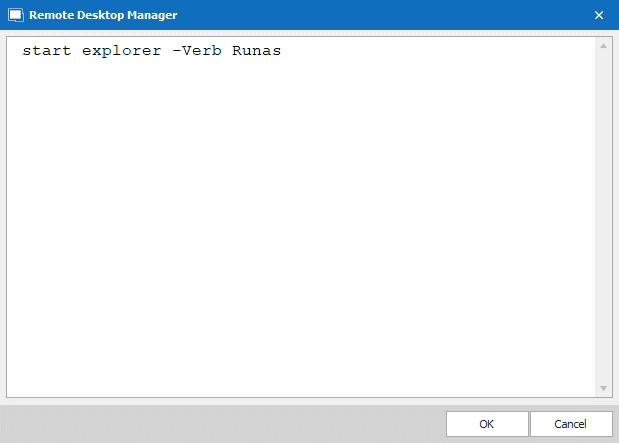
07 Still error.png
06 New command.png
This is really odd.
Could you please create a Portable version of RDM on your system and test again?
To do so, you will need to do the following:
1- Download the .zip file below: https://remotedesktopmanager.com/home/thankyou/rdmbin
2- Create a new folder on your Desktop
3- Extract the content of the .zip file into the folder created at #2
4- Go in this folder once the .zip file has been extracted and run remotedesktopmanager64.exe
5- Enter your current serial
Let me know how it goes.
Best regards,
Eric St-Martin
Update on this issue.
The portable version has the same issue. However, I found something interesting.
More Background
We are using the application to run as admin using a different account than the user logged into the machine. Normally, that works without any issues. In this setup, I have two different admin accounts (each in a different domain that has a trust setup). Both of these accounts are local admins on the machine I am running RDM on. The account I am logged into Windows and RDM with is not a local admin.
When I use one of the admin accounts to launch this script it works as expected without any issues. When I use the other admin account to launch the script is when I get the displayed error.
After realizing this, I checked the ntfs permissions on the c:\users\username folder, and found that the account that was working was specifically listed with Full Control, while the one that was not working was not listed. Even though local administrators group (which both accounts are a member of) was listed with full control, the second account did not work. Once I manually added the second admin account with Full Control to that directory, both accounts work to launch the script.
So the issue here was that the account being used to launch the script did not have security access to c:\users\username\appdata\local\temp\rdm
After working through this, it appears what I wanted to do will not work anyway. Even though I have the commands for the script running as a separate account, and a local admin, it successfully terminates Windows Explorer, however, when it launches it again it does so only under the context of the logged in user session. What I was hoping to be able to do was launch explorer with a different user account to elevate permissions within explorer for specific purposes. However, that does not appear to be possible.
I should note, that doing this with nearly any other application other than Windows Explorer appears to work correctly, and the application will run under the context of the credentials selected instead of the logged in user. But Windows explorer, does not appear to behave that way.
Hello,
Thank you for your feedback.
Indeed, the Windows File Explorer is running in the logged in user account. I get the same behaviour on a test machine, no matter the privileges the account for the runas has on the machine.
I did try it outside RDM and I get the same behaviour. Even with the Shift+click on the File Explorer icon, I cannot get the Run as different user option like I should get with other applications.
With File Explorer :
With PowerShell :
Let us know if you can found any workaround to help you start explorer.exe as another user outside of RDM. Then if it's possible, we will help you to do it in RDM.
Best regards,
Érica Poirier