How do I restore an online backup from yesterday?

All
Yesterday I rebuilt my primary workstation and prior to the rebuild - I used the online (cloud) backup feature to save a copy of my entire config - thinking it would be awesome to restore it today when I came to reinstalling RDM.
However today - after reinstalling RDM and then logging in my Devolutions acct - and clicking Backup->Restore - I do not see ANY backups at all especially the ones form yesterday which I executed three time to ensure I saved it.
I also see yesterday's backup reference when I look at my online console but there is no way to access it when I choose Restore from the program. It is a good thing I exported all my settings locally so I could import them back into this new install - but right now - this online backup feature is a tad useless without access to all my backups - when I need them?
I am using RDM Free if that makes a difference but I could not determine if it does or not. Would appreciate some guidance on how to navigate ALL my backups in a restore situation.
Thanks
Bruce
All Comments (7)
Hello,
The online backup work or save your entries when entries are modified. After enabling the online backup, did you update some of your entries or no?
I suspect that no changes we're made to the data source, so no online backup was created.
Best regards,
Jeff Dagenais
Jeff
Not following your logic on this - isn't the point of an online backup to be able to restore that backup at any time for ANY purpose? What does "updating" my entries have to do with this?
I specifically clicked Execute Backup and I can see an online backup listed (See attachment).
Should I not be able to do a backup (like this) here on May 17, 2021 
And then if I need to "restore" my RDP config next month or next year - simply go go to Backup (1) and then Restore Backup (2) and be able to choose this specific backup and have this config (and all it's bits) restored?
If I cannot access ANY backup that I have done to the cloud at any time - what am I missing about this function/feature?
I want to take a backup of my entire RDP config whenever the mood strikes and then have it stay there until I decide to remove it (or I really need it - like in a reinstall situation). Make sense?
Clearly I am not getting this - as it appears not to be a storage locker of my config backups - regardless of how many backups I take or whether they have "changed" or not. That is of no consequence to me at all.
Any further explanation would be most helpful.
Cheers
Bruce
2021-05-17_8-38-46.png
2021-05-17_8-32-46.png
Hello Bruce,
Thank you for your swift reply!
You are correct, a cloud backup can be created manually by going under File -> Backup -> Execute Backup. As mentioned by my colleague, a backup is also created when a change is made on the content of your Devolutions Online Drive Data Source, be it the creation of a new entry or a modification on an existing connection.
Since you mentioned not being able to see the backup that you created yesterday from RDM, could you please go under File -> Data Sources -> Select your Devolutions Online Drive Data Source -> Edit -> Backup -> Click on the ellipsis and ensure that it points to the right backup file? 
Also, if you head over to your Devolutions Account under the "Online Services" -> "Online Backups" section, are you able to see a list of your backup files? For quick access to this section, please use the following link: https://rdm-online-services.devolutions.com/backup
Best regards,
James Lafleur
James
When I go to the location as above - mine is very limited compared to yours:
I can (1) ID the correct data source - which looks like it's pointing in the right place (2) but I cannot click on (3). At all.
And regarding your second question - yes I can see the online backups - but I cannot do anything with them: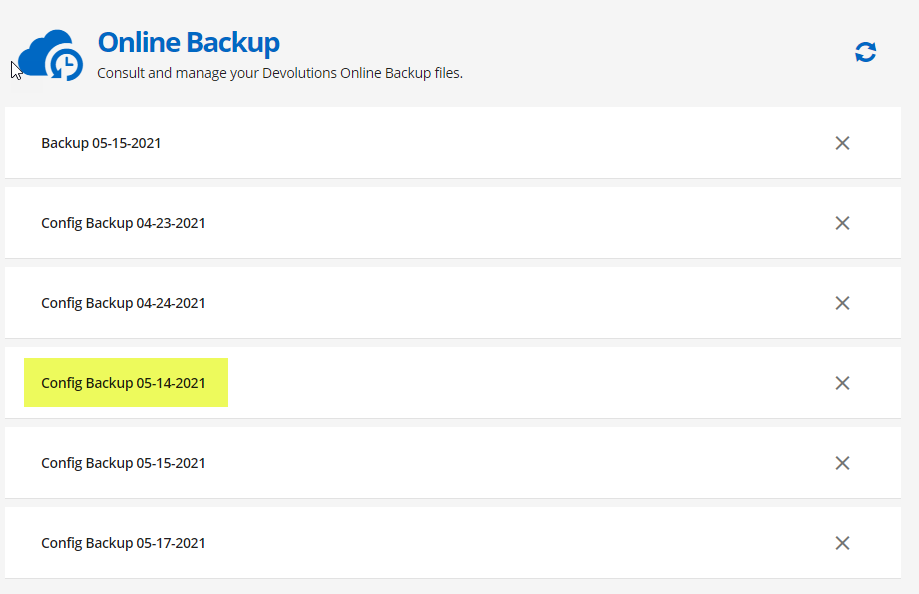
The highlighted item was the complete backup that I took just prior to decommissioning my old computer - and was the one I thought I could use - but there is no way that I see to bring that 5-14-2021 backup into the actual application.
If I switch my data source to Devolutions Online backup and then go File->Backup-View History - all I see is this:
These two backups are my first tests once I got the Online backup account sorted yesterday.
Now - I should also mention that this is the FIRST time I have ever had two data sources - so this could be part of a larger problem.
For years I have only ever had a single Local Data Source and I thought - all this time - that when I was on Local Data Source and then clicked File->Backup->Execute Backup - that this data was going to the "cloud" (My Devolutions Online Backup) as shown in this screen cap:
Or is it? Because this is the exact scenario I had on 5/14/2021 - when I hit Execute Backup three times to make sure I had three backups (even if they were all the same data)
But as the above - when I am in Local Data Store and click File->Backup-Restore - all I see this these two "test" backups done today:
I see nothing from May 14 or older...
As you can see this is a disaster in complexity and I have no idea where my actual 05-14-2021 is.
Appreciate any additional info you can share to either help me find those backups from a few days ago (Did I have an online drive previously defined under another set of credentials?) I have only ever logged into Remote Desktop Manager with my one and only account.
Cheers
B
2021-05-17_13-24-39.png
2021-05-17_13-18-15.png
2021-05-17_13-00-39.png
2021-05-17_12-56-18.png
2021-05-17_13-05-54.png
Hello Bruce,
Sorry for the confusion, in order for you to be able to press on the ellipsis button located under the "Backup" tab of your Devolutions Online Drive, you will need to do the following:
1- Go under File- > Data Sources -> General -> Select your first Devolutions Online Drive Data Source
2- Click on the "Edit" button
3- Go under the "Backup" tab
4- Click on the ellipsis button
5- Confirm that you are seeing a list of all of the backup files that are linked to your Devolutions Account (As shown here: https://rdm-online-services.devolutions.com/backup)
While I understand that you may find this situation alarming, I suspect that what you are experiencing is due to the fact that your Devolutions Online Drive data source does not point to the correct backup file. Since your backup files are shown in your Devolutions Account, it means that they are saved and that you can access them via RDM.
Best regards,
James Lafleur
James
Ok - that makes a bit more sense: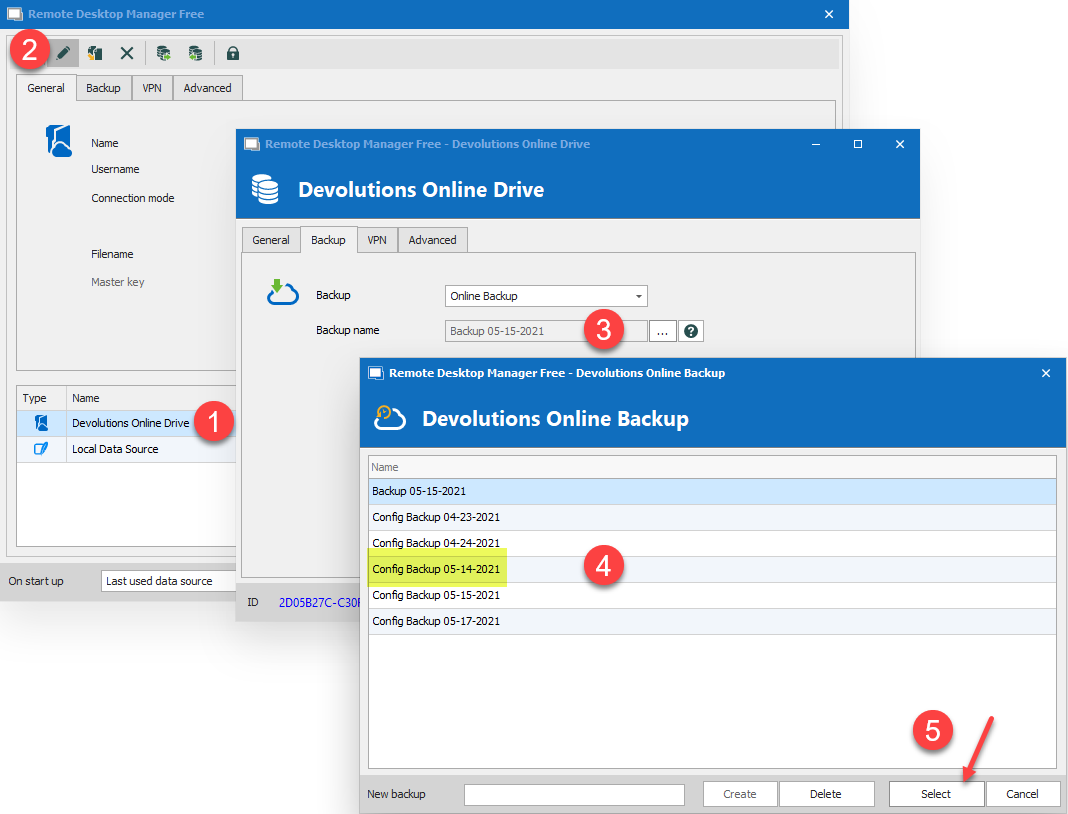
Looks if I can now at least see a reference to 05-14-2021. We are getting there!
But what should I have done at ground zero for this. And I am talking about a fresh install of a new copy of RDM on a brand new PC - what are the steps to get reconnected to this specific online backup AND use the (4) backup to completely restore my freshly installed RDM to its former glory.
Even with the above - and after confirming I can see the 05-14-2021 backup out there somewhere - I still cannot figure how I would restore it?
If I click File->Backup->Restore (while ensuring I am still squarely using the Devo Online Drive for my data source) I still do not see the 05-14-2021 backup.
Still need some steps to understand how to get a fresh install back to the way it was 2 days ago - using these online backups. And as I mentioned earlier - it's a good thing I did local exports of my creds, machines and so on - or I would still be struggling with this.
I am hoping you can see how convoluted this is for a user. I should be able to hit Backup and save ALL settings to a single file either online or on local disk in one easy pass and then be able to hit Restore (or Import) and in mere seconds be back to a working state.
Not exactly sure why this needs to be so complicated. Too many dialogs, edit buttons and other un-necessary moves to make here for a simple and easy config backup.
Thanks!
B
2021-05-17_13-52-36.png
Hello Bruce,
Thank you for your reply! I am glad to see that we are making progress.
In short, you would need to do the following to restore a specific backup on a new machine:
1- Install RDM on the new machine
2- Launch the application
3- Go under File -> Data Sources -> Add New Data Source (+) to create your Devolutions Online Drive Data Source
4- While configuring your Devolutions Online Drive Data Source, make sure to use the ellipsis button to select the correct .dod file:
5- Then move to the "Backup" tab, use the ellipsis and make sure to select the backup file that you wish to use:
7- From there, go under File -> Backup -> In this window, you should see the backup that you created:
Please note that the steps listed above are to restore a specific backup. To quicker, and much easier way, is simply to do the following:
1- Have a single connections.dod file (please note that this file can have any name you choose) tied to your Devolutions Account. Since this file contains all of your entries, you can activate the "Online Backup" feature and ensure that your data is backed up in your account.
2- If you intend on accessing these entries from another workstation, go under File -> Backup -> Execute Backup to create a brand new backup with the latest updates made to your entries (for good measure).
3- Go on your other instance of RDM, create a Devolutions Online Drive Data Source, point it to your connections.dod file and configure the online backup.
Now you will have access to your entries on both of these instances of RDM without the need of going through other steps.I hope that this makes more sense. If it is not the case let me know and I will see what can be done to clarify this process.
Best regards,
James Lafleur