Batch Edit - Web Browser Session - Proxy Tab Missing
0 vote

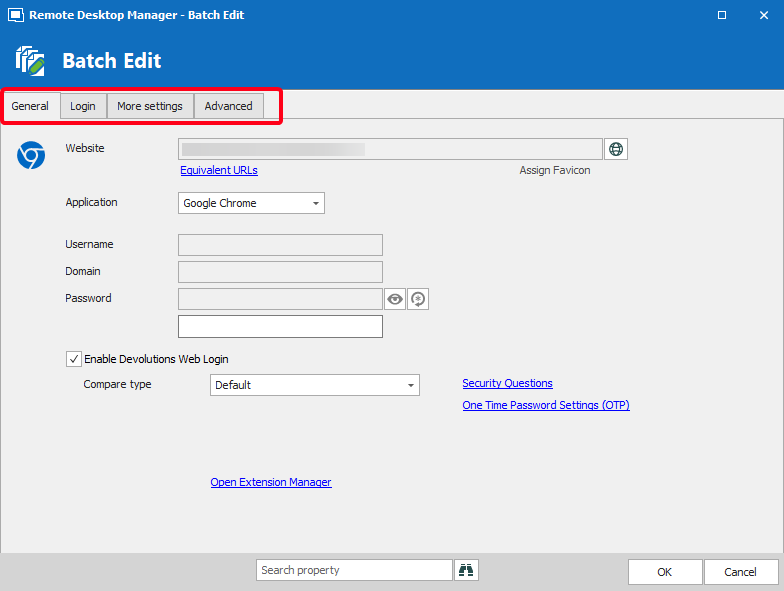
The tab for adding or editing "Proxies" is missing from Batch Edit capabilities. Can this be added?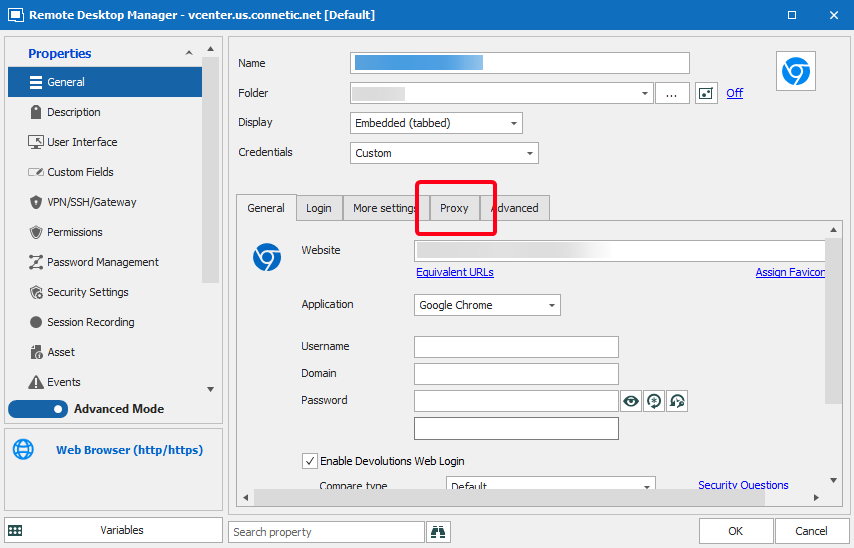
--
Eric Sakariasen
Connetic IT Support
J4h5pZrpmm.png
wUjYb7U5Fp.png
All Comments (3)
Hello,
Thank you for contacting us on that matter!
Since the "Proxy" tab is not available when doing a Batch Edit on your Web Browser entries, you could instead use the "Edit (Special Actions)" -> "Custom PowerShell Command" to make this change. For more information, please consult this link: https://help.remotedesktopmanager.com/powershell_batchactionssamples.html
Please note that I recommend testing the following on a single entry before trying to apply it to multiple entries at once. Having a backup of these entries is also recommended.
To change the Proxy settings on your Web Browser entries, you will need to select them in your Navigation Pane, then go under "Edit" -> Edit (Special Actions)
Next, choose "Custom PowerShell Command":
I took the liberty of using the method shown in the link I provided above to build a quick script that you can modify depending on the settings you wish to apply to your entries.
You can paste this script in the "Custom PowerShell Command" window. Just make sure to replace the values I have set in lines 1-4 with those you wish to use.
Here is a copy of the script to facilitate the process:
$connection.Web.ChromeProxyType = "Http";
$connection.Web.ProxyExcludedList = "Excluded";
$connection.Web.ProxyPort = "1234";
$connection.Web.ProxyUrl = "ProxyURL";
$RDM.Save();
Let me know if that helps!
Best regards,
James Lafleur
As a note, we've also opened a ticket to add the proxy tab to the batch edit window.
Regards,
Hubert Mireault
Thanks, the special action works perfect!
--
Eric Sakariasen
Connetic IT Support