Icons of a firewall are not display in RDM on a Terminal Server
Icons of a firewall are not display in RDM on a Terminal Server

When we use RDM on our Terminal Server, the icons of a firewall (Chrome) are not displayed.
Here are to pictures on the left how it look on the local machine and on the right, how it looks on the terminal server: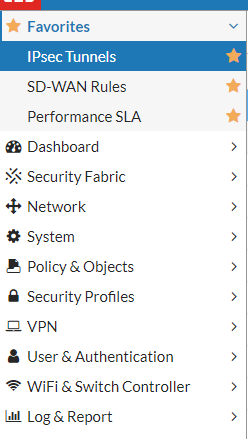
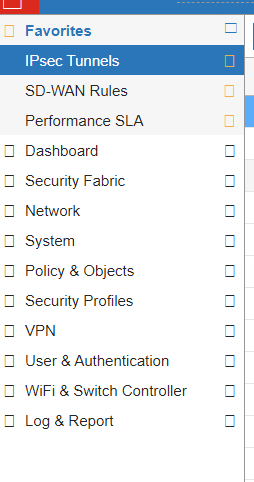
Icons.PNG
RDS.PNG
All Comments (23)
Hello,
Thank you for contacting us on that matter!
- What version of RDM do you currently use?
If you use a different version of your local machine and on the terminal server, I would like to have both.
- What is the type of session you use?
- Have you noticed this issue occurring after an upgrade or has this always been like that?
- Do you have a public URL to a site that gives you this issue so we can replicate the behavior on our side?
Best regards,
Gabriel Degrandpré
Hi
- What version of RDM do you currently use? -> 2020.3.19 (both the same)
If you use a different version of your local machine and on the terminal server, I would like to have both.
- What is the type of session you use? -> Website (Chrome)
- Have you noticed this issue occurring after an upgrade or has this always been like that? -> We just installed it on the TS (2019), and it's like that since the beginning.
- Do you have a public URL to a site that gives you this issue so we can replicate the behavior on our side? -> No but you can try any Fortigate Firewall.
My PC and the TS are in the same subnet and I don't have any issues on my PC, it's only on the TS where the icons are not displayed correctly for the web entries.
Best regards.
Patrick
Hello,
Thank you for your response.
Unfortunately, we do not currently have a Fortigate Firewall environment to attempt to replicate the issue on our end. Without being able to replicate the behavior internally, it's quite complicated to locate the cause of the issue to implement a fix for it.
From the information I have, it looks like the issue with the icons on your webpage might be a side-effect of the update we made on the third-party libraries we integrate for the embedded browsers. Unfortunately, although we integrate these third-party libraries, we have relatively little control over them so implementing improvements on them can prove difficult, especially with situations like this when we are unable to replicate the issue on our side.
That being said, I do have a suggestions that could possibly solve this problem. You could try the Internet Explorer embedded browser instead of Chrome. Since they rely on different libraries they don't always have the same limitations and can give different results.
Unfortunately, if this does not do the trick, the alternative to work around the issue will be to use an External browser.
Don't hesitate to let us know if you have any additional questions on this subject.
Best regards,
Gabriel Degrandpré
Hello Gabriel
I could give you access via Teamviewer to test it out.
The explination does not completly make sense, as we are using the exact same version on the TS and locally, so if it were a problem with the third-party libraries, it would affect both installations.
When I switch to IE, it won't work on either of the machines.
Fortigate is on of the most used firewalls, so we really need this to be working.
Please let me know, if Ican do a remote session with you, to show you.
Best regards.
Patrick
Hello,
I appreciate the offer to do a remote session. Unfortunately, I'm not certain it would help much. In this case, seeing the issue in action will not give us much more information about the issue's cause. We would really need to replicate it in our test environment to be able to get more information about the issue's origin.
That being said, I will discuss this issue with our engineering team to verify if there could be some way to investigate this issue without being able to reproduce it.
I will let you know as soon as I have more information. In the meantime, you always have the option to launch your web session in External mode to use a full-fledged browser instead of the more limited embedded browser.
Best regards,
Gabriel Degrandpré
Hello,
It looks like I replied to you a bit too quickly. I was just notified that we have implemented some improvements to our Embedded browsers that may fix this issue in the version of RDM that released this morning.
I invite you to try out RDM 2020.3.20.0 to verify if the issue has been solved or if it persists for you. You can download the installer for this version by using the link below :
https://remotedesktopmanager.com/home/thankyou/rdmsetup
Best regards,
Gabriel Degrandpré
Hi Gabriel
Installed the newest version, but still the same issue. When I open the same site on the Terminal Server, in chrome directly, everything looks good.
So I wonder what is the difference between the Server any my workstation. As on my workstation I can access the firewalls without any display problems, with exactly the same version, like on the server.
So if it just were the thirdparty libraries, why don't I have any problems on my local PC?
Hope we can find the issue.
Best regards.
Patrick
Hello,
It's really strange. Could you try embedded Firefox in RDM? It's not recommended but I would like to check if you get the same behavior with another embedded browser. By the way RDM 2021 will support embedded Edge Chromium but the relaese is only planned for Q1 2021.
Regrads
David Hervieux
Hi David
When I change it to IE, I just get an empty white site, not showing anything.
When I change it to firefox, I get a certificate error: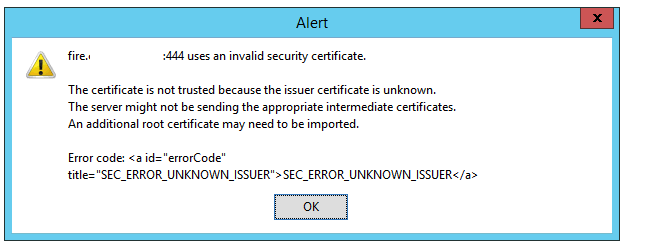
But the cert is ok and valid: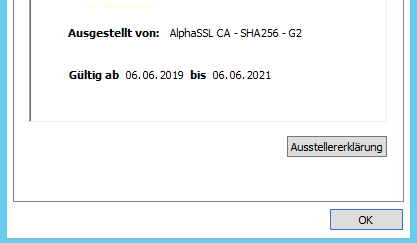
I also don't get a cert error when I open it directly in a browser on the same machine. It also works without problem on the Terminal Server if I open it in Chrome and not via RDM.
Best regards
Patrick
cert.png
invalid-cert.png
Hello,
For the certificate issue, I believe we have a few options that should help under File > Options > Security > Certificate Security.
We suspect that your firewall may act as a man in the middle, and that this could disrupt the SSL. Please go to File > Options > Security > Certificate Security to enable "Ignore application certificate errors" and disable "Check for server certificate revocation". This should normally solve this problem.
Best regards,
Gabriel Degrandpré
Hi
Did that. now I don't get any error anymore, but the page ist just loading and keeps blank.
Again, on our local machines (10) nobody has any problem connecting to these firewalls with RDM, even with the checks of the certificates. So the firewalls don't seem to be the problem. (man in the middle)
I also tested it again with Chrome, where I still can get on to it, but with the missing icons.
Best regards
Patrick
Hello,
I just received a new suggestion from our engineering team. Could you please go to File > Options > Types > Web and activate the option "Enable Plugin"? This might help with the compatibility of the site and the embedded browser on the terminal server.
Best regards,
Gabriel Degrandpré
Hello Gabriel
The Enable Plugins checkbox was already set.
Best regards
Patrick
Hello,
Regarding the missing icons on the Fortigate Firewall page in Embedded mode while on a Terminal Server, unfortunately, I don't believe we will be able to solve this behavior at the moment. Our engineering team explained to me that our hands are tied on this issue at the moment. We offered all potential solutions we could think of, but with no means to replicate the issue internally, we have no way to locate its origin. Without knowing the origin of this issue, it is in turn nearly impossible to blindly solve it. The fact that this behavior only occurs on a very specific website makes it even harder to investigate.
The recommendation we have at the moment, until we are able to replicate the issue with another website or a new update of the embedded Chrome solves the problem, is to launch this specific web session in External display mode to use the actual Chrome browser. I understand it is not ideal, but it will allow you to access the firewall page without having your icons replaced by squares.
Best regards,
Gabriel Degrandpré
Hello Gabriel
Thanks for your reply. I understand your feedback and thank you for the effort.
I just can't get my head around what could cause this. As the embedded browser normally does not differ to much from the normal one.
I can't get rid of the feeling that it's some special constellation which perhaps an engineer would see instantly in a remote session. Could we take this last straw and do a short remote session with an engineer to see if he sees something special?
We will use RDM as RemoteApp (for Remote Workers in these special times) so we can't really open it in an external browser easily.
You can tell me the time which works for you guys. I'm in GMT +1 but I'm also ready at the evening or beginning of the night (it's 22:00 here at the moment).
I would very much appreciate this last attempt.
Thanks and best regards.
Patrick
Hello Patrick,
Thank you for your swift reply and for offering us to do a remote session with you on that matter. Unfortunately, even by showing this issue to our Engineering Department, we won't be able to fix this behavior unless we are able to reproduce it on our end. The reason for this is that they need to be able to take a look at the code when this issue occurs on their end and run their tools. This cannot be achieved during a remote session.
Opening these connections using the external display remains the best solution if your users rely on these icons.
Sorry for the inconvenience.
Best regards,
James Lafleur
Hello James
Thanks for your reply. I know that it's difficult to find the problem in such scenarios, but sometimes you just assume something in an enivroment, which you would never asked about, because it's completly standard for you. When you do a remote session, you notice such things immediatly, while when you just have answers to specific questions, you never get to that.
I did some more testing, with other browser settings:
- When I use Firefox with just https (not https) it works and shows the icons.
- When I use Chrome with http it still does not show icons.
- When I use IE, it shows the login, and after that, just a blank page.
- When I use Firefox with https and set everything to ignore certificate or revocation errors. I still get the following error:
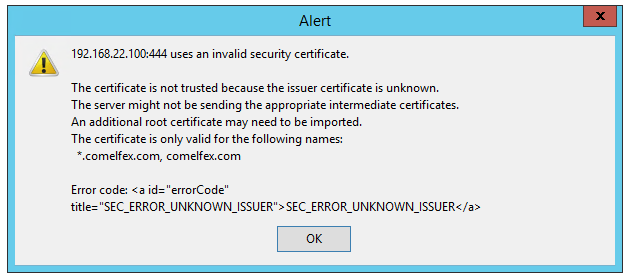
- Even if it should ignore any errors.
I think somehow the embedder browser has a problem with the SSL connection, thats why it does not load any pictures, as it considers them not to be safe.
I just don't get why Chrome with just http is not working.
It also can't be a problem on the firewall, as it's working in the separate browser and also in RDM on local PCs.
Hope that helps to get to the bottom of the problem. Are there any logs what exaclty happens?
Best regards.
Patrick
fire-error.png
Hello Patrick,
I understand. Since you are receiving a certificate error when you connect to this website, I would like to know if the fact of enabling "Ignore certificate errors" and "Ignore Certificate authentication" has an impact on this behavior: These options can be found under the "More Settings" of your Web Browser entry when it is set to use Chrome as its browser.
Let me know if that helps!
Best regards,
James Lafleur
Hi James
Did that, still no icons. I wonder why there are no icons when I access it without SSL (http) in chrome, where it should not check any certifcates at all. (it seems it still check it, or trys to load a library for the icons and can't do that, because it thinks its not secure)
But why does it work in Firefox with http?
Best regards.
Patrick
Hello Patrick,
I will discuss that matter with our Engineering Department and we will see what can be done.
Best regards,
James Lafleur
Hello James
As it is working on my local machine, but not on the Terminal Server. Is there a way, to export all my settings from my local installation and import it to the TS, so I have exactly the same settings?
Best regards.
Patrick
Hello Patrick,
In order to export the configuration of your local installation of RDM, you will need to go under File -> Options and use the "Export Options" button at the bottom left corner of the screen. You will then be able to choose which part of your configuration you wish to export and in doing so a RemoteDesktopManager.cfg file will be exported.
You will then need to replace the RemoteDesktopManager.cfg file located under the %AppData% -> Devolutions -> RemoteDesktopManager folder of your TS.
Best regards,
James Lafleur
Thanks James
Did that, but still no Icons. :-( Hope you will have another feedback regarding the SSL encryption.
Best regards
Patrick