ALT+Q execute macro

If I configure the macro on the session, and then want to execute it with the default displayed shortcut, I only get a windows "ding". Nothing happens.
Bug?
All Comments (27)
Hello,
Is the session opened or not?
Could you post a screenshot of your configuration or send us a small video of the configuration + the issue?
Best regards,
Jeff Dagenais
Jeff, session is opened of course ;-)
Video has been uploaded.
Hello,
We received the video, thanks!
I was able to reproduce the same behavior using RDP session. I opened a ticket to our engineering department so that we can have a look at it.
The ticket number is RDMW-6476.
Best regards,
Jeff Dagenais
Thanks!
Hello,
The problem with this was actually a display issue. The default shortcut for "Run typing macro" is actually "Ctrl+Shift+A".
The display issue should be fixed in the next version of RDM. In the meantime could you try again with "Ctrl+Shift+A" and see if it works?
Regards,
Michaël Beaudin
That I did, still doesn't work.
It only works if I right click the tab and select execute typing macro.
Hello,
This is quite weird when I use Ctrl + Shift + A it always works on my side. Since I cannot reproduce the issue it is quite hard to find a fix. I will forward the issue to our Quality Assurance department to see if they can help me reproduce the behavior you are getting on your side.
We will keep you updated on any updates we have regarding this issue.
Regards,
Michaël Beaudin
OK, I installed the new RDM version.
Actually, I found something else now: is it so that Typing Macro shortcut actually only works when the Macro is entered in the session itself, under Event. As "Default", and then the Macro. But not when linked to the Typing Macro object? It looks like it doesn't recognize the link as the macro, thus also not appearing in the Tab when I press right click.
But if I enter the macro like this for instance $PASSWORD${DELAY}{ENTER} under Default, then it will appear when I right click the tab.
That said: CTRL+SHIFT+A works when I have Default and it doesn't work when I link another macro.
You know what I mean? Or should I upload a video?
Hello,
Our Quality Assurance department has reproduced this issue and a new ticket has been created. We'll keep you updated on the progress with the linked macro issue.
Regards,
Michaël Beaudin
What's the status of this issue, have there been any changes to fix the issue with the link?
Hello,
This is currently assigned to a dev, but we can't give an estimate on when a fix will be available. We'll update this thread when we have an update.
Regards,
Hubert Mireault
Alright... I just discovered there might be another issue:
The CTRL+SHIFT+A is working if a credential is set to Default, and there is a password in the field.
However, if I create a username/password entry in RDM, and select that username from the Credential Repository, the macro is not used if use the shortcut, but it does work I right click the tab and select execute macro.
Thanks for the information! We've added it to the ticket, we'll try and fix both issues at the same time.
Regards,
Hubert Mireault
I believe I found another bug:
I have created a typing macro object in the same folder as a wayk session.
And it's a simple 6-digit number macro.
So I connect to the session, go right click onto macro to type it in - "execute macro".
And it doesn't work.
However, if I go into Menu Actions - Macro/Scripts, and then select the same macro and execute, it is typed.
Am I doing something wrong?
We'll take a look at this issue as well. It might be related to the other issues you found, or it could be related to Wayk directly. I'm assuming you don't reproduce the issue with the same setup but on a non-Wayk session (RDP for example)?
Regards,
Hubert Mireault
You are assuming correctly! (only reproductible with wayk sessions, not RDP or HV consoles...)
Hello,
We have made some changes internally and I believe the "Linked macro" and "Linked credential" issues should be fixed starting from the next version of RDM.
As for the issue with Wayk, I'm not sure I understand what you mean. Are you trying to right click a typing macro in the navigation treeview and execute it? If that is the case, this doesn't work for me on RDP either and I believe this is the intended behavior. If this isn't what you mean, would it be possible to send a video showing the behavior in RDP and in Wayk?
Regards,
Michaël Beaudin
Linked Macro:
There is still something wrong. Sometimes it works, sometimes not. I can't really pinpoint it, but I think if I make a change in the Macro, then it doesn't work a while? Yesterday it did not work, today I tried, and it worked. Then I changed the delay time from 300ms to 100ms, and then it didn't work any more... it simply won't type. If I use the right click context menu, it works.
Execute Macro in the same folder:
This seems to be working now. I will update if something changes.
Hello,
Would you be able to send a quick recording of the issue using the link I sent you in Private Message?
Best Regards,
Etienne Lord
Uploaded. At the beginning, when you see "nothing" happening, is where I pressed CTRL+SHIFT+A. Twice. Nothing happens.
Then I right click, and it executes. Also showing macro settings.
When I close both sessions (EXT-...) and reopen them, keyboard-shortcut macro is working again.
Hello,
Thank you for the video. We will open a new ticket and ask our QA department to try to reproduce the issue.
Regards,
Michaël Beaudin
Just now had this issue happen in this order:
I started RDM, and then started two Hyper-V sessions (I created sessions with "New" when in the Hyper-V console). Macro is working fine.
I rebooted one VM, and after reboot the macro with the shortcut did not work, I had to use it via menu.
Maybe this helps.
I believe I found the cause.
The macro will not execute if I'm not in the folder of the session (in this case Wayk sessions).
I had the tree jumping turned off, so it appeared as if it was working at times and at times not.
After I turned the option to always select in the tree, macro seems to work flawlessly again.
However, I do have another issue: in the same folder I have another macro, which simply types some text and enter. I have it set to type in the current tab. And it just doesn't work.
Not sure if I should open a new topic about this?
Aaaargh, this still ain't clean. I just had a session which again did not work. And this time I WAS in the folder. Pressing shortcut, no go, did the menu thing, works.
Hello,
For the "Current tab" issue you could indeed create another thread with a bit more information as this one is getting pretty long. When creating the new thread could you please add the information on how you are using the typing macro? Is it linked or do you execute the macro by doing "Execute macro" directly in the tree or something else? Also are you trying to execute this through a shortcut, a right click, a menu of some sort or the dashboard?
Our quality assurance department should soon try to reproduce your last issue where the shortcut is not working even after having the session selected through tree jumping. I personally never managed to reproduce this on my side so hopefully they can find the trigger to the issue.
Regards,
Michaël Beaudin
Hello,
I'm grasping at straws here but by any chance is the "Windows Key Combination" setting in your problematic session set to something other than "On the local computer"? I was able to reproduce your issue if the setting is set to "On the remote computer".
It is also possible that your default setting for this option is changed to something other than "On the local computer" through File -> Options -> Types -> RDP -> Keyboard Hook.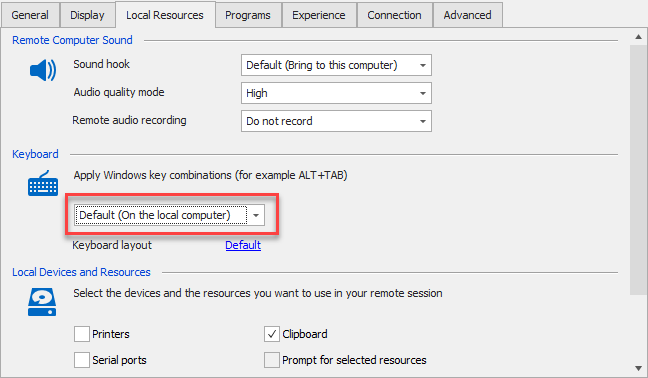
Michaël Beaudin
Macro Shortcut Issue.png
This is always set to On the local computer (and I am using Wayk session, not RDP), I've never changed it. And I checked on the two sessions I was using yesterday, both are set to On the local computer.
And no, in the Options, its also set to On the local computer.