Email Account Import

Hello, I have data for email accounts. I want to save them in "Email Account" type, but there are many. I'm trying to import. But I can't.
Any ideas?
Thanks in advance.
All Comments (8)
Hello,
Thank you for contacting us on that matter! To guide my advice, I would need a bit more information about what you are looking to do.
- Was your data exported from another program?
- What is the format of the file that contains your data?
- You mention not having been able to import your data so far. What method did you try, and what error message did you get?
Best regards,
Gabriel Degrandpré
Hi, I try reading this
https://help.remotedesktopmanager.com/importcsv_strategies.html
I also exported an entry entered on my own.
and tried to add new lines.
EntryList.csv
Hello,
Thank you for your reply! If your issue is that the wrong entry type is created, I have a suggestion to solve this issue. If you import your sessions with the help of a template, you will be sure that the proper entry type is created. If you have settings that you want to be shared across all of your entries, that can also be configured in the . This ensures that the correct entry type is imported.
You can create your template by going to File > Templates > Templates. There, you can use the + button to create a new template. Email Address will be found under the Information section.
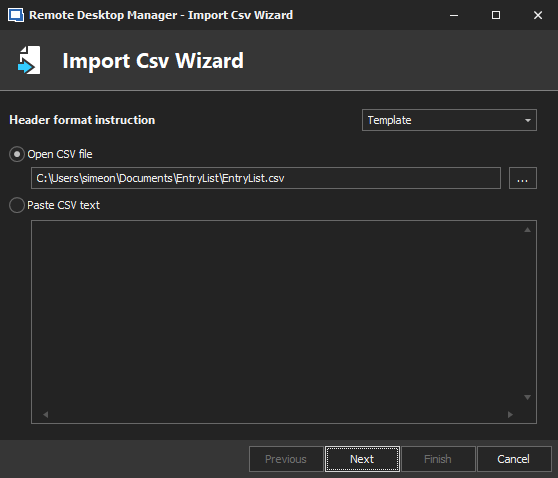
Once your template is created, you can use it in the import by going to File > Import > Import Generic Csv Wizard. Use the drop-down menu to select the Template option.
When you click on Next, you will be able to pick the template. When you click on Next again, make sure you change the "Delimitor" parameter to "Semicolon"
These settings should allow you to properly import your entries as Email Address entries.
Best regards,
Gabriel Degrandpré
Hello again.
I did what you recommended.
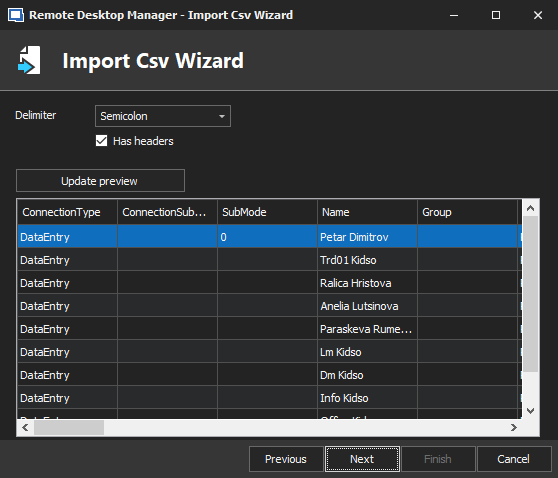
But I came to the picture RDMimport0004.
The columns in the file and the suggestions here do not match.

RDMimport0004.png
RDMimport0003.png
RDMimport0002.png
RDMimport0001.png
I'm confused.
I thought I had found a solution.
Sorry.
Hello,
You are right, I did forget one step when I described the process to import the CSV file. In your first image, RDMimport0004, you would normally need to use the + button at the top-right of the window to include additional fields to your import. That being said, it looks like the more specific fields, unique to Email Address entries, are not available. I will verify with my colleagues in the engineering department if this is something that can be rectified for future versions of RDM, and I'll get back to you with their response shortly.
Best regards,
Gabriel Degrandpré
Hello,
After a short conversation with a colleague in engineering, it turns out that I actually got a few things wrong in my instructions. I apologize for that.
First of all, when using the Clipboard Copy method to determine the names of your columns, you will want to verify if they are under the DataEntry section. If they are, their column name will need to be preceded by "DataEntry.". So, for example, the column name for EmailPOP3Port would actually need to be "DataEntry.EmailPOP3Port". 
Secondly, in the mapping window (the one in your screenshot RDMimport0004), you will need to use the + button at the top-left of the window to include additional fields in your imported entries. You will also need to select the 'Direct Property" value on the left. It should look something like that :
As a side note, as we were working on your case, we noticed that this window does not add a scroll bar to accommodate for more values than can be displayed in the window. This will be rectified in the next release of RDM.
Finally, this is more of an optional advice, but outside of an entry's name, no columns are mandatory. This means that any column without value can be left out of the CSV file. For example, if you don't plan on including Keywords in your CSV file, you can simply exclude that column in the file.
Best regards,
Gabriel Degrandpré
Thanks.
You can send me a bill for beer.
Have a nice day and a successful week.