Embedded VNC: Incompatibility with latest TigerVNC server (1.10.1)
Embedded VNC: Incompatibility with latest TigerVNC server (1.10.1)

Hi,
the embedded vnc client has some incompatibility with the latest version of TigerVNC Server. The problem can occurs in different ways, but the outcome is the same: RDM lost the focus from the tab where the VNC connection is, and the focus is put on the Dashboard tab. The VNC connection tab stay opened, but it has an empty black screen inside. You need to disconnect and recconnect twice before seeing again the remote machine.
I was able to reproduce the issue on a Ubuntu Mate 20.04 virtual machine, with TigerVNC 1.10.1 installed. The problem can be recreated for example by maximizing/minimizing a windows.
The problem occurs only with the Embedded VNC viewer and a version of TigerVNC server greater than 1.9; UltraVNC or the TigerVNC viewer don't have this problem.
The problem occurs also with others Ubuntu versions and desktop enviroments.
I can share the VM if it could be usefull. I'm using the latest stable version of RDM.
Thanks.
Regards.
All Comments (46)
Hello Raptor,
Thank you for contacting us on that matter!
Since you are willing to provide us a VM to test this issue, I took the liberty of opening a support case on your behalf in our ticketing system.
Through the ticket DEVO-23194 you will receive an email with a secure link that will allow you to provide us this VM securely,
Thank you for your collaboration!
Best regards,
James Lafleur
Hello,
Our Engineering Department just informed me that they have found a fix for this issue and that it should be available in RDM 2020.2.17.
Best regards,
James Lafleur
Hello,
on the latest version of RDM this exact same bug (windows minimization/maximization) appeared again after it was fixed in a previous version. The only difference, this time, is that the VNC window says "Connection Lost, trying to reestablish connection". This problem also occurs in other situations; the are a lot of regression in the compatibility with TigerVNC server compared to the previous RDM major release.
Thanks.
Regards.
Hello Raptor,
Thank you for reaching back to us on that matter!
I have opened a ticket with our Engineering Department in order to see what might cause this error on the latest version of RDM.
I will be in touch as soon as there will be an update on this.
Best regards,
James Lafleur
Hello Raptor,
According to the tests we have made on our end on a server Tigervnc 1.10.1, everything seems to work fine.
For this reason, could you please tell us which arguments you are using to launch your server?
Best regards,
James Lafleur
Hi,
the same problems occur both on Ubuntu 18.04 with LXDE and Ubuntu 20.04 with Mate.
Below how the server is started in both machines:
/usr/bin/vncserver -depth 24 -geometry 1920x1080 -X509Cert /PATH_TO_CERT/cert.pem -X509Key /PATH_TO_CERT/privkey.pem -SecurityTypes X509Vnc :1
the xstartup file for Mate:
#!/bin/sh

# Uncomment the following two lines for normal desktop:
unset SESSION_MANAGER

xrdb $HOME/.Xresources
xsetroot -solid grey
vncconfig -nowin &

# Fix to make GNOME work
export XKL_XMODMAP_DISABLE=1
/etc/X11/Xsession

exec /usr/bin/mate-session
and the xstartup file for LXDE:
#!/bin/sh

xrdb $HOME/.Xresources
xsetroot -solid grey
vncconfig -nowin &

# Fix to make GNOME work
export XKL_XMODMAP_DISABLE=1
/etc/X11/Xsession

lxterminal &
/usr/bin/lxsession -s LXDE &
Hello,
Thank you for your quick reply!
I will transfer this information to our engineering department an get back to you shortly.
Best regards
James Lafleur
Hello,
any update on this bug?
I just tried the latest RDM version and the bug i reported a month ago seems to be solved. Unfortunately in this new version the automatic resize of the embedded VNC window is not working anymore.
Attached you can find an image which shows two lateral black bands; in RDM 2020.2 series the automatic resize was working correctly and all the tab space was filled by the remote VNC desktop (no lateral black bands).
Thanks.
Regards.
No Resize.png
Hello,
As per I can see, the ticket is still under investigation. I will have a chat with our engineering department on our return January 4th 2021.
Sorry for the delay regarding this thread.
Best regards,
Jeff Dagenais
Hello,
any update on this bug?
I just tried the latest RDM version and, still today, the automatic resize of the embedded VNC window is not working (black bands on the side of the screen).
I have a Ubuntu Mate 20.04 virtual machine, with TigerVNC 1.11.0 installed, which i can share to reproduce the problem.
Regards.
Hello Raptor,
Thank you for confirming that this issue persists on the latest version of RDM.
At the moment we do not have an update to provide on that matter. That being said, I have raised the priority of this ticket and informed the Engineering Department. We will be in touch as soon as we will have more details on this.
Best regards,
James Lafleur
Hello Raptor,
I just wanted to provide you a quick update on this case. Our Engineering Department has been trying to reproduce this issue on our end using the VM you have provided us but unfortunately, everything works properly for us so far.
Would it be possible that this issue could be caused by a connection issue on your end? Do you experience the same problem if you connect from another workstation? Does the same thing also occur if you are in another network?
Best regards,
James Lafleur
Hi,
i have this problem with different workstation, connecting to different TigerVNC server using different connections.
Below what i see with RDM 2021.1.38.0:
and below what i see with an older version of RDM (2020.2.20.0):
As you can see, in the new version of RDM automatic resize doesn't work. Both image are taken on the same machine with the VM provided.
This bug was fixed in 2020.2.20 but then there was a regression somewhere with 2021 version i think.
I can create a video which show the problem if needed, and share the two portable RDM i used to create the image above.
Regards.
Old RDM.PNG
New RDM.PNG
Hello Raptor,
Thank you for your quick reply!
I will transfer this information to our engineering department and get back to you shortly.
Best regards
James Lafleur
Hello Raptor,
Our Engineering Department just informed me that in the next update of RDM, the option "Smart resize" will be added to the VNC entry. It will resize the session without reconnecting it. Please note that this new option will only be available on the servers that are compatible.
Best regards,
James Lafleur
Hello,
thanks for adding the new smart resize feature. Unfortunately in the latest 2021.2 version the connection to a TigerVNC server with SecurityTypes X509Vnc is not working (Cloud not connect error).
You can recreate this problem with the VM i provided to you by launching the VNC server with these parameters:
/usr/bin/vncserver -depth 24 -geometry 1920x1080 -SecurityTypes X509Vnc :1
With the previous major RDM version (2021.1) this problem is not present.
Thanks in advance.
Hello,
Thank you for your reply!
I will transfer this information to our engineering department and we will see what can be done.
Best regards
James Lafleur
Hello,
any update from the engineering department? The problem is still present on the latest versione (2022.1.21.0).
Regards,
Hello Raptor,
Thank you for reaching back to us on that matter.
Since this issue persists with the latest update, would it be possible for you to use the "External" display instead and see if the same issue occurs? We are currently reworking our VNC integration and until this is done, I suspect that using the "External" display will allow you to connect.
Best regards,
James Lafleur
Unfortunately TigerVNC encryption is only available on the embedded VNC client; none of the external one support it.
Any information on when the reworked VNC integration will be available?
Thanks.
Hello,
We currently have a developer working on this specific issue.
Regards
David Hervieux
Hello,
in the latest version (2022.1.27.0) the problem is almost fixed. There is only one issue left: the resize is not automatically "triggered" when the VNC session is opened, but only, for example, when:
- The dimension of RDM windows is changed;
- The RDM option page is opened;
- The VNC tab is undocked and then docked again.
I have both the "Smart Resize" and "Scaled" setting enabled for the VNC session.
This remaining issue imply that when you connect to the VNC server you can get the remote session with the wrong resolution, which create the "black bands" like in the image below: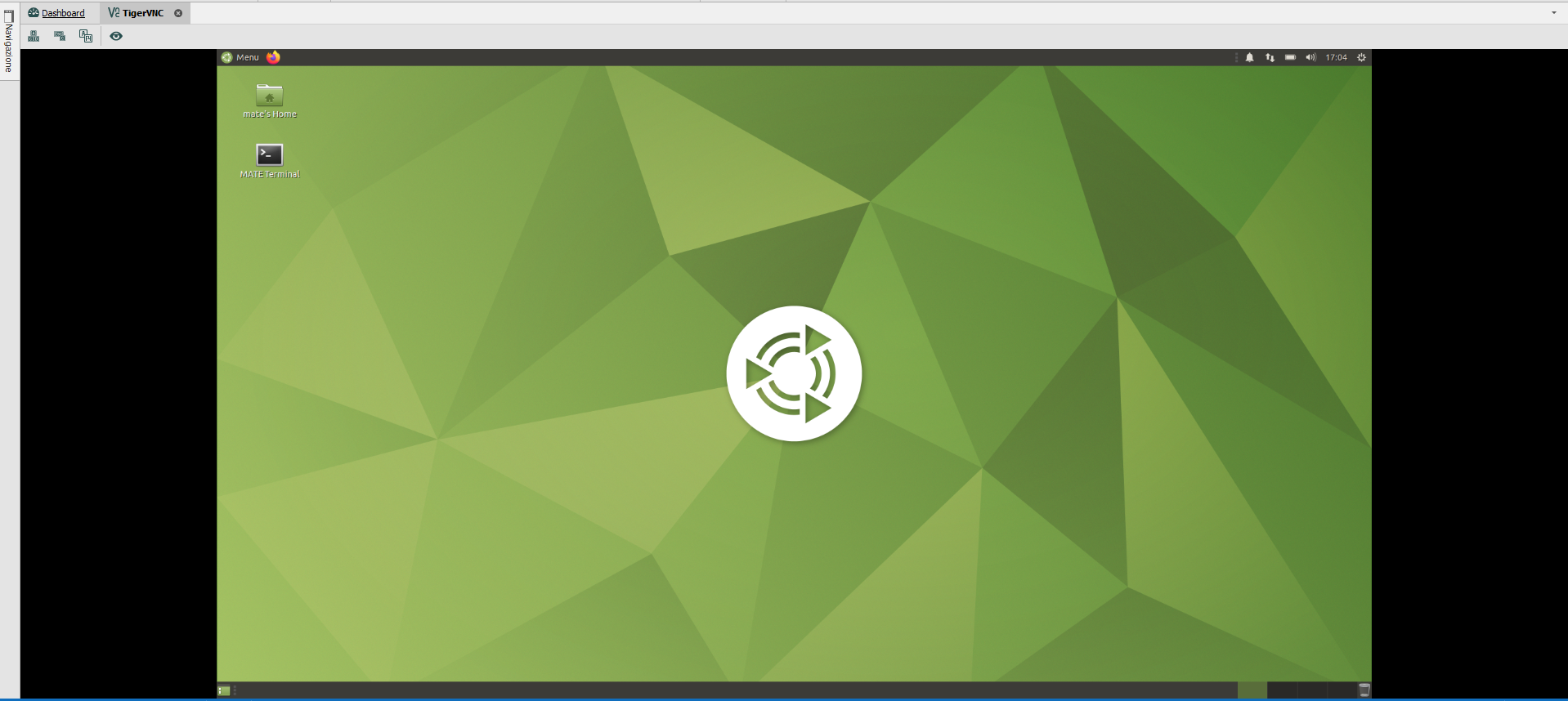
Performing one of the action above "trigger" the resize and the screen is displayed with the correct resolution:
Regards.
After Manual Action.PNG
At Connection.PNG
Hello,
Thank you for your quick reply!
I will transfer this information to our engineering department and get back to you shortly.
Best regards
James Lafleur
Hello,
any update on this? On the latest version the problem is still present.
Regards.
Hello,
The ticket is still being looked at by the engineering team, I have asked the engineer for an update.
Best regards,
Richard Boisvert
Hi Raptor
My apologies for not getting back to this before. There were a few issues conflated within this forum thread, and your last update regarding the resize slipped past me.
I've done some investigation on my side and I understand the problem. I'm preparing an update for our VNC integration currently and aim to fix this issue. I'll post back here once the fix is integrated.
Thank you for your patience,
Richard Markievicz
Hi Raptor
RDM 2022.3.21 has an update to our VNC integration that I believe fixes this issue. Please don't hesitate to post back if you have further questions or problems. I apologize again for the delay on this.
Thanks and kind regards,
Richard Markievicz
Hello Richard,
thanks for the new features and fixes. There is still one issue left regarding the "resize on VNC connection". The horizontal space of the available VNC tab is not calculate correctly by RDM; i belive it takes into account all the horizontal size of the screen even if the real availble VNC tab size is lower.
Take these two image as example. The first one is the result of the autoresize on VNC connection, the second one is obtained after the first one by setting RDM to window mode and then to fullscreen again.

As you can see from the toolbar on the top right, the first image is missing a lot of the horizontal screen of the remote host desktop.
Regards.
Hi Raptor
Thanks for the feedback and apologies for this still not working quite right.
That said, I just made a quick test and couldn't reproduce the problem on my side.
I'm running an Ubuntu VM and I startup Tiger like this: `vncserver -localhost no -geometry 1920x1080`.
Note that my desktop (client) display is also 1920x1080, so the available client area in RDM is quite a bit smaller than the VNC geometry.
If I connect without scaling or smart resize, I confirm that the VNC server is giving me the 1920 x 1080 resolution (with scrollbars, of course).
If I connect with smart resize, the display size is initially too large but then then immediately resizes without me needing to do anything.
I'm not sure why this is different in your case.
Can you generate a log file for me? In Options > Types > Others, you can choose "Enable Logging for ARD and VNC". Provide a path to a log file (e.g. c:\users\richard\desktop\vnc.log) in the associated path box. You'll need to restart RDM for the setting to take effect.
Now, try your session again - you should have a log file which you can send to us. Either send by PM directly to me, or email to support@devolutions.net (mentioning this forum thread in the email).
The other information that might be relevant is the scaling settings for your client (Windows) display, if you have a high DPI screen.
If you have any questions, please let me know.
Kind regards,
Richard Markievicz
Hello again
Thanks for sending the log file over.
When I compare our respective logs, I see that in my case; RDM requests a desktop resize immediately after starting the connection (the expected behaviour if the remote frame buffer doesn't match the client dimensions).
In your case, the desktop resize request doesn't happen until you resize your client manually.
It doesn't tell us much more than we already know, except this is clearly a bug - it's possibly a timing issue that doesn't transpire on every system. I will take a detailed looked at this next week and post back once I have it figured out.
Thanks, and sorry again for the inconvenience
Richard Markievicz
Hello again
I worked on this but I wasn't able to reproduce the issue. I believe it's a timing problem: when the renderer is instantiated, it resizes itself a number of times to fit into the client area inside RDM. When we resize the client area, we post the "desktop size changed" message to the VNC server. However - the message won't be accepted until shortly after the connection is established and the server advertises the extended desktop size capability.
I can envisage a case where your connection is being established slightly slower than in my tests; meaning our "resize" messages are not ready to be accepted by the time we send them.
To that end, I've modified the logic slightly to account for the scenario. I don't know if it will fix the issue; but I'll post back here once the changes are available in RDM and if there's still a problem we can iterate on it further.
As always, let me know if you have any further questions or comments
Kind regards,
Richard Markievicz
Hello
Sorry for the delay on this. Can you tell me if the issue persists with the latest RDM release (2022.3.27)?
Thanks and kind regards,
Richard Markievicz
Hello,
the problem is fixed on the lastest version.
Thank you very much for the support!
Regards
Hey together,
we have the same issue with the black screen!
Also Tiger VNC, version 1.11 and the VNC with RDM Manager.
And after connect just a black screen. With Movement ob the Tab we can see some pixels but not all, and reconnect doesn't help much.
With VNC Client we can connect without problems.
We have the newest version.
I think the problem is not solved.
Hello
I'm sorry for the inconvenience.
I'd like to try and recreate your configuration to try and reproduce the issue.
Can you confirm what you have configured for the VNC Application on the connection? Is it Default ((FreeVNC) or something else?
What's the OS on the remote system (the TigerVNC server)? Can you share your vncserver configuration (e.g. the command you use to launch the VNC server).
Finally, a diagnostic log file might help. In Options > Types > Other, you can specify a path to a file for ARD and VNC Logging. Restart RDM and relaunch your connection, you should get a log file on the path you configured which you can send either by PM or to support@devolutions.net (quote this thread in the message so it finds it's way to me easily).
Thanks and kind regards,
Richard Markievicz
Hi,
thanks for fast answer!
FreeVNC is in use, yes.
OS of remote System: Debian Linux
FreeVNC is configured.png)
Finally, a diagnostic log file might help. In Options > Types >
Other, you can specify a path to a file for ARD and VNC Logging. Restart
RDM and relaunch your connection, you should get a log file on the path
you configured which you can send either by PM or to
support@devolutions.net (quote this thread in the message so it finds
it's way to me easily).
Here you can see just the black screen....png)
and when we move the window you can see the following:.png)
And in PM message you get log file! Thank you
MicrosoftTeams-image (27).png
MicrosoftTeams-image (26).png
MicrosoftTeams-image (25).png
Hi Max
Thanks for the update. I'm going to work on reproducing your setup on my side.
In the meantime, one thing you could try to test for me is adjusting the geometry of the session. How do you launch the vncserver? It has an odd resolution (3840x2009). Could you try making the height a power of two (for example, 3840 x 2160)? I'd be surprised if it changes something but it' s possibly an issue.
Thanks and kind regards,
Richard Markievicz
That being said, I just tried that scenario (3840x2009) and it worked well for me on Ubuntu with both smart resizing and scaling modes.
Can you share your `vncserver` command that's used to start the server? (And anything else relevant to establishing the VNC server, for example the xstartup file)
Thanks and kind regards
Richard Markievicz
Do you mean this settings?
# Uncomment the following two lines for normal desktop:
unset SESSION_MANAGER
unset DBUS_SESSION_BUS_ADDRESS
#. /etc/X11/xinit/xinitrc
/usr/bin/mate-session
[ -x /etc/vnc/xstartup ] && exec /etc/vnc/xstartup
[ -r $HOME/.Xresources ] && xrdb $HOME/.Xresources
xsetroot -solid grey
vncconfig -iconic &
x-terminal-emulator -geometry 80x24+10+10 -ls -title "$VNCDESKTOP Desktop" &
x-window-manager &
Hello again
Yes, thank you. Do you also have a `~/.vnc/config` file?
How do you launch the VNC server? Is it done manually (by running `vncserver`) or it starts automatically like a service (for example, by systemd)?
Thanks and kind regards,
Richard Markievicz
Hi Richard,
no config file we use.
The VNC server starts automatically like a service with systemd.
This is the command which we used for implementation:systemctl enable --now tigervncserver@:1.service
Hope this helps
Hello again
Thank you. I'm eager to know the `vncserver` command used to start the server so I can recreate the environment here. Since you launch the VNC server with systemd, it should be in the the systemd unit file.
I don't know where that is on your system or what it's called, but it's likely in either /etc/systemd/system or ~/.config/systemd/user.
You can also try to ask systemd for the location of the file: `systemctl status tigervncserver` or `systemctl cat tigervncserver`.
The .service file will look something like this:
[Unit]
Description=Remote desktop service (VNC) for :0 display
Requires=display-manager.service
After=network-online.target
After=display-manager.service

[Service]
Type=simple
Environment=HOME=/root
Environment=XAUTHORITY=/var/run/lightdm/root/:0
ExecStart=x0vncserver -display :0 -rfbauth ~/.vnc/passwd
Restart=on-failure
RestartSec=500ms

[Install]
WantedBy=multi-user.target
Note the `ExecStart` command, which is what is used to launch the vncserver.
Please let me know if something is not clear.
Thanks and kind regards,
Richard Markievicz
Here my answer:
cat /lib/systemd/system/tigervncserver@.service
# The tigervncserver service unit file
#
# Quick HowTo:
# 1. Add a user mapping to /etc/tigervnc/vncserver.users.
# 2. Adjust the global or user configuration. See the
# tigervncsession(8) manpage for details. (OPTIONAL)
# 3. Run `systemctl enable tigervncserver@:<display>.service`
# 4. Run `systemctl start tigervncserver@:<display>.service`
#
# DO NOT RUN THIS SERVICE if your local area network is
# untrusted! For a secure way of using VNC, you should
# limit connections to the local host and then tunnel from
# the machine you want to view VNC on (host A) to the machine
# whose VNC output you want to view (host B)
#
# [user@hostA ~]$ ssh -v -C -L 590N:localhost:590M hostB
#
# this will open a connection on port 590N of your hostA to hostB's port 590M
# (in fact, it ssh-connects to hostB and then connects to localhost (on hostB).
# See the ssh man page for details on port forwarding)
#
# You can then point a VNC client on hostA at vncdisplay N of localhost and with
# the help of ssh, you end up seeing what hostB makes available on port 590M
#
# Use "nolisten=tcp" to prevent X connections to your VNC server via TCP.
#
# Use "localhost" to prevent remote VNC clients connecting except when
# doing so through a secure tunnel. See the "-via" option in the
# `man vncviewer' manual page.
[Unit]
Description=Remote desktop service (VNC)
After=network.target
[Service]
Type=forking
ExecStart=/usr/libexec/tigervncsession-start %i
PIDFile=/run/tigervncsession-%i.pid
SELinuxContext=system_u:system_r:vnc_session_t:s0
[Install]
WantedBy=multi-user.target
Hello again
Thank you for the reply. My apologies for all the questions - I'm not usually a Linux / systems guy, my position is more on the VNC client side integration. Like I said, I'm eager to reproduce your setup to try and discover the cause of the issue.
I see that systemd is starting the tigervncsession binary. So, based on the documentation the configuration I want to see is split across multiple files (although they don't all need to exist)
/etc/tigervnc/vncserver-config-defaults
/etc/tigervnc/vncserver-config-mandatory
We already established that you don't have a $HOME/.vnc/config file.
Hopefully this is the last piece of information I need to recreate your setup.
Thanks for your patience, and please let me know if something is now clear
Kind regards,
Richard Markievicz
Hello Richard,
here you have the 2 files which was left
Sorry for delay!
Greetings , Max
vncserver-config-mandatory
vncserver-config-defaults
Hello Max
Thanks for the update. I will work on reproducing the issue here and post back once I have some results.
Thanks for your patience, and kind regards,
Richard Markievicz