Command Line entry RunAs not working

After reading several forum topics I still can't get RunAs on a command line working.
I want to add a command line item, in this case "%windir%\explorer.exe \\share\folder". The \\share\folder is in a different AD Domain so I want to run this as a different user. I have created a credential entry in my private vault with my Admin username and password of that specific domain.
(see image1 below) So I created a new entry and under General settings I set:
- "%windir%\explorer.exe" as value of the Run field
- "\\share\folder" als value of the arguments field
- selected my private vault entry in the credentials field
I already tried this:
- (see image2) Under General->Run As tab changed to current session (I could not select credentials from my private vaulte here);
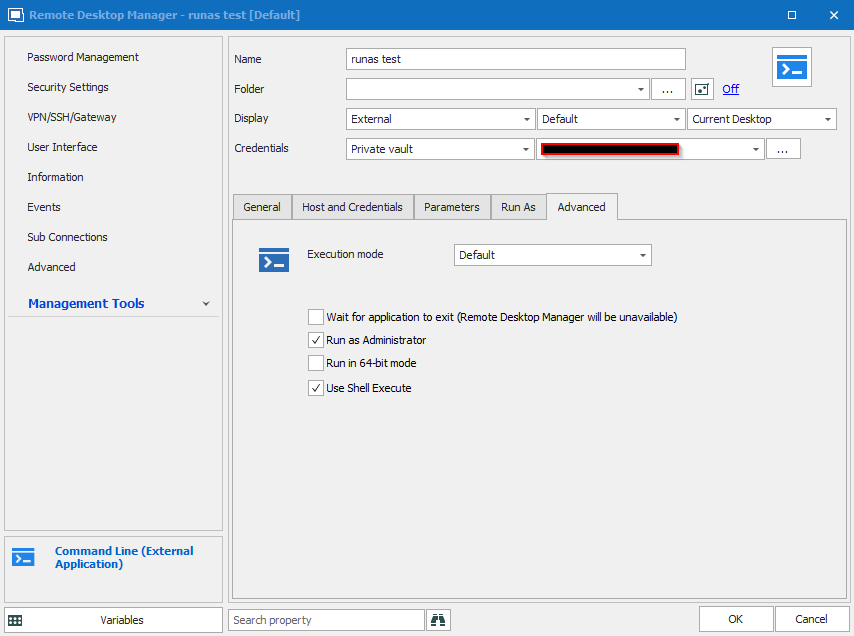
- (see image3) Under Management->Tools changed Credentials to Use Session Credentials (I could not select credentials from my private vaulte here either);
Although I tried all of this, I still can't get access to this folder.
To wrap all above things up, see screenshots below: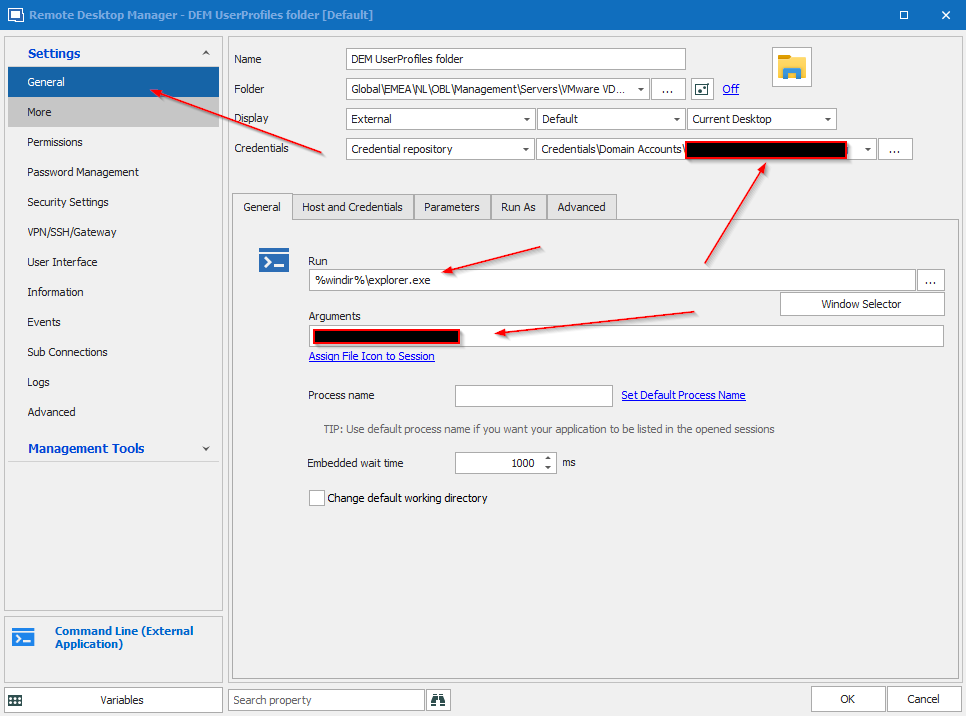 image1
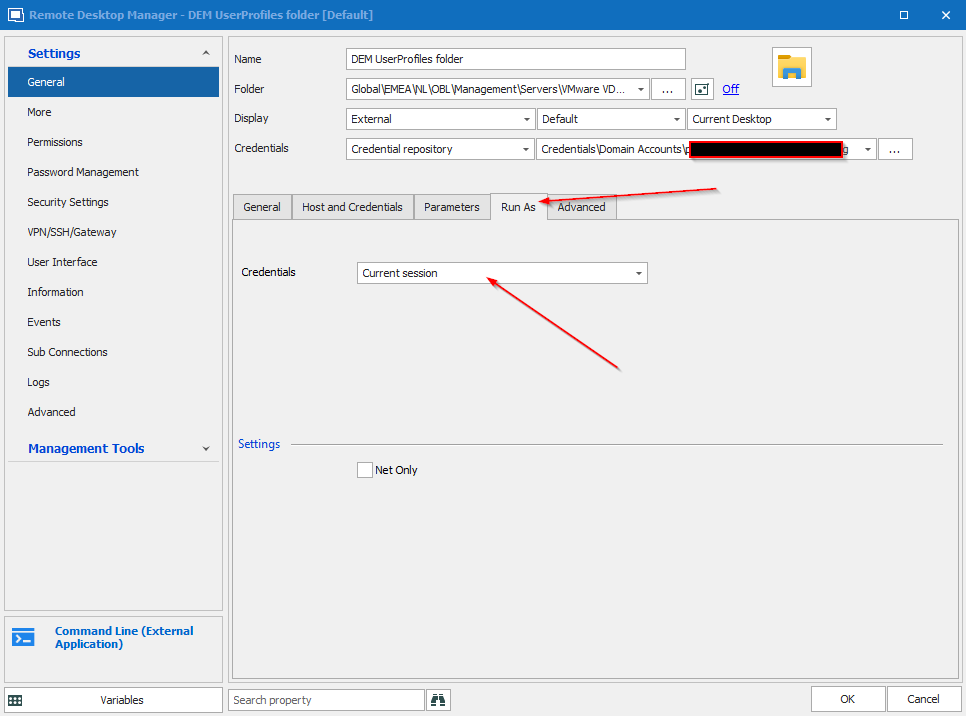 image2
 image3
How to setup this entry?
I also want to know which session type should I use? Command Line (External Application) under miscellaneous or Command Line under Macro/Script/Tool?
Issue 03.png
Issue 02.png
Issue 01.png
All Comments (11)
Can you please try checking NetOnly?
Stéfane Lavergne
Hi,
Tried that without any luck.
Hi Jasper,
Sorry to jump in but I had a chat with Stefane and I think you might give a try to the File Explorer entry.
I tested a File Explorer entry, which can be run embedded or external. The configuration is simple, you have the UNC path (which is the field Folder). After you add the host and the credentials, you want to connect as (Run as).
Let me know if that works.
Regards,
David Grandolfo
file_explorer.png
Thanks for that. I changed this specific entry with success.
Still I have this issue with the command line entries.
For example: I created a Command Line entry which runs CMD.EXE. When I execute the entry the command line is opened but when I enter Whoami I still get my username and domain back of the account that's logged on to Windows and not the one specified in the entry.
Hi,
Good news that the File explorer solve the need. To use Run As for CMD.exe please have a look at https://forum.devolutions.net/topics/30639/runs-as-tab-in-the-user-specific-settings#124137
Run as is so powerful but it's complexe to integrate with any tools.
Regards
David Grandolfo
That worked but this doesn't works as it should be in my opinion and I can't figure out why:
cmd /k mmc %SystemRoot%\system32\dsa.msc /SERVER=server.domain.local
Although I chekcke the Run As Administrator box it still shows the UAG elevation prompt. I run this with credentials from a different domain.
Hi,
The Run as administrator is an elevation which run automatically the local administrator (or domain) account. If you want to connect with an account from another domain you have to add the /netonly command after the cmd.
Regards,
David Grandolfo
Hi David,
Thanks for your reply. Excuse me for the long reply but I've still not found a good solutions for running MMC as a different account from a different domain.
While investigating this issue I followed this article: https://help.remotedesktopmanager.com/tipsandtricks_runas_manualrunas.html.
I was able to make it work with this command:
"%systemroot%\system32\runas.exe" /netonly /user:$USERNAME$ "cmd /k"
But still no luck with the MMC command. This is my Run command which still fails:
"%systemroot%\system32\runas.exe" /netonly /user:$USERNAME$ "cmd /k mmc %SystemRoot%\system32\dsa.msc /SERVER=server.domain.local"
The password is entered perfectly but when MMC is executed, UAC is still popping up with the question "Do you want to allow the following program to make changes to this computer?"
So I took a different approach.
First of all I disabled UAC.
I'm on Windows 10 and I found out that running this command directly in Windows RUN window will not work either. When opening a non elevated CMD window will not work either. When I lookup CMD in the Windows Start Menu, Right click on it and select Run As Administrator I get an elevated CMD window. It works when I run the command above from there.
So I changed the entry to this and would expect to succeed:

So Far So Good. An elevated CMD window is opened when I run this entry.
When I manually paste the following command into this CMD window it executes as it should:
"%systemroot%\system32\runas.exe" /netonly /user:$USERNAME$ "mmc %SystemRoot%\system32\dsa.msc /SERVER=xxxx.xxxxx.xxx"
In my opinion just one little step more to automate this from RDM. I thought that entering this command in the typing macro would be the solution. So I changed the entry to this:
And this is where it fails. The RDM typing macro will not work in the elevated window.
Any other ideas?
Issue 09.png
Issue 08.png
Issue 07.png
Issue 06.png
Hi,
No problem for a long reply, it's easier to understand the issue when customers provide us a ton of useful information.
Regarding the command line
"%systemroot%\system32\runas.exe" /netonly /user:$USERNAME$ "cmd /k mmc %SystemRoot%\system32\dsa.msc /SERVER=server.domain.local"
If you run RDM as administrator without disabling the UAC it should work,
Now the Typing Macro, if RDM is not started as administrator it's logic that the typing macro isn't able to type text in an elevated cmd window. Windows manage elevated windows in a different process and non-elevated application can't communicate with them.
You can then try to run RDM as admin and test the Typing Macro or you can try to copy the Typing Macro in the Arguments field. From there I'm not sure if the password will work but we can look after if the arguments command is working.
Regards,
David Grandolfo
mmc-arguments.png
Hi David,
Running RDM default in elevated mode did work indeed. Thank you so much!
Super, thanks for the follow-up Jasper.
David Grandolfo