Use 2 out of 3 monitors for RDP (not all monitors)

I was directed to this app as a possible solution for extending a remote desktop connection over 2 of 3 monitors so that my third monitor can be used for the home pc.
The display setting "Use all my monitors for remote session" works great, but is too rigid to accomplish this. Can Remote Desktop Manager accomplish this?
I'm not sure if it matters but the remote pc (my work pc) is connected to 4 monitors. As a general question, if it were only connected to 2 monitors would that affect anything?
All Comments (7)
Hello,
Unfortunately this is not something that we support.
Regards
David Hervieux
I found the best solution is to use a combination of apps.
You'll need Splitview or DisplayFusion. Both are commercial software, so if you can only pick one, I'd recommend DisplayFusion. It's a really REALLY good app with a lot of features. The only reason I use both is because Splitview has one or 2 features that DisplayFusion doesn't have, but overall you can just use DisplayFusion to achieve the same result. In DisplayFusion, set up a custom function to span your RDP app e.g. 2 monitors. Set up a trigger to detect your RDP app and apply the custom function automatically. So basically, whenever DisplayFusion detects your RDP app is running, it will automatically span your RDP window to both monitors.
Now, you also need to go into the monitor configuration in DisplayFusion and configure splits. The split essentially turns your single spanning RDP window and create virtual monitors within it, thus having the effect of having a RDP session on 2 physical monitors. It works really well.
Lastly, in RDM, I've set up the RDP sessions to automatically undock so that I can see more of the RDP session maximized. If you want, you can also download Borderless Gaming to remove the titlebar at the top of the window.
I think that's about it.
--------------------------------------------------------------------------------------------------------------------
I'm always using the latest beta RDM x64 version.
Local data source.
Actually I found an easy solution that works for me. I use the display setting "Use all my monitors for remote session" then I use DeskPins on my home PC and pin Chrome to the 3rd monitor. https://deskpins.en.softonic.com/
This works for me because the 3rd monitor is mostly for media such as YouTube via Chrome. Thnaks
It looks like Deskpins is just an app that enables the "Always on top" for your windows. DisplayFusion does that as well and you can customize it to always put a window on top for certain processes. Basically, you can define rules with DisplayFusion and it is much more powerful.
I also wouldn't recommend your solution. "Use all my monitors for remote session" means exactly that, your RDP session will use all your monitors. It is likely that when you're opening a program or a file, it goes to your 3rd monitor. If you have Chrome that is always on top on the 3rd monitor, you won't necessarily see what program is running behind Chrome. You'd then have to minimize Chrome and then look at what's running in your RDP session on the 3rd monitor.
Either that, or your program gets spanned across all 3 monitors. Either way, it's a mess and you'd still need a virtual monitor split. Better to set up a good solution properly just once and be done with it. But it's your choice.
--------------------------------------------------------------------------------------------------------------------
I'm always using the latest beta RDM x64 version.
Local data source.
Another solution has been kindly provided by Scott Hanselman:
https://www.hanselman.com/blog/how-to-remote-desktop-fullscreen-rdp-with-just-some-of-your-multiple-monitors
I know this is a really old post but it's probably worth to mention that there's a better way to do this. I found the solution here: https://www.hanselman.com/blog/how-to-remote-desktop-fullscreen-rdp-with-just-some-of-your-multiple-monitors
Maybe RDM can implement this feature in the display settings?
Hello,
This is already available if you configure your RDP entry in external mode. You need to check "use multiple monitors for the remote session" and then you can enter the string manually or browse for your screens.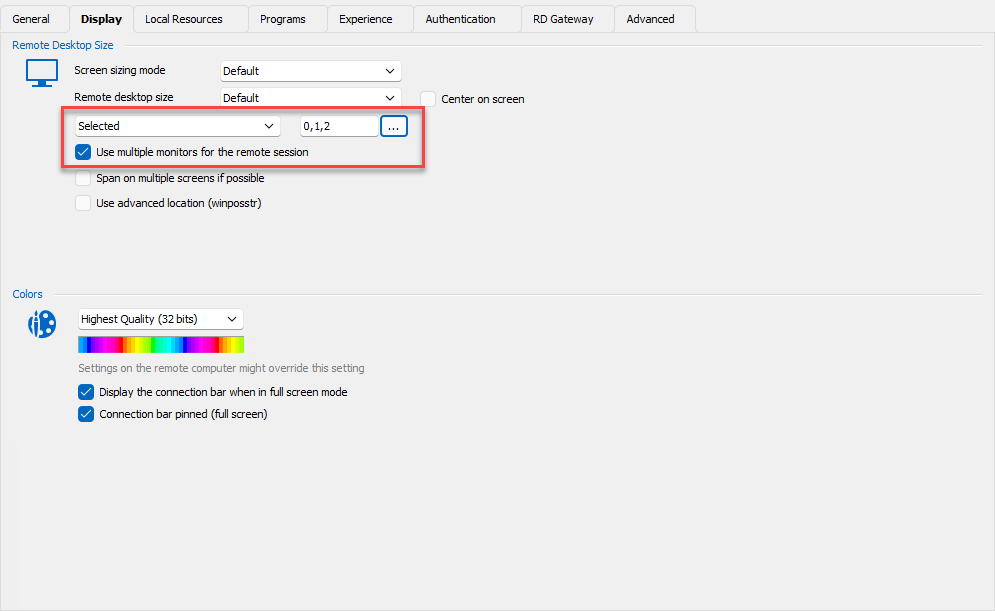
As a note, there seems to be a UI issue with the selection of the monitors where it doesn't refresh the selection when clicking the boxes. I have opened a ticket to fix that, but it should work despite the UI not refreshing.
Regards,
Hubert Mireault
f1f91f92-861b-4d94-b989-947c0f00d022.png