4k laptop Sizing Idea
0 vote

Normally I use a desktop that has a 2k screen and my RDP sessions are set to that. However my new laptop is a 4k 15" screen and the rdp sessions open up tiny. I have disabled smart sizing as that did not seem to work the way I expected (as it would increase the server resolution as well). So I end up zooming the window - manually each time.
Is there a better way to handle this? OR could we have a way that would let us set the % of desktop to take up instead of a resolution size or maybe both?
All Comments (5)
Hello,
If you head over to File - Options - User Interface and check (if uncheck) or uncheck (if checked) the Disable display scaling on high DPIsettings option, does it solve your issue?
Best Regards,
Etienne Lord
I see no difference whether it's enabled or disabled (and yes I restarted after changes). The only difference I saw was in the size of the Remote Desktop Manager window.
Hello,
In that case, could you give this one a try (File - Options - Types - RDP)
Best Regards,
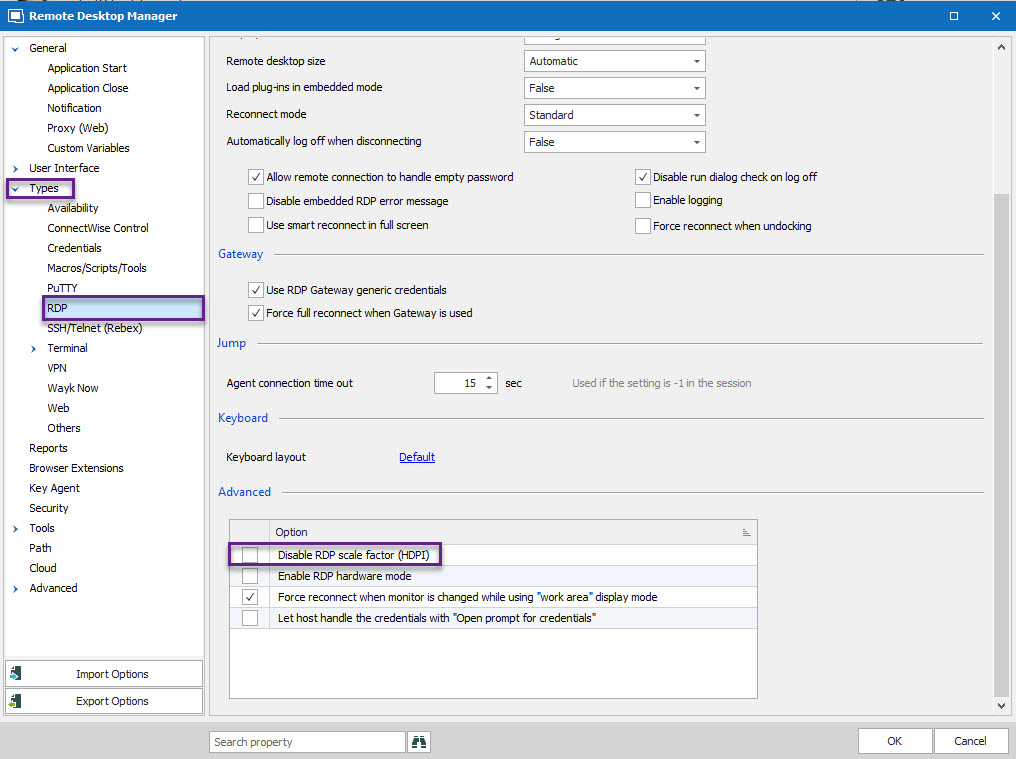
Etienne Lord
hdpi.jpg
I have a 15" laptop with 4K display and do not have the issue's you are having... The only thing i do have is that in RDP window it can be the mouse pointer is so small it is completely not visible (in notepad when displayed as a I). Solution there is to set is the mouse pointer as inversed colour.
Hello, I was having the same problem and managed to solve. Do not change the options within the application. Go to the installation folder, right-click on top of the program icon. Go to: COMPATIBILITY and then click the CHANGE HIGH DPI SETTINGS button. On the next screen click on the option: REPLACE DPI ADJUSTMENT. SET EXECUTED BY. Choose option: SYSTEM (ADVANCED).