Access Denied when editing connections via powershell

Hi
I have installed the latest RemoteDesktopManager on my machine. I am using an AzureSQL database as my data source. I have created a new user in the database called task.schedule and made this user an admin. I can log into the machines as my domain account (which is a local admin) and start RDM and see all of my connections fine. through the GUI I can also delete and add new connections.
I have a powershell script that I run to update the connections. It basically removes old connections and adds new connections. A snippet of the code I am using:
Import-Module "${env:ProgramFiles(x86)}\Devolutions\Remote Desktop Manager\RemoteDesktopManager.PowerShellModule.dll"
Get-RDMDataSource -Name 'mydatasource' | Set-RDMDataSource
Remove-RDMSession -id e899c780-f6ae-4776-a3c1-c548bc9bbdd5
I have tried starting powershell as both non elevated and elevated. I have tried using the following:
Set-RDMCurrentDataSource -Username task.schedule -Password $securepass -id 80c90b2b-14a9-434e-af28-2cbac1d6db75 in place of Get-RDMDataSource -Name 'mydatasource' | Set-RDMDataSource
however nothing works, whenever I run the command Remove-RDMSession i get:
WARNING: Access Denied
There is no hint as to what I dont have access to although I'm guessing its the datasource, but I can successfully remove connections in the gui fine.
Help please :-)
Thanks
All Comments (15)
Hello,
Right after the Set-RDMDataSource cmdlet, could you please run the Update-RDMUI cmdlet? This should fix your issue as it will update the local cache file.
Import-Module "${env:ProgramFiles(x86)}\Devolutions\Remote Desktop Manager\RemoteDesktopManager.PowerShellModule.dll"
Get-RDMDataSource -Name 'mydatasource' | Set-RDMDataSource
Update-RDMUI
Remove-RDMSession -id e899c780-f6ae-4776-a3c1-c548bc9bbdd5
Best regards,
Érica Poirier
Hi
This has still not worked. I tried the Update-RDMUI command but it has still given me the WARNING: Access Denied error
Hello,
Thank you for your feedback.
Can you get the actual connected data source information with Get-RDMCurrentDataSource cmdlet?
If so, after the connection to the data source, can you list the sessions using the Get-RDMSession cmdlet?
If not, it looks like RDM is not properly connected on the Azure SQL data source.
Best regards,
Érica Poirier
Hi Erica
I can get the actual data source information.
running Get-RDMCurrentDataSource provides me with this info:
ID Name Type
-- ---- ----
80c90b2b-14a9-434e-af28-2cbac1d6db75 mydatasource SQLServer
running Get-RDMSession results in the error
Get-RDMSession : Connection not found.
However if I run Get-RDMDataSource -Name 'mydatasource' | Set-RDMDataSource
I get the following error: Set-RDMDataSource : There was an error generating the XML document.
I am however able to still see the data source information when I run Get-RDMCurrentDataSource
and running Get-RDMSession provides me with a list of all of the sessions.
As I first mentioned I am able to use the GUI fine. I can see all of my connections, remove any and add any that I want. It is just through powershell that I am struggling to remove or add connections.
If i install an earlier version of RDM (2019.4.41.0 64-bit) I no longer get the XML error when running set-rdmdatasource. However I still get the access denied warning when trying to remove a session
Hello,
Thank you for the information.
The Set-RDMDataSource cmdlet is used to save the data source configuration, not to set it as the current data source. Please use instead Set-RDMCurrentDataSource cmdlet. You should not get the XML error anymore.
Let me know if that helps to get all the sessions with Get-RDMSession.
Best regards,
Érica Poirier
Hi
no using get-rdmdatasource -name 'mydatasource' | set-rdmcurrentdatasource will show me the data source information when I run get-rdmcurrentdatasource but afterwards running get-rdmsession will return the error connection not found.
Incidentally whenever I have ran powershell commands to interact with rdm before (on another machine) I have always ran get-rdmdatasource -name 'mydatasource' | set-rdmdatasource and not had any problems.
Hello,
Could you please send an email to ticket@devolutions.net to book a session? We will see what we can do to troubleshoot your issue.
Best regards,
Érica Poirier
Hello,
@everyone, it seems that refreshing the RDM local cache file has resolved the issue.
Best regards,
Érica Poirier
I'm having exactly the same issue, but this time a cache refresh does not help. The user account I'm using is also admin on the vault...And I'm using the cmdlet mentioned above.
Hello,
What RDM version are you using and what data source type are you connected to? If it's Devolutions Server, what version are you using?
Best regards,
Érica Poirier
We are using the latest available version of Enterprise Devolutions server (both client and server). Data source type is thus Enterprise server using Keeper as the password/credential database. 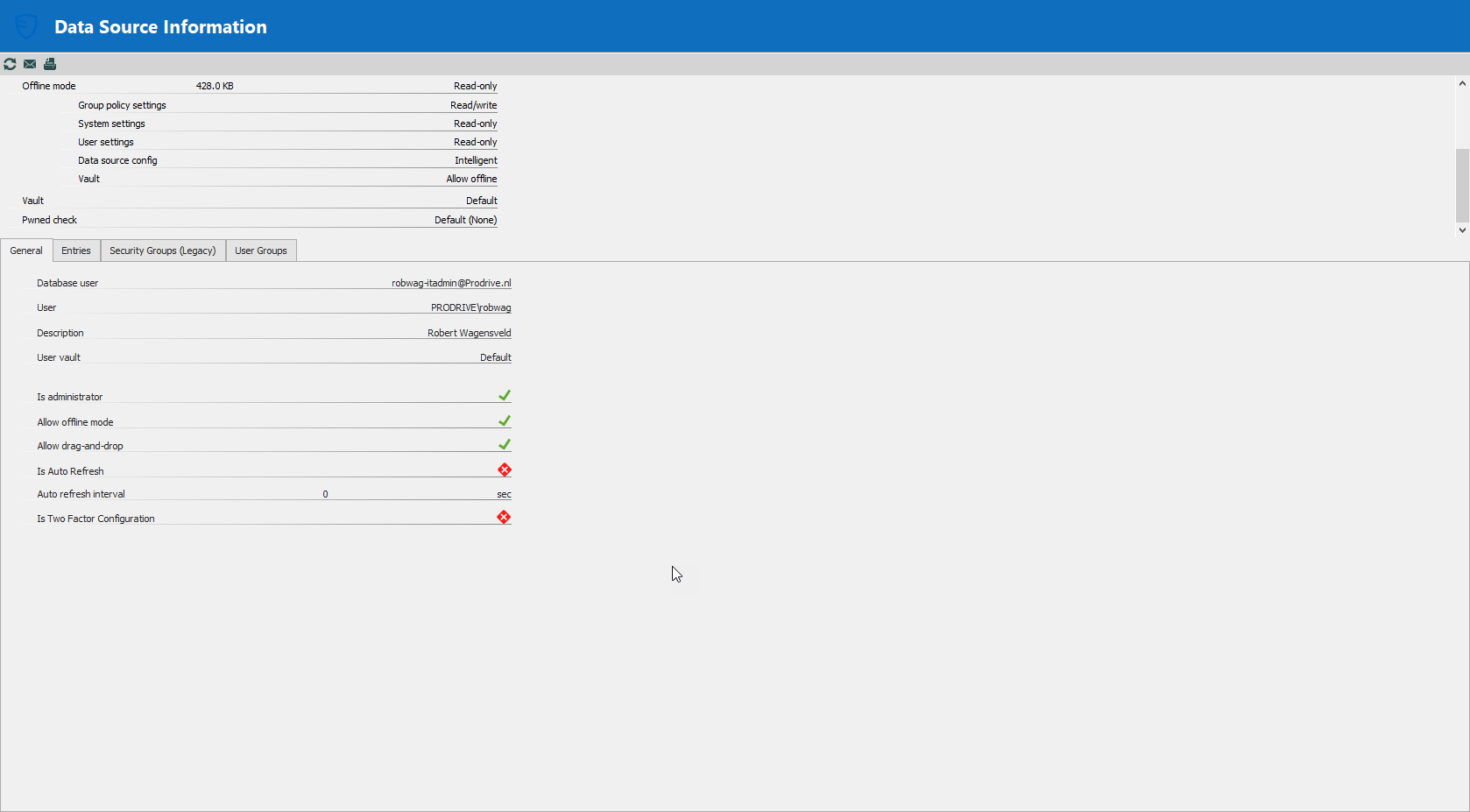
Snag_95b409.png
Hello,
Thank you for your feedback.
Can you share the PowerShell script you are using and the error you get?
We can also troubleshoot your issue in a remote session. Please send an email to ticket@devolutions.net with a reference to this thread and we will send you a link to book the session.
Best regards,
Érica Poirier
#Creates a server entry in RDM, and links it to a credential entry if needed.
param(
[Parameter(Mandatory=$True)][PSCredential]$credential, [Parameter(Mandatory=$True)]$hostname, [Parameter(Mandatory=$True)]$DataSourceID,
[Parameter(Mandatory=$True)]$TemplateID, [Parameter(Mandatory=$True)]$ServerGroup, [Parameter(Mandatory=$True)]$EntryType
)
Import-Module "C:\Program Files (x86)\Devolutions\Remote Desktop Manager\RemoteDesktopManager.PowerShellModule.psd1"
$DataSourceID = "<ID>"
$TemplateID = "3c143929-486e-4406-8d29-88c3266639d4"
$ServerGroup = "<main group name>\Other (Keeper Migrated)"
$EntryType = "RDPConfigured"
#Set data source in RDM
Set-RDMCurrentDataSource -ID $DataSourceID -Username $credential.UserName -Password $credential.Password
Update-RDMUI
#Create entry in RDM
Write-Output "Creating entry in Remote Desktop Manager. You still need to drag it manually to the right folder and assign the service account credential to it.".
$RDMEntry = New-RDMSession -Name $Hostname -Host $Hostname -TemplateID $TemplateID -Group $ServerGroup -Type $EntryType
Set-RDMSession $RDMEntry
Hello,
Thank you for sharing your script.
I think I have found something. I was able to reproduce a problem which gave me a Connection has invalid group specified error. I have solved it by removing the group set in the Folder parameter of the template.
Could you please check if a folder is set in the template you are using in your script? If so, please remove it and try again.
If you still have an issue, please send an email to ticket@devolutions.net with this topic as a reference and we will send you a link to book a troubleshooting session.
Best regards,
Érica Poirier