layout view problems

In the print screens you can see that the line are not correctly displayed.
A layout reset didn't solve the problem.
I'v use version 2019.1.41.0 on a test machine and on the production machine I've version 14.1.3.0 on both the problem is there.
Can I get some help me to solve this problem.
picture5.PNG
picture4.PNG
picture3.PNG
picture2.PNG
picture1.PNG
picture.PNG
All Comments (25)
Hello,
Could you try deleting the .lyt files in %localappdata%\Devolutions\RemoteDesktopManager and then restart RDM?
Best regards,
David Grandolfo
Hello,
deleting the .lyt files in %localappdata%\Devolutions\RemoteDesktopManager didn't solve it even when I delete everything in %localappdata%\Devolutions\RemoteDesktopManager
Hello,
Are you using a HDPI monitor?
Best regards,
Jeff Dagenais
yes I use a hdpi monitor
Hello,
Could you go in File -> Options -> User Interface and try to check/uncheck the Disable display scaling on high dpi settings option.
Let us know if that help.
Best regards,
Jeff Dagenais
It was unchecked so I checked the option but the problem is still there
Hello,
What your Windows display scaling setting looks like?
Best regards,
Jeff Dagenais
Ls,
The Windows display scaling setting is set on 100% when I change it to 125% I don't have any problems
Hello,
Is it OK to use this scaling setting?
Best regards,
Jeff Dagenais
Yes if I change the scaling settings then there are no problems
This problem persists on my monitor (Benq PD3200Q connected to a Dell xps13, OS windows10 professional /w most recent updates).
Scaling to 125% is not an option.
Tried all solutions (including adjusting high DPI settings for the program in windows), nothing seems to work. It's not a big problem, but very annoying.
See enclosed image for a few screen samples.
Regards / R de Buurman
2020_02_09_10_35_02_Remote_Desktop_Manager_Free_Screen_Misery.png
@r21,
What version of RDM are you running?
Is it possible to post a screenshot of the entire RDM window with a display of the issue please?
Best regards,
Jeff Dagenais
@Jean-Francois Dagenais
It especially occurs in the options screens. I'll post one of the more annoying
Regards/RdB
2020-02-10 07_58_32-.png
I do have the problem also, i'm on a Citrix server and i can't set the scaling any more.
Hello,
Have you tried to check/uncheck the Disable display scaling on high DPI settings option in File -> Options -> User Interface?
Best regards,
Jeff Dagenais
Hi Jean-Francios,
I did and that don't helped.
We are now on a Windows 2019 citrix and in the old citrix i was able to set the scaling but now we can't
Hello,
I opened a ticket to our engineering department to see if we can reproduce the issue.
The ticket number is RDMW-4519.
Best regards,
Jeff Dagenais
Hello,
Im using Citrix workplace (version 19) and in the preference options - HDPI, I can have the scaling option set to Yes and Im not getting the issue.
Can you confirm updating citrix fixes the issue with the HDPI setting ?
Regards,
Alexandre Roy
Hi,
The option hdpi scaling is on Yes, but is still can't change the scaling.
We have Citrix Workspace 19.11.0.50.
On my test machine i can set the scaling but it must be on 125% and that is not an option
Hi @sebastvd,
Sorry for the late response. I'm confused as to why you're not seeing the other options from citrix hdpi options.
I'm currently testing on a Dell 4k screen 100% HDPI and I've tried with 200% HDPI and I've seen no changed in layout of RDM. I might be missing something here.
What I could suggest is for you to navigate through %localappdata%/RemoteDesktopManager/ and Delete a file called RemoteDesktopManager.ext while RDM is closed.
This will reset all the values of HDPI saved by the application, this might fix it but Im really throwing a stone here as I am still unsure what is causing you to have these visual bug.
Regards,
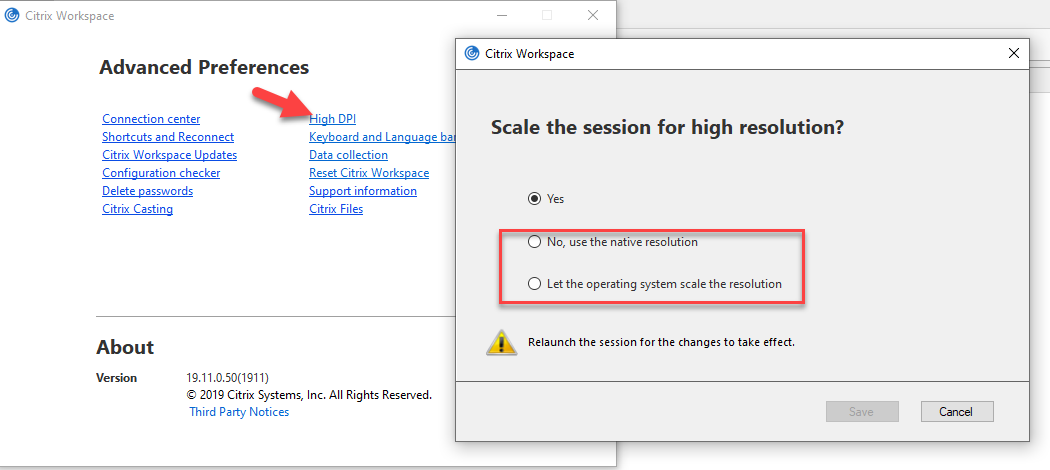
Alexandre Roy
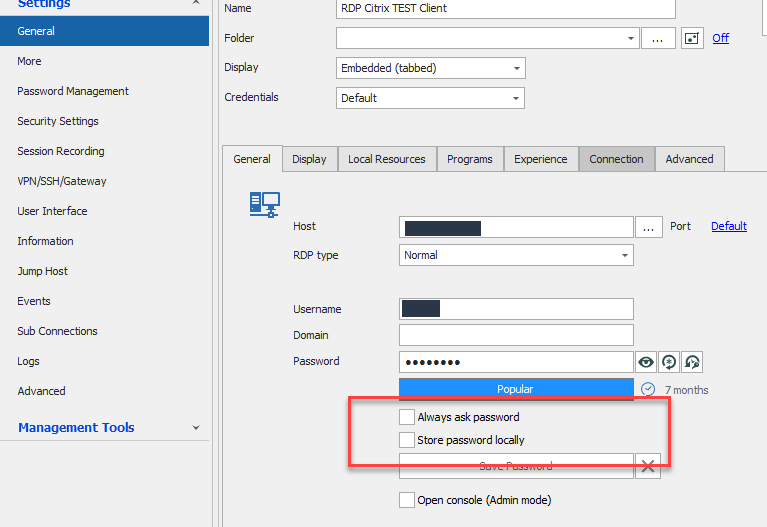
Layout.png
Citrix HDPI options.png
@sebastdv
Sorry, I missunderstood your awnser. I meant to for you to try the other options of HDPI settings in citrix.
Other thing you could try is to indeed change the HDPI of your test machine through a custom one in Advance Scaling Settings.
There you could possibly set it to 125%
Best regards,
Alexandre Roy
On my test machine i can set the scaling to 125% and then i dont have the issue, it's a workarround for me i hope this can be fixed so that it also works with 100%
I solved the problem for me.
We always update RDM with the zip file (Devolutions.RemoteDesktopManager.Bin.2021.1.20.0.zip) we do this for years.
I've uninstalled the version on my VDI and manually deleted the devolutions folder from C:\Program Files (x86) and C:\Users\sebastiaan\AppData\Local\Devolutions, then i checked the register and removed the entry's with devolutions in the name.
I've installed the latest version Setup.RemoteDesktopManager.2021.1.27.0.exe, after the installation i've only connected the database.
All the settings in RDM are now standard en the problem is gone.
Can you tell me what the difference is between updating RDM using the zip file and the exe file
Hello,
It’s the same application. There’s no difference using the zip file or the .exe to install RDM.
You mentioned that you also reset the configuration folder. I am pretty sure that the resolution is related to the fact that you are now using a new config folder.
Best regards,
Jeff Dagenais
I had reset the configuration folder a few times.
Can it be that when you use the install that some Microsoft Visual C++ is being installed with newer versions and with the zip file not.