Where did the credentials list go from the Navigation Menu?

Ok, a lot of pictures and explaining :)
(current version Ent 2019.1.21.0 64bit )
I have this thing i'm positive for a while now, don't know if appeared after i go from v14 to the v2019 numbering (paid enterprise edition) but i just noticed yesterday after i messed up my views :( (got them restored with reset views icon)
On the left with the Navigation Menu where you list or your RDP entries i used to see the credential entries under the menu folder (with custom icons i have them i'm a neat freak :drop: )
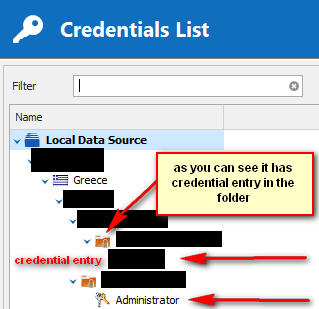
On my credential list option i get all my credentials correct under each folder
now i do not see them, i only have empty folders on the Navigation View Menu
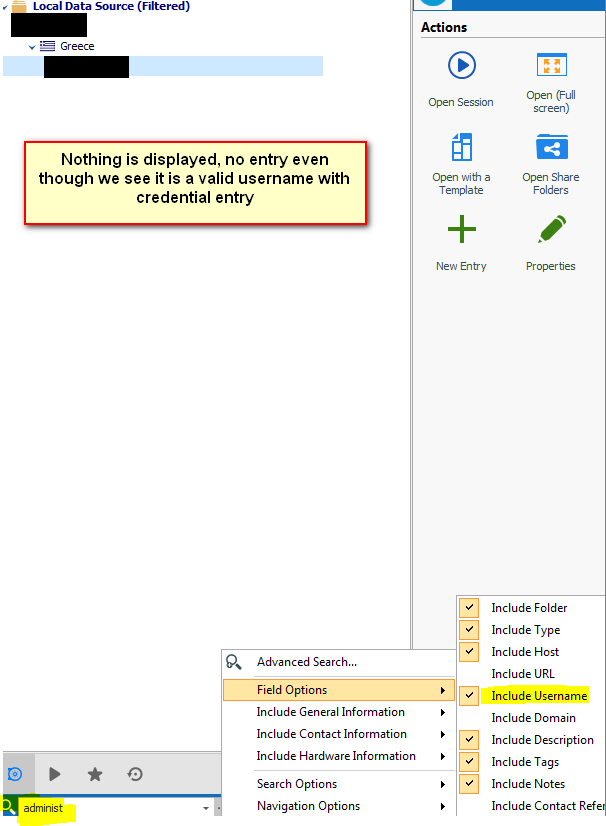
Also when i use to search even though i have selected the "include username" i don't get a valid entry for "Administrator" which you see from above it exists and im positive this was working in the past
Is this something that happens by default in the new version and i just noticed it or i messed up some setting. Can i get it back ?
Many thanks!
Regards,
Vassilis

RDM for Windows 11
Purchased Enterprise Edition v2024.x
Capture.PNG
2019-06-15_00004.png
2019-06-15_00001.png
All Comments (14)
Hello,
Is it possible that the entry has been deleted?
If you go in Administration -> Deleted Entries, are you seeing the entry that is missing?
Best regards,
Jeff Dagenais
Hi Jean,
On my Administration i only have "Reports" and "Root Settings"
also please re-check my post. I clearly state that the credentials are there see the screenshot from the list but they do not appear on the navigation even though the same folder is there. (you can see the screenshots that the same folder icon exists on both navigation and credentials list but only one of them show entries)
Nothing of a credential is shown in Navigation. I can clearly see this as a change on the new v2019 verstion but i need a cconfirmation that this is normal and if there is a setting i can get it back.
Also i confirm that from the last screenshot i used to search for credentials "username administrator" and it returned results.
Regards,
Vassilis
RDM for Windows 11
Purchased Enterprise Edition v2024.x
Hello,
Your issue is really strange. Please note that you should see your credentials in RDM 2019.
Is this with all your credential entries?
Could you try to perform a Window -> Reset Layout?
Could you try our latest release, which is 2019.1.30.0?
https://remotedesktopmanager.com/home/download
Best regards,
Jeff Dagenais
Hello,
Another question, you are looking for an Username / Password credential entry right?
https://help.remotedesktopmanager.com/credentials_usernamepassword.htm
Best regards,
Jeff Dagenais
Yes of course i'm looking for Username/Password. That was definetly working with the same settings.
I updated to the version nothing changes.
Ok if this is not a change in v2019, can we please dig it more. Maybe send logs or whatever you need cause i need the list.
Yes it is happening with all my credentials list as you see from my screenshots. All credentials are there, nothing is displayed on the left. You can verify this with the folder icons on my screenshots.
Reset layout didn't help.
RDM for Windows 11
Purchased Enterprise Edition v2024.x
Hello,
If you create a new username/password entry, are you seeing it?
If you create a new SQLite data source via the File -> DataSources menu, are you able to create username/password entry in this new DB?
Best regards,
Jeff Dagenais
No i'm not seeing it, it appears correctly on the "credentials list" menu and i can select it as credential in any connection.
I'm not messing with my data source i do not know what to do with that so i do not touch :) .
Can we test for corruption or anything like that ??
Again, all these was working, i have the strong feeling it messed up after the v14 or v2019 installation
RDM for Windows 11
Purchased Enterprise Edition v2024.x
Hello,
Please go in File -> DataSources -> New, create a new SQLite or XML datasource and create a new username/password entry in this new datasource.
Are you seeing it?
Best regards,
Jeff Dagenais
Ok
I'm back!
I had time and did the appropriate tests:
1) New installation with trial enterprise key 2019.1.36.0 version on again same OS (Windows 7 64bit)
Created new data source , created folder and credentials and hosts or as normal appeared
New data source, and import my backup, everything(!) was displayed correcly, credentials were under the folders and displayed as it was before the problem began. So that's is a fact.
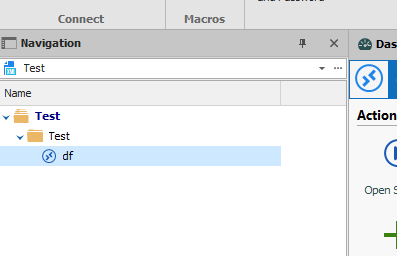
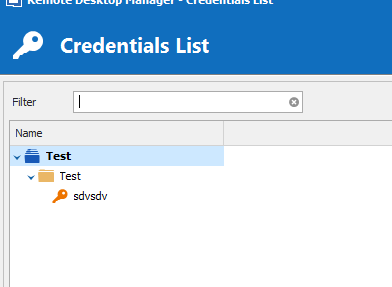
2) On my PC created a new data source. Created folder and credential entry, nothing is shown on the navigation menu!!!!! You can verify this from the screenshots below without anything grey out :)
(Navigation Pane shows no credential)
(Although credential exists as you can see from both the properties and the credential manager)
After that, i created a new data source and imported my backup, again the same behaivour credentials is not shown. See first post.
So i assume you can cocnlude also that this is a PC Local/Installation Local problem of the software.
What we do next without destroying my computer at work ? :404:
Kind Regards,
Vassilis
RDM for Windows 11
Purchased Enterprise Edition v2024.x
2019-07-12_00005.png
2019-07-12_00003.png
2019-07-12_00002.png
Hello,
Is your computer at work a Windows 7 or Windows 10?
Best regards,
Jeff Dagenais
Yes both tests are in Windows 7 64bit Pro
RDM for Windows 11
Purchased Enterprise Edition v2024.x
Hello,
Could you try the following on the machine that you are not seeing your credential entries:
This will create a completely new configuration folder. I hope that this will bring back your credential entries.
Best regards,
Jeff Dagenais
Troubleshooting Steps again:
I'm clueless.
RDM for Windows 11
Purchased Enterprise Edition v2024.x
Hello,
At point #3 and #4, you mentioned that you have restored your sessions and created a new one and the credential where still present.
At this point, is it possible to enable the Online Backup feature and just keep working with this data source and sessions?
This should create new online backups and I think that you will be good to go.
Best regards,
Jeff Dagenais