Migration and Setting Up Everything

Hey guys, I have more of a question regarding setting up settings, rather than anything being wrong.
I've been using KiTTy with an SSH tunnel, which is a cousin of PuTTy that can store cached passwords. I can't find the way to migrate my settings over from KiTTy/PuTTy into my current one.
Basically, what I'm looking for right now is "Wake On LAN" -> "Connect VPN/SSH" -> "Initiate Remote Desktop Connection in full screen", all from the command line.
Right now, I'm able to load KiTTy up using itself, then initiate an RDP connection in the Remote Desktop Manager GUI, then after it loads in a tab, I can force it into a fullscreen session using the key. I'd like to streamline all of that, putting as much as possible into the profile, and putting the rest into command line arguments. Where should I look to input those settings so that they're all integrated?
All Comments (8)
Hello,
As per my understanding, you would like to establish a SSH Tunnel, prior to establish a RDP connection to a server.
Am I correct?
If yes, you would need to configure a SSH Tunnel session first and use this session inside the RDP session by configuring the RDP session to use this SSH Tunnel inside the VPN section.
Then, when the RDP session will be launched, the SSH Tunnel will be established first and then, the RDP connection will be establish.
This blog should help https://blog.devolutions.net/2016/10/how-to-configure-ssh-tunnel-in-remote-desktop-manager
Best regards,
Jeff Dagenais
Okay, I think I'm mixing up which numbers I'm supposed to put where.
These are my settings in PuTTY:

I grabbed those numbers, and put them into an SSH Tunnel session in RDM, based on which was "the default port."

Now, when I attempt to connect the SSH session, it looks like this:
Which seems to indicate that everything is connecting successfully.
However, when I set up my RDP session, connect using the VPN, I get this error:
In contrast, when I leave the SSH tunnel closed, but connect using PuTTY, THEN the RDP session works, I can view my desktop just fine.
So, the SSH works, the RDP works, they just don't work together. Either that, or the SSH isn't working correctly.
I also am still wondering if I can send Wake on LAN packets before connecting with the SSH tunnel, how to full screen the session by default, rather than having to click through context menus, and how to connect sessions using the command line, without opening the GUI.
Hello,
Sorry to jump in. According to the information you provided us, I suspect that this issue is caused by the fact that your "Host" and your "Remote Host" have been inverse. Could you please try to switch both IP addresses and see if this issue still occurs?
Best regards,
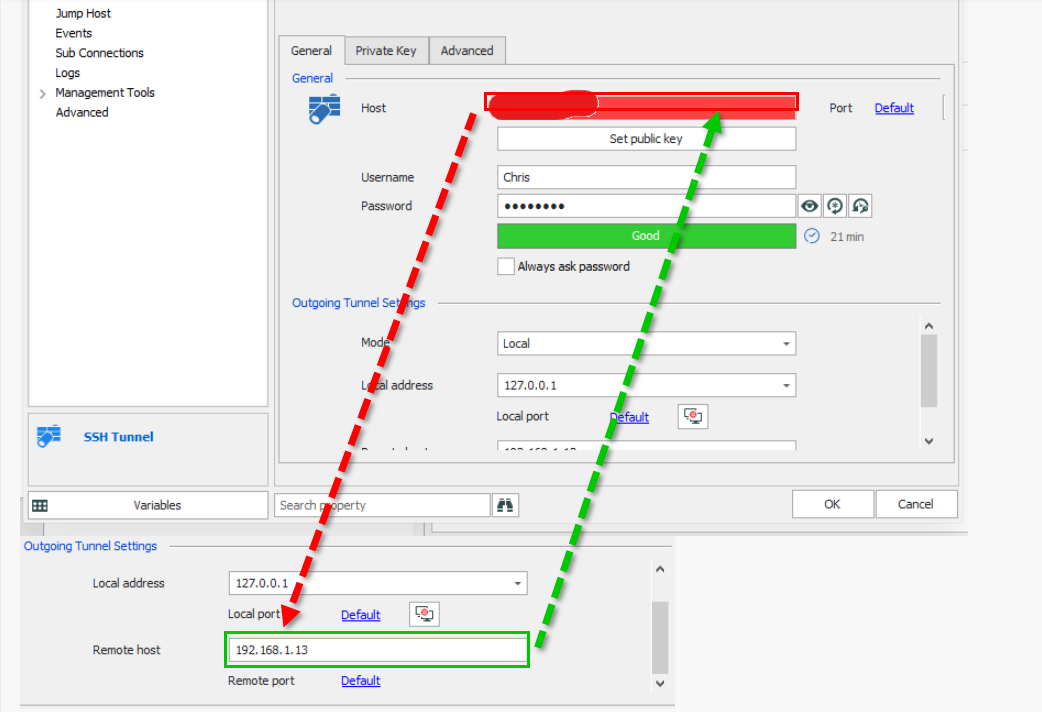
James Lafleur
InverseIP.png
Okay, I switched them around as you suggested, but when I attempted to connect session using the VPN, I got the same error message:
The SSH Tunnel session showed this: The number obscured in red is the same public IP address that I've been concealing before. It says 'successfully authenticated password,' but I'm still not able to connect the RDP.
Just to be sure, I connected to the server using PuTTY, and the RDP session in RDM was able to connect just fine, so it is something strange in the tunnel specifically. I'm gonna try deleting and remaking it wholesale, but I think it's likely to have the same result.
EDIT: I figured it out! I had set a custom, specific port to use for my localhost connection, but I didn't realize that that was what was also being used for the SSH tunnel. So, for my RDP session, I was connecting to `localhost:9878`, just as a port that was convenient for me. The default port in the SSH tunnel is `3390`, which obviously I hadn't thought to allow through my firewall on the desktop.
Solution For Those Facing the Same Problem: Either go onto your host machine and allow connections through Port 3390, OR go into your SSH Tunnel settings and change the port from the default to whichever port you had previously allowed.
Remaining Questions: Full screen on startup, send Wake on LAN packets, automate process through command line.
Hello,
Thank you for your feedback and for sharing your solutions with our community!
As for your 3 other questions, I will discuss with our team in order to see how this could be achieved:
1- Full screen on startup
2- Send Wake on LAN packets
3- Automate process through command line
Best regards,
James Lafleur
Yeah, I always hated when I would come across threads with the same problem I was having but no one ever said how they fixed it haha, so I wanted to make my solution clear so it could be found in the future.
Also, great, I'll just keep an eye on my email for any future replies in this thread, look forward to hearing from you!
Okay, I was able to find something for commandline arguments:
https://help.remotedesktopmanager.com/index.html?installation_commandlinearguments.htm
This help article details ways to open RDM from the command line, but there's still one problem:
`RemoteDesktopManager.exe /DataSource:178c2fda-dab4-4f41-98df-6e3205c0a011 /Session:474bcbcf-d507-435b-8c0a-a9e868781910`
When run like this, the cmdline opens the full GUI, waits for the VPN using the timeout, then connects. 
I enabled this settings in 'Advanced', and so it opens undocked, and maximized, but it's still not actually Fullscreen, which is what I'm looking for.
The goal is to have my computer off, send a Wake a LAN packet (using command line), then after the computer finishes booting, run a command line argument to open the session, but to do so discretely, without having to fully open the GUI. It just connects, then goes Full screen, all as quickly and discretely as possible. I'm not sure if that's something that's already present in RDM.
If it is, I'd just like to figure out how. And if it isn't, then I'd politely suggest that such options be made available XD
Hello,
Thank you for your quick reply and for the information you have provided us. That being said, in order for us to troubleshoot the root cause of this issue, I took the liberty of opening a support ticket on your behalf. The ticket number is Devo-3512. I will contact you using this ticket for now.
Once a solution as been found, I will update this forum thread.
Best regards,
James Lafleur