Mapped Drives
0 vote

When I connect to my Hyper-V Host, I see all of my local drives inside of the host. In Microsoft Remote Desktop, you can uncheck Drives under the Local Resources tab. How do I disable it in Remote Desktop Manager?
All Comments (18)
Hello,
you can set this in the RDP session properties (Local Resources tab). More infos about you'll find here
Regards,
Min
Sorry, should have mentioned - this is a Microsoft Hyper-V session in RDM, not a Microsoft Remote Desktop session.
The reason I added it as a Hyper-V session is because it looks like with just this one icon you get the best of both worlds - a complete list of every VM on that host (and the ability to connect to any of them) as well as the ability to remote directly into the host.
When you edit the properties of the Hyper-V session, there's not nearly as many options. So, no option to control drive mapping, etc.
Here's a screen shot ...
https://www.screencast.com/t/OULXpPTC5b2
Hello,
Unfortunately, as you mentioned, this is not supported at the moment. For this reason, this topic has been moved to the Feature Request section of our forum.
Best regards,
James Lafleur
Greetings,
We were just brought on board with using the RDM Enterprise Edition instead of the Free Edition. As part of that, all of our remote sessions are what they call "API Connections". For these connections there is no "Local Resources" tab for me to uncheck "Hard drives".
The people in charge has enabled "Mapping Local Drives" Globally for everyone (using a GPO) and claim this is because it is not possible to access the Clipboard without mapping all your workstation drives as well when using API connections.
Is this really the case?
Many thanks,
Jennifer
2020_01_23 Mapped Drives ^ API connection Results.png
2020_01_23 Mapped Drives ^ RDP connection Results.png
2020_01_23 Mapped Drives ^ RDP option ^ uncheck 'Hard Drives' but leave 'Clipboard'.png
Hello,
I fear that this is not related. The map network drive and the Clipboard are two different features and you should not be forced to enable the Mapping Local drives" globally to be able to use the Clipboard.
Best regards,
James Lafleur
Hi James,
Can you please confirm that the two are not linked even when using an "API" connection to remote into a server instead of the standard "RDP" connection? For the API connections, I do not even have a "Local Resources" tab like I do with the RDP session.
Thanks,
Jennifer
API (no Local Resources) vs RDP connection (has Local Resources).png
Hello Jennifer,
I confirm that the two are not related. As for the "Local Ressources", it is simply not supported for this type of entry.
Best regards,
James Lafleur
Hi James,
Thank you for the confirmation.
By "it is simply not supported for this type of entry" do you mean that the "Local Resources" tab just isn't available or that it cannot be configured at all for API connections?
Thanks,
Jennifer
Hello Jennifer,
By that, I mean that the "Local Resources" tab has simply not been added to the "BeyondTrust Password Safe". Instead, to configure this setting for this type of entry, you will need to do the following:
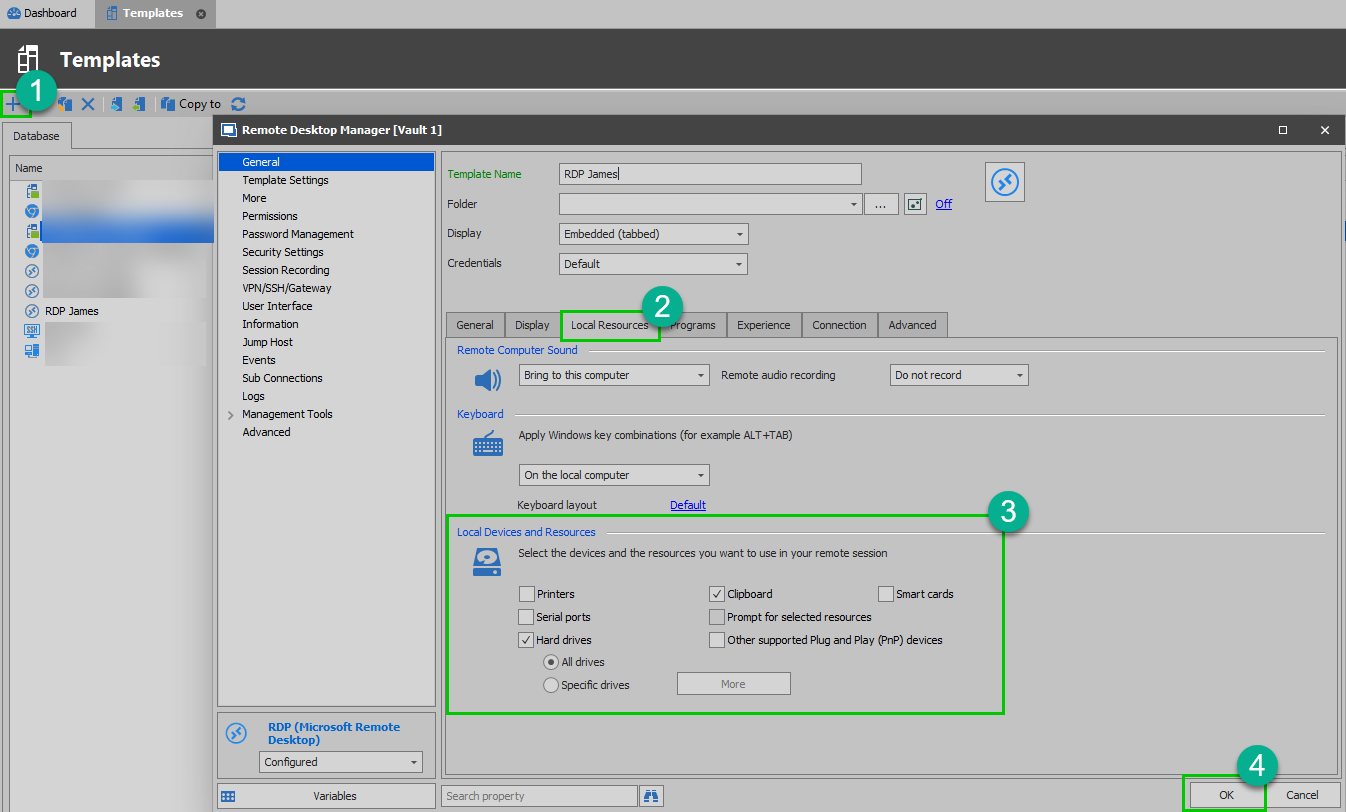
1- Go under File -> Templates -> Manage Template -> Add Template -> RDP -> Configure the "Local Ressources" tab, give it a relevant name and save it:
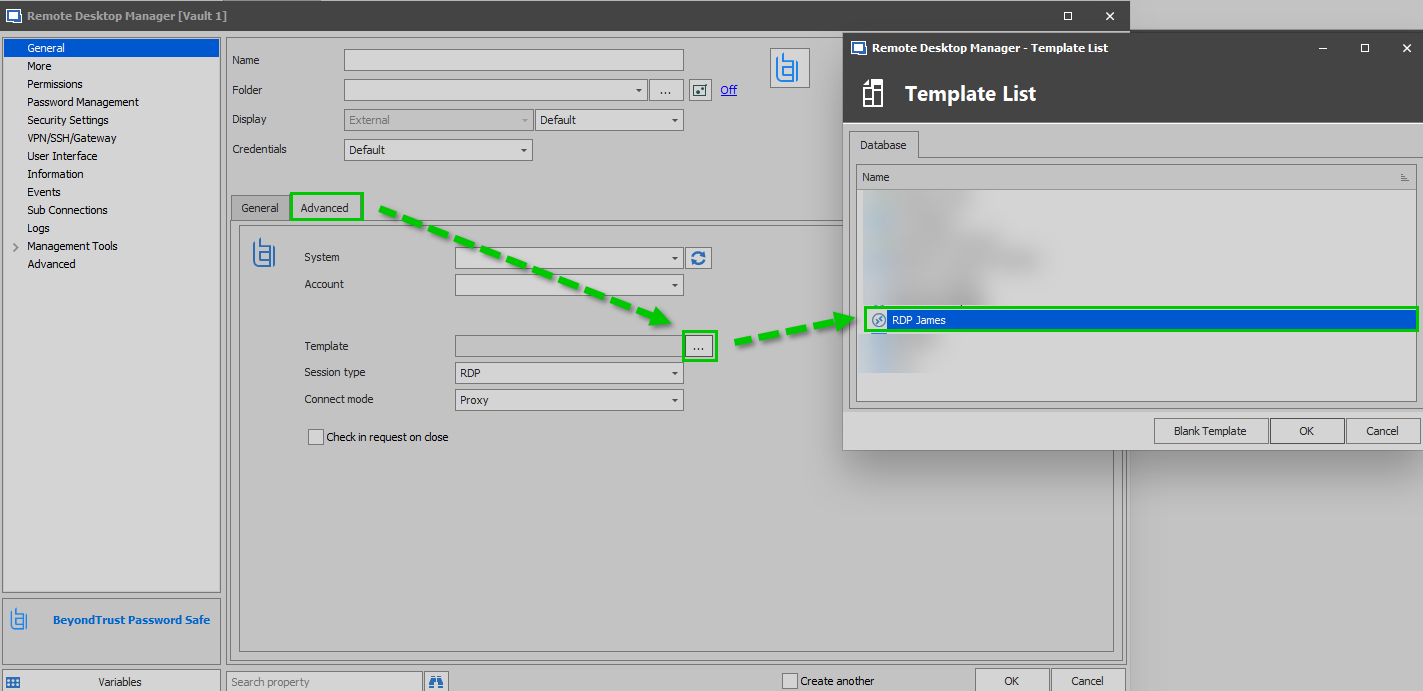
2- Go in the Properties of your "BeyondTrust Password Safe" entry -> Under Advanced -> Use the Ellipsis button next to the Template field to select your newly created RDP Template -> Ok:
Best regards,
James Lafleur
BeyondTemplate.png
TemplateLocal.png
Hi James,
Sounds good, but unfortunately I do not see "Manage Templates" under File > Templates.
Thanks,
Jennifer
2020_01_27 File ^ Templates ^ no 'Manage Templates' option.png
Hello,
Since you cannot see this section, I suspect that you might not have the right to create them. For this reason, could you please go under Administration -> System Permissions -> Management -> Templates and provide me a screenshot of this location.
Best regards,
James Lafleur
James,
Thank you for your patience, I am still learning where everything is. I am not able to locate "Administration" in the File menu or Ribbon tabs.
Thanks,
Jennifer
Hi,
No problem, we are always glad to help! The Administration is located here:
If you are not seeing it, it means that you are not connected as an Administrator on your Data Source.
Best regards,

James Lafleur
Administration.png
That makes sense. Given that our Data Source is used Enterprise-wide, I am not surprised we are not given Administrative access.
Do we have to be Administrators in order to create a Template or can this permission be granted separately?
Do we need to be an Administrator in order to Use the Template / link it to my API connections?
Can the template be assigned to my existing API connections or does it have to be assigned at creation time?
Thanks,
Jennifer
Hello,
The permission to manage Templates can be granted to your users by an administrator. After that, the users that have been granted this permission will be authorized to use the Templates. For more information on that matter, please refer to this link: https://help.remotedesktopmanager.com/commands_datasourcepermissions.htm
As for your last question, you can assign your Template to an existing BeyondTrust entry by going in its properties under the "Advanced" tab and using the ellipsis button to select your Template.
Best regards,
James Lafleur
James,
The people managing the system said they will create a Template to test. I will let you know how it goes.
Thanks,
Jennifer
James,
The Template has been created and it works perfectly! I cannot tell you how much a difference it makes to be able to use the Clipboard without mapping all of my local drives as well.
MANY THANKS!!!
Jennifer
2020_01_30 RDP Template assigned to API connection allows Clipboard without mapped local Hard Drives.png
Hello Jennifer,
You are more than welcome! I am glad to see that everything is now working properly!
Do not hesitate to contact us again if you require further assistance.
Best regards,
James Lafleur