Remote access to Hyper-V VMs - getting started

Currently evaluating Remote Desktop Manager - great program!
I have a few questions:
1. I've created some folder structures and inside of folders, I have added some remote sessions. I notice when setting up a folder, there are fields for me to enter credentials, OS, Host, IP, etc. Seems strange that the program would be asking me for this information when all I am doing is creating a folder. What's the purpose of adding this type of info to a folder? I assume there's a reason and I am just missing the point. (Inside of the folder, I created a Microsoft Hyper-V Console. Here in the console, it makes sense that this is where I would enter my credentials. And so I do. And it works. When I open that session, RDM logs me in and I can see the list of VMs on that server.)
2. I'm used to launching Microsoft Hyper-V Manager where it remembers my servers and automatically displays the list of VMs. But if I wanted to use RDM as a replacement for Hyper-V Manager, it seems there are more steps. Is there a way to have RDM automatically connect and display the list of VMs on each host? It looks like each time I launch RDM, I have to click on each Hyper-V server, one by one, and then click the Open Session button and then wait or the list to be populated.
3. That being said - let's say I did launch RDM and then connect to every Hyper-V host. The end result is I have a quick way to manage all the VMs on each host, and in this state it seems like a good replacement for Hyper-V Manager. But... does it eat up resources by having all of the servers in the 'Connected' state all day long?
4. If I add a Hyper-V Console to RDM, and then connect to it, I see my list of VMs. But from within that list, double-clicking on a VM does not remote into it like Hyper-V Manager does. I'd have to right-click on the VM and select Connect (or click on the button in the ribbon although in my opinion the ribbon is too intrusive and takes up too much room, so I opt to leave it hidden). Once I have connected, I have to ctrl-alt-del and enter the password. Seems tedious.
I found that instead of adding a Hyper-V console to RDM, I add a 'Microsoft Remote Desktop' session.
The benefits to this method are (1) now I can double-click on it to connect to that VM (just like I am used to with Hyper-V Manager) and (2) it can remember my password and automatically log me in and (3) I can connect to multiple VMs inside of the nice tabbed interface. The down-side to this method is (as far as I can see) I have to manually, one by one, add every single VM to RDM and save it. One. At. A. Time. I have over 100 VMs.
Isn't there a way to have all of this in one easy session? In other words (1) Add JUST the Hyper-V Server to RDM (not every single VM one at a time), then (2) have it auto connect to each server (every time I launch RDM) and automatically list all of the VMs, then (3) allow me to double-click on any VM within the Hyper-V Server and have it automatically connect AND log me in, using the tabbed interface, without prompting me for a password?
All Comments (7)
Hello,
Thanks for testing our product. I separate my answers as you:
1. The information fields in Folder entry are different per folder type. They could be very useful when using group variables in entries under it, further details at https://help.remotedesktopmanager.com/settings_variables.htm#group
2. Please have a look at our Play list feature describe at https://help.remotedesktopmanager.com/fr/sessions_playlist.htm. A playlist offer you the possibility to open all Hyper-V Server Console with a single click. The delay of viewing the servers should not be as long. How long it took to open the console in RDM?
3. The performance should not be as much, you can test for a day and look at Windows Task manager to see how many RAM is used versus what Hyper-V Manager use.
4. I'm not sure what you are trying to perform. Are you looking to open VM with double click or to automatically send your Hyper-V console credentials on the server to login?
Good news to automatically create RDP entries, use Hyper-V Synchronizer ( https://help.remotedesktopmanager.com/synchronizer_hyperv.htm ), once configure it will connect to the Hyper-V Server and create RDP sessions automatically.
Please let me know if further explanation is required.
Best regards,
David Grandolfo
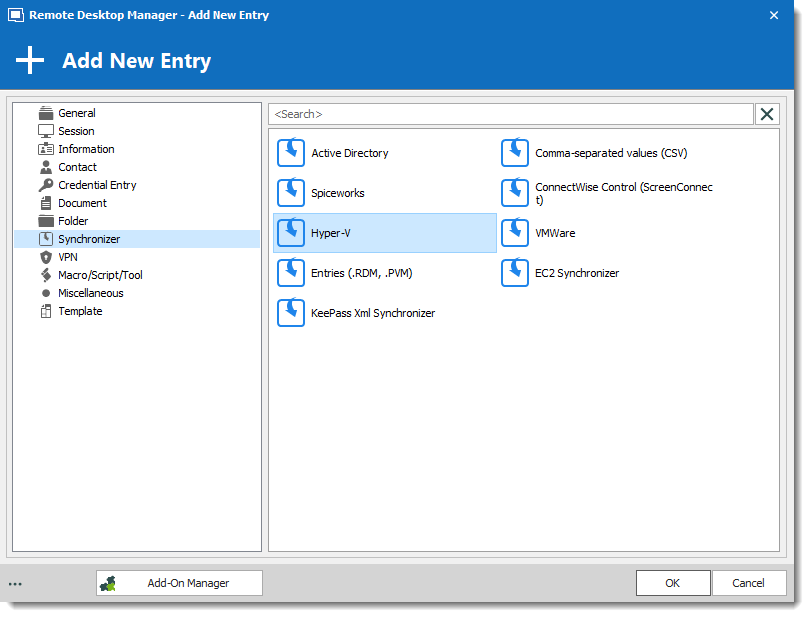
Hyper-V Synchronizer seems promising but I don't see it when I launch RDM.
When creating a New Entry go to Synchronizer section and then you should see Hyper-V.
Regards,
David Grandolfo
Hyper-V_sync.png
The Add New Entry screen looks different for me, and I do not see a Synchronizer option.
https://www.screencast.com/t/ScdharTd2
Hello,
which version of RDM do you use?
Regards,
Min
5.1.3.0 64-bit.
When I click Check for Updates it says I have the latest version.
Hello,
ok that's the reason - the Synchronizer feature is only in the Enterprise version available - But you can try it 30 days for free here
Regards,
Min