Convert Users to Azure SQL Users

Now that RDM supports Azure AD Integrated auth with MFA I'd like to switch all my users that have sql logins to use azure sql logins. How do I convert a user from Authentication Type Database to Azure AD??
All Comments (5)
Hello,
In regard to guide could you please answer the questions below?
What data source are you currently using? (SQL Server, SQL Azure or Devolutions Password Server)
Also is the current user have User specific setting or Private Vault configure?
Best regards,
David Grandolfo
I'm using the SQL Azure with different permissions applied to each user. Some users have Private Vault configured.
Hello,
Currently, how your users looks like in Administration -> Users?
Best regards,
Jeff Dagenais
No sure what you mean. I've attached a screen shot.
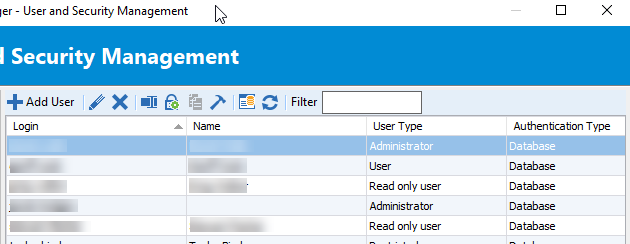
rdmusers.png
Hello,
As I can see, you are currently using database users on your SQL Azure database. It's not possible to rename your database account to an Office365 account type.
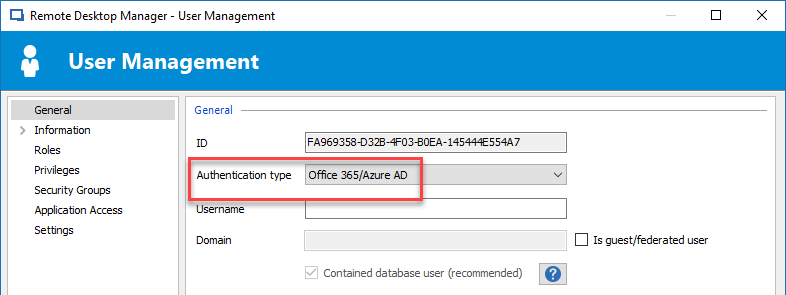
You would need to create them new accounts using their Office365 email address. At the creation, select Office365 in the Authentication type dropdown menu.
They will also need to export the content of their private vault individually, since it's not possible for you to export it because of the encryption.
Here's the steps to follow to export the content of a private vault:
Select the SQL data source of the old account.
Go in your Private Vault.
Select all entries.
Right-click on them and select Export- Export All (.rdm)….
Enable the Include credentials option to include all passwords and Encrypt with master key to protect the file with a password.
Then save your .rdm file on your computer.
Select the SQL data source of the new account.
Go in your Private Vault.
Right-click in the My Vault section and select Import – Import (.rdm, .pvm, .xml)….
Select the file previously exported in the File Explorer Open dialog and then click on OK in the Import Entries dialog.
Enter the File master key and click on Open.
Be sure that all entries are selected and click on OK.
[/ol]
Best regards,
Jeff Dagenais
2019-02-14_08-41-00.png