Trying to configure connection to local HyperV machines
Hi,
I have a Windows 10 computer and on this computer I have HyperV with one virtual machine.
I would like to use remote Desktop Manager on the host computer and connect directly to the virtual machine.
Is there any guide for how to do this? I have tried (guessed how to do it) but it can't connect.
Recommended Answer
resurrecting an old thread because it shows in google results for this search
How to use Devolutions RDM with Hyper-V Embedded and Enhanced Session on localhost
tested on Windows 11 24H2
In my case, I'm doing it to hyper-v vm's on my localhost
- a user in the `Hyper-V Administrators` group on the host
- in my case I also launched rdm in the context of this user. not sure if it is required
- You must set CredSSP on the host
- https://miketerrill.net/2014/11/26/rdcman-v2-7-unknown-disconnection-reason-3848/
- commands at bottom of post
- You will need the vmid of the virtual machine
- `get-vm | Select-Object name,Id`
- Connection Properties
- General Tab
- Host = localhost (your local hyper-v server)
- RDP Type = Hyper-V (Embedded Only)
- Hyper-V Instance = VMID of virtual machine
- Username and Password = user on host in Hyper-V Administrators group
- Hyper-V Tab
- Use Enhanced Session Mode = Checked
- General Tab
did this by working backwards from vmconnect and sysinternals rdcman
notably the user in the rdm connection profile is NOT the one on the destination machine. But the host machine with hyper-v permissions.
With vmconnect, your connecting to the display, not so much remote desktop. So you log in from inside the `local display` on the virtual machine.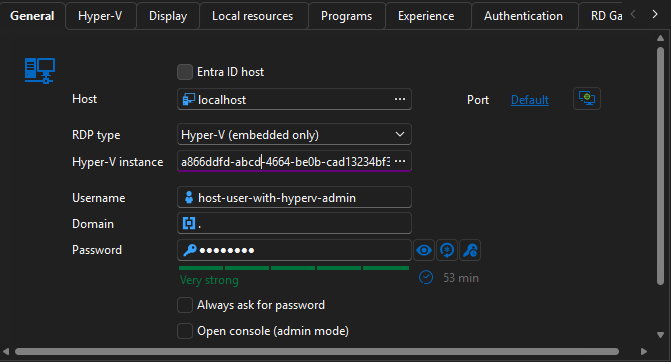
New-ItemProperty -Path HKLM:\SYSTEM\CurrentControlSet\Control\Lsa\Credssp\PolicyDefaults\AllowDefaultCredentials -Name Hyper-V -PropertyType String -Value "Microsoft Virtual Console Service/*" -Force
New-ItemProperty -Path HKLM:\SYSTEM\CurrentControlSet\Control\Lsa\Credssp\PolicyDefaults\AllowDefaultCredentialsDomain -Name Hyper-V -PropertyType String -Value "Microsoft Virtual Console Service/*" -Force
New-ItemProperty -Path HKLM:\SYSTEM\CurrentControlSet\Control\Lsa\Credssp\PolicyDefaults\AllowFreshCredentials -Name Hyper-V -PropertyType String -Value "Microsoft Virtual Console Service/*" -Force
New-ItemProperty -Path HKLM:\SYSTEM\CurrentControlSet\Control\Lsa\Credssp\PolicyDefaults\AllowFreshCredentialsDomain -Name Hyper-V -PropertyType String -Value "Microsoft Virtual Console Service/*" -Force
New-ItemProperty -Path HKLM:\SYSTEM\CurrentControlSet\Control\Lsa\Credssp\PolicyDefaults\AllowFreshCredentialsWhenNTLMOnly -Name Hyper-V -PropertyType String -Value "Microsoft Virtual Console Service/*" -Force
New-ItemProperty -Path HKLM:\SYSTEM\CurrentControlSet\Control\Lsa\Credssp\PolicyDefaults\AllowFreshCredentialsWhenNTLMOnlyDomain -Name Hyper-V -PropertyType String -Value "Microsoft Virtual Console Service/*" -Force
New-ItemProperty -Path HKLM:\SYSTEM\CurrentControlSet\Control\Lsa\Credssp\PolicyDefaults\AllowSavedCredentials -Name Hyper-V -PropertyType String -Value "Microsoft Virtual Console Service/*" -Force
New-ItemProperty -Path HKLM:\SYSTEM\CurrentControlSet\Control\Lsa\Credssp\PolicyDefaults\AllowSavedCredentialsDomain -Name Hyper-V -PropertyType String -Value "Microsoft Virtual Console Service/*" -Force
New-ItemProperty -Path HKLM:\SYSTEM\CurrentControlSet\Control\Lsa\Credssp\PolicyDefaults\AllowSavedCredentialsWhenNTLMOnly -Name Hyper-V -PropertyType String -Value "Microsoft Virtual Console Service/*" -Force
d68097c0-7b7a-4896-93ac-3780cc3ba589.png
All Comments (17)
Hello Niklas,
here you can find some informations about:
https://help.remotedesktopmanager.com/sessions_rdphyperv.htm
https://help.remotedesktopmanager.com/sessions_hyperv.htm
https://help.remotedesktopmanager.com/virtualization.htm
Regards,
Min
it will not connect to any machine. Is it really compatible with Windows 10? I cant even get a listing of all the virtual machines running on my host computer.
Also the GUI in the guide does not look like my client (newest).
Hello,
If the Hyper-V machine is your own computer that RDM is running on it, this is why it's not working.
The Hyper-V machine needs to be a remote server, not your local computer, so that it can work properly.
Best regards,
Jeff Dagenais
Considering most Development Engineers use Hyper-V locally, the lack of support for a local Hyper-V Server on Windows 10 is unexpected from this type of app.
Will local Hyper-V Support being available soon?
Hello,
What tool do you use to mange Hyper-V on you local Windows 10 right now? I could investigate what is missing in RDM to support this.
Regards
David Hervieux
Currently use Hyper-V Manager and VMConnect to manage the VMs hosted on Hyper-V locally installed on my Windows 10 machine.
I hope that this helps ;-)
I know this is an old post and not mine - but wondering if this feature was ever enabled.
I have a Threadripper 3970X with 128GB Ram and multiple local VM's that are used for development and testing with assigned VGPU's to each VM for accelerated graphics.
This is why I need to use the VMConnection manager - to take advantage of the accelerated GPU performance.
The ability to connect to hyper-v host and then use the vm-connection link just like Hyper-V manager can would be very useful.
I have stopped using RDM because I cant do this and have reverted to just using the hyper-v connection manager.
If this functionality was available now - I would buy another subscription.
Hello Rodney,
Do you know if it's a setting in VMConnection Manager? I think we use the same ActiveX and maybe are just missing one setting.
Regards
David Hervieux
Hi David
I'm not sure of any settings that would be missing.
I use accelerated VGPU in Hyper-V and have to run the Hyper-V VMConnection manager in Basic Mode, not enhanced.
I do this through the local Hyper-V admin console by just connecting to the VM. The graphical throughput is very fast, so its great for work VM's and test machines to have this accelerated graphics as the lag is reduced a lot.
As for any special settings, I don't know of any - I just launch open the connection in Hyper-V manager, make sure the Basic session (not enhanced) is selected, then log in and I get accelerated graphics.
I tried connecting to localhost using Remote Desktop Manager when choosing embedded Hyper-V and entering my credentials, it just keeps telling me it cannot connect to host.
What it appears to be is some some sort of local restriction on Remote Desktop Manager trying to connect to the Hyper-V host in Windows 10. I can enter the hostname of another windows 10 computer running Hyper-V and I can list the VM's on that machine.
That's all I can offer - I don't know of any missing settings on the ActiveX object I'm afraid. Below is a snip of what I am talking about...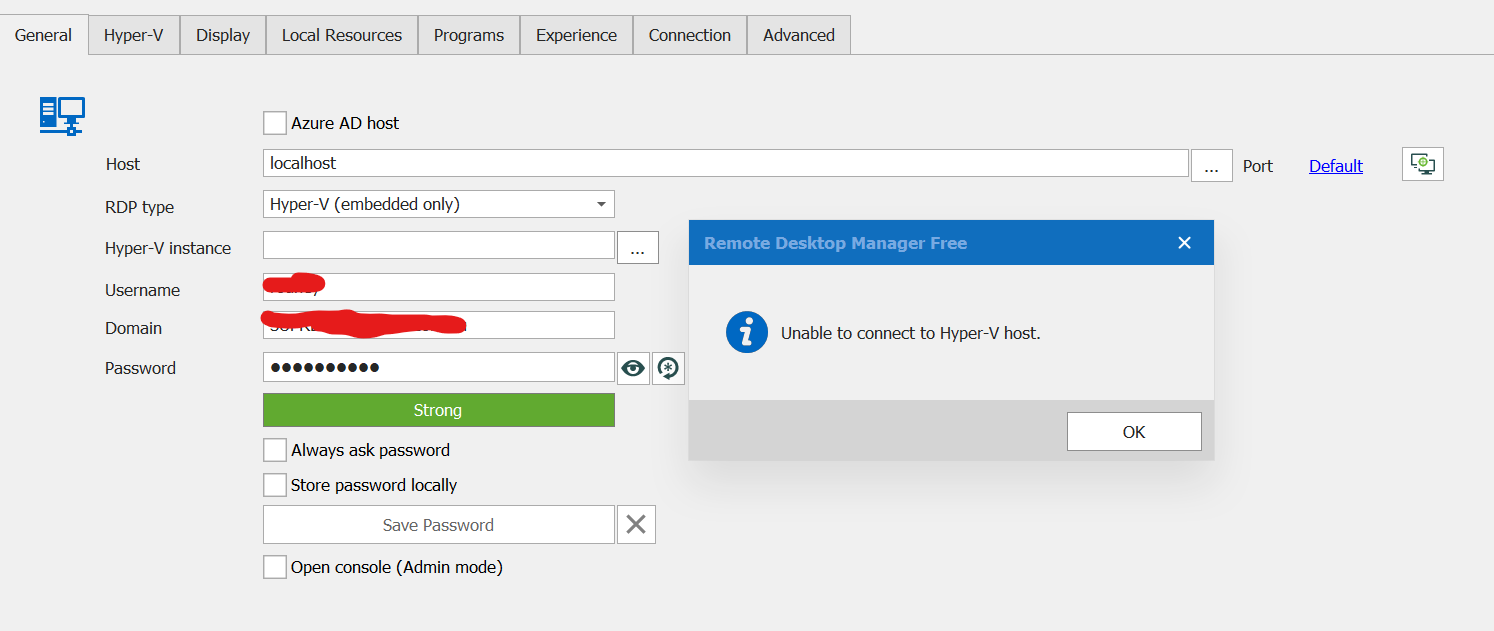
Cheers
Rod.
RemoteDesktopHyper-vManagerError.png
Hi,
Just out of curiosity, when you say vGPU, do you mean the RemoteFX vGPU that was recently removed by Microsoft, or the new kind of vGPU support that looks a bit more difficult to enable? If you followed a specific guide to enable it, I'd be interested. There isn't much information available on how to get vGPU support in Hyper-V after Microsoft decided to kill the RemoteFX vGPU.
If the current user is capable of connecting to the VMs using the Hyper-V manager without entering credentials explicitly, you could try removing the credentials from your Hyper-V entry in RDP and then enable "Connect with current user credentials" in the Hyper-V tab. Since you mentioned that you wish to connect using the Basic mode, don't enable "Use enhanced session mode". As for the framebuffer redirection, try with or without it, you mileage may vary.
Let me know if it works!
Marc-André Moreau
Hi - thanks for your response
Unfortunately no it didn't work - but its ok - I am used to using the Hyper-V console now.
RemoteFX has been discontinued, so I am referring to the vGPU which is all done through powershell commands and copying driver files (the slightly more difficult one)
However - it works remarkably well - I tend to use the VM to watch youtube videos and concerts instead of the main desktop. Its not as good as bare metal dedicated GPU's - but I have several vGPU enabled VM's all running accelerated graphics (Develeopment VM's along with Test VM's to test software etc.
I have seen people game in the VM's as well but i havent tried.
Few key things to note - if you have multiple GPU's, you need to drivers for all GPU's added to the VM guest machine. The VGPU assignment is not static - so you may get GPU1 one day and GPU2 the next time - depending on what VMs are running - haven't found a way to specify which vGPU yet. Windows allocated from the unused secondary GPU first, then from the primary, then from the secondary and so un - it seems to be the order of the VM startup.
Also - 1080P is the highest resolution - so don't bother trying 4K - I think this is a hyper-v limitation though not vGPU
I also use VOICE MEETER to bring the sound back from the VM to the HOST as in basic session, there no audio.
Here are the instructions I used to get it working - but if you are having difficulty let me know and I will post some detailed instructions that I made as well.
https://www.reddit.com/r/sysadmin/comments/jym8xz/gpu_partitioning_is_finally_possible_in_hyperv/
Cheers
Rod.
resurrecting an old thread because it shows in google results for this search
How to use Devolutions RDM with Hyper-V Embedded and Enhanced Session on localhost
tested on Windows 11 24H2
In my case, I'm doing it to hyper-v vm's on my localhost
- a user in the `Hyper-V Administrators` group on the host
- in my case I also launched rdm in the context of this user. not sure if it is required
- You must set CredSSP on the host
- https://miketerrill.net/2014/11/26/rdcman-v2-7-unknown-disconnection-reason-3848/
- commands at bottom of post
- You will need the vmid of the virtual machine
- `get-vm | Select-Object name,Id`
- Connection Properties
- General Tab
- Host = localhost (your local hyper-v server)
- RDP Type = Hyper-V (Embedded Only)
- Hyper-V Instance = VMID of virtual machine
- Username and Password = user on host in Hyper-V Administrators group
- Hyper-V Tab
- Use Enhanced Session Mode = Checked
- General Tab
did this by working backwards from vmconnect and sysinternals rdcman
notably the user in the rdm connection profile is NOT the one on the destination machine. But the host machine with hyper-v permissions.
With vmconnect, your connecting to the display, not so much remote desktop. So you log in from inside the `local display` on the virtual machine.
New-ItemProperty -Path HKLM:\SYSTEM\CurrentControlSet\Control\Lsa\Credssp\PolicyDefaults\AllowDefaultCredentials -Name Hyper-V -PropertyType String -Value "Microsoft Virtual Console Service/*" -Force
New-ItemProperty -Path HKLM:\SYSTEM\CurrentControlSet\Control\Lsa\Credssp\PolicyDefaults\AllowDefaultCredentialsDomain -Name Hyper-V -PropertyType String -Value "Microsoft Virtual Console Service/*" -Force
New-ItemProperty -Path HKLM:\SYSTEM\CurrentControlSet\Control\Lsa\Credssp\PolicyDefaults\AllowFreshCredentials -Name Hyper-V -PropertyType String -Value "Microsoft Virtual Console Service/*" -Force
New-ItemProperty -Path HKLM:\SYSTEM\CurrentControlSet\Control\Lsa\Credssp\PolicyDefaults\AllowFreshCredentialsDomain -Name Hyper-V -PropertyType String -Value "Microsoft Virtual Console Service/*" -Force
New-ItemProperty -Path HKLM:\SYSTEM\CurrentControlSet\Control\Lsa\Credssp\PolicyDefaults\AllowFreshCredentialsWhenNTLMOnly -Name Hyper-V -PropertyType String -Value "Microsoft Virtual Console Service/*" -Force
New-ItemProperty -Path HKLM:\SYSTEM\CurrentControlSet\Control\Lsa\Credssp\PolicyDefaults\AllowFreshCredentialsWhenNTLMOnlyDomain -Name Hyper-V -PropertyType String -Value "Microsoft Virtual Console Service/*" -Force
New-ItemProperty -Path HKLM:\SYSTEM\CurrentControlSet\Control\Lsa\Credssp\PolicyDefaults\AllowSavedCredentials -Name Hyper-V -PropertyType String -Value "Microsoft Virtual Console Service/*" -Force
New-ItemProperty -Path HKLM:\SYSTEM\CurrentControlSet\Control\Lsa\Credssp\PolicyDefaults\AllowSavedCredentialsDomain -Name Hyper-V -PropertyType String -Value "Microsoft Virtual Console Service/*" -Force
New-ItemProperty -Path HKLM:\SYSTEM\CurrentControlSet\Control\Lsa\Credssp\PolicyDefaults\AllowSavedCredentialsWhenNTLMOnly -Name Hyper-V -PropertyType String -Value "Microsoft Virtual Console Service/*" -Force
d68097c0-7b7a-4896-93ac-3780cc3ba589.png
Hello,
Thank you for the follow-up.
If I’m understanding correctly, you have a similar setup on your end, and it appears to be working well.
I appreciate you adding this information to the post, future users may find it helpful.
If you have any questions or run into issues with this configuration, feel free to follow up here.
Best regards,
Jacob Lafrenière

resurrecting an old thread because it shows in google results for this search
How to use Devolutions RDM with Hyper-V Embedded and Enhanced Session on localhost
tested on Windows 11 24H2
In my case, I'm doing it to hyper-v vm's on my localhost
- a user in the `Hyper-V Administrators` group on the host
- in my case I also launched rdm in the context of this user. not sure if it is required
- You must set CredSSP on the host
- https://miketerrill.net/2014/11/26/rdcman-v2-7-unknown-disconnection-reason-3848/
- commands at bottom of post
- You will need the vmid of the virtual machine
- `get-vm | Select-Object name,Id`
- Connection Properties
- General Tab
- Host = localhost (your local hyper-v server)
- RDP Type = Hyper-V (Embedded Only)
- Hyper-V Instance = VMID of virtual machine
- Username and Password = user on host in Hyper-V Administrators group
- Hyper-V Tab
- Use Enhanced Session Mode = Checked
- General Tab
did this by working backwards from vmconnect and sysinternals rdcman
notably the user in the rdm connection profile is NOT the one on the destination machine. But the host machine with hyper-v permissions.
With vmconnect, your connecting to the display, not so much remote desktop. So you log in from inside the `local display` on the virtual machine.
New-ItemProperty -Path HKLM:\SYSTEM\CurrentControlSet\Control\Lsa\Credssp\PolicyDefaults\AllowDefaultCredentials -Name Hyper-V -PropertyType String -Value "Microsoft Virtual Console Service/*" -Force
New-ItemProperty -Path HKLM:\SYSTEM\CurrentControlSet\Control\Lsa\Credssp\PolicyDefaults\AllowDefaultCredentialsDomain -Name Hyper-V -PropertyType String -Value "Microsoft Virtual Console Service/*" -Force
New-ItemProperty -Path HKLM:\SYSTEM\CurrentControlSet\Control\Lsa\Credssp\PolicyDefaults\AllowFreshCredentials -Name Hyper-V -PropertyType String -Value "Microsoft Virtual Console Service/*" -Force
New-ItemProperty -Path HKLM:\SYSTEM\CurrentControlSet\Control\Lsa\Credssp\PolicyDefaults\AllowFreshCredentialsDomain -Name Hyper-V -PropertyType String -Value "Microsoft Virtual Console Service/*" -Force
New-ItemProperty -Path HKLM:\SYSTEM\CurrentControlSet\Control\Lsa\Credssp\PolicyDefaults\AllowFreshCredentialsWhenNTLMOnly -Name Hyper-V -PropertyType String -Value "Microsoft Virtual Console Service/*" -Force
New-ItemProperty -Path HKLM:\SYSTEM\CurrentControlSet\Control\Lsa\Credssp\PolicyDefaults\AllowFreshCredentialsWhenNTLMOnlyDomain -Name Hyper-V -PropertyType String -Value "Microsoft Virtual Console Service/*" -Force
New-ItemProperty -Path HKLM:\SYSTEM\CurrentControlSet\Control\Lsa\Credssp\PolicyDefaults\AllowSavedCredentials -Name Hyper-V -PropertyType String -Value "Microsoft Virtual Console Service/*" -Force
New-ItemProperty -Path HKLM:\SYSTEM\CurrentControlSet\Control\Lsa\Credssp\PolicyDefaults\AllowSavedCredentialsDomain -Name Hyper-V -PropertyType String -Value "Microsoft Virtual Console Service/*" -Force
New-ItemProperty -Path HKLM:\SYSTEM\CurrentControlSet\Control\Lsa\Credssp\PolicyDefaults\AllowSavedCredentialsWhenNTLMOnly -Name Hyper-V -PropertyType String -Value "Microsoft Virtual Console Service/*" -Force
@other-devo
I created this account, solely to say:
I hope all people you meet, show you nothing but kindess. I hope all your endeavours succeed.
Thank you, you absolute legend.
PS: The powershell cmd-lets were not needed for my setup to work.
Windows Update KB5124008 currently breaks this feature. When trying to open the session, the Login box shows up, but no creds are accepted. The auth box come sup indefinitely, rejecting all creds;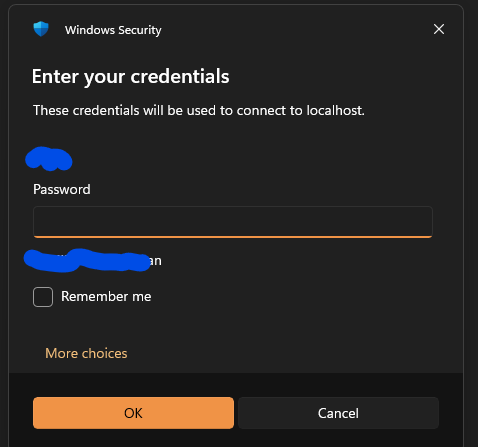
Uninstalling the KB resolves the issue.
Could a mod let me know if this post is sufficient, or if I should create a support thread?
3752e1a5-a08f-4bc3-94cc-9aaf2313b118.png
Hello
I think this might be worth a standalone thread. I'm on Windows 11 25H2 and RDM 2026.2.18.
I'm logged into my machine with my work account. I created a new, regular user account for testing ("TestUser") and only added it to the Hyper-V Administrators group.
Then, in RDM, I created a new RDP connection set up as you said:
Host: localhost
RDP Type: Hyper-V
Hyper-V instance: {a VM ID from one of my HyperV machines}
Username: TestUser
Password: {password}
Microsoft Hyper-V > Use enhanced session mode
Everything else at default, and I've never enabled any of the registry options you have above.
I connect, and I land at the console of the virtual machine, at the Windows Logon screen.
I installed KB5124008 (which was tricky, it took a long time and froze my machine during the update, but eventually it stuck and does show installed in Windows Update history). Re-open RDM and try again, and it still works.
As I said, it might be worth a new thread; but you could also try:
- Reverting the registry changes you have above
- Try creating a new RDP session with only the settings above, and leave everything else at default
- Carefully backup your RDM configuration in %localappdata%\devolutions and try with a fresh configuration
(The last two are maybe because you have a different setting than default that's interacting badly with the update, although I can't see how that can be the case).
Let me know if something isn't clear
Kind regards,
Richard Markievicz