Enable CredSSP support = False (enablecredsspsupport:i:0) is ignored in Embedded (tabbed) mode
Enable CredSSP support = False (enablecredsspsupport:i:0) is ignored in Embedded (tabbed) mode
For certain servers I need to disable CredSSP Support (enablecredsspsupport:i:0 in .rdp file).
This setting works OK if I open my remote desktop display in External mode, but appears to be ignored when opening in Embedded (tabbed) display.
All Comments (25)
Hello,
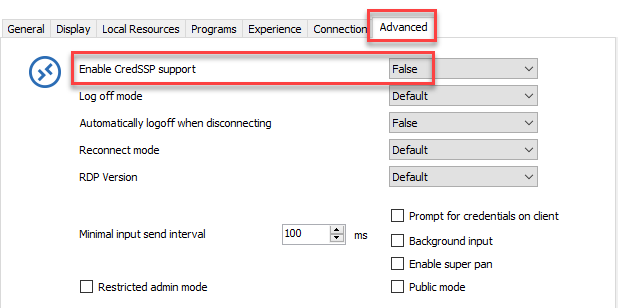
In the properties of your RDP session, go in the Advanced tab and select False for CredSSP Support
This should do the trick.
Best regards,
Jeff Dagenais
2018-09-21_09-58-55.png
Hi, that is what I have done, but the change only applies when I open sessions in External mode and not in Tabbed.
Thanks, David.
Hello,
In embedded mode, we use the same Microsoft ActiveX that is used in Microsoft RDC Manager and in this application, I do not see any option regarding CredSSP. I would need to verify with our engineering department if it should work or not in embedded mode.
What version of RDM are you running?
Best regards,
Jeff Dagenais
Hi, I am running Windows 10.
The specific version of mstsc.exe is: 10.0.16299.461
The RDM Version is: 4.6.0.0 64-BIT (portable download, but running from C: drive - not from USB)
Could you try to uncheck the NLA (Network Level Authentication)?
Regards
David Hervieux
Great thanks for the suggestion - unchecking "Activate netowrk level authentication NLA (SingleSignOn)" on the Connection tab worked. :)

Windows10/RDM 13.6.7
A coworker of mine reported a similar problem. But David's hint doesn't work.
When connecting to a Windows Server host joined to AzureAD using an AzureAD user he needs to disable SSP Support. This works with standard mstsc when altering a .rdp file (add enablecredsspsupport:i:0) or with RDM when embedding this rdp file.
It does NOT work, when using a RDM RDP Session and setting Enable CredSSP support to FALSE. Even when unchecking "Activate network level authentication NLA (SingleSignOn)". "Open external" makes no difference.
It DOES work with RDM RDP when using a local user for this host.
@Daniel Messer,
Could you try to create a .rdp file that is working with mstsc.exe outside RDM and import it in RDM to see if it's still continue to work?
After the import, the session should open in external mode. If the connection is established properly, then, change the display setting to embedded to see if it's still connecting.
Best regards,
Jeff Dagenais
Thanks for the hint Jeff!
We did that (it worked) and compared the settings with a non-working session. It appears that the default setting "Connect and don't warn me" has to be changed to "Warn me". So summarized three things have to be set to achieve the effect of RDP's "enablecredsspsupport:i:0":
We don't really understand, why this settings are the right ones, but at least they work;-)
000466.png
@Daniel,
Wow! Thanks a lot for this detailed post. Really appreciated!
Glad that is now working.
Best regards,
Jeff Dagenais
Yes, thanks neocid - whilst I'm in lock down, I'm taking the opportunity to rebuild a local charities small computer system. We're joining their computers to Azure AD as they have Microsoft 365 but missed being able to use RDP to connect to them during build. I'd come across the comment about NLA and enablecredsspsupport:i:0 in the RDP - got it work in RDP outside of RDM, and import worked as well - but I'm a curious sod and wanted to know what else you had to set except setting CredSSO to false.
As an aside, anyone know why Microsoft have made it so RDP with NLA can only be used for equally Azure AD computers? Security?
Hello,
It's indeed more secure to enable NLA when establishing a RDP connection. Now why Microsoft made it mandatory, this is the kind of question that you would need to ask them directly :)
Best regards,
Jeff Dagenais
Thanks for the hint Jeff!
We did that (it worked) and compared the settings with a non-working session. It appears that the default setting "Connect and don't warn me" has to be changed to "Warn me". So summarized three things have to be set to achieve the effect of RDP's "enablecredsspsupport:i:0":
- Advanced>Enable CredSSP support: FALSE
- Connection>Activate network level authentication NLA (SingleSignOn): uncheck
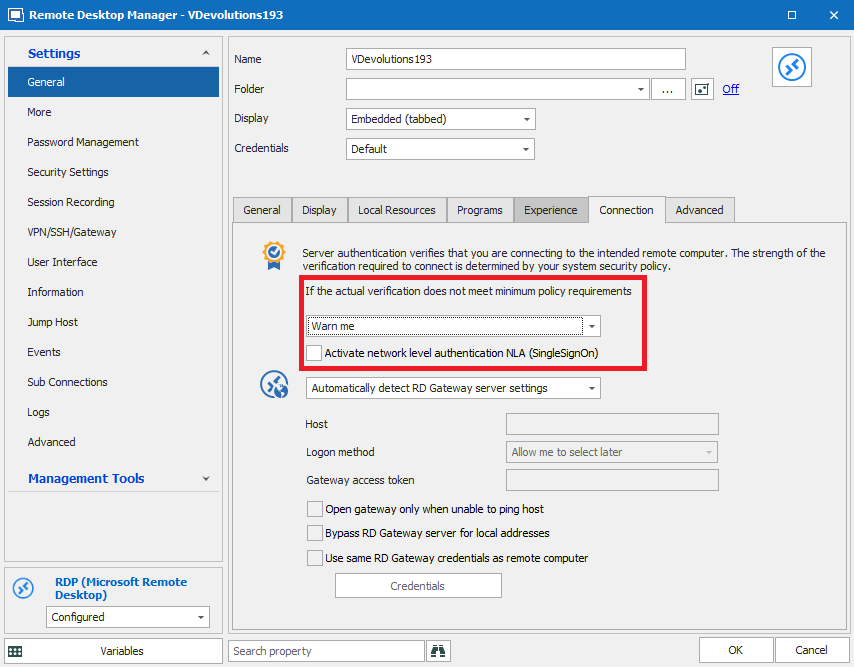
- Connection>If the actual verification does not meet minimum policy requirements: Warn me
We don't really understand, why this settings are the right ones, but at least they work;-)
This gets me closer. It still fails to authenticate the user. I've tried "Default" for credential settings and manually saving them into the RDM session either using AzureAD\username@xxxx.onmicrosoft.com or separating AzureAD to the Domain field. Neither work.
I've also tried storing this separately in a Credential and referencing that Credential entry. Same thing. What shows up is "The user name or password is incorrect. Try again." When I click OK, only the username@xxxx.onmicrosoft.com is in the user name field for Windows logon, and nothing in the "Sign in to" section that should say the domain.
When I change the username to AzureAD\xxxx.onmicrosoft.com in the Windows sign on screen and put in the same password, it logs me in OK.
So somehow it seems that RDM isn't passing through the AzureAD domain portion regardless of whether it's in the Username or Domain field.
I'm using the latest version of RDM at this time: 2020.1.20.0.
Hello,
In the Advanced section of your RDP session, it's possible to adjust the username format that you would like to use. Have you tried to change this option? 
Best regards,
Jeff Dagenais
2020-05-26_08-01-10.png
If I choose:
- domain\user - it fails to log on, but does show the username portion of the account name, no domain shown.
- user@domain - fails to log on, shows username@AzureAD in the account name, no domain shown.
- user - fails to log on, shows username portion of account name, no domain shown.
Seems that say for option/format #1 above, RDM is ignoring anything after the @ sign in the user account name. It's assuming that's the domain, even though AzureAD is in the domain field.
Interestingly enough, if I select "Open (Prompt for Credentials)" whether I use AzureAD\username@xxxx.onmicrosoft.com or put AzureAD in the Domain field, same thing; it fails to log on.
Hello,
Could you try to create a functional .rdp session and import this session in RDM and see if this sessions works?
Best regards,
Jeff Dagenais
I'm not sure what else to do to make a functional RDP session file. The features above are set in the RDP file but it doesn't even connect with the username that's populated and saved in the RDP file. It just comes up to the main logon screen with another user that is available on the computer. If I cancel that user, then username@xxxxonmicrosoft.com is showing with no AzureAD and nothing for the domain below the sign-in fields.
Are there any other tricks to making a functional RDP file?
Hi,
I have an Azure AD joined virtual machine, and I managed to create an RDM RDP entry that can correctly connect to it. For the username format, I found the solution in the following blog post (http://www.bradleyschacht.com/remote-desktop-to-azure-ad-joined-computer/). You should use the following username format:
.\AzureAD\username@domain.com
And leave the domain field empty. I'm not sure what exactly strips part of the username without the ".\", it could be the ActiveX or even the remote winlogon, but adding ".\" forces it to remain untouched and makes it work.
You then need to change a few settings in the RDP entry.
In the Connection tab:
- Change "If the actual verification does not meet minimum policy requirements" to "Warn me"
- Uncheck "Activate network level authentication NLA (SingleSignOn)"
In the Advanced tab:
- Enable CredSSP support: False

Once these default settings have been modified, you should now be able to connect through RDM. Let me know if it works for you.
Best regards,
Marc-André Moreau
RDP_Tab_Advanced.PNG
RDP_Connection_Tab.PNG
Thanks so much, Marc-Andre! This worked! Just adding that .\ at the beginning fixes things.
Eventually, could RDM have a checkbox for "Azure AD logon" that switches the credential fields to not have a domain, and have a little note/hint that you need to use AzureAD\username, and inherently add the .\ or just ignore the @ sign so that it doesn't split that out as the "domain"? I guess that should be in Feature Requests...
Hello,
We will add this to our todo list for sure.
Regards
David Hervieux
Hello,
In version 2020.3 you'll have the option to specify that your rdp is hosted on Azure AD. This will take care of the username formatting without having to specify the ".\AzureAd\". This also means that the username and domain can be entered in their respective fields.
Regards
Jonathan Del Signore
Hello,
Also in version 2020.3, the CredSSP option will be removed to get rid of the confusion with the NLA option.
This is simply to be able to enable/disable the feature with a single option, so nothing will change on the execution side.
Regards
Jonathan Del Signore
Hello,
In the properties of your RDP session, go in the Advanced tab and select False for CredSSP Support
This should do the trick.
Best regards,
I know I'm digging up an old thread - but has this option been removed or just relocated somewhere else?
Need to set the folllowing for Azure purposes.
enablecredsspsupport:i:0
authentication level:i:2
Hello,
The CredSSP setting has been removed because it was causing too much confusion. Now, you only need to disable "Network level authentication" and set the Authentication level to "Warn me" (Authentication tab).
Regards
Jonathan Del Signore