Launching same URL but for multiple logins

Hi
We launch an https website, that we need to sign in as different accounts. (We log for our different customers)
Is there a way that we can get it to log in automatically with the right account?
I have tried creating a separate Web Browser (http/https) entry for each account/customer, then we create the corresponding account username and password but when we launch the session, it finds all the accounts in Remote Desktop Manager web plugin.
We would like it to login automatically, as we launch the session then have to choose the account.
I have tried adding it to the https session entry under login, as also under Credentials > Credentials repository and pointed it to the login account but this still does not give the result we want?
Any pointers would be appreciated.
Many thanks
Darren
All Comments (1)
Hello,
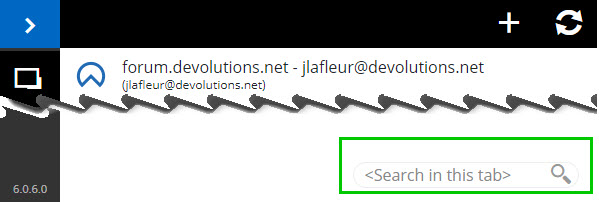
From what I understand, since you are using the Devolutions Web Login extension (Remote Desktop Manager web plugin), this means that you are launching your Web Browser entries in external mode. If that is the case, you can use the "Search in this tab" feature of the plugin in order to filter your customer list
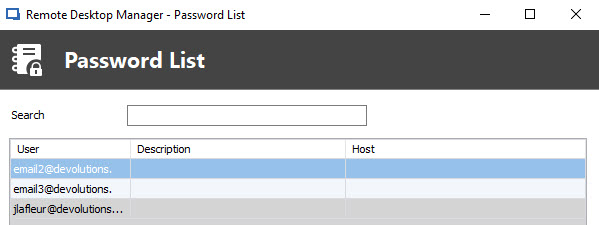
On the other hand, I think that in that case, the best course of action would be to launch your Web Browser entries in embedded mode instead and to use a Password List credential entry in order to be prompted with a list of username/password upon launching your entry.
If this is of interest to you, please follow the steps below in order to do so:
1- Open RDM, go to "Edit" in the ribbon and click on "New Entry"
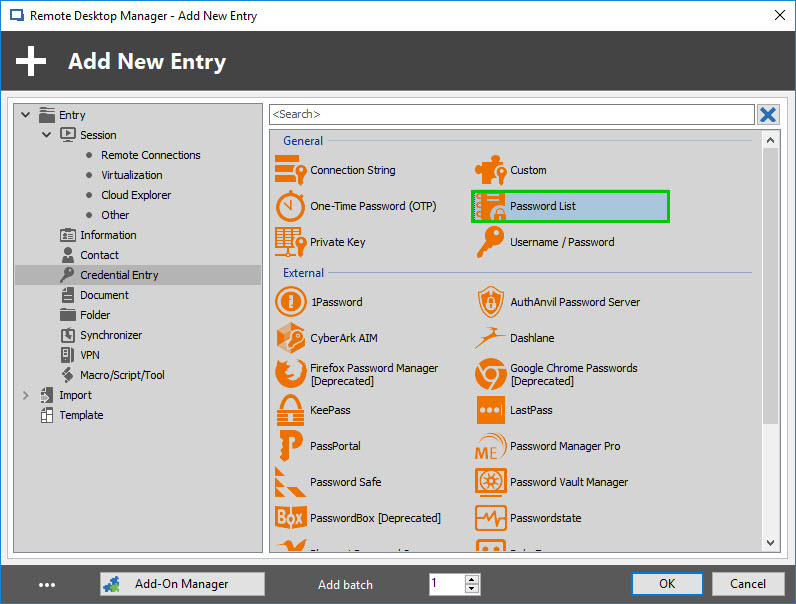
2- In the "Add New Entry" window, go in the "Credential entry" section and click on "Password List"
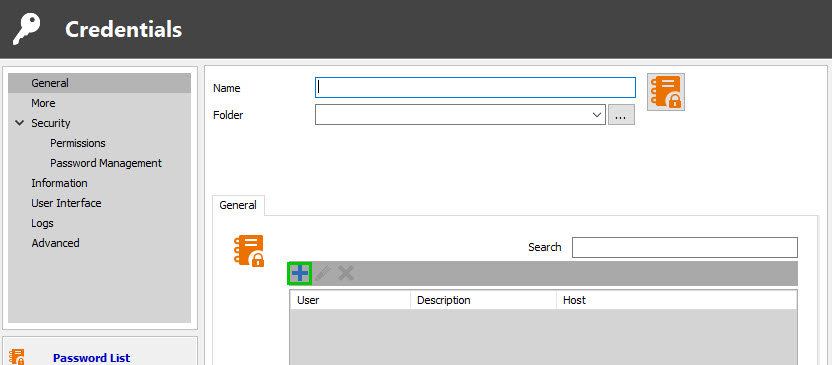
3- In Credential window, use the "+" sign in order to create a username/password for each of your customers.
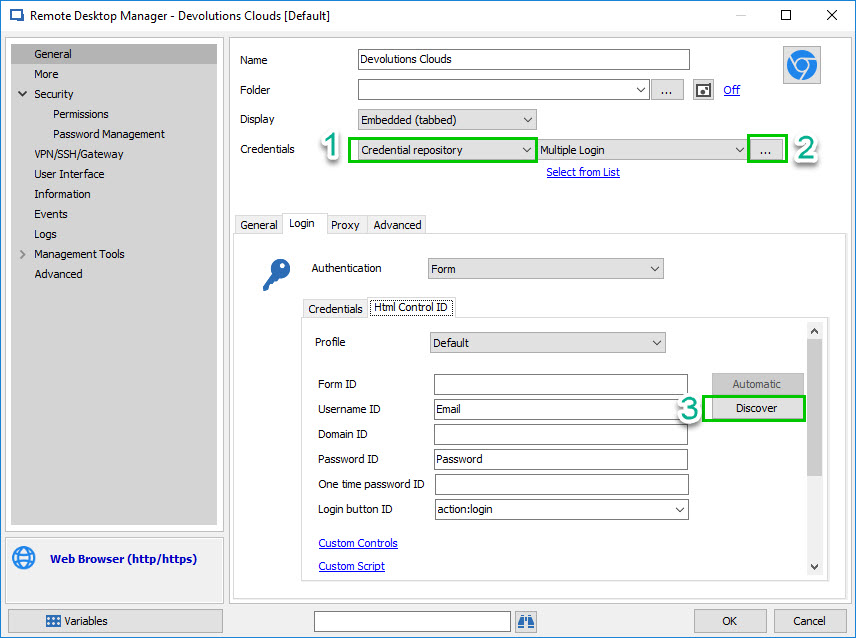
4- Once your Password List credential is created, go back to the Properties of your Web Browser entry, change the Display mode to "External" and change the credential mode (1) for "Credential Repository", then use the ellipsis (2) to select your newly created Password List entry.
5- Go under "Login" - "Html Control ID" and click on the "Discover" button (3) in order to fetch automatically to IDs of the fields on your Website.
5.2- If the discover does not return the IDs of your Website, please use the following link in order to find them manually: https://help.remotedesktopmanager.com/troubleshooting_webauthentication.htm
6- Now if you launch your Web Browser entry, you should be prompted with a list of all the customers that you created during the step 3.
If this does not work for you, could you please answer to the following questions:
1- Which version of RDM are you currently using?
2- What type of Data source are you using?
3- Are you launching your Web Browser entry in embedded or in external mode?
Best regards,
James Lafleur
FilterDWL.jpg
CredentialRepository.jpg
PasswordList3.jpg
PasswordList2.jpg
PasswordList.jpg