RDM window is hidden after locking windows

Hi,
I'm using RDM 13.5.9.0 64-Bit (also happens with 13.5.6.0)
This is a very annoying problem.
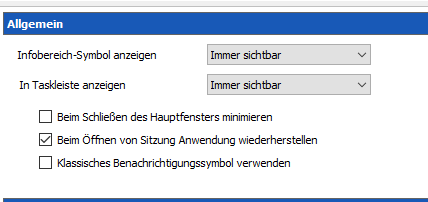
The following settings in my RDM clients are set:
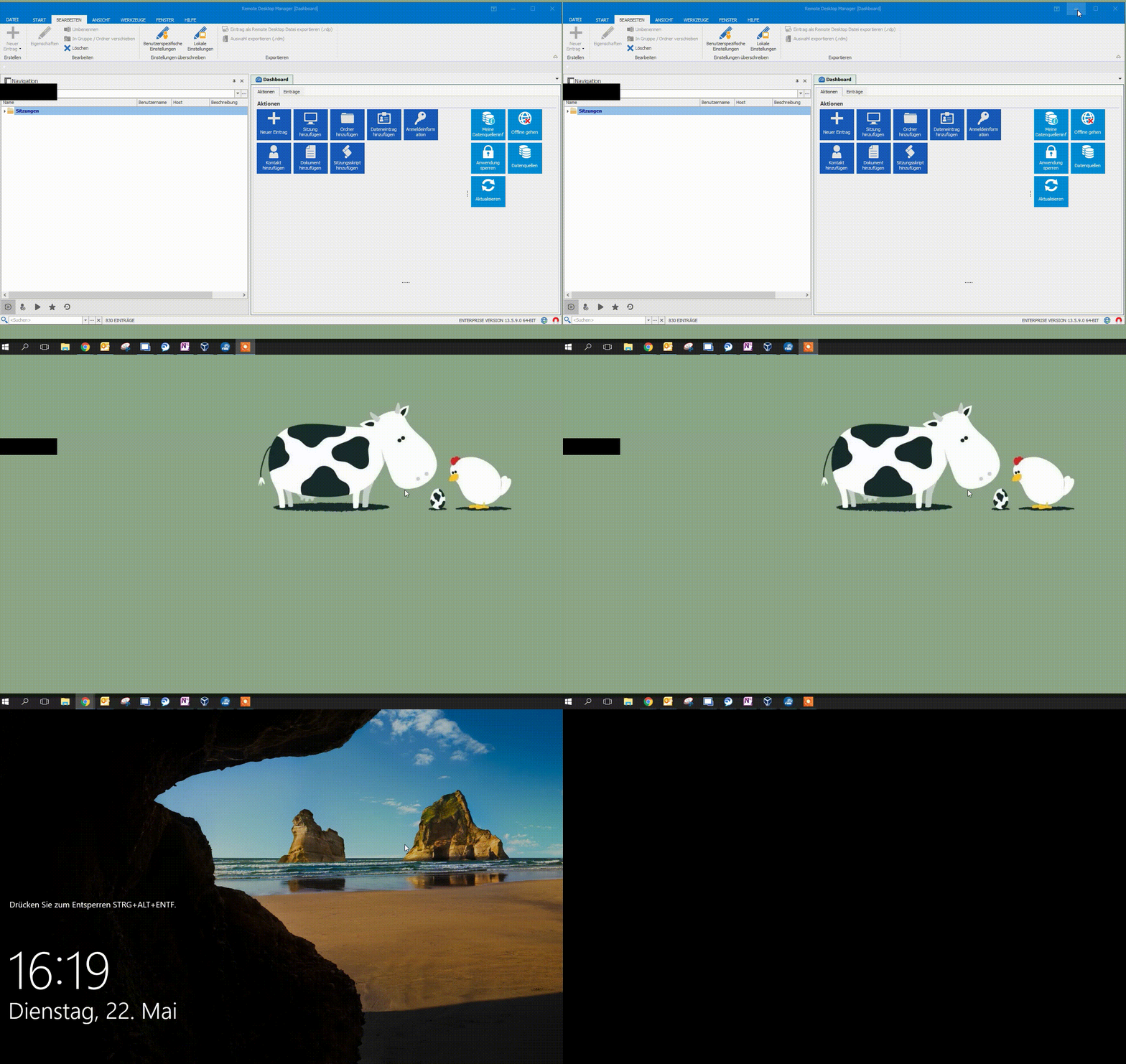
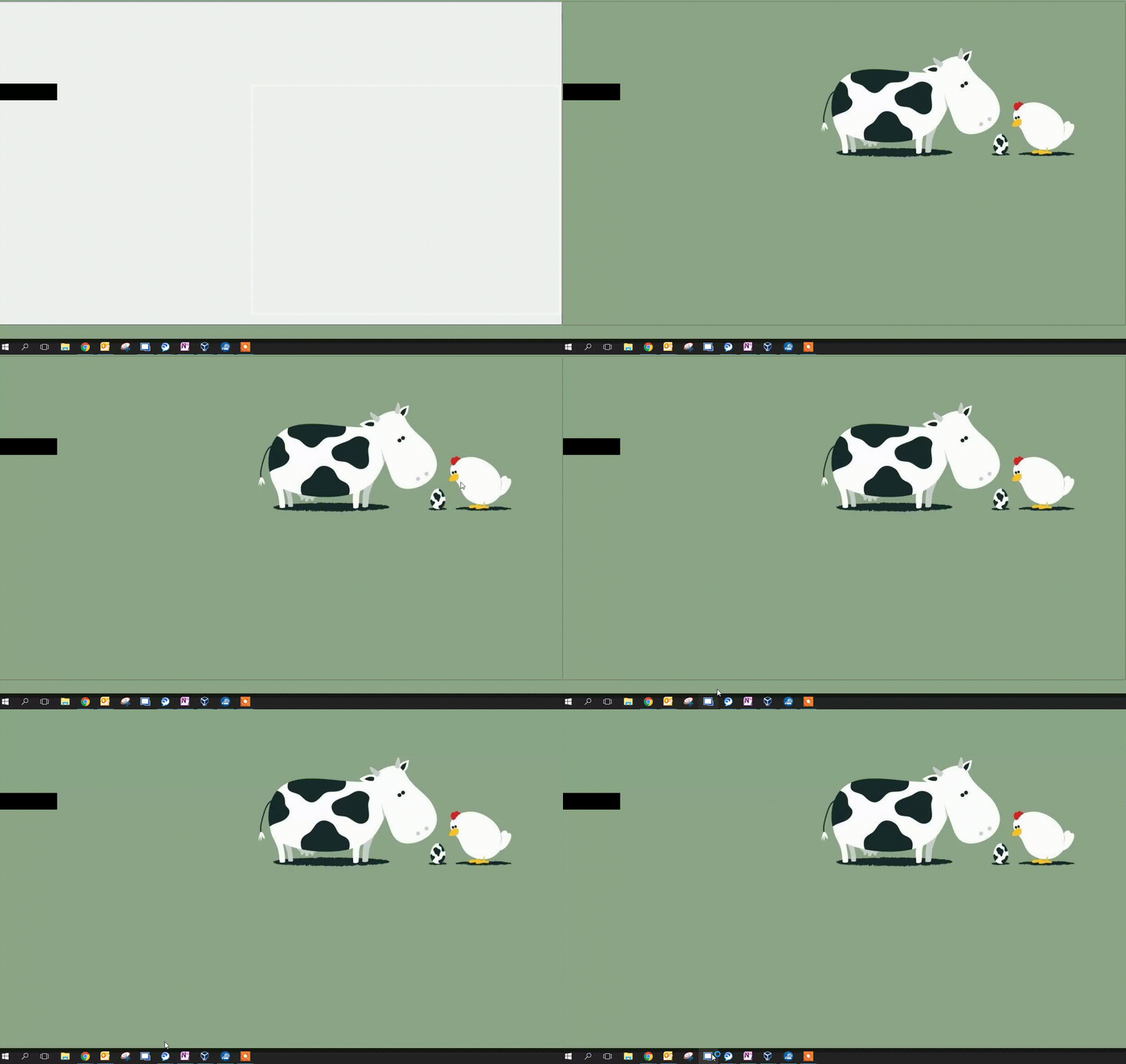
I minimize the RDM and lock my windows machine (appears to only happen with the database connection, not on local database)
After unlocking the windows machine, the RDM window is gone.
I have to klick on the RDM Taskbar Icon and relogin to RDM (not in the GIF).
Thank you for fixing that.
Best Regards
Jonas
ice_video_20180522-161926_edit_0.gif
ice_video_20180522-161926_edit_0(1)_edit_0.gif
2018-05-22 16_13_50-Remote Desktop Manager.png
All Comments (13)
Hello,
In order for us to find the cause of this issue, could you please send the following to support@devolutions.net:
1- Your RemoteDesktopManager.cfg (configuration file), a you can use the following link in order to find the location of that file https://help.remotedesktopmanager.com/installation_configurationfilelocation.htm
2- Could you please go to File -> Data Sources -> We will require a screenshot of the following tabs: Connection, Settings and Advanced
Best regards,
James Lafleur
Hi,
you got mail.
Best Regards
Jonas
Hello,
Unfortunately, I haven't been able to reproduce this issue in my environment using your configuration. I will continue my investigation and I will notify you as soon as I have any update on that matter.
Does this issue occur if your run Remote Desktop Manager in 32 bits?
Finally, could you please try to run RDM as a portable version and see if the issue still occur?
Please use the following link to our online help for more information on that matter https://help.remotedesktopmanager.com/installation_portableusb.htm
Best regards,
James Lafleur
Hi James,
we can do a live-session if you want to. Just contact me, then I can show.
Thanks
Best Regards
Jonas
Hi,
how do we move forward?
Best Regards
Jonas
Hello,
I just saw in our system that you already have a session scheduled with our support department for another issue.
We will take this opportunity to also see what might cause RDM to disappear after locking Windows .
Best regards,
James Lafleur
Hello,
Following the session you had with my colleague David, I was able to reproduce this issue.
A ticket has been assigned to our engineering department and I will notify you as soon as I have any update on that matter.
Thank you for your cooperation.
Best regards,
James Lafleur
Hello James,
are there any news?
It's so annoying, because it happens on every lock of my windows screen...
Thank you
Best Regards
Jonas
Hello,
After a discussion with our engineering department, they told me that this behavior is intended when you use the Lock feature within RDM.
The lock feature is made to hide RDM from the Taskbar and to send it directly to the Tray.
In order to have access to your RDM once more, you will have to go the the Tray, click on the RDM icon and enter your password to unlock your RDM application.
On the other hand, your Gif has shown the "Black Outline" on your Desktop. Our engineering department has already added this bug to their to-do list.
Best regards,
James Lafleur
Hi James,
thanks, how to disable this behavior?
Best Regards
Jonas
Hello
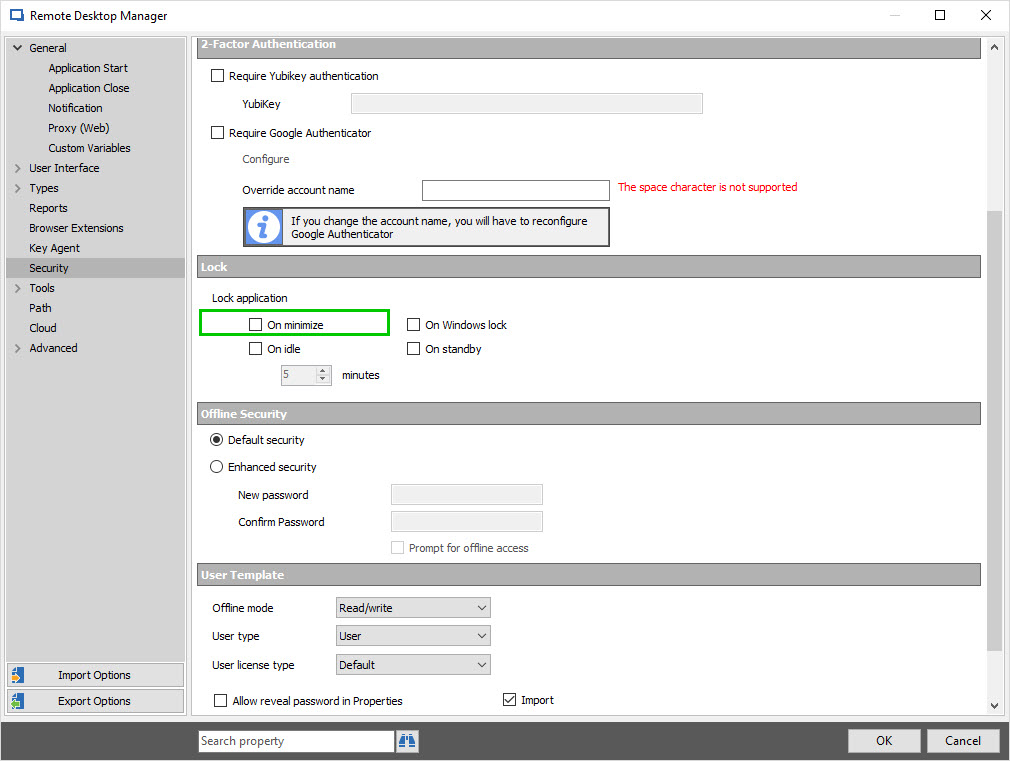
In order to disable this option, could you please go to
File -> Options -> Security -> Lock -> Make sure that "Lock on minimize" is unchecked
Best regards,
James Lafleur
RDMLock.jpg
Hello James,
this is not helping with the problem.
Just to recap my problem:
Using RDM 13.5.11.0
Leaving the RDM window open
Locking windows
Unlocking windows
the RDM window is gone
My expectation is, that I can maximize the window and I can work again, without entering my credentials in the rdm window.
How can we get this behaviour, without going to the tray icons, searching for rdm, klicking on it and so on.
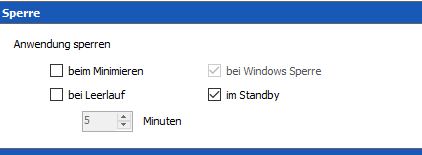
Best Regards
Jonas
rdm.JPG
Hello,
Your settings indicate that when Windows is locked, your RDM will be locked. You will need to untick "bei Windows Sperre". In your option window, we can see it's disabled, it's because the Data Source Settings forces this setting to your RDM. If you have Data Source administration privileges, you can change this setting here :
Administration tab -> Data Source Settings : Application
And uncheck the "bei Windows Sperre" checkbox.
Only the Administrators of this Data Source may change this value.
I hope this helps,
Best regards,
Alex Belisle
2018-06-11_9-34-44.png