Web browser application setting is not remembered after it is set for LogMeIn portal connections
Web browser application setting is not remembered after it is set for LogMeIn portal connections

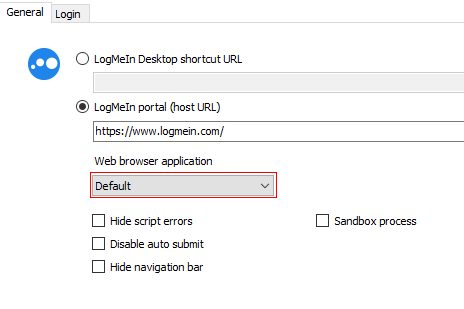
I'm using a LogMeIn Central account and logging into the web portal https://www.logmein.com/
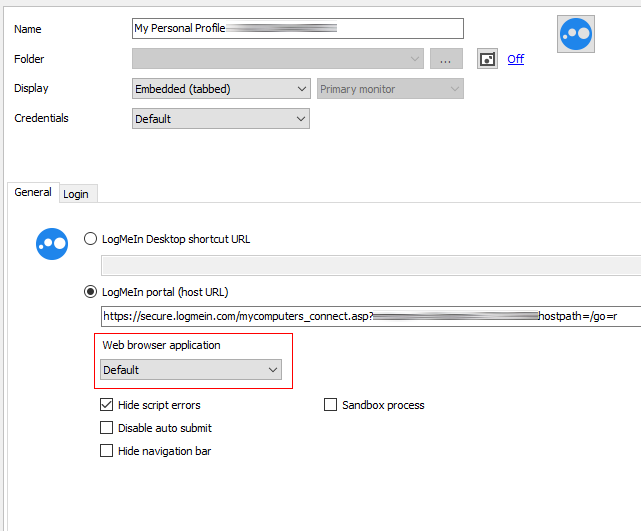
The Web browser application drop-down always says 'Default' even after I have selected one of the two other choices I am provided (Internet Explorer and Google Chrome.)
If I change it to 'Google Chrome', save the connection, then re-edit the connection it still says 'Default'.
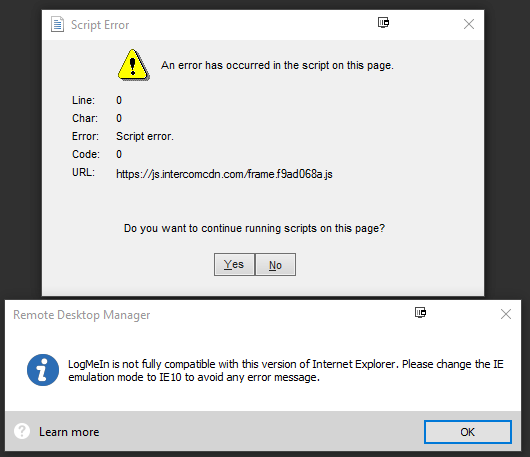
If I leave it as Default or set it to Internet Explorer and try to connect to LogMeIn I get the following error:
If I go into File > Options > Types > Web and change the IE Mode to Internet Explorer 10 as suggested, I get the following:
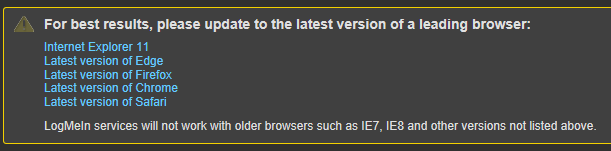
So one message says 'set the mode to IE 10' and the other message says 'use IE 11'...!?!?
How should this be set up for use with a LogMeIn Central account?
Thanks.
Jamie
WebBrowserApplication_suggestions.png
WebBrowserApplication_errors.png
WebBrowserApplication.png
All Comments (16)
Hello,
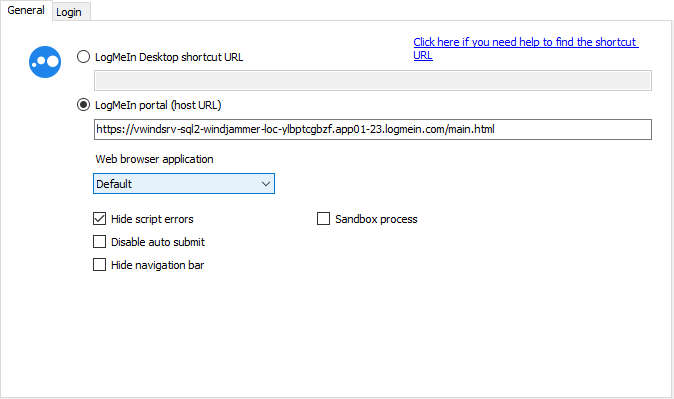
Our LogMeIn entry looks like the following;
I would also recommend checking the Hide script errors option below the Default dropdown.
To retrieve the computer URL, once connected in LogMeIn to the remote host, right-click on the "Remote Host" tab and select Properties.
It will be possible for you to copy the URL in that window to paste it in RDM.
Best regards,
Jeff Dagenais
2018-04-10_20-20-42.png
Jeff,
Thanks for the suggestions.
The LogMeIn Central portal won't let me right-click to snag the URL... nor can I drag it to the LogMeIn portal field in Remote Desktop Manager.
I was able to drag the link from the LogMeIn portal link to a plain text editor... from there I successfully cut-and-paste the URL into Remote Desktop Manager. That helped a lot... I get to the portal and the indicated host connection starts up automatically!
Thanks!
Jamie
Well this worked for a while. Now the LogMeIn window that opens to the destination computer is black. Can't see anything.
The original reason for this post still remains. The 'Web browser application' drop-down doesn't retain any setting. It always reverts to 'Default'. I can select either Internet Explorer (which results in the black screen issue) or Google Chrome (which I can get to work) but the next time I try to use the connection the 'Web browser application' setting is back to default.
using

RDMVersion.png
WebBrowserAppSettingnotRemembered.png
Hello,
We have a user that experienced the same issue as you.
The solution we found was to enable the Sandbox process option in the LogMeIn session;
Could you please try this option?
Best regards,
Marc Beauséjour
Thanks for the suggestion, but that didn't make any difference here.
I've checked the 'Sandbox process' checkbox and changed the 'Web browser application' selection to Google Chrome. Saved the changes and re-opened the connection properties and the 'Web browser application' setting is back to Default.
Jamie
Hello,
Have you tried IE for the web browser and use the Sandbox Process as well to see if that makes a difference?
Best regards,
Marc Beauséjour
I had not tried that... but I just did and it makes no difference. The browser selection always returns to 'Default'.
Hello,
I'm unable to recreate your issue.
Have you tried reinstalling RDM?
Are you the only person experiencing this issue?
Best regards,
Marc Beauséjour
I happen to be working from home today, so I've installed a copy of Remote Desktop Manager on my home PC. It is exhibiting the same behavior. The browser selection is not being saved.
If I edit the connection and change the browser selection to Google Chrome, save it and immediately open the connection, it uses Google Chrome, but after closing the connection and trying to use it again... it's back to 'Default' which is IE.
The only reason this is an issue is because when we're using IE hosted in RDM and you log in to the LogMeIn host computer the screen goes black. This doesn't happen on every machine but on enough in the office to be a big problem. If you manually open IE on the same machine and log in to the same LogMeIn host there is no problem. If I do the same from home... and use IE hosted in RDM I don't have the black screen problem. So it seems to be hardware/driver related.
The black screen issues doesn't seem to happen using Chrome.
Hello,
Could you please try version 13.5.13.0 which is our latest beta version to see if it helps?
https://remotedesktopmanager.com/home/download#Beta
If it doesn't, could you please send us a video showcasing the issue?
In the video, we would like to see this;
1. Edit the entry and change the browser
2. Go in View -> Activity Logs
3. Launch the session then close it.
4. Go back in the Activity logs. If you see Open session and also edit session, this could be the issue.
There's a tool in the Help tab called Record to assist.
Best regards,
Marc Beauséjour
Hello,
I forgot to mention that you can send the video to me via private message or you can send it to support@devolutions.net .
Best regards,
Marc Beauséjour
Hello again,
I forgot to ask, what type of data source are you using? Is it SQL Server?
Best regards,
Marc Beauséjour
Thanks Mark.
Sent you the requested info in a private message.
Hello,
Thank you for the info.
We have been able to reproduce your issue and a ticket has been submitted to our engineering department.
It seems to be related to the fact that your LogMeIn session is a sub-connection.
Best regards,
Marc Beauséjour
Excellent, thanks for the update.
Jamie
Testing 13.6.5.0 and it looks like this particular LogMeIn issue is resolved.