Login attempt failed on RDP session when using correct password
Login attempt failed on RDP session when using correct password
Hi,
I am using RDM 13.5.0.0. When I try to connect to some of my RDP entries, I get the Windows Security error saying "Your credentials did not work. The credentials that were used to connect to x.x.x.x did not work. Please enter new credentials". When I then use the exact same password that is saved in my RDP entry, it connects fine. I noticed that I have this issue for the RDP entries that do not use a Domain.
Does anyone know why this is happening and how I can resolve it?
Thank you.
-Mike
All Comments (22)
Hi Mike,
Could you have a look in the Manage Windows Credentials if you have a saved password for the IP that you try to connect to.
If not, could you send us a print screen of the RDP configuration please?
Also, is this a new issue since RDM update or password update?
Best regards,
David Grandolfo
Hi David,
I checked in Manage Windows Credentials and there are no saved credentials with the same IP.
Attached is a screenshot of the RDP configuration.
I just started using RDP so I wouldn't know if this is a new issue.
Thanks.
screenshot.jpg
Hi,
Here is some steps to test.
Could you try to create a new RDP entry?
Does the issue is new since RDM 13.5?
Could you test with RDCMan if you have the same issue? https://www.microsoft.com/en-us/download/details.aspx?id=44989
Best regards,
David Grandolfo
Hi David,
I created a new RDP entry but the issue persists.
I have only used RDM 13.5, so I don't know if older versions have it as well.
I tested with RDCMan and I have the same issue there as well.
Thanks.
Hello,
Sorry to jump in, but since you are not able to connect automatically using RDM and RDC Manager, is it possible that the remote server has a policy to not accept the password? It seems that the remote server only accept the password when you are typing it.
Best regards,
Jeff Dagenais
Hi Jeff,
I am not aware of such policy in Windows Server 2008. Do you know if such a policy exists, and if so, what is it called?
Thanks.
Hello,
This link may help you to find what you are looking for
https://community.spiceworks.com/topic/372997-cannot-save-password-for-remote-desktop
Best regards,
Jeff Dagenais
Hi Jeff,
I went through that thread and also made the recommended changes on the local group policy as described here http://itowns.blogspot.com.cy/2009/01/remote-desktop-not-allowed-to-use-saved.html but the issue persists. The actual error message I get is different from the one mentioned in that thread, so I don't think this is the same problem.
Any other thoughts/advice?
Thanks.
Hello,
In embedded mode, RDM use a Microsoft ActiveX to establish the remote connection. In fact, it's the ActiveX that is used in RDC Manager.
Since you encounter the same issue in RDM and RDC Manager, the issue can be associate to the ActiveX or to a policy.
The other test that you can do it's to create a .rdp session via Microsoft Remote Desktop (mstsc.exe) and save the password in the .rdp session.
Then, if the password is still requested, it's probably due to a policy.
Best regards,
Jeff Dagenais
Hi Jeff,
I tried the test with the .rdp file. I am using Windows 10, and it doesn't seem to let me save any credentials, so I can really perform this test.
Something else I noticed, is that when I use mRemote on a Windows 7, I don't have the issue where it asks me to type the password.
Any thoughts?
Thanks.
Hi Mike,
Could you confirm that you have these value in your .RDP file?
Best regards,
David Grandolfo
Hi David,
I checked the .RDP file and some of those were missing. I added the ones that were missing other than the "domain:s:mydomain" since I am connecting on the local account. When I run the .RDP it asks for both the username and password.
Hi Mike,
With this test it's mean there have really big chance that the server have a policy. We are using the same technology as Microsoft (RDCMan) to connect to a server.
I'm not aware about mRemote what they use as technology. You could as the latest test to change the RDP engine in the Advanced tab of the RDP session and choose FreeRDP.
Best regards,
David Grandolfo
Hi Mike,
I just got a chat with an engineer and it missing information in my last post. RDM listen a every policy on your computer and on the server. Many administrator implement policy that block every saving password on the local computer and this is why RDM, MSTSC and RDCMan doesn't save the credentials.
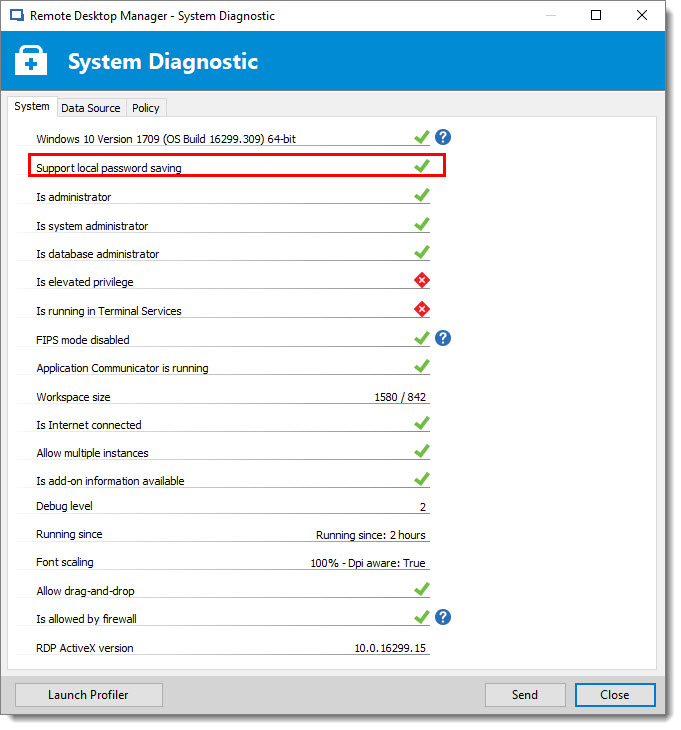
If you go in Help --> Diagnostic you will see a Support Local Password Saving if you have a Red X this mean that you have aLocal policy on your computer. You could contact the IT administrator to have more information about if they could remove it.
In the example below I do not have any local policy.
Another trick to see if this function is locally activated you could have a look at the REGEDIT: please look at this key,
If the value for “Network access: Do not allow storage of passwords and credentials for network authentication” is not set to “Enabled”, then this is a finding.
The policy referenced configures the following registry value:
Registry Hive: HKEY_LOCAL_MACHINE
Registry Path: \System\CurrentControlSet\Control\Lsa\
Value Name: DisableDomainCreds
Value Type: REG_DWORD
Value: 1
David Grandolfo
Policy.jpg

Hi I'm headbutting with the same issue. Did this ever get resolved?
Issue is present only when trying to connect to a server that isn't connected to a domain. Both when trying to start the connection with host name or IP.
I have checked the previous suggestions and everything seems to be as supposed.
Hello Rein,
Have you tried to test the connection in RDC Manager as well? If not, could you please try to launch the same RDP connection in this application and see if the same issue occurs? This application from Microsoft can be downloaded here https://devolutions.sharefile.com/d-sc42cd6cb1be4886b
Also, which version of RDM and what type of Data Source you are currently using? Could you provide us a screenshot of the error message you receive in RDM?
Best regards,
James Lafleur
Have you tried to test the connection in RDC Manager as well? If not, could you please try to launch the same RDP connection in this application and see if the same issue occurs? This application from Microsoft can be downloaded here https://devolutions.sharefile.com/d-sc42cd6cb1be4886b
Hi, it did not occur to me to try rdcman (Why would I if I have RDM :) )
Through rdcman it connected without a hitch.
Also, which version of RDM and what type of Data Source you are currently using? Could you provide us a screenshot of the error message you receive in RDM?
local source
Screenshot:
I don't have any special configurations entered. 
Hello,
Thank you for your swift reply!
Would it be possible for you to consult your "Windows Credentials Manager" and see if you have any set of credentials saved for this remote host? RDM first goes through this location to establish an RDP connection.
Best regards,
James Lafleur
Hi James
Thanks for answering and sorry for the delay. I did check Windows Credentials Manager and it did have credentials stored. Clearing them however didn't help. Still had to "re-enter" the correct credentials inorder to get access. Doing that created new credentials in cred man.
Tried changing the domain to <dot> but that didn't help, also tried changing the domain to <server name> and clearing the domain and entering the server name before local admin (with a slash 😉 ) but no luck
Hello,
No problem! Thank you for performing this test!
In that case, could you please go into the properties of your RDP entry, make sure that the "Credentials" option at the top is set to "Custom", then enter your credentials in the appropriate fields (username, password, domain) and make sure that the option "Store password locally" is unchecked.
Once this is done, launch your RDP connection once more and see if you are able to connect without having to reenter your credentials.
Best regards,
James Lafleur
Hi James
Thanks for the reply. Unfortunately my settings already are as you described so I'm not able to change anything.
The issue seems to stem from the fact that the computer I'm connecting to isn't enrolled in a domain.
Other connection profiles (where computers are connected to various domains) aren't affected. They also don't appear in the Credential Manager.
Given that I now decided to try creating a new connection profile. Issue didn't re-occur with the new profile sooooooooo IT'S FIXED!! (For everybody else that might face this issue)
Hello,
Thank you for your feedback, I am glad to see that this issue no longer occurs.
Best regards,
James Lafleur