Issue unlock RDM when offline

Afternoon,
We have seen issues when RDM is locked (either after being idle for a period of time, or when Windows is locked/put to sleep) and we try to unlock this by clicking the icon in the system tray, when working offline.
Normally, when we are working online with RDM, when this locks and we go to unlock it we get a prompt to enter our logon details again. However when working with RDM offline the logon prompt box fails to open at all. We can see the RDM icon still present in the system tray when offline and RDM is locked, but clicking this icon does nothing. We have checked there are no hidden prompts behind any other Windows (which can happen sometimes), but in this instance nothing appears.
Our only way to get access to RDM again is to force end the process via task manager (incidentally, Task Manager doesn't show RDM as being non-responsive, suggeting that the application is running ok and has not crashed or hung) but clearly this isnt ideal as we have to re-open all our sessions again etc...
We are running RDM version 12.6.8.0. I seem to recall that this worked fine in earlier versions of RDM, but I cant be sure nor can I recall what version I saw this working ok on.
Any help on this matter would be greatly appreciated.
Thanks
Rich
All Comments (16)
Hello,
I'm unable to recreate your issue.
What type of data source are you actively using? Is it Devolutions Server?
Also, could you please send us the configuration file of your RDM client here by following the steps in this help article?
https://help.remotedesktopmanager.com/howto_configurationfile.htm
Best regards,
Marc Beauséjour
Hi Mark,
Please see the attached configuration file.
To confirm our DataSource is indeed Devolutions server, version 4.5.
Please let me know if there is any other details you require?
Thanks
Rich
Hello,
Thank you for your reply.
I will investigate this with my team.
Best regards,
Marc Beauséjour
Hello,
Do you have multiple monitors?
Are you on Windows 10? If yes, do you use Virtual Desktops?
Best regards,
Marc Beauséjour
Morning Mark,
Yes both machines that are having the issue both have 2 screens/monitors - We have checked both screens when clicking the system tray icon to unlock RDM but still unable to see any prompts.
Both machines are also Windows 10 as well, version 1607.
Thanks
Rich
Hi Mark,
Just to update, I have been able to replicate this issue on another one of our Windows 10 machines, running RDM version 12.5.6. Again this is a Windows 10 machine, and has dual screen/two monitors.
Any help on this would be great, having to force close RDM when it locks when working offline is a real pain :(
Thanks
Rich
Hello,
We have a potential fix internally.
I will let you know when it is available.
Best regards,
Marc Beauséjour
Hi Mark,
That's great to hear, thanks for the update. I'll await to hear from you, when we can expect this fix to be released.
Thanks
Rich
I see this issue quite a lot when locking my machine. Most times if I right click "Remote Desktop Manager" on the task bar and tell it to launch, it opens right up, not ideal but seems to make it active again.
I have similar issues when un-docking my laptop, but I have to use the task manager to kill RDM and then restart it.
Hello,
Thank you for your help and patience.
We have released a beta version (12.9.3.0) to our upcoming version 13 which includes a fix for the Application Lock.
Could you please give it a try? You can download the ZIP package and test it without affecting the installation in Program Files;
https://remotedesktopmanager.com/Home/Download#Beta
Best regards,
Marc Beauséjour
Morning Mark,
Thanks for the details regarding this. I have downloading and ran the beta version (12.9.3) on my machine, taking this off our network and running RDM offline. Unfortunately once RDM is locked (using the Application Lock option via the File Menu), the RDM icon goes down to the system tray again but when clicking on this, nothing else appears or pop-ups - so it doesn't look like this issue is fixed yet in that beta release sorry.
Let me know if you need any other testing done.
Thanks
Rich
Hello,
Thank you for your reply.
We would like to troubleshoot this further.
Could you please confirm with us the following?
1- In File > Options > Security, in Application Security (Local), do you use password / windows credentials to lock?
2- In the same section, do you have a password for Offline Security?
3- You mentioned that you do have 2 monitors. Does the prompt to unlock the application appear on either screen? If you you use alt-tab in the case it doesn't show, are you able to find the prompt?
Best regards,
Marc Beauséjour
Hi Mark,
Apologies for the delay in contacting you back regarding this.
To answer the queries you raised,
1) We have 'No Application Password' set under Application Security (Local)
2) Offline Security section is set to Default Security, no additional password entered/used.
3) Correct, we do indeed use two monitors (when our laptops are docked), but this issue also happens when using our laptops remotely and so using the single laptop screen. When RDM is locked once being in Offline mode, we see the icon for RDM in the system tray ok, and we can hover the mouse cursor over this and it does show 'Remote Desktop Manager' tool tip. However any other interaction with this icon fails to work. If we single left click, single right click, double left click etc nothing happens. As far as alt-tabbing, there is no RDM logon prompt shown. The only tale-tale sign of RDM is an odd shadow outline of a window that is left 'printed' on the main desktop background image.
I have attached 3 screenshots detailing the above point in more detail - hopefully this will help explain this issue further. Further to this, I am happy to setup a remote session.desktop share with yourselves to demonstrate this issue further as I appreciate this is hard to explain. Let me know if thi is something you would like to arrange/setup?
Aside to this, I do wonder if the lock/unlock mechanism that RDM implements could be looked at and possibly redesigned as the way this works is not the most intuitive method. Mainly this is due to the logon prompt window (when this works) acts as a hovering window and does not appear as a separate window as far as the taskbar goes (much like when an application like Outlook, Word, Chrome, IE etc... shows a separate window etc...). Having the logon prompt window act as floating/ghost like popup makes this prone to be hidden/lost behind other windows/applications that are open and so this in itself can cause confusion/issues. Also if the RDM system tray icon is set to be hidden in the system tray (so you need to click the white up arrow to reveal hidden icons), it is not always clear or easy to see how you unlock RDM as using the actually application shortcut doesn't produce the unlock logon prompt - only interacting with the RDM system tray icon produces this.
Let me know your thoughts on the above.
Thanks
Rich
RDM3.jpg
RDM2.jpg
RDM1.jpg
Hello Rick,
You have some good suggestion. I will enter a ticket to verify what we could do to simplify the lock mechanism. For the original issue, we will continue to try to reproduce it.
Regards
David Hervieux
Afternoon,
I just wanted to update with regards to this issue.
We have recently now upgraded RDM on one of our machines to version 13.0.2 (DVLS server updated to 4.7), but we are still seeing issues with RDM unlocking when this is offline.
When RDM is online, the unlock mechanism appears to work fine, with the system tray icon being clicked once caused the unlock prompt box to appear.
However when RDM is put into Offline mode, when the application locks the system tray icon is still visible. But when this is clicked we don't see the logon prompt box and so RDM cannot be unlocked and we still have to go into Task Manager and force end the RDM process. One thing I have noticed when going through this process is that when the system tray icon is clicked, although the logon box prompt fails to appear, I can see an outline of a window appear on the desktop. This can't be interacted with but clicking the system tray is obliviously trying to do something.
As always, happy to provide more information and can provide remote access to my machine to demonstrate the issue first hand.
Thanks
Rich
Hello Rich,
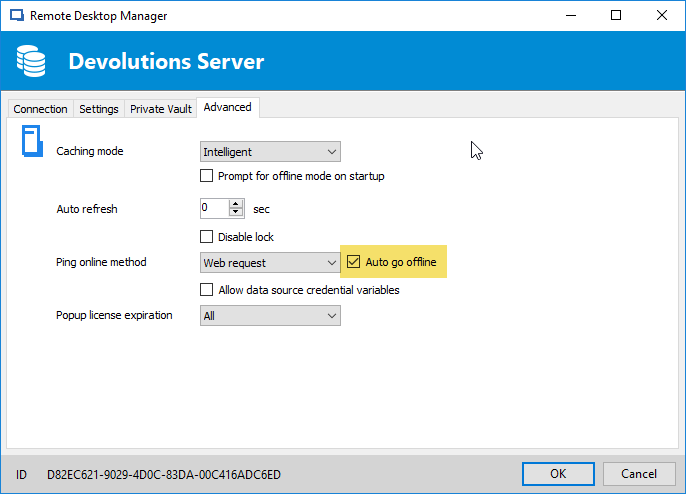
Sorry for the long delay, I think we've been able to reproduce the issue. Can you confirm if in your DVLS datasource you have the "automatically go offline" option:
As a workaround, I think you should be able to right click the tray icon and press "maximize".
It's normal that you don't get a prompt for the password if you are offline. If you can't connect to the datasource, there's no way to validate the password against it. If you set an application password you would get the prompt even if offline though.
Regards,
Hubert Mireault
2017-11-20_15-57-16.png