Serial / SSH Putty Commands

Hey guys,
When using a serial session or a putty embedded session, I'd really like the options that exist on the putty window to exist on the right click options for the tab. The main ones needed are:
1) Reset Terminal
2) Clear Scrollback
3) Copy all to clipboard - very useful to quickly dump configuration to clipboard
If I turn off the full screen option for a putty session (under general > advanced) I can see the putty window inside the tab and can use the above options, however, the overall window is smaller due to the additional putty window and it also looks a bit rubbish.
Could you integrate the above list of right click options from putty.exe into the right click of the tab?
Maybe they are there already and I can't find them.
All Comments (21)
That would be interesting for sure. I will add a feature request for that.
Regards
David Hervieux
Nice, thanks for this :)
It will make my life better, i keep switching back to standard putty or super putty to do this... which is a shame.
FYI i've managed to find a way to do this, I switched to Rebex SSH and under tools on the ribbon I can do what I need :)
Only improvement for me would be to put the actions ribbon buttons that are applicable to the session under the right click context menu for the session. I usually hide the ribbon, and would prefer to right click than open the ribbon and go to the action section.
Hello,
I wanted to let you know we've changed the native terminal to include these features. It will be possible to access the three features (copy all text, clear scrollback and reset terminal) from the following places:
- Like the Rebex terminal, in the "actions" ribbon menu
- If the "show toolbar" option is enabled in File > Options > Terminal in the user interface section, you will see a toolbar with the buttons in it:
- If the "mouse click mode" in the advanced option of the entry is set to "windows", when right clicking in the terminal you get the buttons too:
I hope these help you use RDM more efficiently. These changes will be made available in RDM's next minor version.
Regards,
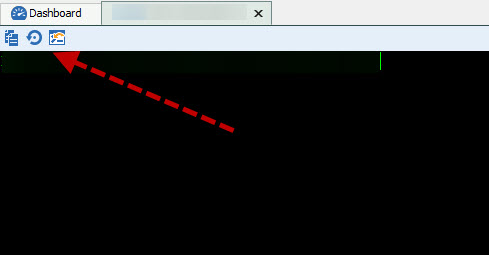
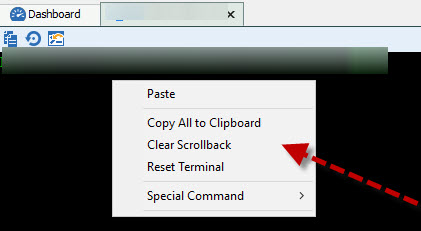
Hubert Mireault
2017-08-09 9-36-50 AM.jpg
2017-08-09 9-28-46 AM.jpg
Excellent news, thanks for sorting that - will mean less moving backwards and forwards into putty :-)
Since we have a lot of control over what features we can add or what bugs we can fix with our native terminal, we do encourage RDM users to use it instead of PuTTY or the Rebex terminal. If you ever have any other issues with it we'll be happy to help :)
Regards,
Hubert Mireault
Is there an easy way to convert the Rebex to the native SSH terminal?
If you select your Rebex entries and do a right click > edit > batch edit > batch actions, then select "Convert putty/rebex session to SSH/Telnet/Portforward session", you can convert them all in one go while making sure the properties are properly set.
It's always a good idea to make a backup of your database/entries before doing a batch action in case something goes awry.
Regards,
Hubert Mireault
Excellent, thanks that worked a treat :)
Sorry to bump this thread, would it be possible to get these buttons also integrated into the serial connection? They work for native SSH but are not there for serial as far as I can see.
I will check with Hubert
David Hervieux
Hello,
Sorry for the delayed answer, we should have the same toolbar available in the Serial entry type starting with the RDM 13 beta. Since we don't have a setup to test this, we would appreciate if you could give us feedback on the feature when it's out.
Regards,
Hubert Mireault
Excellent, no problem I can test it out. I don't think I receive any notifications about beta's - if you send me an email amayacitta-at-gmail.com I'll test it out for you.
Cheers.
The RDM 13 beta is out right now actually, you can download it here at the bottom of the page https://remotedesktopmanager.com/Home/Download
The current latest beta is 12.9.1.0, and it includes the change.
If you want to automatically receive update notifications for RDM beta when you start the application, you can set the update startup mode to "all updates including beta" like so:
Regards,
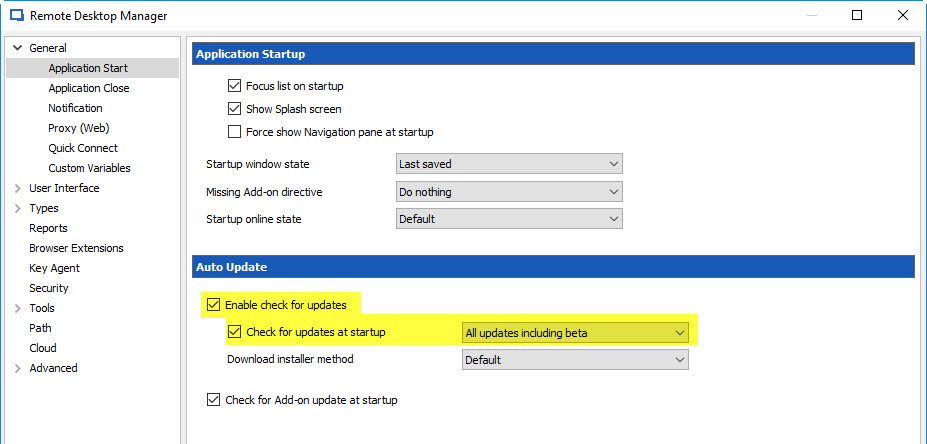
Hubert Mireault
2017-09-14 2-17-11 PM.jpg
Tested and this works well, unfortunately the beta client is too unstable for me so I'm rolling back to the previous version and will wait for the feature to be rolled into the stable release.
Thanks for adding the feature :)
What kind of instabilities do you get?
Regards
David Hervieux
Fairly regular application crashes, when doing simple things like minimising and maximising the application. I've reverted back to 12.6.8.0 and the issues have gone away.
Thank you. It's a bug with the Third party we use. The already have done a fix but it's not released yet. It should be available soon.
Regards
David Hervieux
Hello,
I'm pleased to inform you that the batch edit issue is fixed internally and will be available in the next update.
Best regards,
Mark Beausejour
Excellent thanks :)
Download PuTTY from https://www.puttygen.com/download-putty or another PuTTY download source. The "putty.exe" download is good for basic SSH.
Save the download to your C:\WINDOWS folder.
If you want to make a link to PuTTY on your desktop:
Double-click on the putty.exe program or the desktop shortcut to launch the application.
[/ol]
Command list
How to find out where you are, the pwd command shows you present working directory.
pwd
Change directory
cd
[/ol]The cd command is used to navigate into a specified directory on your server.
Example: cd /home (moves you into the home folder)
The same directory
[/ol]cd .
Using this command you will remain in the same directory you were.
Move me up one directory
[/ol]cd ..
Above command will navigate two steps back from current directory
Go to the previous directory
[/ol]cd –
Above command will navigate to the previous directory.
Go to Home folder
[/ol]cd ~
Above command will navigate to the home directory on your server.
Go to root
[/ol]cd /
Above command will navigate to root.
How to List Directories and Contents
8) List files
ls
usage: ls [option] [file]
Using the ls command in a folder will display all it’s content.
Complete guide for Basic ssh commands goto https://www.puttygen.com/putty-commands