database not online after upgrade

hallo, i'm new to RDM and took over the issue after a colleague left the company.
i had to upgrade the devolution server to v4.5 (including .net framework to 4.6.2) and the client to 12.5 .
from the server console i can test the database and server connection and i get a "successfull" back.
but i'm not able to connect via local client or via webpage...
on the server (windows server 2008 R2) i get the attached message when i try to open the RDM.
can someone help here?
thanks in advance...
Dom
log.txt
All Comments (10)
Hi,
Could you please take a look at theprerequisite to upgrade to 4.0 or earlier.
Best regards,
David Grandolfo
hi, thanks for you answer...missed the dependencies.
now i'm able to see the login page but i receive attached error message via email.
error.txt
Hi,
Are you able to login from RDM and Web page ?
Do you have any error from the client or only this email.
Best regards,
David Grandolfo
i get this error as soon as i try to login on the webpage (devolution server)...when i try to login to the RDM client i still receive the error attached in first post.
I'm using an AD-account which has admin priviliges btw.
Update: When i try to login with a "custom (Devolutions)" account it works!?
The account authentication type is probably not specified, follow these steps:
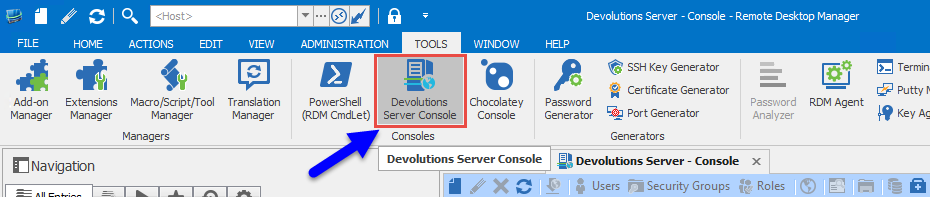
1.On the computer that is hosting the Devolutions Server instance, launch Remote Desktop Manager with elevated privileges and open the Devolutions Server Console from the Tools menu.
Remote Desktop Manager Enterprise - Windows Edition Tools menu
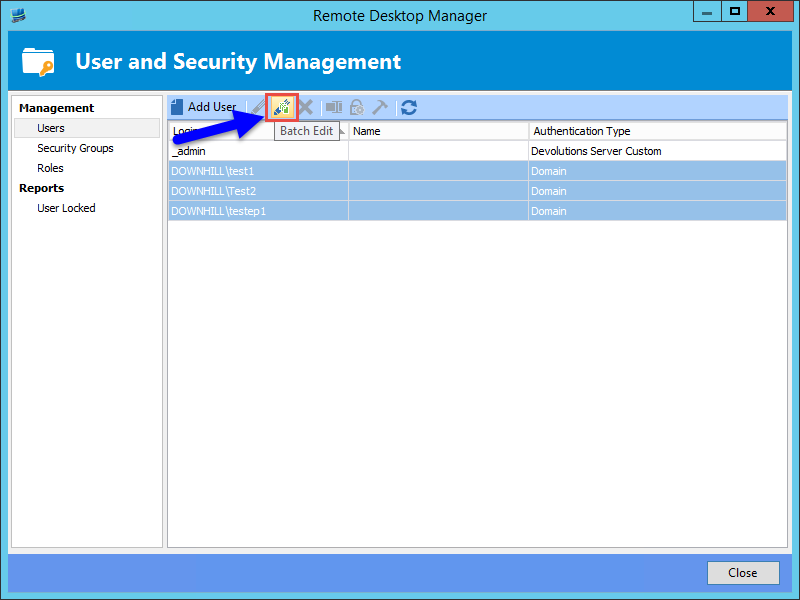
2.Select the Devolutions Server instance and click on the User Management button.
Devolutions Server - Console
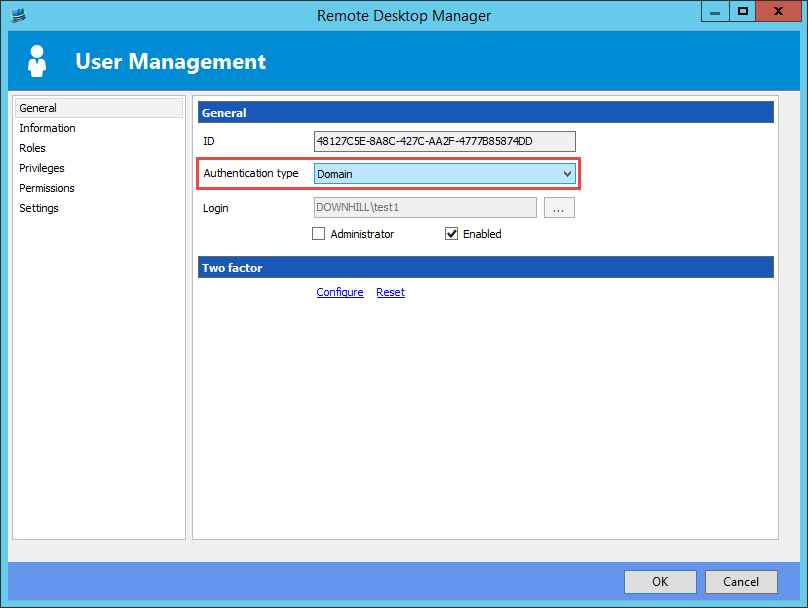
3.Edit each user and check if the Authentication type is editable. This means that the authentication type is not specified and it was guessed by the application. Please DO NOT CHANGE THE AUTHENTICATION TYPE and click on the OK button to save the Authentication type.
User Management dialog
4.Or you can use the Batch edit button in the User Management dialog to modify two or more users at the same time. Select all users with the same Authentication type and click on the Batch Edit button.
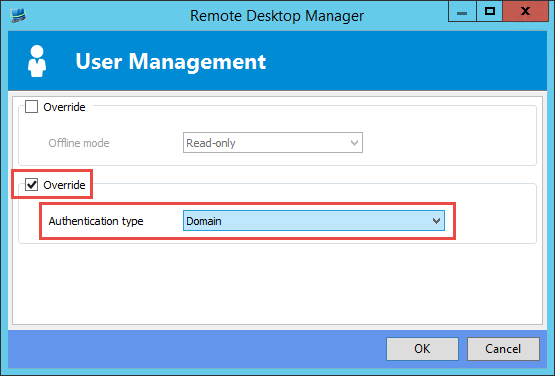
5.Check the second Override check box, select the correct Authentication type form the drop down list and click on the OK button.
6.If the Authentication type is currently saved in the database, then it is impossible to modify it to another authentication type. Be sure to select the correct Authentication type before saving any modifications.

David Grandolfo
user_management.png
batch_edit.png
users.png
tools.png
override.png
Please apply this procedure only for Domain users
David Grandolfo
already checked that, AUTHENTICATION TYPE is set to Domain for the relevant users (including mine).it seems to be a database problem.
Hi,
Could you try to reapply it to the users and let me know if it's work.
Best regards,
David Grandolfo
still having the errors (pleaese see attachement).
and when i start RDM locally i'm only able to connect offline...
error_2.txt
Hi Dominik,
I just sent you an email to plan a remote session.
Could you take a look in your email and we will be able to connect remotely to solve this problem.
Best regards,
David Grandolfo