External RDP with remote desktop size set to current working area size
External RDP with remote desktop size set to current working area size

Hi,
I've setup some external RDP connections with remote desktop size set to current working area size. The problem is that the remote desktop doesn't look smooth, letters are blurred and icons are cropped. This is due to the fact that the external remote desktop is started with borders around the RDP session. If I start a RDP session via mstsc.exe and set the remote desktop size to the dimensions of my workspace, I don't have the borders and everything is looking smooth (Screen prints can be found in the attachments).
Is it possible to start an external RDP from RDM without borders around the remote destop?
To be complete, I'm running RDM 3.0.13.0 on windows 7 SP1
Regards,
Jeroen Bos
RDP via mstsc.jpg
RDP via RDM.jpg
All Comments (25)
Hello,
Could you try to configure the display setting of your RDP session in RDM like the following
Remote Desktop Size = Default
Screen Sizing mode = Smart Reconnect
Best regards,
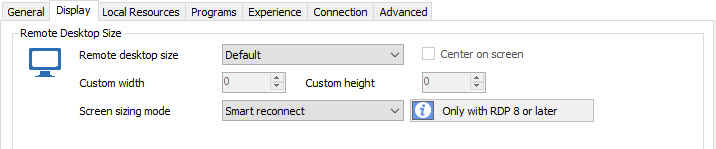
Jeff Dagenais
2017-03-24_09-35-15.jpg
Hi Jeff,
Thanks for your answer.
I have tried that, but it resulted in a full screen RDP session and I want to have my local taskbar always visible.
Regards,
Jeroen Bos
To be more complete, I start mstsc.exe via the command line:
mstsc.exe "C:\xyz.rdp" /admin /w:1920 /h:1148 /control
Hello,
Could you post a print screen of the properties of your RDP session with the Display tab selected please.
Best regards,
Jeff Dagenais
Here are the screen prints.
RDM Settings 3.jpg
RDP Version.jpg
RDM Settings 2.jpg
RDM Settings 1.jpg
RDP Settings.jpg
Another difference that I have noted, is that when I start my RDP session via:
mstsc.exe "C:\xyz.rdp" /admin /w:1920 /h:1148 /control
The RDP session is maximized, and when I start it from RDM the RDP session is NOT maximized. Maybe this explaines why my RDP session started via RDM doesn't look smooth.......
Could you try without the option /control?
Regards
David Hervieux
That doesn't make a difference, Both result in a maximized screen with local taskbar.
Hi David,
I have also looked at the RDP file you generate in the background and I have noticed that the working area is calculated wrong. In the RDP file you generate, you calculate for my screen a desktop height of 1170, while it should be 1148.
In the past, I have also written a program to manage RDP session with autoit and for the calcultion of the working area, I used this code:
#include <WinAPI.au3>
#include <WinAPIsysinfoConstants.au3>
#include <WindowsConstants.au3>
Local $aWorkArea = GetWorkArea()
Local $CaptionHeight = _WinAPI_GetSystemMetrics($SM_CYCAPTION)
Local $ScreenHeight = $aWorkArea[3] - $CaptionHeight
Local $ScreenWidth = $aWorkArea[2]
; Get the working visible area of the desktop, this doesn't include the area covered by the taskbar.
Func GetWorkArea()
Local $tWorkArea = DllStructCreate($tagRECT)
_WinAPI_SystemParametersInfo($SPI_GETWORKAREA, 0, $tWorkArea)
Local $aReturn[4] = [DllStructGetData($tWorkArea, 'Left'), DllStructGetData($tWorkArea, 'Top'), _
DllStructGetData($tWorkArea, 'Right') - DllStructGetData($tWorkArea, 'Left'), DllStructGetData($tWorkArea, 'Bottom') - DllStructGetData($tWorkArea, 'Top')]
Return $aReturn
EndFunc ;==>GetWorkArea
When I started with the script, I also had a problem with calculating the right working area and then I found out that I had to correct for the captionheight.
I also found how to start the RDP session maximized with the taskbar visible. In your RDP file this option is set:
winposstr:s:0,1,0,0,1920,1200
If you change it to
winposstr:s:0,3,0,0,1920,1200
the RDP session starts maximized without borders.
Best regards,
Jeroen Bos
Thank you very much for you help. I'm pretty sure that we will be able to find a solution with all the clues you gave us. We will add an option to open it maximized in external mode.
Regards
David Hervieux
Hi David,
I changed my display settings (Use advanced location) and that caused my RDP session to start maximized (See attachment). So if only now the working area could be correctly calculated, then everything would be perfect.
Best regards,
Jeroen Bos
PS: Some documentation on winposstr: https://technet.microsoft.com/en-us/library/ff393696(v=ws.10).aspx
RDM Settings 4.jpg
Hi David,
I found a solution for the working area, I did set the "Remote Desktop Size" to "Custom" and for the width and height, I did put in the dimesions of my working area. And in combination with the adjusted winposstr, I get what I wanted.
Never the less, I hope you can get the working area correct by compensating for the CYCAPTION.
Best regards,
Jeroen Bos
I have made a fix for it. This seems to work very well.
Regards
David Hervieux
Hi David,
I did read the release notes of the last free version and I saw that you did put the solutions. So I downloaded and installed that version, however the solution for the working area isn't working for me.
The monitor I'm using right now has a resolution of 1680 x 1050 and a working area of 1680 x 998. The "desktopheight" in the RDP file generated by RDM is 1020. So it seems that the calculation of the working area isn't still right.
Regards,
Jeroen Bos.
It's a huge difference. Could you post a print screen of the result with the wrong calculation. Just the bottom part please and not the whole screen
Regards
David Hervieux
Hi David,
Here are the print screens. For your information, I'm working from a different location today, so the screen sizes have changed......
Regards,
Jeroen Bos
Workarea.jpg
Screenresolution Workstation.jpg
Screenresolution RDP Session.jpg
RDM display settings RDP connection.jpg
Hi,
This is not exactly what I want. I want to see what you have at the bottom of the screen in the gap. Is a black line? You can send me a private message of the whole screen if it's easier.
Regards
David Hervieux
Hi David,
I included both a print screen of the top and bottom of my screen because I put the taskbar of my workstation on the top of my screen and the taskbar of my RDP sessions on the bottom, so it is easy to click the right one.
Regards,
Jeroen Bos
Top of screen.jpg
Bottom of screen.jpg
Could the problem be related to the fact that your task bar is docked at the top of the screen?
Regards
David Hervieux
Sorry, but no.
I relocated the taskbar to the bottom of my screen and after that I logged off and to windows with the same result. So having the taskbar on the top or bottom of my screen doesn't make a difference.
I think somehow the calculation of the correction factor is failing and therefore 0. I'm really willing to help, so if it is possible that you could send me a small program containig your code displaying the results of the calculation in a message box, I'm willing to run it and send back the results.
Regards,
Jeroen Bos
PS: Attached is a screenshot of calculations on my current desktop.
Workarea dimensions.jpg
Hi,
Do you have the program or the source code of the program that show your calculation?
Regards
David Hervieux
Hi David,
You can find the sourcecode attached. Workarea.au3 is a program to calculate the workspace dimensions and the Terminal Manager.zip does contain the source code to define and start RDP sessions (Still a bit buggy). The program has serveral components, but the main progam is Terminal Manager.au3.
Regards,
Jeroen Bos
Terminal Manager.zip
workarea.au3
Ok,
I think I've got it now. This should be in the next beta release.
Regards
David Hervieux
Hi David,
I can confirm that it is working now. Thanks.
Best regards,
Jeroen
Nice. It's a good news
Regards
David Hervieux