Can't connect to Azure SQL Database

I'm pretty sure that the connection information is correct as well as the UserId and Password, because RDM was able to query the database name, but then I got an error message saying: Unable to connect to the database! Invalid object name, 'Connections'.
 https://www.dropbox.com/s/03g7gwlg3ekjkds/2016-08-06_3-35-46.png?dl=0
Robin
PS: I still can't get an image to be part of a message. I guess a link will work.
All Comments (14)
Hello,
Is this a new database?
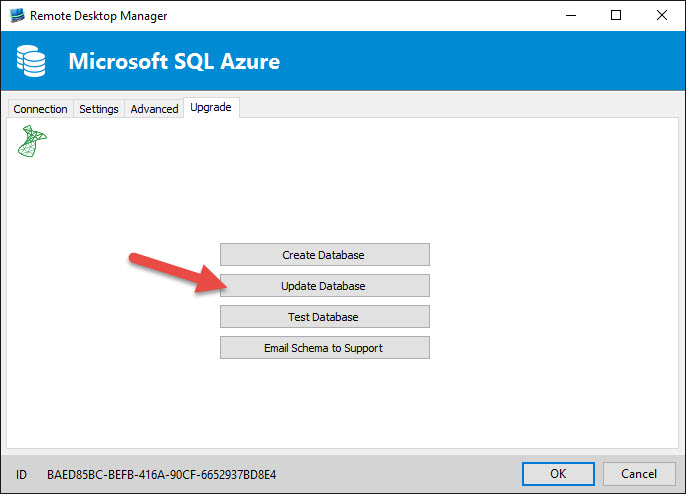
If yes and that the database has not been created from RDM, could you try to go in the Upgrade tab of your data source and click on Update Database.
Please note that you need to use a username who has enough permission to update the database.
Best regards,
Jeff Dagenais
2016-08-08_08-16-57.jpg
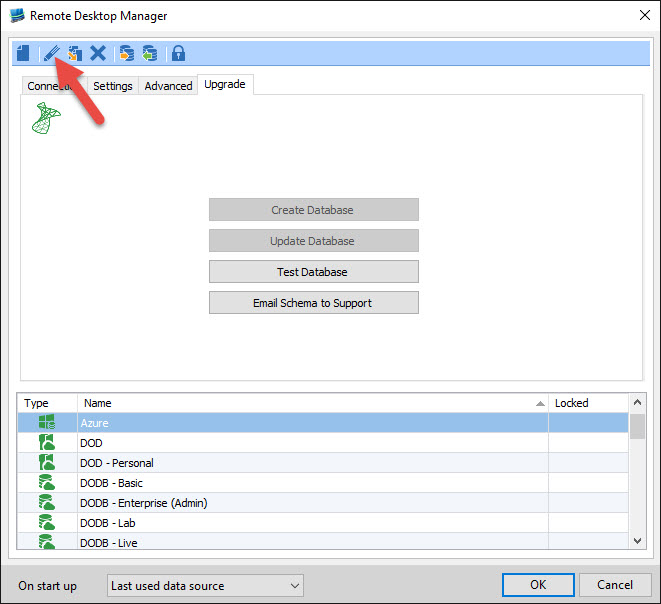
I just created the Azure SQL database and can connect to it in Visual Studio, so I believe the on DBO user has full access. The Create Database and Update Database buttons are both greyed out (i.e. disabled). Any other suggestions?
Hello,
Please press the Edit button first. This will allow you to press the Update button.
Best regards,
Jeff Dagenais
2016-08-08_09-20-41.jpg
I tried starting over. RDM was able to find the database in the xxxx.database.windows.net server, so I assume the connection worked. Then I went to the Upgrade tab and pressed Create Database. RDM said it was already created. So I pressed Update Database. That worked. It's not exactly the most intuitive work flow and there doesn't seem to be any documentation on how to create such a database.
Hello,
Glad that is now working.
I will verify what we can do to update our documentation on database creation.
Best regards,
Jeff Dagenais
It's not quite working. When I click on Private Vault, a top level folder appears with the same name as the "All Entries" data source. But when I try add a connection or credential, nothing happens.
BTW, is it possible to copy a connection from All Entries to the Private Vault?
I guess it's working -- as long as you are logged into the data source with a RDM User. If you login with a database user, that is not a database user, such as the database owner, it doesn't work.
Hi,
You need to create the user in RDM before. Usually if he user has access to the database we can't create it automatically but it seems that in your case we are unable to do it. Perhaps you could verify if you get anything in the logs. Maybe something is required with Azure and we missed it.
Regards
David Hervieux
Hello,
If you want to copy a session from the All Entries tab to the Private Vault, you just need to right-click on it, then Clipboard -> Copy.
In the Private Vault, you just need to do Clipboard -> Paste.
Best regards,
Jeff Dagenais
Thanks, for the response. I meant to say above: "If you login with a database user, that is not a RDM user ...", so yes, as long as I create the user in RDM, it works fine. And I found the Clipboard-Copy and Clipboard-Paste -- all be it in a strange place.
My next dilemma, due to lots of copying and pasting between two data sources -- one with admin privileges and one with access to limited security groups, is that I can't delete a some empty folders. They appeared kind of magically for the limited user after being deleted by the admin user. But after giving both users access to the folders, when I delete them, nothing happens.
I have connected to the Azure database with Visual Studio and MS Access, so I could delete them directly out of the database, but that seems too dangerous. Do you have a script, or some trick to force the delete?
Thanks, Sue
Hello,
As I understand, you have an MS Access database with all your sessions and you want to transfer them in your Azure datasource.
Maybe you can try to export them by following the steps mentioned in this help topic - http://help.remotedesktopmanager.com/tipsandtricks_data_migration.htm
After, connected as an admin, delete the folders that are not needed anymore. When this is done, do a CTRL + Refresh to refresh the local cache and be sure that the folders are deleted.
Then, connect with your limited user and verify if the appropriate folders are present. If not, please do a CTRL + Refresh to refresh the local cache.
Best regards,
Jeff Dagenais
No, that's not it. I have MS Access connected to the Azure SQL database. I don't think it is a good idea to delete the sessions directly using SQL because I don't know your Schema.
What I am asking it how to delete a folder when I issue the Edit -> Delete Entry .. command and nothing happens, i.e. it just stays there.
Hello,
Could you try a CTRL + Refresh first to refresh the local cache. Then, try to delete the folder again. If the folder disappear, do again a CTRL + Refresh to be sure that the local cache is up to date.
Best regards,
Jeff Dagenais
What is the Refresh key. I tried CTRL-F5. No luck neither the parent folder would delete, nor a sub-folder. Then I renamed one of the sub-folders, that caused it two siblings to disappear. Then I was able to delete the folder I just renamed.