Is it possible to restrict direct RDP access, and use only RDM?
Is it possible to restrict direct RDP access, and use only RDM?

Hi guys,
don't know if this question has come up before, but is there a way of ensuring that no one can directly RDP to a server, and are 'forced' to use RDM?
All Comments (4)
Hello
Here is what is possible today:
The free solution is to put a SSH server in place and to allow for tunneling. Our RDM Jump is more powerful but requires a paid licence.
If you decide to use either of these we can provide more guidance, just let us know.
We are looking into adding functionality in our Remote Desktop Manager Agent to offer a feature like that. This isn't even designed yet so it's not coming in the short term.
Best regards
Maurice
I'm interested in guidance with respect to the RD Gateway/SSH Tunnel/RDM jump solution.
Not only how this would be best setup but also the the additional benifits when using RDM jump (actually the pro and cons for alle three would even be better :-)).
this could be a blog, but lets give it a shot
RD Gateway, you have access to it or not. It comes on Windows Servers of many editions, but is pricey. For a corporation that is all on AD, it is easy as pie, but this is not the context for must of our community, so I'll just stop right here on that topic.
The other two options use a machine that is often called a jump box, it often means that the remote site is protected with many strict firewall rules, but you access a management server behind the firewall, then JUMP on the remote machine, which since it is already behind the firewall, is now easy. As this indicates, if you want to protect a machine from being accessed from just anywhere, you simply need to dig a moat and allow access only from the draw bridge ;)
SSH Tunnel
PROS
CONS
RDM Jump
PROS
CONS
In my limited practice, I have used SSH whenever I had to run a SSH Shell or RDP Session. For scenarios that required a mix, or that meant launching tools, I have used Jump.
Best regards,
Maurice
Follow the below steps to control the access with a new rule:
Right Click on Start button.
Click on Run.
Type wf.msc and Enter.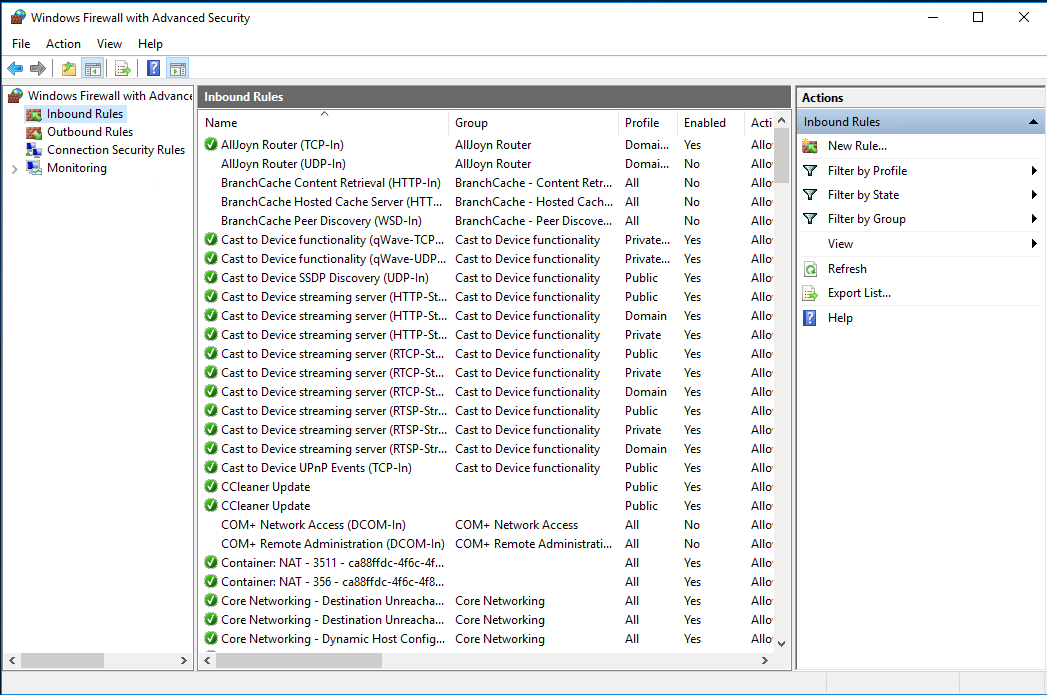
Right Click on Inbound Rules and Click on New Rule.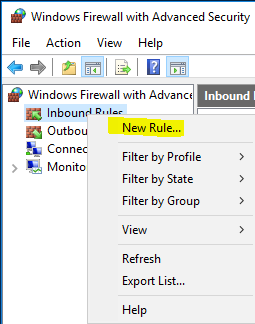
Select Port from Rule Type Wizard and click Next.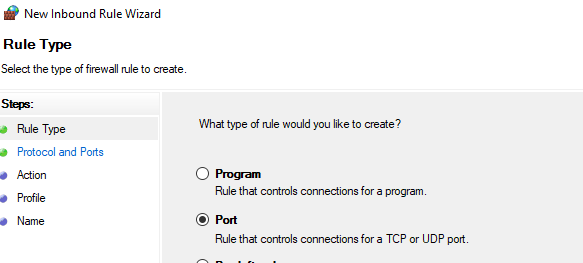
Click on TCP and Enter port number 25569 in Specific Local Ports, click Next.
Select Allow the connection, click Next.
Select Domain, Private and Public, click Next.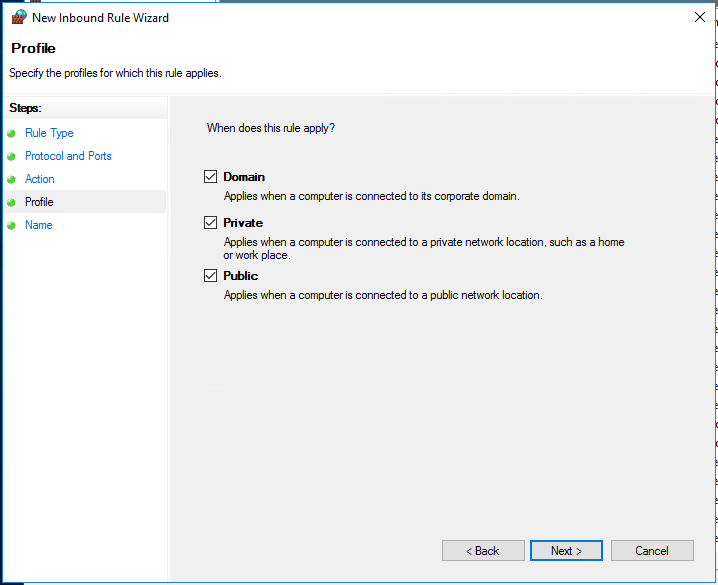
Enter Rule Name (Allow Remote Desktop), click Finish.
Click Inbound Rules. Open the Rule (Allow Remote Desktop) that you have created.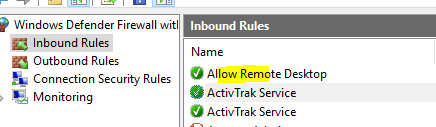
Select Scope and under Remote IP Address section, select These IP addresses and add the IPs from which you want to allow the access. Rest all the IPs will be by default blocked.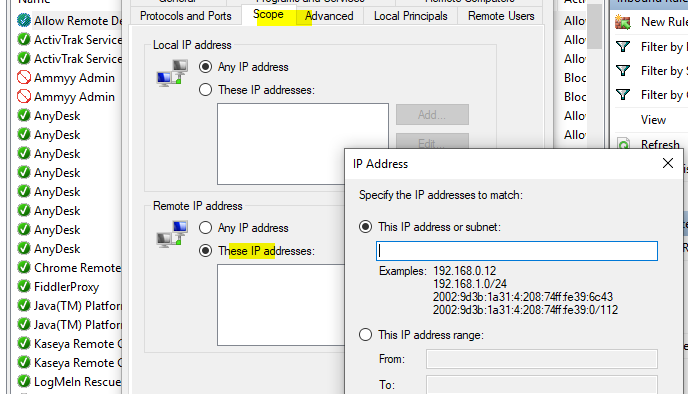
Create UDP Rule
Right click on Start.
Click on Run.
Type wf.msc and press Enter key.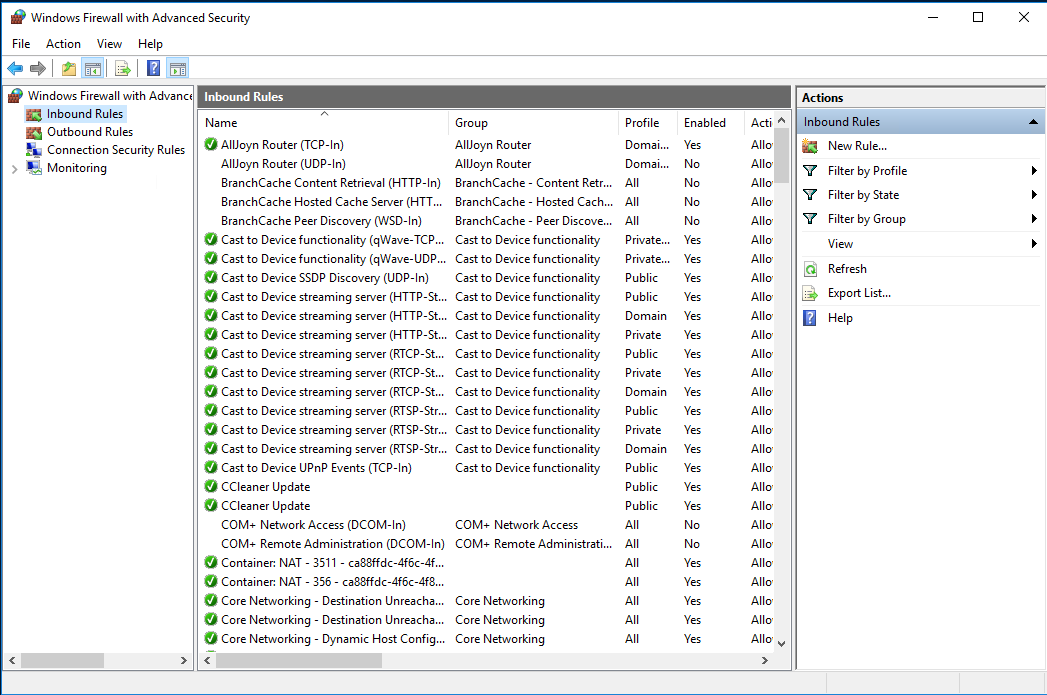
Right click on Inbound Rules and click New Rule.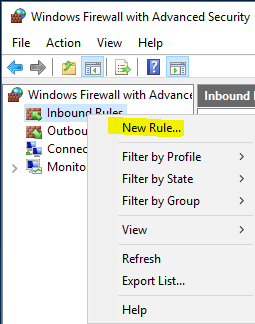
Select port from Rule Type Wizard, click Next.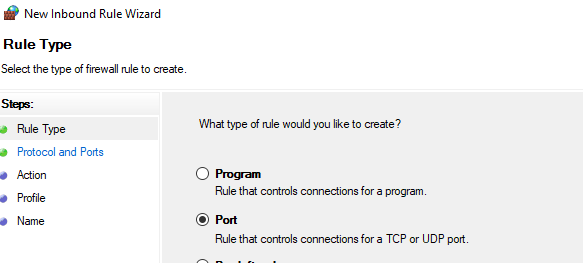
Click UDP. Enter the port number 25569 in Specific Local Ports.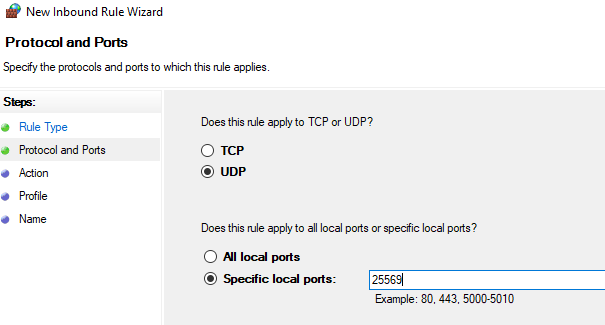
Select Allow the connection.
Select Domain, Private and Public Profile, click Next.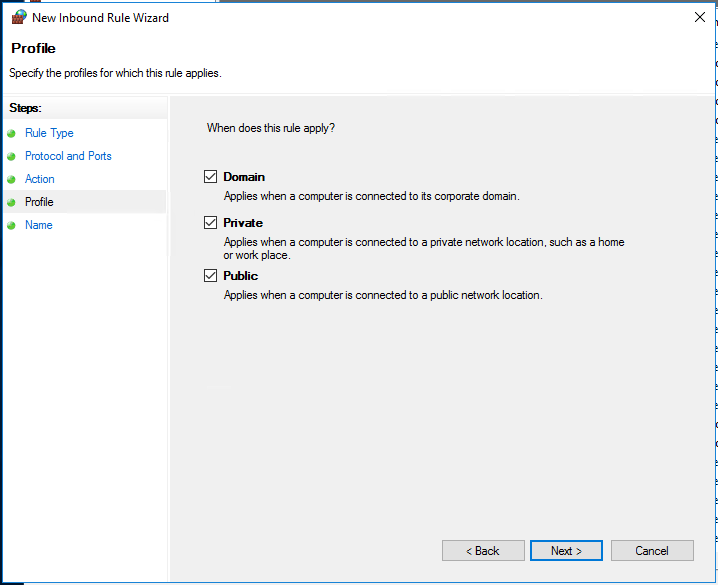
Enter Rule Name (Allow Remote Desktop) and Click Finish.
Open the Rule Allow Remote Desktop from Inbound Rules
Select Scope and Add the IP addresses in Remote IP Address section then Click OK.
[/ol]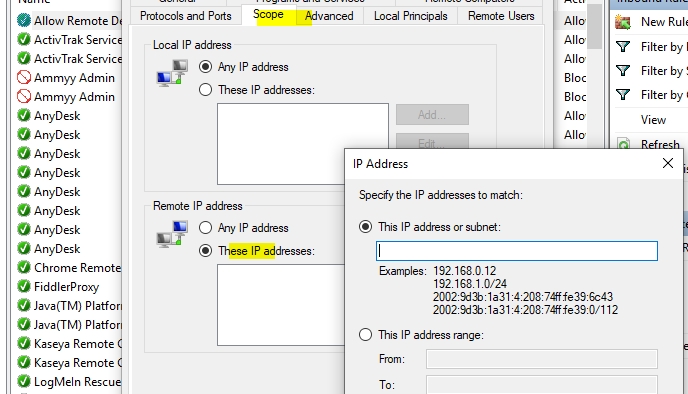
Now the rule is ready to restrict all external IPs except the IPs you have added in the rule.
Regards,
Akshay
System Admin at https://www.clouddesktoponline.com