Security Questions: Role Privilege Inheritance, and Security Group Inheritance
Security Questions: Role Privilege Inheritance, and Security Group Inheritance

Good morning!
I'm in the process of migrating our RDM database to Azure. While I'm at it, I thought I'd reorganize and implement more rational security measures. I've followed the Best Practices guide at http://help.remotedesktopmanager.com/index.html?bestpractices_security.htm, and I have two questions.
1) Rather than configure privileges for each group on every individual user, I've opted to configure a few roles with the appropriate privileges specified. On the user's privileges, I leave everything unchecked. My assumption was that adding them to a given role will override the user's privileges on a group-by-group basis. However, in testing, I don't have the access I'd expect. For example - if an entry as the "Internal Production" group assigned, and a user has a role (say, IT Staff) that enables them to have add/edit/delete permissions on the "Internal Production" group, I would expect that user to be able to edit the session. However, the user cannot Edit or view Properties on the session. What am I doing wrong here?
2) I've added the appropriate Security Group to the root folders as recommended:
However, the existing folders and sessions under that root folder do not have a security group assigned. I figured that while they may not be explicitly defined, that it would ultimately inherit the root folder's group, but that's ultimately not the case. Is this because the sessions and/or credentials pre-existed the security group on the root level folder? Are permissions only inherited on newly added entries? And if so, is there any easy way to cascade the security? I know I can batch edit, but since that doesn't flow to sub-folders, I have to do it for every folder, which is cumbersome at best.
Any help would be greatly appreciated!
~JT
Justin Trout
Director of IT Operations,
Senior Programmer
Association Technology Solutions
All Comments (10)
Hello,
Have you watched the video on Security Groups? It will answer most of your questions about it.
Here is the link to view it http://remotedesktopmanager.com/Support/Video?v=5ejIIg-t8I4#SpotlightOn.
Best regards,
Érica Poirier
Erica,
Thank you for pointing me to that video - that was very helpful indeed! However, when I assign a role to a user, and that roles has privileges assigned to the various groups, the user's privileges do not update to reflect their role's privileges as they do in the video. Is this a bug in 11.1, and/or the Azure data source? I removed all privileges and roles from a test user and saved. I then assigned a role to him, and saved and refreshed the users window. Then I edited his record and viewed his privileges tab and it was no different (still completely blank). I also tried starting with Add/Edit/Delete checked (but no boxes checked in the group matrix), and again, no change after applying a role.
Thanks for your help!
~JT
Justin Trout
Director of IT Operations,
Senior Programmer
Association Technology Solutions
Hello,
By no change, do you mean in the user profile or on the user computer?
If it's on the user computer, please try to do a CTRL+Refresh to refresh the local cache.
Best regards,
Jeff Dagenais
Both - if I do a CTRL+Refresh on my machine after updating the Role, the Permissions are still not updated. If I then switch to a Data Source entry that uses that user's credentials, even a CTRL+Refresh doesn't give me any permissions to the entries (beyond "view"). The Add and Edit options are greyed out, I assume because the Add/Edit/Delete boxes are unchanged in the user's Permissions tab, despite the new Role assignment.
Justin Trout
Director of IT Operations,
Senior Programmer
Association Technology Solutions
Hello,
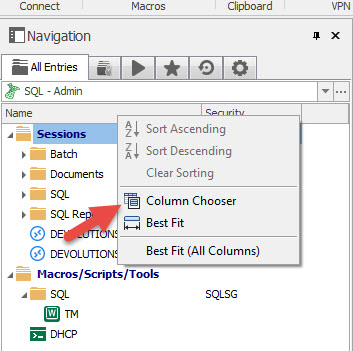
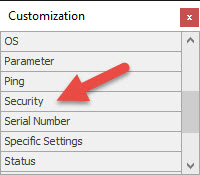
In the Navigation Pane, could you do a right-click on Name (which is the column name), select Column Chooser and add the Security column
When this is done, please expend your folders and post a print screen of your navigation pane. I want to see how your Security Groups are define on your folders.
Best regards,
Jeff Dagenais
2016-04-01_15-34-14.jpg
2016-04-01_15-31-43.jpg
We have 1406 entries, so that's going to be a lot of screen prints :) I can sure summarize it for you though -
We have two top level folders:
ATS / Security = "Internal ATS"
Clients / Security = "Client VMs"
Under ATS, there is an "ATS IT" folder with the (additional) security group "Internal IT". All sub-folders of that and the rest of the immediate child folders of the top "ATS" folder have no security groups assigned.
Under Clients, there is a "Client Credentials" folder with the (additional) security group "Client Credentials". All sub-folders of that and the rest of the immediate child folders of the top "Clients" folder have no security groups assigned.
Basically, I followed the model described in the video on Security Groups (which Erica linked above) to a T.
Justin Trout
Director of IT Operations,
Senior Programmer
Association Technology Solutions
Hello,
As I understand, you have another security group assign to a sub-folder. With this, you are creating an exception.
The Security Group should only be assigned at the top level folder.
Please consult the following help topic for more information
http://help.remotedesktopmanager.com/bestpractices_security.htm
Best regards,
Jeff Dagenais
Jean-Francois,
I recognize that this is an exception, in the same way that your video on Security Groups (http://remotedesktopmanager.com/Support/Video?v=5ejIIg-t8I4#SpotlightOn&_ga=1.247336004.1186981883.1332305011) creates just such an exception.
It seems you have lost sight of the issue here. I'm not asking for best practice help with my security group setup - I'm asking why your software is not properly assigning user permissions based on roles that are granted them.
Justin Trout
Director of IT Operations,
Senior Programmer
Association Technology Solutions
Hello,
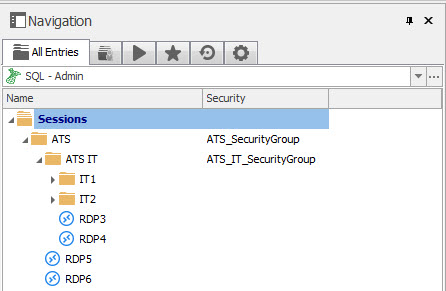
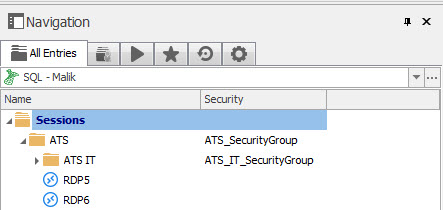
I create an ATS folder and an ATS IT folder to try to replicate your structure. I have assign different security groups to those folders
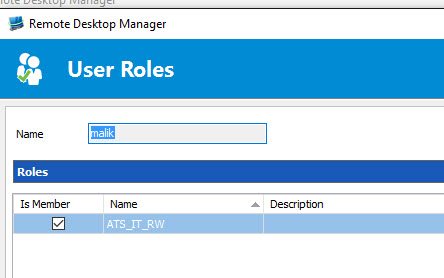
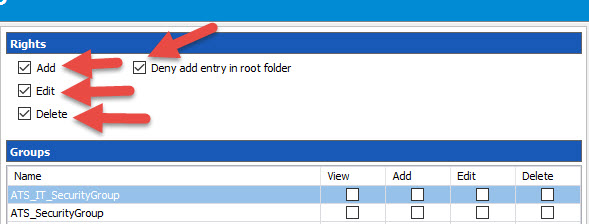
After, I create a role name ATS_IT_RW and granted the permissions like the following so that the user can see everything under ATS
At the user level, I add him to the role ATS_IT_RW and also enable the rights in the Permissions section
With this, my user see everything under the ATS folder
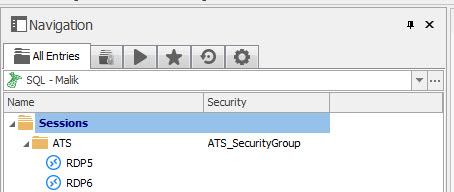
If I remove access to the ATS IT folder in my role, the ATS IT folder is removed at the user level and access to the sessions inside ATS are still available
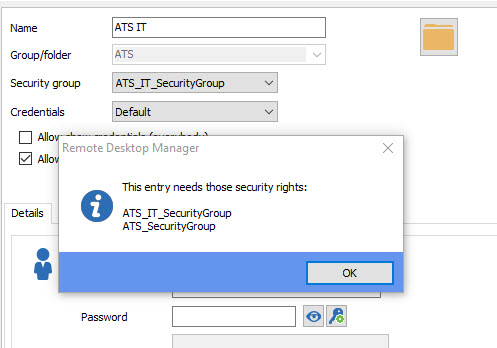
Please note that if your user need access to the ATS IT folder, you will need to grand him access to the ATS folder as well.
By clicking on the blue shield at the bottom left of the properties of your ATS folder as example, you will see which security rights is needed for your user
Is this what you are trying to achieve?
Best regards,

Jeff Dagenais
2016-04-04_14-42-26.jpg
2016-04-04_14-39-18.jpg
2016-04-04_14-23-52.jpg
2016-04-04_14-22-11.jpg
2016-04-04_14-21-49.jpg
2016-04-04_14-21-09.jpg
2016-04-04_14-20-14.jpg
Yes, that is what I'm trying to achieve, and I think I see the disconnect.
I think that my confusion came because the Permissions assigned in the Group do not have any impact on the user's Rights. I still have to assign Add/Edit/Delete Rights on each of my users in order for the inherited Role Permissions to be usable. I guess that's not a big deal, as long as all folders have Groups assigned and there are no orphaned entries, but it seems counter-intuitive.
For what it's worth, I think the video is somewhat misleading. The example at 6:45 that discusses Roles and Permissions inheritance shows the user having no Rights assigned at all, but that configuration does not work as one might expect.
Thanks very much for your time, I think you've gotten me all straightened out!
Justin Trout
Director of IT Operations,
Senior Programmer
Association Technology Solutions