Private Credentials Repository

Disabled
Hi,
I have a question about "Private Credentials" in Remote Desktop Manager.
I use a external DB to store my sessions.
I have connected the DB via the Data Source.
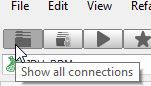
So I have all my sessions in the "Show All Connections" tab
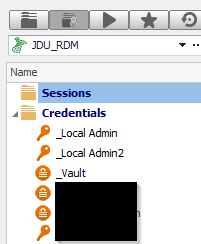
I have store my private credential in the "Private" tab
My question is, how can I set the option to user my private credential when I open a session ?
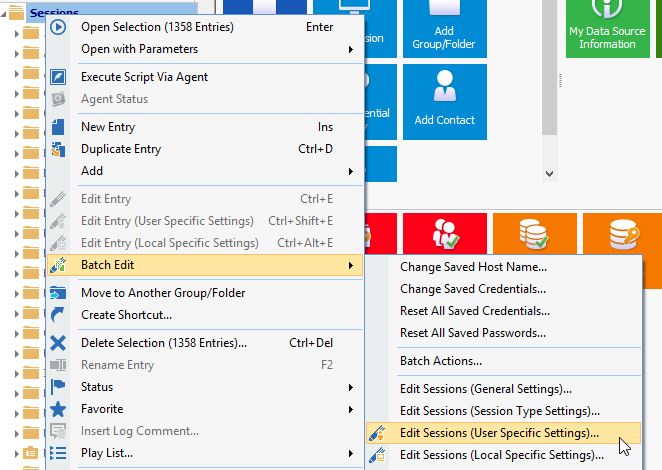
I try the option "Edit Sessions (User Speific Settings)..." but this option is set on all sessions so when I add a new session I need to apply this option again ...
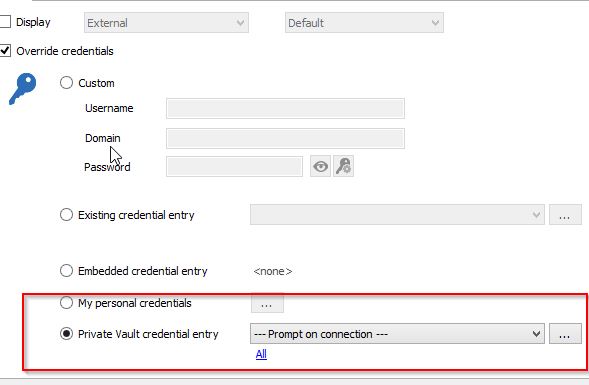
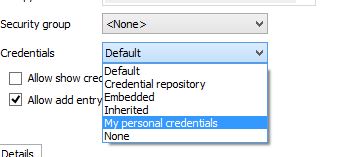
But I would like to set the option on the folder and not on every sessions ... like this
but my private credential repository is not in the list.
I do not know if this is understandable because my English is not very good :D
Thanks
Folder_Credentials.jpg
User_Specific_Settings.jpg
Private_Vault_Credentials.jpg
Private_Credentials.jpg
Show_all_sessions.jpg
All Comments (20)
Hi,
Your English is good by the way. Have you tried to set the credential to Inherited and set the Private Vault link on the parent folder instead?
Regards
David Hervieux
Disabled
Is it possible to show me with some screens :D
Because I'm not sure to do the right test.
Disabled
I have an other problem :s
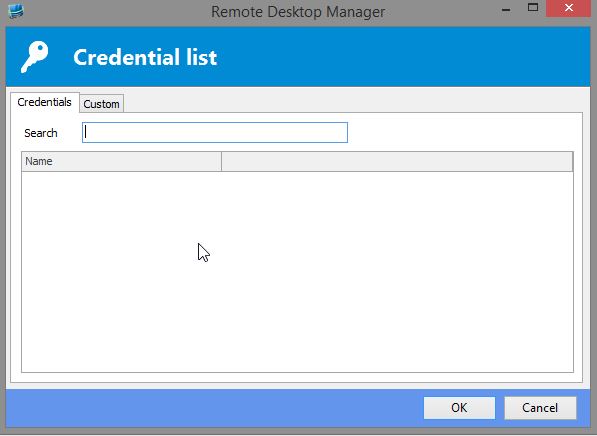
I update my RDM to the last version 11.1.0.0 and now I cannot see my private credential repository.
I select "Private Vault credential entry" in the user specific settings but when I connect a session the credential list is empty.
With the version 10.6.7.0 it worked :(
Credential empty.jpg
Could you verify the beta version. I know that we have fix to could be related:
http://remotedesktopmanager.com/Home/ThankYou?f=RDMsetupBeta
David Hervieux
Disabled
Same thing with the BETA version, credential list is empty
Hello,
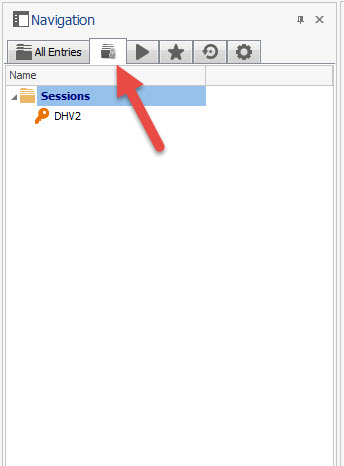
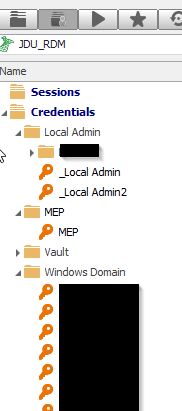
If you click on the Private Vault tab, do you see your credential list?
Best regards,
Jeff Dagenais
2016-03-18_10-31-41.jpg
Disabled
Yes
private_Keys.jpg
Hello,
I was able to reproduce your issue with the Private Vault.
A ticket has been opened to our engineering department.
Best regards,
Jeff Dagenais
Hello,
I don't know how your User Specific Settings are applied on your sessions, however let me explain what David mean by setting the Private Vault at the folder level.
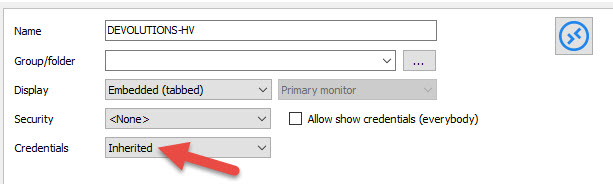
Firstly, you need to configure your session to be Inherited
Secondly, at the folder level, enable the User Specific Settings directly on the folder.
With this configuration, all your sessions inside the folder will look at the folder level to retrieve the credential to use.
This link can also help you
http://help.remotedesktopmanager.com/bestpractices_credentialmanagementforteams.htm
Best regards,
Jeff Dagenais
2016-03-18_12-49-09.jpg
Disabled
Thanks Jean-Francois, I'll try this when my second problem will be fixed :)
Hello,
There's maybe a workaround that you can try to see your sessions in the Private Vault.
In File -> Options -> Types -> Credentials, could you change the Global Availability for Available.
Best regards,
Jeff Dagenais
Disabled
Yes man, it works :)
Both of your solutions are working very well :)
Thanks for your help
As additional information, we should have this fixed in the next version and it won't require you to set the global availability. The global availability was made to work with the Private Vault Search, rather than with the private vault itself. So the global availability being taken into consideration in this case is a mistake.
Regards,
Hubert Mireault
Disabled
Thanks for this information.
Just to be sure, only me can see and use my private credential if I check the option global availability ?
Yes, global availability just marks them as available when you use the "private vault search" credential mode in an entry.
The private vault is linked to the database user you are using. Another user cannot see your private vault and its entries.
Regards,
Hubert Mireault
Is there a step by step guide on how to setup "my password Vault" to be used in sessions?
Thank you.
Hello,
Thank you for contacting us on that matter!
In order to configure your session to use the credentials stored in your private vault, you will need to refer to these links:
1-Private Vault: https://help.remotedesktopmanager.com/view_navigation_privatevault.html?zoom_highlightsub=Private+vault
2- Credential Repository: https://help.remotedesktopmanager.com/credentials_redirection.html?zoom_highlightsub=Credential+redirection
The only difference here is that you will meed to use the "Private Vault Search" option instead of the "Credential Repository" feature shown in this link.
Best regards,
James Lafleur
 Thank you for reaching out so quickly.
I do not want to use an outside password keeper for passwords. I was hoping that RDM would have a setup to which I can use a password keeper internally. Would "My Personnel credentials" meet this need? If so, what is there documentation on how to set this up to be used in a session?
RDM1.png
Hello,
You are more than welcome!
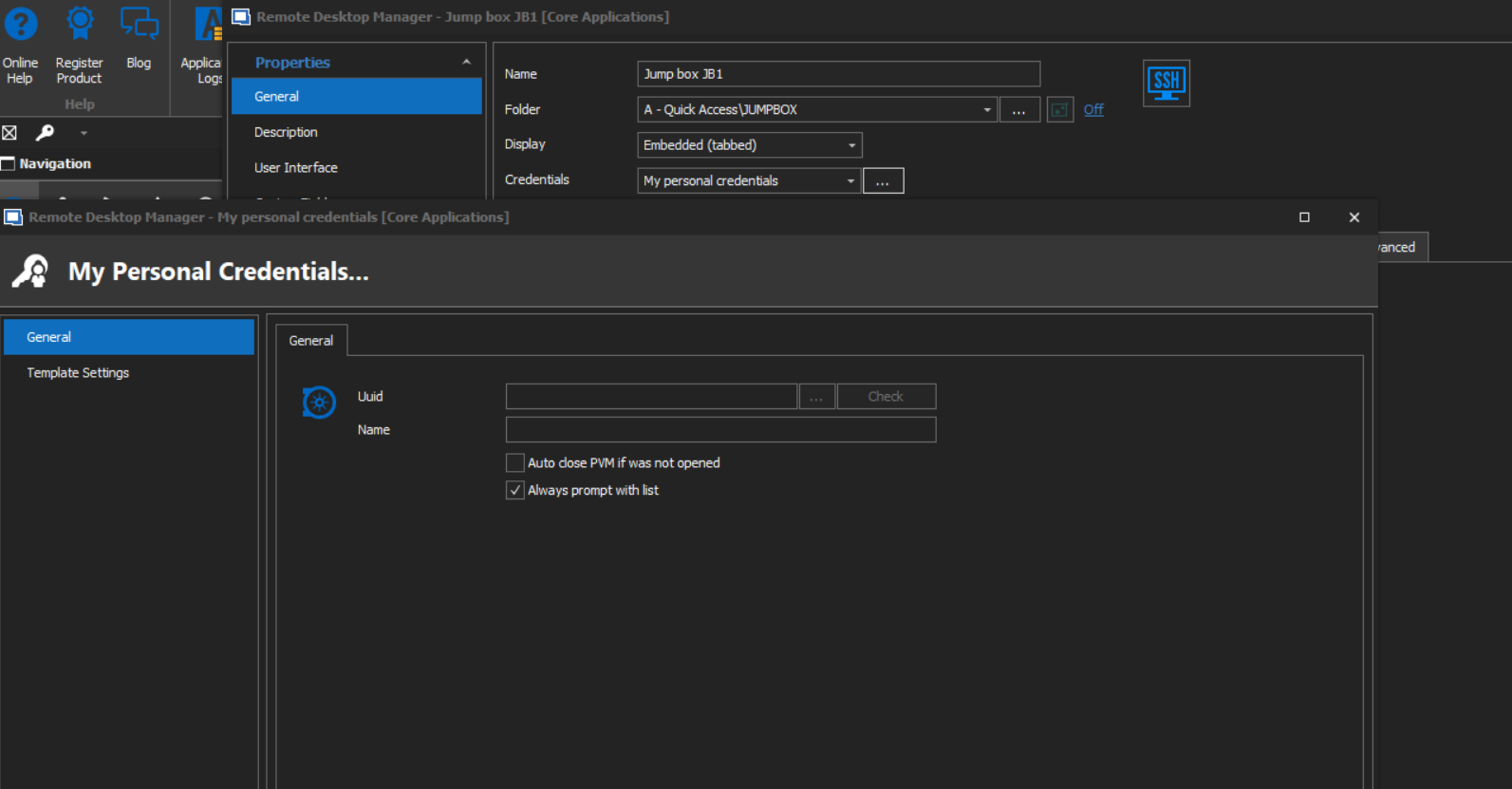
In that case, yes, the "My Personal Credential" feature will allow you to do so. For more information, please consult this link: https://help.remotedesktopmanager.com/file_templates_mypersonalcredentials.html
In short, this feature will allow you to have your connections use the credential you have configured in your "My Personal credentials" window. Since you do not wish to use external password manager, you can simply select "Username/password" from the list of supported credential entry at the bottom left corner of the window:
Best regards,
James Lafleur
Disabled
There are two types of access tokens: personal access tokens and deploy tokens.
A personal access token is bound to the user and grants access to any private repository that your account can access (subject to the scope settings of the token itself).
A deploy token (aka deploy key) is bound to the project (i.e., repository) and grants access to a single repository here (subject to the scope settings on the token itself).
You typically use a single personal access token on your own machine and one or more deploy tokens on a CI server.
To create an access token for GitHub, see Creating a personal access token for the command line and Managing Deploy Keys. To create an access token for GitLab, see Personal Access Tokens and Deploy Tokens. For Bitbucket, you’ll need to create an app password with read access to repositories.
Next, let’s see how to supply these credentials to Antora’s built-in credential manager via the default