authentication issues with SSH Key

authentication issues with SSH Key
I use the same source database on Windows and OSX RDM. But of OSX I can not connect. Under Windows no problem.
RDM message:
Fatal error: Please make sure your connection settings are valid.
I use a 2048-bit RSA key with passphrase
My system
MAC OS El Caption
RDM 3.0.10.0
Destination host OpenSuse 11
RSA Key created using RDM for Windows
All Comments (28)
Hi,
May I ask what connection type you're using (SSH Shell or SSH Shell (native))?
Have you made sure you were able to reach the remote host with your connection? Try pinging the host address in the terminal.
Are you using the IP Address or the host name? Sometime with some host names, Mac seems to have difficulty resolving them.
Best regards,
Xavier Fortin
Hi,
It is -> SSH Shell (native)
Host is per VPN reachable. When i disable Key authentication, it works fine.
No DNS issue, i am using IP Address.
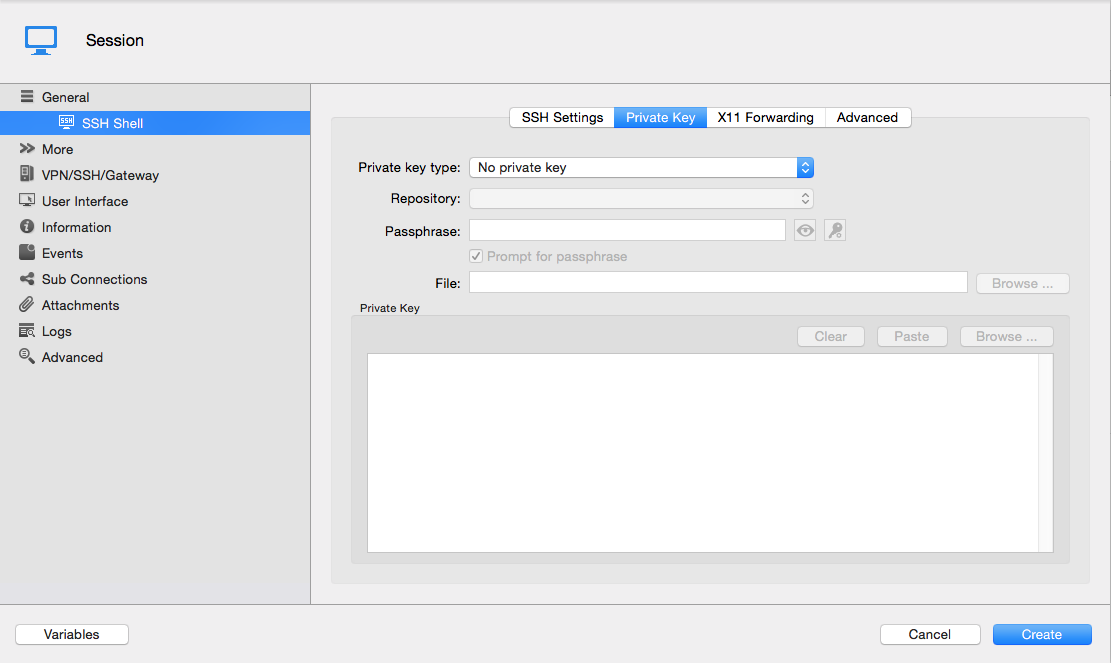
Could you send me a print screen of your private key window. Like so:
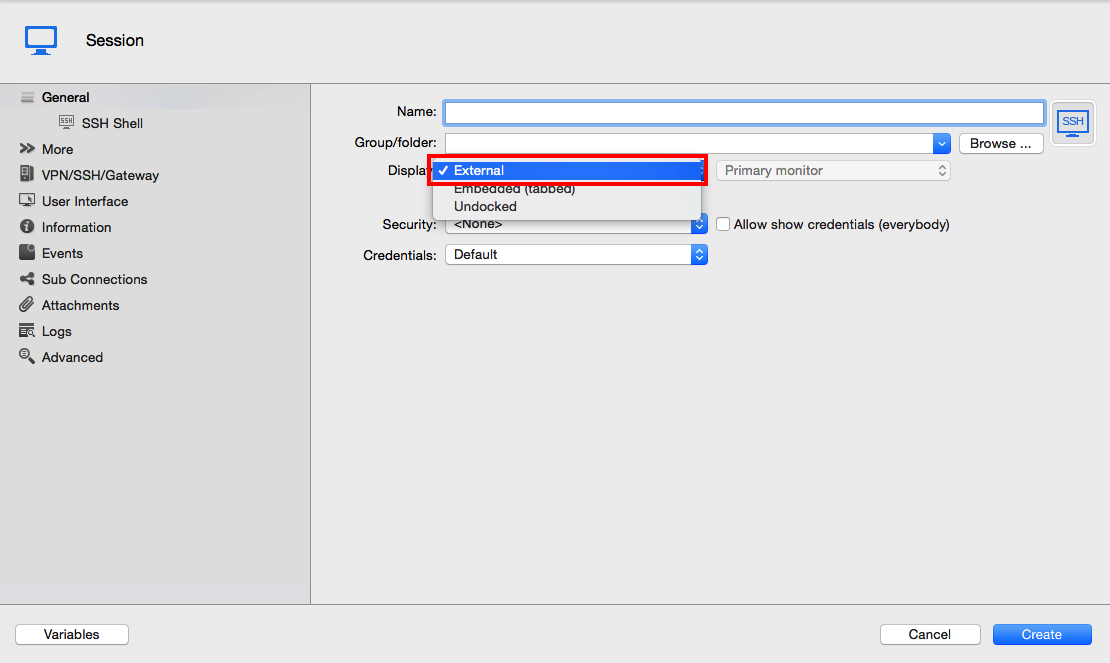
Could you also try setting the connection Display mode to external, run the connection and send me a print of the Terminal window that will open.
Best regards
Xavier Fortin
ExternalMode.png
PrivateKeyTab.png
Privat Key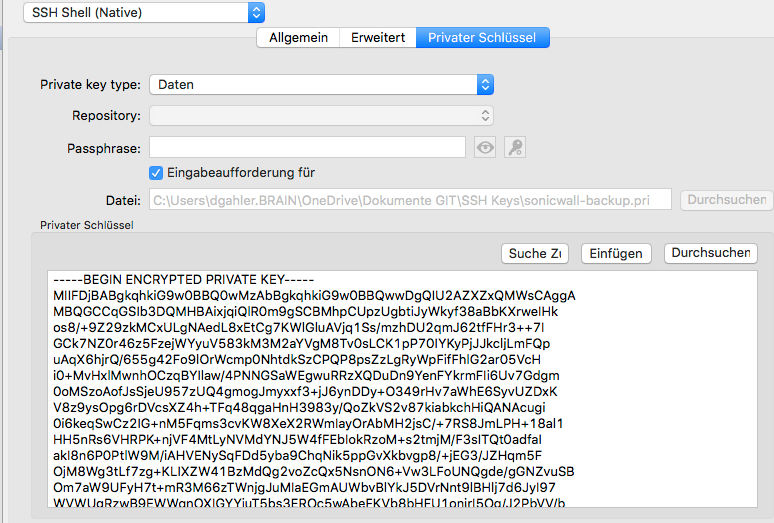
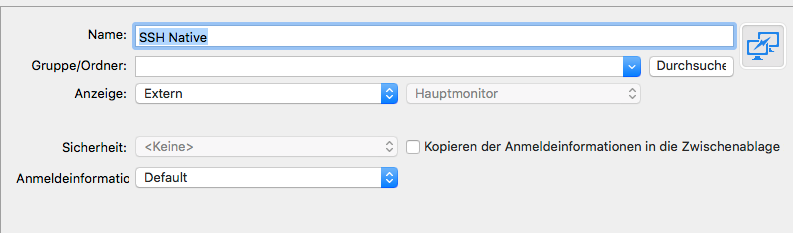
But I will not ask for the passphrase. but is required under Windows RDM.
2016-03-09_18-19-40.png
2016-03-09_18-06-22.png
2016-03-09_18-04-02.png
It seems I can't see the images you've included in your message. Could you send them back again?
Xavier Fortin
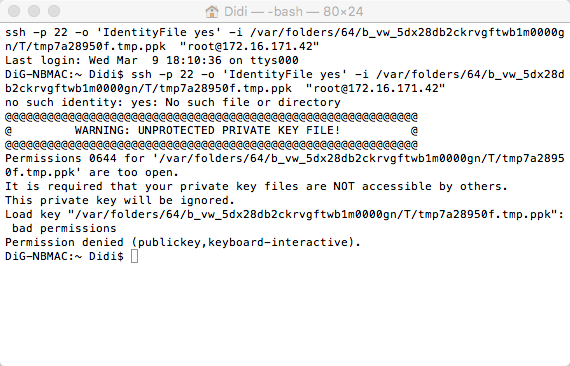
OK, when i use sudo from terminal, it works.
sudo ssh -p 22 -o 'IdentityFile yes' -i /var/folders/64/b_vw_5dx28db2ckrvgftwb1m0000gn/T/tmp3e5417de.tmp.ppk "root@172.16.171.42"
I think that it is a permissions issue. The Key is trying to save to a location, I woch as a normal user does not have rights.
Indeed, it is a problem of permissions, which has been reported to us earlier and was fixed internally. Though, I don't think it should be an issue for the embedded session.
To be precise the permissions to the temporary private key file we're generating are to open.
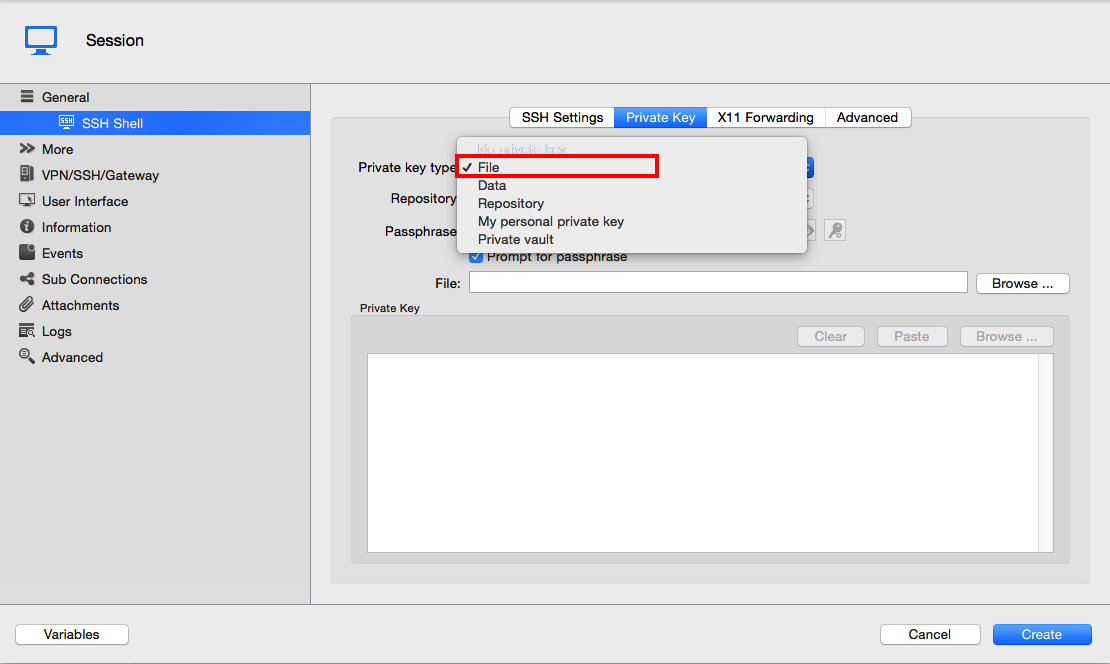
Do you have access to the Private Key file? If so, could you try using the File private key type:
It will keep a link to the file instead of saving the certificate data directly.
You can make sure that the file has the right permission. In the terminal, use the command: stat -f %Lp <path to file> to check the permissions. If the returned value is different than 600, then do the command: chmod 600 <path to file>.
Afterward, run the connection in embedded mode and in external mode and tell me if it works.
Best regards,
Xavier Fortin
FileType.png
The Permission ist 755.
If I select a file, and click on Start session, nothing happens.
When you click Open Session nothing happens? Did you try in embedded mode and external mode? 755 is to high, you need to have it lower (ideally 600, which mean read and write only for your user).
Xavier Fortin
Yes, and in the external mode I am asked for the passphrase and the error message.
Have you changed the permissions to 600 on your private key file?
Could you send me your log file. You can find it in the application under Help -> View Application Log... Send it to me as a private message.
Best regards,
Xavier Fortin
Yes, Permission now 600 for the privat key.
The LOG File has now entry for my issue. You need a remote session via team viewer?
[09.03.2016 08:28:49]INFO ClearCache - Offline file has been deleted, recreating new file
[09.03.2016 08:28:49]INFO Offline file - Database disk image is malformed, trying to delete the file: /Users/Didi/Library/Application Support/com.devolutions.remotedesktopmanager/AD45880D-1B77-4D90-BF1C-6BB69F49F23E/offline.db
[09.03.2016 08:28:49]INFO ClearCache - Offline file has been deleted, recreating new file
[09.03.2016 08:28:49]INFO Offline file - Database disk image is malformed, trying to delete the file: /Users/Didi/Library/Application Support/com.devolutions.remotedesktopmanager/AD45880D-1B77-4D90-BF1C-6BB69F49F23E/offline.db
[09.03.2016 08:28:49]INFO ClearCache - Offline file has been deleted, recreating new file
[09.03.2016 08:28:49]INFO Offline file - Database disk image is malformed, trying to delete the file: /Users/Didi/Library/Application Support/com.devolutions.remotedesktopmanager/AD45880D-1B77-4D90-BF1C-6BB69F49F23E/offline.db
[09.03.2016 08:28:50]INFO ClearCache - Offline file has been deleted, recreating new file
[09.03.2016 09:26:24]ERROR SILENT Failed to connect to the host (131084).
[09.03.2016 10:57:20]ERROR SILENT The peer connection was lost.
[09.03.2016 10:57:20]ERROR SILENT Failed to connect to the host (131084).
[09.03.2016 10:57:25]ERROR SILENT The peer connection was lost.
[09.03.2016 11:56:18]ERROR SILENT The peer connection was lost.
[09.03.2016 11:56:37]ERROR SILENT Failed to connect to the host (131084).
[09.03.2016 15:49:02]ERROR SILENT The peer connection was lost.
[09.03.2016 15:55:46]ERROR SILENT The peer connection was lost.
[09.03.2016 15:55:46]ERROR SILENT Failed to connect to the host (131084).
I might appreciate it. But before this, let's try two last things.
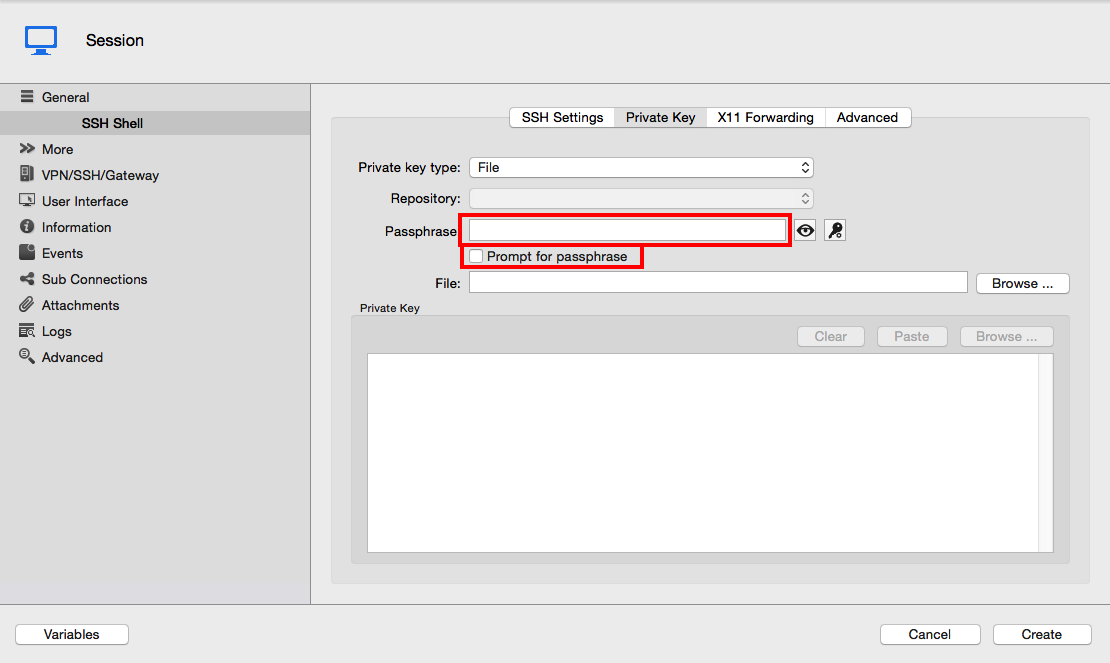
First, could you try setting you passphrase directly in the connection and try opening it (in embedded and external mode). Just uncheck the Prompt for passphrase checkbox and enter your passphrase in the field just over it:
Lastly, try running the command line directly in a new terminal window. For this, open the Terminal app and insert the following line (replacing the <> value):
ssh -p 22 -o 'IdentityFile yes' -i <path to private key file> "<username>@<host>".
Best regards,
Xavier Fortin
PromptForPassphrase.png
when i save the passphrase, i have the same failure.
The command in the Terminal works.
Well, I think I'll take you on your offer of TeamViewer remote session. It seems I'm missing something.
Xavier Fortin
i have send you a privat message
Hi @all,
I would like to know what is the solution for this issue?
I am having same troubles over here.
Hi,
Sorry, I should have sent a reply explaining the issue. It seems that the private keys generated in Windows (even through the Windows Remote Desktop Manager app) do not work on Mac, even when used through SSH command in Mac Terminal.app.
The best solution I can offer for now is to generate the private key in Mac with the following command line: ssh-keygen -t rsa
Best regards,
Xavier Fortin
Hi Xavier,
Thanks for the quick reply.
Unfortunately this is not an option for me as my private key is distributed among hundreds of servers and it's not so easy to push a new one.
Will there be any fix for this bug in the future?
As my private key works fine on Win and Ubuntu desktops, I can wait for the fix for Mac.
Halas, there's little we can do for now. I would like you to try connecting to your SSH session with the command line (ssh -p <Port> -o 'IdentityFile yes' -i <Private Key File> "<Username>@<Host>"). If this does not works, the best I can offer you for the moment is to file a bug report to mac.
Best regards,
Xavier Fortin
The command line succeeded and i was able to log in to one of the servers.
Anything else I can do?
Well, you do not seem to have the same problem. May I ask if you know how was the private/public key pair generated? Does your private key requires a password?
If you are using the SSH Shell (native) connection, you can always set it in external mode so it always open in the mac Terminal.
Best regards,
Xavier Fortin
Hi @all,
I finally found time to check out issue i had with my Mac and ssh key authentication.
The issue is I used encrypted private key.
It was working on my Windows machine, but not on Mac.
According to sshd logs Mac's RDM was closing connection on preauth phase.
My workaround is i converted encrypted private key to unencrypted.
It works now but actually this issue must be fixed as I am not a fan of storing unencrypted private keys.
Hope for a hotfix :)
P.S. Sorry for doubled post - i wasn't authenticated.
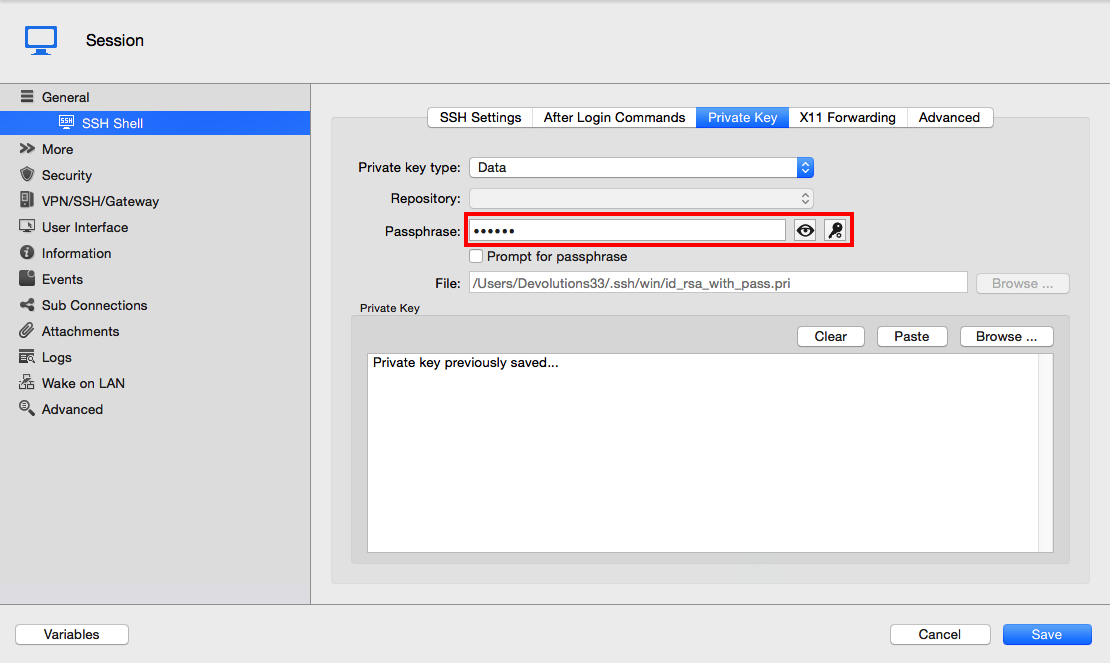
Was the passphrase for your private key set in the appropriate field:
You can also check the Prompt for passphrase option if you wan't to be ask your private key passphrase each time the connection is started.
Xavier Fortin
PassphraseField.png
Off course the passphrase was there.
Actually i used "My Personal Private Key" feature if it helps.
The reason I asked is because I myself use an encrypted private key with no issues. As long as you have the right passphrase, it should work.
When you're trying to connect with the encrypted private key are you getting an error message?
Could you tell me how was the private key generated? I would like to try reproducing the issue. If it's an encryption we're not currently supporting, we might be able to do something about it.
Best regards,
Xavier Fortin
Yes, there was an error: "Fatal error: Please make sure your connection settings are valid."
And there is no difference if i have the passphrase saved or i enter it manually.
It is hard to say how the key was generated as it was really long time ago.
The only thing i know is it is PEM encoded 4096 bits length key.
Hi Alexey,
For the sake of reproducing your issue, I've generated a PEM encoded 4096 bits length key with OpenSSL using this command:
openssl genrsa -des3 -out private.pem 4096
I've then extracted the public key from it with this command:
ssh-keygen -y -f private.pem > public.pub
I've copied the content of public.pub to my Maverick virtual machine ~/.ssh/authorized_keys file, created a SSH Terminal connection to that said virtual machine and set the private key to My Personal Private Key (to which I've set the private.pem file and it's password).
I've connected with success.
Could you make sure the password in your RDM Mac My Personal Private Key is the same you've used in Windows and Ubuntu.
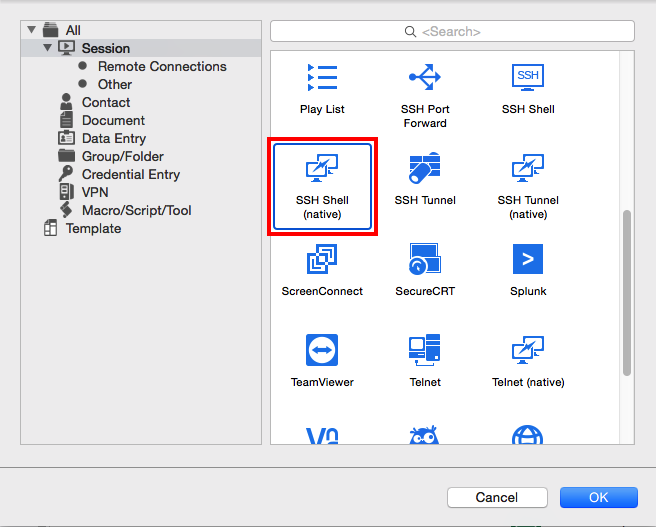
Could you also try to create an SSH Shell (native) connection with the same parameters:
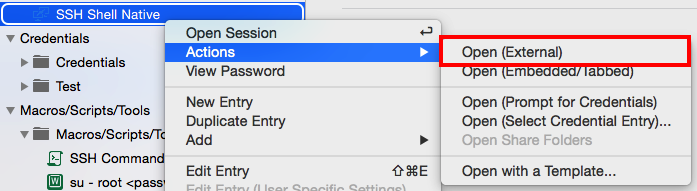
Then, try opening it in external mode:
It should open a Terminal window. Tell me if the connection works in external mode.
Best regards,
Xavier Fortin
OpenExternal.png
SSHShellNative.png