DPI bug on newest Windows 10 Fast Ring build (14257)
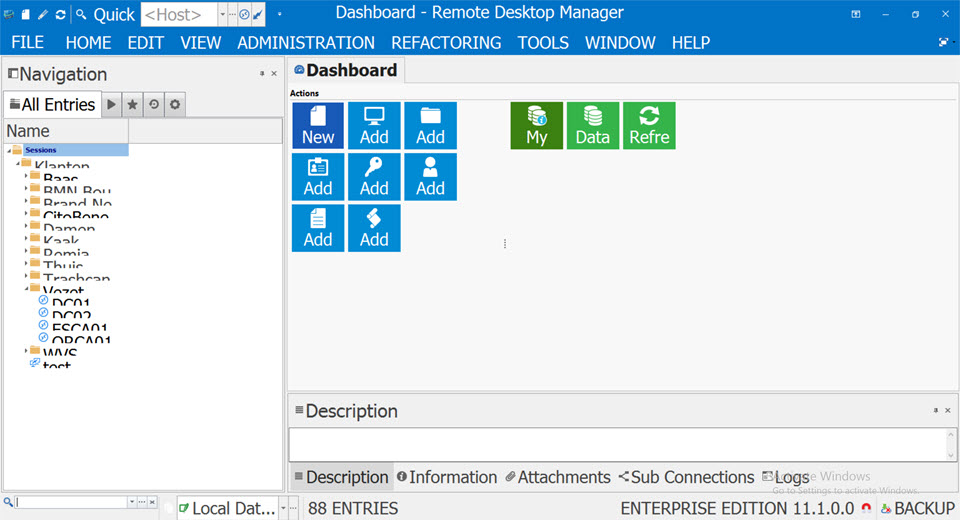
Starting latest Remote Desktop Manager (11.1.0.0) on the newest Windows 10 Fast Ring Build 14257, the GUI seems to have a DPI bug.
All the Control Elements like menu, Icons etc. are showing to in wrong DPI setting.
I cannot say if this is due to Windows 10 build or if RDM does something wrong. On the earlier build 14251 this did not happen.
Please see attached image.
RDM_DPIbug[1].png
All Comments (30)
Could you try a reboot?
David Hervieux
Already done, did not help.
Hello,
Is it possible that you are using a 4K monitor with a 150% or 200% scaling?
Best regards,
Jeff Dagenais
I'm using a Surce Pro 3 with 2160x1440 pixels (no 4K) but with 150 % DPI scaling. But this 150% DPI scaling was used before with Windows 10 and Event Windows 8.1.
RDM did show correctly before.
Hello,
You can also try to disable the scaling in RDM
1- Right-click on the RDM shortcut on your desktop
2- Select Properties
3- Go to the "Compatibility" tab
4- Check "Disable display scaling on high DPI settings"
Best regards,
Jeff Dagenais
I can confirm this bug also. My specs:
When I enable "Disable display scaling on high DPI settings" for the executable, it still looks horrendous.
I can imagine it's quite a challenge to make the program handle high DPI displays, but now there are more and more displays on the market, included also with many laptops. Please Devolutions, provide us a working, properly scaling application.
This is how it looks now on my laptop, it's unworkable.
2016-02-08_23-39-37.jpg
Do you get the problem with the version 11.0.18?
David Hervieux
Do you have a download link for verison 11.0.18 so I can test it?
Hello,
You can download RDM 11.0.18.0 here
http://cdn2.devolutions.net/download/Setup.RemoteDesktopManager.11.0.18.0.exe
Best regards,
Jeff Dagenais
Version 11.0.18 has the same problem as 11.1.0. I guess that Microsoft did some changes to DPI handling in the fast ring build 14257.
Any update on this issue?
It seems that Windows has broken something in the automatic scaling.
David Hervieux
When is this going to be fixed in RDM? For your information, I'm testing Royal TS now, and that program doesn't seem to have a problem running on my 4k screen.
I'm working hard to support the HDPI but I can't give you a time frame. We have a lot of dialogs and details to change.
David Hervieux
I've made a huge progress today.There is still a lot of work to do but now I'm more confident to have a HDPI version soon.
David Hervieux
Just to let you know --> build from this week 14267 on Surface Pro 4 with 2736 x 1824 resolution with 150% scaling is still not really usable disabling display scaling in compatibility isn't really working out since then the resolution is a little to small to read :-) (tested on 11.1 and previous builds)
Thanks already for keeping us up to date with the status & fix for this issue

Hi all,
I can confirm this bug on latest Windows 10 build from fast ring as well. Doesn't matter, if I'm on Surface Pro 3 with full HD resolution, or on DELL with 4K resolution. Unfortunatelly, because of this DPI bug, RDM is absolutely useless.
We really need fix or some kind of workaround.
Thanks in advance,
Martin
Hi Martin,
Could you try the new beta? We don't fully support hdpi but it should be better.
http://remotedesktopmanager.com/Home/ThankYou?f=RDMsetupBeta
David Hervieux
I've been seeing the same issue on the latest build from the fast ring as well. Whats odd however, is that it is only happening on my Surface Pro 3, not on my desktop(s). In any event, I have tried the newest beta as suggested and its slightly better now, still a lot of oversize fonts in various menus (I also disabled the DPI scaling in the compatibility, as suggested). So certainly progress, and making it much easier to use again!
RDM_Large_Fonts.png
Hi Robert,
Do you use the 150% or 200% scaling?
David Hervieux
I'm set to the default / recommended 150%.
Thank you. I did most of my test with 200% and I still have many issues at this resolution. I will make sure to test the 150% before the final release. Like I mentioned it's a long road with all the dialogs and windows we have in RDM.
David Hervieux
Hi, as mentioned 150% scaling would be very nice.
I guess most surface pro 4 users will use 150% scaling as it's the best trade-off in terms of readability & amount of text you can get on the screen. 200% scaling means that you'll only get 5 letters on the SP4 screen so :-)
Thanks for implementing it! really appreciate it. (i guess the 'blurry' effect will also disappear after these changes?)
On version 11.1.8.0 and still seeing DPI scaling issues (everything is huge). Currently on Windows build 14279 and using 175% scaling.
Could you post another print screen?
David Hervieux
Could you try 200% or 150%? I've never tested 175%
David Hervieux
Here is a screenshot of it at 175% DPI
Remote Desktop Manager [Dashboard] 2016-03-16 15.16.43.png
Here's what happens when I drop to 150%. On my 4k screen this makes things too small for me to use on a day to day basis (it's a laptop).
Remote Desktop Manager [Dashboard] 2016-03-16 15.20.42.png
I will test the 175% this week and see what I can do. In the meantime you could test 200%. I know that we still have some issues in High DPI and we are still working on it. I hope Microsoft will bring back the scaling in Windows 10 while I'm fixing the issues.
David Hervieux
Have you tried the latest beta? It should be better.
David Hervieux