Where is the VMware Dashboard?

I can't find it :(
All Comments (17)
Martin,
First make sure you have the latest beta (7.4.2.0).
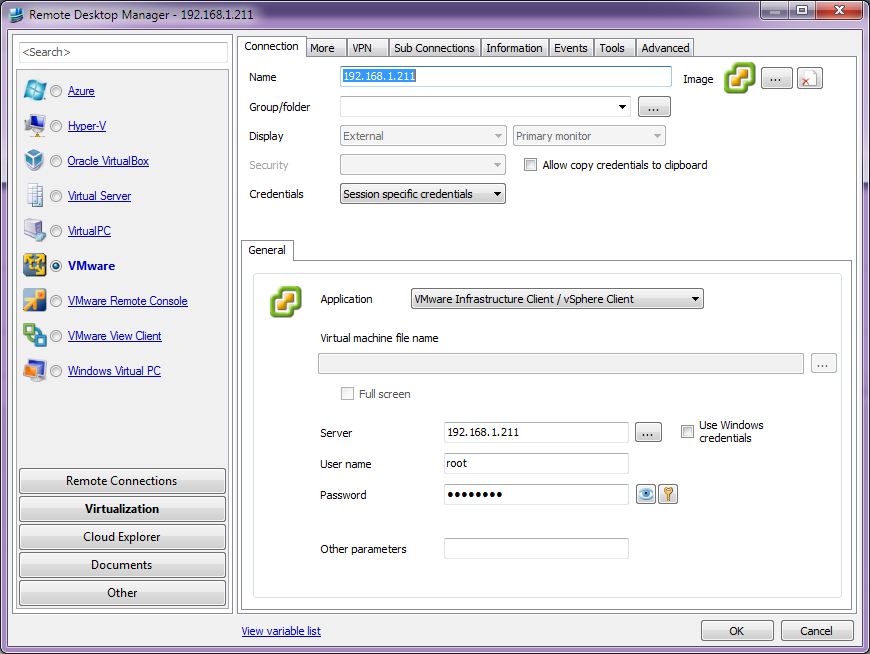
Create a VMware (vSphere Client) session like this:
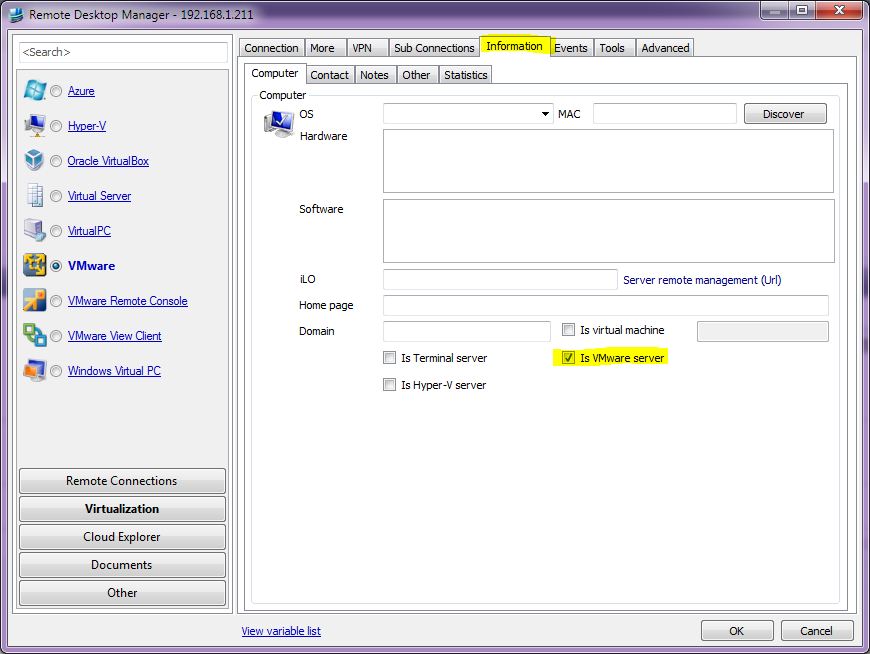
On the Information tab enable the VMware dashboard:
Save the session, click on the VMware Dashboard:
If you don't get anything to load in the Dashboard (takes 2-5 seconds) have a look at the log file [Help -> View Application Log...]
Note: It will not work unless you've already accepted the servers SSL certificate.
Let me know how that works for you,
Stefane
(fixed/reorderd images)
edited by stefane on 6/5/2012

Stéfane Lavergne
vSphereClientSession.JPG
Information.JPG
Dashboard.JPG
Sorry it dosn't work :'(
[06.06.2012 23:38]ERROR System.IO.FileNotFoundException: Die Datei oder Assembly "VMware.Vim, Version=5.0.0.0, Culture=neutral, PublicKeyToken=10980b081e887e9f" oder eine Abhängigkeit davon wurde nicht gefunden. Das System kann die angegebene Datei nicht finden.
Dateiname: "VMware.Vim, Version=5.0.0.0, Culture=neutral, PublicKeyToken=10980b081e887e9f"
bei Devolutions.RemoteDesktopManager.Managers.VMwareManager.GetHostSystem(String hostName, String username, String password)
bei Devolutions.RemoteDesktopManager.Managers.ThreadManager.<>c__DisplayClass1a.<RefreshVMwareHostSystem>b__18()
bei Devolutions.RemoteDesktopManager.Managers.ThreadManager.<>c__DisplayClass21.<Execute>b__20(Object param0)
Sorry I forgot to mention a very important step.
You need to have the VMware.Vim.dll & its associated dll files installed on your system. It comes with vSphere PowerCLI available here.
Note: simply copying the files will not work, since they need to be installed in the Global Assembly cache.
It might be available in other VMware installers.
Stéfane Lavergne
New to the product - followed the steps as outlined, still the VMWare Dashboard does not work.
OS - Windows 7 Enterprise x64
Remote Desktop manager Enterprise Edition - Version 7.6.3.0
vSphere PowerCLI has been installed, search of the machine shows VMWare.Vim.dll in the following director --> C:\Program Files (x86)\VMware\Infrastructure\vSphere PowerCLI
Still getting the error:
[10/15/2012 3:54 PM]ERROR SILENT System.IO.FileNotFoundException: Could not load file or assembly 'VMware.Vim, Version=5.0.0.0, Culture=neutral, PublicKeyToken=10980b081e887e9f' or one of its dependencies. The system cannot find the file specified.
File name: 'VMware.Vim, Version=5.0.0.0, Culture=neutral, PublicKeyToken=10980b081e887e9f'
at Devolutions.RemoteDesktopManager.Managers.VMwareManager.GetHostSystem(String hostName, String username, String password)
at Devolutions.RemoteDesktopManager.Managers.ThreadManager.<>c__DisplayClass1a.<RefreshVMwareHostSystem>b__18()
at Devolutions.RemoteDesktopManager.Managers.ThreadManager.<>c__DisplayClass21.<Execute>b__20(Object param0)
VSphere client is loaded on the machine and connects with out issue - already added / accepted the certificate.
Already ensured Set-ExecutionPolicy RemoteSigned has been set in VMware vSphere PowerCLI & VMware vSphere PowerCLI (32-Bit)sessions created by the install.
Any other thoughts?
Try starting RDM with "Run as Admin".
Stéfane Lavergne
No dice - running as admin produces same error:
[10/15/2012 4:17 PM]ERROR SILENT System.IO.FileNotFoundException: Could not load file or assembly 'VMware.Vim, Version=5.0.0.0, Culture=neutral, PublicKeyToken=10980b081e887e9f' or one of its dependencies. The system cannot find the file specified.
File name: 'VMware.Vim, Version=5.0.0.0, Culture=neutral, PublicKeyToken=10980b081e887e9f'
at Devolutions.RemoteDesktopManager.Managers.VMwareManager.GetHostSystem(String hostName, String username, String password)
at Devolutions.RemoteDesktopManager.Managers.ThreadManager.<>c__DisplayClass1a.<RefreshVMwareHostSystem>b__18()
at Devolutions.RemoteDesktopManager.Managers.ThreadManager.<>c__DisplayClass21.<Execute>b__20(Object param0)
Do you have the new PowerCLI (5.1.0) installed? If so, then it looks like we have an issue with the new version. I will install here to try to reproduce the issue.
Stéfane Lavergne
VMWare vSphere PowerCLI 5.1.0.4977 installed - downloaded via the link provided in the Remote Desktop Manager pdf documentation. :)
We are working on a fix
Stéfane Lavergne
Awesome... thank you for the quick attention.
Other than this minor snafu - simply love this tool!
:cheers:
We have a fix. Download the hot patched version here.
http://remotedesktopmanager.com/download/Setup.RemoteDesktopManager.7.6.4.0.exe
http://remotedesktopmanager.com/download/Devolutions.RemoteDesktopManager.Bin.7.6.4.0.zip
Please me know if that works for you.
Stéfane Lavergne
Yes, that seems to have done it - I now see the information populated in the VMWare Dashboard.
Just a note for you... I did check the App Log even though it was working and found this bit:
[10/16/2012 12:48 PM]ERROR SILENT System.NullReferenceException: Object reference not set to an instance of an object.
at System.Collections.Generic.Dictionary`2.Insert(TKey key, TValue value, Boolean add)
at VMware.Vim.ViReflectionCache.GetReflectionCacheItemByType(Type type)
at VMware.Vim.ViReflectionCache.GetTypeDefaultConstructor(Type type)
at VMware.Vim.VIConvert.Convert(Object source, Type sourceType, Type resultType)
at VMware.Vim.VIConvert.Convert(Object source, String targetNamespace, Assembly targetAssembly)
at VMware.Vim.VIConvert.ToVim51(Object source)
at VMware.Vim.ServiceInstance.RetrieveServiceContent()
at VMware.Vim.VimClient.Connect()
at VMware.Vim.VimClient.Connect(String serviceUrl)
at VMware.Vim.VimClient.Login(String serviceUrl, String username, String password)
at Devolutions.RemoteDesktopManager.Managers.VMwareManager.GetVimClient(String host, String username, String password)
at Devolutions.RemoteDesktopManager.Managers.VMwareManager.GetHostSystem(String hostName, String username, String password)
at Devolutions.RemoteDesktopManager.Managers.ThreadManager.<>c__DisplayClass1a.<RefreshVMwareHostSystem>b__18()
at Devolutions.RemoteDesktopManager.Managers.ThreadManager.<>c__DisplayClass21.<Execute>b__20(Object param0)
Are all the fields populated? CPU? Memory?
Stéfane Lavergne
Name, State, Host CPU, Host Mem, Guest Mem, and Note all seem to be populated.
Host field is greyed out... should I be able to enter something into it for search purpose or is it supposed to simply list the name given to the entry and be 'grey'?
Also - what would go into the Other Parameters field in the connection tab of the entry? Mine is currently blank.
Right now - the only thing I can get working is an entry for the vSphere server that hosts all our VMs.
I run several VM servers which host Altiris Deployment consoles.
Is it possible using subconnections to the RDP entry for my VM Altiris servers to show just the VM servers info via VMWare Dashboard?
Basically - I need VMWare info for like 10 of the 150 servers listed in my vSphere.
If this is out of scope - no worries... loving the app as it stands.
The Host field is the name of the VMWare server, not meant for filtering but as a quick reference.
Other parameters, allows for passing other command line parameters to the vpxclient.exe that are not explicitly expose via the RDM interface.
As for the VMWare dashboard it will list all VMs on the server, there is currently no filter possible.
You could however create sub connections (like VMWare View Client or other) for the VMs that you need to connect too often.
As for Altiris servers support we currently have nothing planned for the next version. We will need to investigate to see what is possible.
Stéfane Lavergne
Understand completely... and thank you.
From a developer side - would there be a way to have the VMWare Dashboard list the structure in addition to just listing the VMs by name?
What I mean is on my vSphere - we use the Inventory - VMs and Templates view.
It is setup in "tree" style -
Site1
|
|--Finance
---|--VM1
---|--VM2
|--IT
---|--VM1
---|--VM2
Site2
|--IT
---|--VM1
---|--VM2
Etc etc
edited by Parad0x on 10/16/2012
Excellent idea.
Assuming the API supplies the information then we should have no problem adding it to the dashboard.
I've add a feature request.
Stéfane Lavergne