RDM Session Entries disappear

I’m having a strange problem and I can’t figure out what is happening. I and others here are using RDM Enterprise (I was using 10.0.21.0 BETA I think, whatever the latest BETA was) and I (we) connect to a shared SQL 2008 R2 database on a remote server. For some reason (this morning) when I came in and launched RDM (which I do every morning to check servers, etc.), almost all of my RDM entries were missing from the navigation pane (RDP, VMware, SSH, the credentials, etc.). The only thing that remains in my RDM navigation pane is the folder which I created for the AD Synchronizer (I created this folder for testing a while back when you first released the AD synchronizer). Also in that folder are other subfolders (identical to our AD OU tree) created by the AD synchronizer and within those subfolders, there are RDP entries (which were created when I ran the AD Synchronizer yesterday afternoon). The session entries created by the AD synchronizer are those systems imported from AD for which there wasn’t already an entry in RDM (at the time I ran it). Those session entries which were created by the AD Synchronizer yesterday still exist in RDM this morning. However, everything else (that wasn’t in the AD Synchronizer folder) is now missing. So I did a few restores of the shared SQL DB this morning but ended up with the same missing entries, so restoring SQL didn’t help. I then upgraded to the new release (10.1.0.0) this morning and have the same result, also it doesn’t makes a difference if I am using the x86 or the x64 flavor, the sessions are still missing.
The strange thing (to me anyway) may be that the session entries are not actually missing from the SQL database itself. Other staff have come in since I had this problem this morning and I’ve had them open their RDM client and I see that their session entries are still there. When they launch RDM it shows that RDM is connecting to the SQL DB just like it shows the connecting to SQL DB when I launch my own client (no errors reported that I can tell). I made a lot of changes to the RDM sessions yesterday and to other things like playlists. I checked the playlists and the entries are missing from the playlists as well (so they aren’t “hidden” in the navigation pane otherwise I would think that they should at least appear in the playlists).
This has happened to me a couple of times over the past year or two (this isn’t something new with any new software update / release). Since the first time that this has happened to me, I started manually exporting my session entries every few days, along with my settings, etc. so that if this happened again, I could just import my data back into RDM. The couple of times that it has happened over the past year or two, I didn’t spend the time to troubleshoot it fully and I had just figured that all of my entries were missing from the SQL DB, so I used to import my saved exported data back into RDM when this happened before. Now as it turns out now, I’m guessing that the entries aren’t actually missing from the SQL DB, but they are just missing from my local RDM client navigation pane.
Filtering isn’t enabled or anything like that from what I can tell (and the entries aren’t in the playlists, but the playlists themselves are all there and I can see the sessions from the AD Synchronizer folder when I edit the playlists). None of the missing entries are in the deleted bin, but there are entries in the deleted bin from a couple of days ago (and older then that) from when I deleted other stuff previously. If I look under Recently Used in the Navigation pane, I see RDP session names for systems that I removed from RDM a few weeks ago or something like that. And of course, all of my favorites are missing (since the original session entry is missing). When I switch to my local data source, all of the entries that I have set up in the local data source are still there. When I switch back to the SQL data source, it doesn’t change anything, it only shows the AD Synchronizer folder data.
I didn’t export the entry data yesterday after I made all of those changes in RDM, otherwise I would just import them back into RDM now. I do have a backup of the “AppData\Local\Devolutions\RemoteDesktopManager” directory from yesterday afternoon (and I can verify that the entries were visible in RDM for at least a few hours after I made a backup of that directory). I’m not sure if there are any files or anything in that directory tree that I can try to restore to see if that resolves the issue.
Thanks in advance
All Comments (13)
OK - I may have jumped the gun in troubleshooting this issue, but I removed the SQL data source and recreated it. Now, all of my entries exist in the Dashboard and the Favorites are back also (and the information is correct), but now all of my Playlists are missing. Any chance of recovering the playlists from any of the files in the APPDATA folder (or any other way)? Any idea what may be causing this problem?
edited by STGdb on 12/12/2014
Hello,
Missing entries come in two flavors:
UI layout files corrupted, fixed by using Window - Reset layout, and exceptionally going in the local data folder to delete the *.LYT files
Corrupted offline cache : fixed by using CTRL-F5 in our latest releases, in the data source settings dialog we also have a button to clear the cache.
In your case, it would seem the probable cause is corrupted cache. Can you try to clear it?
Maurice
In version 10 the CTRL+F5 combination seems to work very good. Occasionally some users are missing entries (while other still have them i.e are still in the central database) and after the CTRL+F5 and waiting for the local database to get refreshed all entries are back. As far as I can remember a restart of RDM isn't even required.
Loss of playlists I haven't got any experience with so I can't help you there ...
Ok, the playlists are related to the Data source ID
If not running in terminal services, the files are under
%LOCALCAPPDATA%\Devolutions\RemoteDesktopManager
Under that folder, there are multiple folders named using a GUID, these correspond to each of the data sources. You can go in your data source settings to find the GUID. Under that folder, there should be a playlist folder.
Since you have registered you data source once more, it has a new GUID, simply move the playlist folder from the old to the new and it will work.
What you did had the effect of creating a new cache, so it was most probably the cause of your problem.
Maurice
Many Kudos to you both!! I think the cache was corrupt as well and definitely something that I will look out for if that should happen again in the future (and now I know how to resolve it).
I was able to recover the play by copying the files from the Playlist directory (associated with the prior SQL data source) to the new one. Worked like a charm.
All is well now, again THANK YOU both!!
:-)
Hi,
I must say I'm surprised you ran into this issue, we have changed the way we handle the cache since v10.0.6 and had seen a huge improvement, AKA no more corrupted caches.
Please make sure you report corrupted caches if they occur, we need this to be rock solid.
Thank you,
Maurice
Will do
Hi!
Just to give another feedback.
Today I stumbled upon the same issue as the OP, then clearing the cache with CTRL+F5 fixed the problem.
I don't think this could be related but just yesterday I enabled the option "Merge credential list with sessions" under "User Interface - Tree View".
I'm using RDM v. 10.1.3.0 with MS SQL 2014
Regards.
Indeed, the merge setting should not have that kind of impact.
Is there anything relevant in Help - View Application Logs?
Maurice
Into the logs there are only these two lines about offline cache
"[08/01/15 19.06 - 10.1.3.0 - 32-bit] Info: Offline file - Database disk image is malformed, trying to delete the file: C:\Users\...\AppData\Local\Devolutions\RemoteDesktopManager\4a80789e-d718-4fbd-941c-7e6dbaac3a44\offline.db"
"[08/01/15 19.06 - 10.1.3.0 - 32-bit] Info: Offline file - file has been deleted, will now recreate the file from scratch"
I can also tell you that I've powered off the PC twenty minutes later at 19.26 and that I've closed your software just before shutdown.
Then I discovered the issue that evening at home.
I don't recall exactly what I was doing at that time, maybe I was renaming and moving some session trees.
Regards.
edited by Logharn on 1/9/2015
It happened again...
On Sunday morning I opened your software and then added a session...
I kept opened RDM for all day and in the evening I started working again adding other sessions and organizing things.
Everything worked correctly as expected.
After closing RDM at ~01.00 AM I forgot to change a password, I've started it again and there was only the session added in the morning, CTRL+F5 and appeared all evening work.
This time in the logs nothing showed up...
I suspect this error can occur when RDM is kept open for long times without being used, since the first time it happened to me I've kept it opened for all day.
But if this is the issue I think everyone using SQL as Datasource should have the same problem, I cannot be the only one who keep open RDM from morning to evening. :greenp:
Maybe this happens frequently due to my environment setup. My MSSQL 2014 Standard DB is on a Remote VPS (just like Azure) and I connect directly through its public IP address (don't worry I made firewall rules to allow only my IPs) and SQL service is listening on a custom port.
These are the advanced options of my datasource
And these are the datasource infos
Any clue?
Best regards.
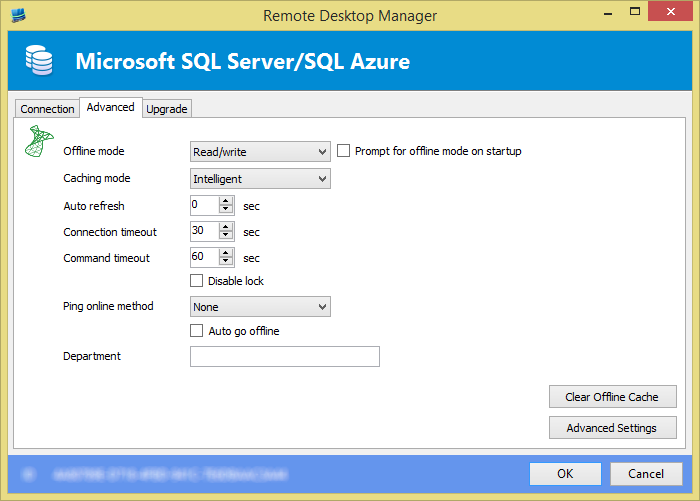
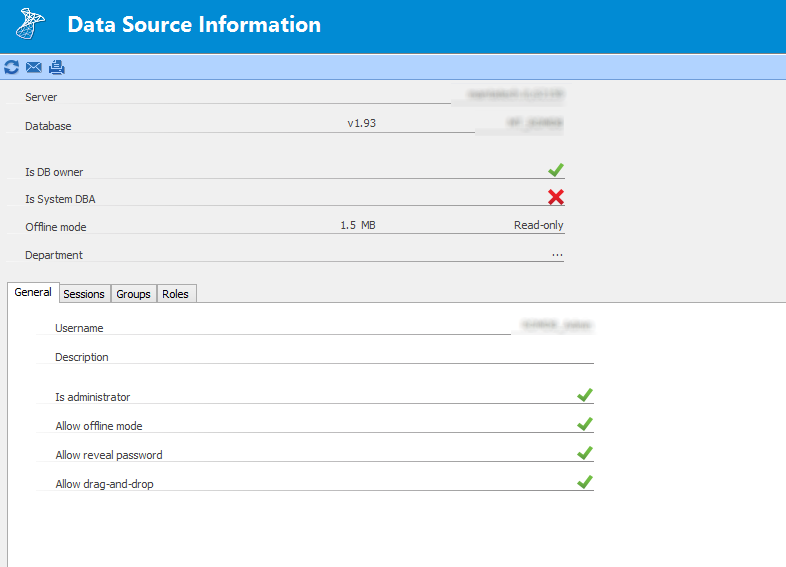
DataSource_Info.png
MSSQL_Adv.png
Hi!
After two weeks of test I can tell you that changing the "Caching mode" from "Intelligent" to "Simple" solved the issue for me...
Best regards.
Hi,
old thread but solved my issue.
I ran into the RDM update problem, which ist discussed here: https://forum.devolutions.net/topic26586-after-upgrade-to--rdp-no-longer-uses-inherited-credentials-or-jump-setting.aspx
After doing a "rollback" my subconnections disapeared.
I did the rollback like this:
- Downloaded a previuous version and unpacked it into the installation folder
(Devolutions.RemoteDesktopManager.Bin.11.5.4.0.zip)
- Upgraded today from this version again to the new v 11.7.1.0 64-bit
- No subconnections anymore
- ctrl+f5 solved it