No sessions in Offline mode

When I start RDM when I am not connected to the Remote Desktop Manager Server I can choose to go Offline or Online.
When I choose to go offline, there are no Sessions in the manager, even when I choose Online there are no sessions after the timeout.
I only the the sessions offline when I connect tot the RDM server and the go offline.
I have activated the Offline read/write option of the datasource.
There is nothing in the application log after such a start.
FYI I am using Windows 7 pro 64bit
about.jpg
offline sessies probleem.jpg
All Comments (24)
Hi
To force the re-creation of the offline cache press ctrl while you click on refresh.
Maurice
I tested this by clicking ctrl-refresh in online and the went offline, but this doesn't help.
Where is the cache stored, can I check this?
Any progress on this?
Please go in File -> My Data Source Information, now hover over the file size, this will give you the full file path, something like %LocalAppData%\Devolutions\RemoteDesktopManager\GUID-DatasourceID\offline.db.
Close RDM, delete the file and start RDM. This will force RDM to recreate the offline file.
Maurice
Just to recap, CTRL + refresh didn't help? Are you the only user that can't see sessions while offline?
If not, go to File -> My Data Source Information and have a look at the Offline Mode section, if you hover the mouse over the file size you will get the file location (it's an encrypted SQLite file). Once in the My Data Source Information, please use the "Send report to support" (mail icon) to send us your information. The information contained should help us resolve the issue.
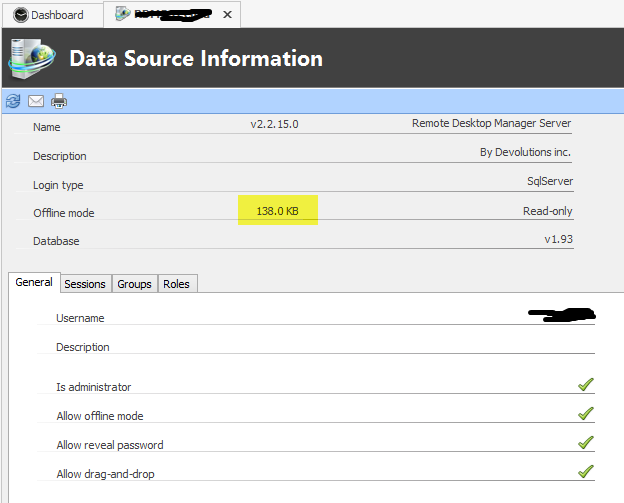
Stéfane Lavergne
5-20-2014 9-40-53 AM.png
What RDMS version do you use?
David Hervieux
My colleagues are having the same problem.
I am using RDM 9.2.6.0
I have send you the report.
Datasoureinfo:
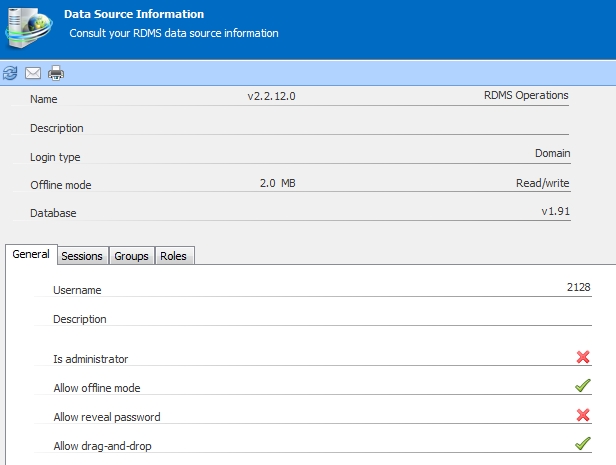
DatasourceInfo.jpg
We've fixed a bug in that latest version that "might" be related, could you please try v9.2.9.0
http://remotedesktopmanager.com/Home/Download
If that doesn't resolve the issue, I would need a profile trace, please perform the following steps and send me the trace information.
- CTRL + refresh (third icon "arrows" top left corner of the window)
- File -> Options -> Advanced -> Debug Level, set it to 192
- close RDM
- start RDM with /Profiler trace flag (RemoteDesktopManager.exe /Profiler)
- click "Send Trace to Support"
Regards,
Stéfane Lavergne
When I do the procedure in the current RDM I get the error message that the database disk image is malformed when I restart RDM.
I can't click Send Trace to Support.
When I install the newest RDM. I don't get the popup, but I also don't get a popup of the profiler. Even when I open the popup of the profiler manually, it is empty.
I re-tested the offline mode, but it is still empty.
Regards
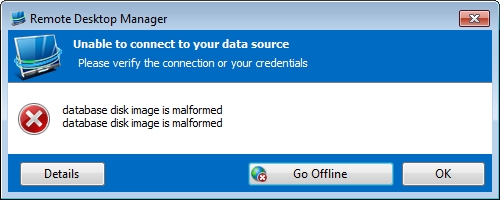
old version.jpg
The profiler window will always open empty, we only write to it when it's opened. If you start with /Profiler it will open during the start of the application and it will trace to "open process" of the application which will record the "loading from offline file..." stuff that would help us diagnose.
With what you have now, the "disk image is malformed" is telling us that the offline file invalid. We have code to detect it automatically fix it but in your case it doesn't look like it's working. Find the file location (use File -> My DataSource Information, hover over the file size to get the location), Close RDM, delete the offline file, restart RDM, connect to the RDMS server, try going offline. Does it work now?
Stéfane Lavergne
Yes it works! The file was exactly 2MB and after recreation it was 1.979 KB.
The profiler window is not opened when I start with /Profiler in the latest version.
Great it works.
It's odd that the app didn't recover from the "disk image is malformed" error on it's own. I will investigate. Would it be possible for you to send us your application logs (Help -> View Application Logs) via private message or email (slavergne at devolutions dot net). It will help in the analysis of the issue.
As for the /Profiler it might be that it only works with /profiler... I will double check.
Stéfane Lavergne
Is there already a solution for this problem?
Me and my colleagues are still having this problem regularly (I guess every 2 weeks)
I upgraded to the latest version 10.0.2.0 and the Clear Offline Cache button gave 3 times an error that the file couldn't be deleted, the fourth time (1 hour later) it was cleared.
The error when the file cannot be deleted surely comes from the file being locked by another process. Are you using multiple instances? Another possibility is a process left running after a main form crash. You would see this in the Task Manager.
Maurice
That might be the reason why the file couldn't be deleted, but I should not need to delete the file.
It get's frequently corrupt and then in offline mode the navigation tree is empty.
It is very annoying when I have a urgent intervention....
We still haven't found the pattern but we will try to reproduce it on our side.
David Hervieux
We are still having the problem that the offline database gets corrupted.
Today I got the following error when I tryed to go offline (even when the online server was available. After the error the offline database was cleared.
Devolutions.RemoteDesktopManager.Business.DataSources.GoOfflineException: Exception of type 'Devolutions.RemoteDesktopManager.Business.DataSources.GoOfflineException' was thrown.
at Devolutions.RemoteDesktopManager.Business.DataSources.RDMSConnectionDataSource.c5243a46e7a2f5b24d5d355f987bdcc9d(Boolean c5d807049ab3ae30aad5318fa57dc6159)
at Devolutions.RemoteDesktopManager.Business.DataSources.RDMSConnectionDataSource.get_Proxy()
at Devolutions.RemoteDesktopManager.Business.DataSources.RDMSConnectionDataSource.ExecuteAction[T](ExecuteActionDelegate`1 action)
at Devolutions.RemoteDesktopManager.Business.DataSources.RDMSConnectionDataSource.c56437f283bdc7af669aef8b0c11d5e95(String c8ec6dba322e00de5b07428c466db85a4, Byte[] ca45fa78b83f2776d602fa75b63e3a281)
at Devolutions.RemoteDesktopManager.Business.DataSources.RDMSConnectionDataSource.GetDataSourceSettings()
at Devolutions.RemoteDesktopManager.Managers.ConnectionManager.c29fbd34504079a3525ca4c390d5d4074(BaseConnectionDataSource cf40b69955d088020784eb92737f0a505)
Hi,
What version do you use?
David Hervieux

Could you try to manually delete the cache (File->Data Sources), connect to the server and go offline after that?
David Hervieux
After this error, I tryed to Clear Offline Cache, but I got an errror that the offline cache could not be cleared
You might have to delete it manually with the application closed. It's located in %LocalAppData%\Devolutions\RemoteDeskopManager
Have you activated multiple RDM instances support?
David Hervieux
Where do I activate this option?
If have the RDM installed a few days ago.
I haven't changed any options since then.
In the past I do have to manually remove the offline.db file in the folder you mentioned, but after a while I'm having the same problem.
There seems to be no systematic, but once in a while me and me collegues are having this problem.
Hi,
It's pretty sure that if you don't know where the option is it's mean that it's not enabled. Could you make sure that you anti-virus does not check the offline file?
David Hervieux