error running powershell through RDM

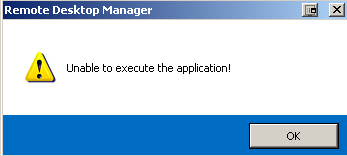
Can I get a hand running powershell through RDM. When I click on the button in the tools tab I get this error.
I am running windows XP with version 2 of powershell
edited by debell67 on 5/5/2014
5-5-2014 10-09-05 AM.png
All Comments (18)
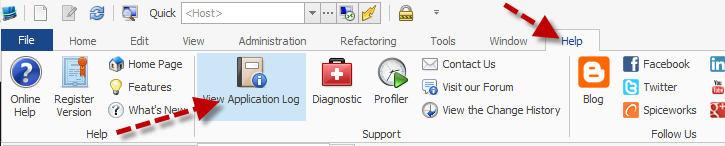
Is there anything else in the RDM logs (Help -> View Application Log)?
Stéfane Lavergne
I do not see an option for the application log. The only log I see is a usage log and all it says is a powershell session is started.
Sample from usage log
[5/5/2014 10:31:05 AM] Connecting to 'PowerShell (RDM CmdLet)' (PowerShell)
[5/5/2014 10:31:21 AM] Disconnected from 'PowerShell (RDM CmdLet)' (PowerShell)
[5/5/2014 10:31:45 AM] Connecting to 'PowerShell (RDM CmdLet)' (PowerShell)
[5/5/2014 10:31:51 AM] Disconnected from 'PowerShell (RDM CmdLet)' (PowerShell)
edited by debell67 on 5/5/2014

5-5-2014 10-34-15 AM.png
Stéfane Lavergne
5-5-2014 11-42-37 AM.png
ok thanks. Here is the log
[5/5/2014 10:29:17 AM]DEBUG Starting channel...
[5/5/2014 10:29:17 AM]DEBUG ChannelServerName: RDMChannel
[5/5/2014 10:29:17 AM]DEBUG ChannelClientName: RDMClient
[5/5/2014 10:29:17 AM]DEBUG ChannelServerPath: RDMRemoteObject
[5/5/2014 10:29:17 AM]DEBUG ...channel started
[5/5/2014 10:29:59 AM]INFO HttpListener listing at http://localhost:19443/
[5/5/2014 10:29:59 AM]INFO HttpListener thread started.
[5/5/2014 10:30:54 AM]INFO System.ComponentModel.Win32Exception: Access is denied
at System.Diagnostics.Process.StartWithShellExecuteEx(ProcessStartInfo startInfo)
at System.Diagnostics.Process.Start()
at System.Diagnostics.Process.Start(ProcessStartInfo startInfo)
at Devolutions.RemoteDesktopManager.Business.Connectors.PowerShellConnector.DoRun(Connection connection, OpenConnectionMode openConnectionMode)
[5/5/2014 10:31:16 AM]DEBUG OfflineManager.OfflineMode : Cache
[5/5/2014 10:31:16 AM]DEBUG ConnectionManager.DataSource.OfflineMode : Cache
[5/5/2014 10:31:16 AM]DEBUG ConnectionManager.DataSourceSettings.OfflineMode : ReadOnly
[5/5/2014 10:31:16 AM]DEBUG SecurityManager.CustomSecurity.OfflineMode : ReadOnly
[5/5/2014 10:31:31 AM]INFO System.ComponentModel.Win32Exception: Access is denied
at System.Diagnostics.Process.StartWithShellExecuteEx(ProcessStartInfo startInfo)
at System.Diagnostics.Process.Start()
at System.Diagnostics.Process.Start(ProcessStartInfo startInfo)
at Devolutions.RemoteDesktopManager.Business.Connectors.PowerShellConnector.DoRun(Connection connection, OpenConnectionMode openConnectionMode)
Could it be an anti-virus that gives the access denied when RDM tries to execute the powershell?
David Hervieux
I use symantec endpoint protection and I have reviewed all the logs and find no occurance of it doing any blocking in relation to RDM or Windows Powershell
I found this topic in the RDM help file
http://help.remotedesktopmanager.com/powershell_cmdlets.htm?zoom_highlightsub=powershell which lists the script that installs the RDM commandlets , I have updated it include my install path.
set-alias installutil $env:windir\Microsoft.NET\Framework\v2.0.50727\installutil;installutil 'C:\Program Files\Devolutions\Remote Desktop Manager\RemoteDesktopManager.PowerShell.dll';Get-PSSnapin -Name *Remote.Desktop* -Registered | % { Write-Host "$_..." -NoNewline; if ( (Get-PSSnapin -Name $_ -ErrorAction SilentlyContinue) -eq $null ) { Write-Host "installing" -ForegroundColor Yellow; Add-PsSnapin $_ } else { Write-Host "already installed" -ForegroundColor Green; } }
When I manually run powershell (as administrator) I get the following
Windows PowerShell
Copyright (C) 2009 Microsoft Corporation. All rights reserved.
PS C:\Documents and Settings\dbell800>
PS C:\Documents and Settings\dbell800> set-alias installutil $env:windir\Microsoft.NET\Framework\v2.0.50727\installutil;
installutil 'C:\Program Files\Devolutions\Remote Desktop Manager\RemoteDesktopManager.PowerShell.dll';Get-PSSnapin -Name
*Remote.Desktop* -Registered | % { Write-Host "$_..." -NoNewline; if ( (Get-PSSnapin -Name $_ -ErrorAction SilentlyCont
inue) -eq $null ) { Write-Host "installing" -ForegroundColor Yellow; Add-PsSnapin $_ } else { Write-Host "already instal
led" -ForegroundColor Green; } }
Microsoft (R) .NET Framework Installation utility Version 2.0.50727.3053
Copyright (c) Microsoft Corporation. All rights reserved.
Running a transacted installation.
Beginning the Install phase of the installation.
See the contents of the log file for the C:\Program Files\Devolutions\Remote Desktop Manager\RemoteDesktopManager.PowerS
hell.dll assembly's progress.
The file is located at C:\Program Files\Devolutions\Remote Desktop Manager\RemoteDesktopManager.PowerShell.InstallLog.
Installing assembly 'C:\Program Files\Devolutions\Remote Desktop Manager\RemoteDesktopManager.PowerShell.dll'.
Affected parameters are:
logtoconsole =
assemblypath = C:\Program Files\Devolutions\Remote Desktop Manager\RemoteDesktopManager.PowerShell.dll
logfile = C:\Program Files\Devolutions\Remote Desktop Manager\RemoteDesktopManager.PowerShell.InstallLog
The Install phase completed successfully, and the Commit phase is beginning.
See the contents of the log file for the C:\Program Files\Devolutions\Remote Desktop Manager\RemoteDesktopManager.PowerS
hell.dll assembly's progress.
The file is located at C:\Program Files\Devolutions\Remote Desktop Manager\RemoteDesktopManager.PowerShell.InstallLog.
Committing assembly 'C:\Program Files\Devolutions\Remote Desktop Manager\RemoteDesktopManager.PowerShell.dll'.
Affected parameters are:
logtoconsole =
assemblypath = C:\Program Files\Devolutions\Remote Desktop Manager\RemoteDesktopManager.PowerShell.dll
logfile = C:\Program Files\Devolutions\Remote Desktop Manager\RemoteDesktopManager.PowerShell.InstallLog
The Commit phase completed successfully.
The transacted install has completed.
Remote.Desktop.Manager.9.0.1...installing
Add-PSSnapin : Cannot load Windows PowerShell snap-in Remote.Desktop.Manager.9.0.1 because of the following error: The
Windows PowerShell snap-in module C:\Program Files\Devolutions\Remote Desktop Manager\RemoteDesktopManager.PowerShell.d
ll does not have required Windows PowerShell snap-in strong name RemoteDesktopManager.PowerShell, Version=9.0.1.0, Cult
ure=neutral, PublicKeyToken=null.
At line:1 char:403
+ set-alias installutil $env:windir\Microsoft.NET\Framework\v2.0.50727\installutil;installutil 'C:\Program Files\Devolu
tions\Remote Desktop Manager\RemoteDesktopManager.PowerShell.dll';Get-PSSnapin -Name *Remote.Desktop* -Registered | % {
Write-Host "$_..." -NoNewline; if ( (Get-PSSnapin -Name $_ -ErrorAction SilentlyContinue) -eq $null ) { Write-Host "in
stalling" -ForegroundColor Yellow; Add-PsSnapin <<<< $_ } else { Write-Host "already installed" -ForegroundColor Green
; } }
+ CategoryInfo : InvalidArgument: (Remote.Desktop.Manager.9.0.1:String) [Add-PSSnapin], PSSnapInException
+ FullyQualifiedErrorId : AddPSSnapInRead,Microsoft.PowerShell.Commands.AddPSSnapinCommand
Remote.Desktop.Manager.9.0.11...installing
Add-PSSnapin : Cannot load Windows PowerShell snap-in Remote.Desktop.Manager.9.0.11 because of the following error: The
Windows PowerShell snap-in module C:\Program Files\Devolutions\Remote Desktop Manager\RemoteDesktopManager.PowerShell.
dll does not have required Windows PowerShell snap-in strong name RemoteDesktopManager.PowerShell, Version=9.0.11.0, Cu
lture=neutral, PublicKeyToken=null.
At line:1 char:403
+ set-alias installutil $env:windir\Microsoft.NET\Framework\v2.0.50727\installutil;installutil 'C:\Program Files\Devolu
tions\Remote Desktop Manager\RemoteDesktopManager.PowerShell.dll';Get-PSSnapin -Name *Remote.Desktop* -Registered | % {
Write-Host "$_..." -NoNewline; if ( (Get-PSSnapin -Name $_ -ErrorAction SilentlyContinue) -eq $null ) { Write-Host "in
stalling" -ForegroundColor Yellow; Add-PsSnapin <<<< $_ } else { Write-Host "already installed" -ForegroundColor Green
; } }
+ CategoryInfo : InvalidArgument: (Remote.Desktop.Manager.9.0.11:String) [Add-PSSnapin], PSSnapInExceptio
n
+ FullyQualifiedErrorId : AddPSSnapInRead,Microsoft.PowerShell.Commands.AddPSSnapinCommand
Remote.Desktop.Manager.9.2.8...installing
PS C:\Documents and Settings\dbell800>
edited by debell67 on 5/5/2014
edited by debell67 on 5/5/2014
If you the type get-rdm-session within your powershell window does it work?
Regards,
Stéfane Lavergne
seems to. although to get this far I had to manually launch WPS in administrator mode.
Now that it's installed properly, if you launch WPS from RDM does it work?
Same error, access denied?
If you start RDM in administrator mode, does that help?
Stéfane Lavergne
Same error when I click on the powershell icon again. Ran as administrator and after reentering my registration info it gave the same error
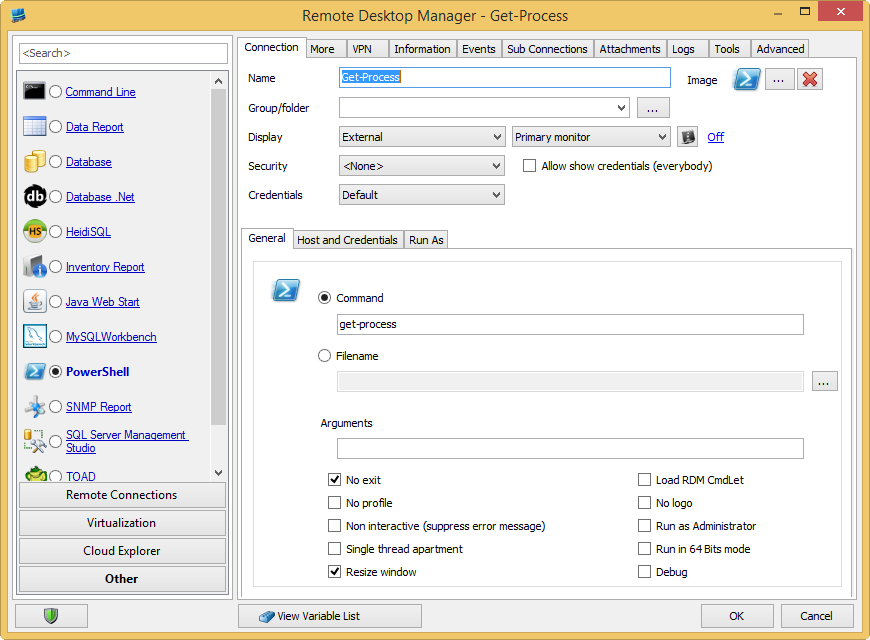
If you create a simple PowerShell session like this (or you can import the .rdm file below) does it work?
Stéfane Lavergne
Get-Process.rdm
5-6-2014 8-14-38 AM.png
flashes what appears to be in an error (red text) for a moment and then it does run.
the get-process command does work however if I change it to a RDM commandlet it does not. Changed the session to execute get-rdm-session and i get...
The term 'get-rdm-session' is not recognized as the name of a cmdlet, function, script file, or operable program. Check the spelling of the name, or if a path was included, verify that the path is correct and try again.
At line:7 char:16
+ get-rdm-session <<<<
+ CategoryInfo : ObjectNotFound: (get-rdm-session:String) [], CommandNotFoundException
+ FullyQualifiedErrorId : CommandNotFoundException
If you check "Load RDM CmdLet" does get-rdm-session work?
Stéfane Lavergne
sorry it took so long to get back.
if I check load RDM cmdlet I get the unable to execute application pop up
Honestly I don't know where else to look. It might be an issue with the limitations of XP when it comes to command lines. Looks like you will have to start WPS manually for now. I will keep this issue in mind and let you know if anything comes up.
Regards,
Stéfane Lavergne
Think I am just going to use another machine with Windows 8 on it to work on the powershell/RDM scripts