Virtual Host Console Clipboard?

Hello,
I was wondering if there is a way to emulate the "Type Clipboard Text" feature that is included in the Microsoft HV Console?
I only see the CTL ALT DLT as an Action.
Thanks
All Comments (18)
Could you give me more details about this feature?
David Hervieux
Hi David,
With the Microsoft Virtual Console it has a few functions other than remotely connecting to the VM via console.
The plugin in RDM has only a few of the functions. The ability to paste in text for complex passwords etc would be very handy.
From the Action Drop down menu, it has:
MEDIA drop down has:
CLIPBOARD Drop Down has:
edited by virtualman on 4/17/2014
Clipboard.jpg
Does the print screen comes from vmconnect?
David Hervieux
Yes, the capture I uploaded was from the RSAT Virtual Machine Connection tool.
I'd just like to see a bare minimum add-in to the ACTIONS commands to paste text from clipboard into the Hyper-V Console screen. Be it password or text into notepad etc once you're logged into the VM through the console.
I was hoping to see this implemented as a context menu in version 10. Any idea when this will be added in?
Hi;
Is there an update to this thread? Is there a way to "Type Clipboard Text" into a Hyper-V console session?
Thanks...
It's assigned to one of our dev. I hope to have this for RDM 12
Regards
David Hervieux
Hello,
Sorry for the delay. I can confirm we will have this for RDM 12.
Regards,
Hubert Mireault
That's good news. Will this feature work for VM_Consoles running on Windows 2008 R2 hosts or just for VM's running on Windows 2012 R2 hosts?
Up above someone mentioned the Add-In that allows shutdown / reset etc. Is that referring to the Enhanced Session Mode on the Hyper-V RDP session page (supported only on WIndows 2012 R2 hosted VM"s) or is there some other add-in that provides this functionality on other Hyper-V Hosts?
Thanks;
Don Adams
Hello,
The feature will work on any RDP connection, which includes those made from the Hyper-V console. It is implemented in the same way the "Send ctrl-alt-del" button is implemented.
I'm unsure what you mean by your other question. Are you asking if we can integrate "shutdown" and "reset" action commands? If so, there should already be the "shutdown" and "reboot" options if you right click your virtual machine in the Hyper-V console, which should do this.
Regards,
Hubert Mireault
Sorry for the confusion... I am new to RDM (still on trial) and don't yet understand all of the options.
There appears to be 2 ways to setup a session to a Hyper-V Console. They are:
1. New Entry -> New Entry -> Virtualization -> Hyper-V Console
2. New Entry -> New Entry -> Remote Connections -> Microsoft Remote Desktop (RDP) -> RDP Type Hyper-V (Embedded only)
Which of the above Hyper-V Console session methods will the new features work with?
If it’s # 1, I have not yet figured this one out. The help file is missing information and it says at the top of the help page:
This entry is used to define and configure a Hyper-V session. This connection type uses vmconnect.exe. We recommend to use the Hyper-V RDPfor a built-in and embedded view support.
So I am focused on #2, Hyper-V RDP… but I’d like to know how to use #1.
When using the Hyper-V RDP method I can load a W2008 R2 native Hyper-V VM in console mode and it works great. From the RDM interface I can send Ctrl-Alt-Del but I cannot do other things (mentioned above) like reboot, shutdown or paste from clipboard. Yes I can shutdown / reboot etc. from the desktop of the Hyper-V VM but if the desktop locks up I have to go back to the VM Host to get things running again.
So the question is… will this new paste clipboard text feature allow me to paste from clipboard when using the Hyper-V RDP session method? Based on your answer above it appears that the answer is yes.
The second question is will there be any of the other features like:
Thanks;
Don Adams
I'll go over what you mentioned in order. You listed two methods of opening Hyper-V virtual machines. The "type clipboard" functionality has been made for our embedded RDP control. This means that the second option will work (since it uses the "RDP" entry type), but it also means the first one should also work. Let me explain.
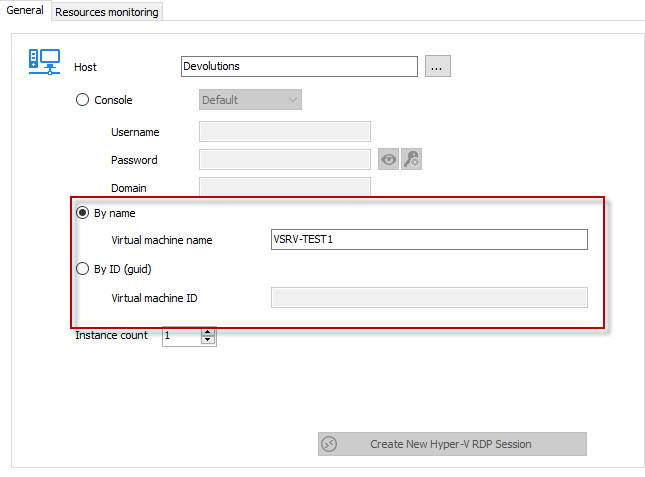
In the Hyper-V console entry, if you choose the "console" mode, whenever you connect to a virtual machine it will use the "RDP" entry type which means the feature will be available.
There are two other modes:
When choosing either of these, it will start VMConnect.exe. This means the "type clipboard" feature will be available too, because VMConnect already had this feature.
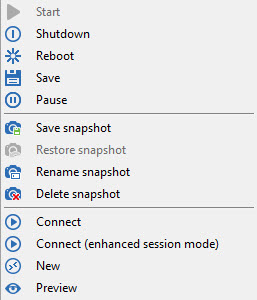
For the additional actions like "shutdown" or "reboot", you will have to use the "Hyper-V console" entry type. This will list the virtual machines that exist on the Hyper-V host and there is a context menu for each machine with that kind of operation:
I hope this answers your questions.
Regards,
Hubert Mireault
2016-10-31 7-55-29 AM.jpg
2016-10-31 7-47-08 AM.jpg
You said above:
For the additional actions like "shutdown" or "reboot", you will have to use the "Hyper-V console" entry type. This will list the virtual machines that exist on the Hyper-V host and there is a context menu for each machine with that kind of operation:
How is this setup? The documentation is extremely confusing. Is there single place where I can find all the steps needed? The main thing I'd like to get working is Type Clipboard Text. I'm using the latest version 12 and this feature still does not seem to work from the Actions menu.
Any guidance would be appreciated.
Also, when I try to setup a Hyper-V Console I get the following error. I don't really understand when information is required I guess. 192.168.1.81 is the IP# of my Hyper-V host. Sorry, I'm just not getting it.
This is the type of Hyper-V Console I am currently using.
Don Adams
Hello,
I'm unable to reproduce your issue with the "type clipboard" action button. If you see it showing in the ribbon it should be supported by your entry. Would it be possible for you to make step by step instructions on how to reproduce the problem or a small video? Could you also try the "send ctrl-alt-del" button, it should work the same way as the "type clipboard" button.
Regards,
Hubert Mireault
You can find a short video at the following link -> https://db.tt/LBCFbOHVot
Here is the configuration for this Hyper-V Session.
Thank you for making a short video Don. I took a look at it and I don't notice anything that could cause the issue. I'll ask our support team to try and reproduce the issue on their end.
Regards,
Hubert Mireault
Our support team investigated and haven't been able to reproduce the issue. Could you tell us a few things:
- Did you try running RDM as administrator?
- Does this behavior occur on any remote OS?
- If you run RDM in 32 bits, do you have the same issue?
Regards,
Hubert Mireault