Inventory report and populating "Information" tab

I was REALLY hoping that pulling an inventory report (and all the info that gets pulled via WMI) would populate all the fields in the "Information Tab" (example: domain, OS, site, MAC, architecture, terminal server yes/no). However it looks like that is not the case. Ive been in contact with Maurice Cote and he suggested I post something here.
I wonder if this can be power scripted. Ive taken a look at some of the scripts so far but I find they dont cover all the fields in the "information" tab. Can you point me in the right direction?
Thanks!
-G
All Comments (24)
Hi,
Thank you for your post. I already have that on my todo list. We hope to improve this particular aspect of the application soon.
David Hervieux
Fantastic! That's great news.
One thing you may want to consider. Once you are able to populate those fields, how about allowing me to choose my own columns in the group/folder view so I can choose things like IP Address, VM (yes no), etc etc.
One more thing. Gotta say, this product has to be the best on the market. Keep up the great work!
edited by Innsanctum on 11/6/2013
edited by Innsanctum on 11/6/2013
Was there any update on pulling the inventory report information into the Information tab automatically?
This is not implemented yet. It's still on our todo list.
David Hervieux
Any word on this one guys?
It's still on our todo list but I can't give you a timeframe. We have other priority for now like the AD sync first.
David Hervieux
Any word on this?
Nothing new for now.
David Hervieux
Uhg.
+1 On this, would be good to have
Really to bad, that after 2 years this option is not implemented. Would be really awesome!
We tried once to implement this but without success. I will double check to see if there is anything we can do.
David Hervieux
Isnt it possible to make a SQL insert after the inventory Report is done? You've the fields already
I mean the insert could be done manually, like "press this button to insert the values" maybe there could a option to select the software you want to insert.
especially a field for serial number would be awesome!
the WMI query is simple.. "wmic bios get serialnumber"
This Feature is pretty awesome and i guess its one of the biggest because it simplifies your reports and inventorys
I don't remember what was the problem but at least we could start with these values.
David Hervieux
Hello,
In the next version of RDM, in the information tab of an entry, there will be a button to fill out informations using WMI. It fills out the same information from the inventory report if applicable to the information tab.
Regards,
Hubert Mireault
TOP information! Glad to hear that!!
Can't wait for the next version :)
Is it possible to modify the wmi query? Maybe for the custom fields? That would be awesome
Hi,
I will enter a feature request for the custom WMI but this won't be in RDM 11 for sure
David Hervieux
Happy day!
Also add the following if possible:
Hi, the IP address is missing from the inventory report, even though all the other fields on the General tab are included.
Hello,
You should see the IP address if you select the Network Adapters option when generating the report. It will be located under that section. Can you tell us if it works with that option?
We'll also put the IP you can enter manually in the first section.
Regards,
Hubert Mireault
Hi,
I'm not seeing where to select that. I go to administration->Reoprts->General->Entry Information, and then get this screen.
Thanks,
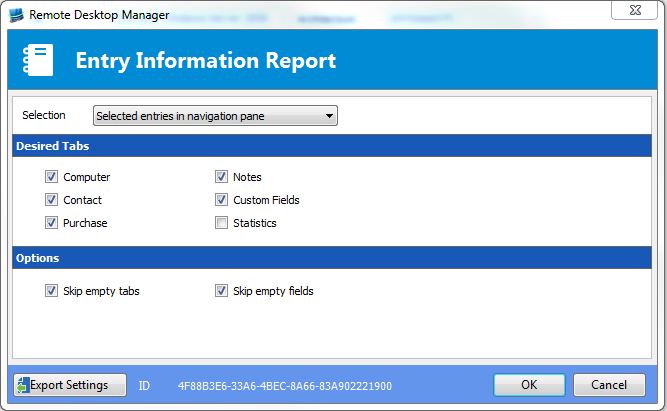
report.JPG
Sorry I misunderstood, I didn't think you were using the entry information report. We'll add this to the report.
If you want to try out the inventory report, which contains more information, you can either create an inventory report entry or select an existing entry with a valid host and credentials, and in the dashboard in the "Macro/Script/Tool" tab, there should be a button for "Inventory report".
Regards,
Hubert Mireault
# First, this worked for me, my hope is you will find it helpful.
# I called this my RDM_MetaData_Updater.ps1
# Remote Desktop Manager (RDM) Version 2020.1.20.0 64-bit Enterprise Edition
# Using a SQL Server 2016 DB
# I am running this in PowerShell version 5.1.18362.752 as an administrator on my local desktop.
# RDM is running on this same desktop as my regular user account.
Clear-Host
Import-Module RemoteDesktopManager
# Set your DS (Data Source), mine is on our SQL server
# You can find your data source under in your RDM under File/Data Sources
$DS = Get-RDMDataSource -Name MySQLServerName
# Next, I get all of the sessions under my group name.
# This grabs everything, including folders, etc.
$Sessions = Get-RDMSession -GroupName "Michael" -IncludeSubFolders
# Next, for testing, I wanted to update the IP Address on a single server
# in the RDM.
ForEach ($Session in $Sessions)
{
# So, if the Host name matched the server I was looking for then I would run my script.
# For me, if I wanted to run through all my servers I would change the IF line to:
# If($Session.ConnectionType -eq "RDPConfigured")
# You can get as creative as you'd like.
If($Session.Host -eq "NameOfServerToUpdate")
{
# I just wanted to see it found the correct host.
$Session.Host
$IPv4Address = (Get-ADComputer -Identity $Session.Host -Properties IPv4Address).IPv4Address
# And here I just wanted to what IPAddress was found.
$IPv4Address
Set-RDMSessionProperty -ID $Session.ID -Path "MetaInformation" -Property "IP" -Value $IPv4Address
# Do not forget to do a refresh on your RDM console to see the updated information.
}
}