Correct Documentation for Permissions
1 vote

The documentation for the permissions page suggests that you can create folder permissions, however the UI elements mentioned don't exist.
I have been able to grant permissions to a Folder by manually manipulating the Permissions table in the database, and it works as expected. I think it would be useful to allow string entry from the Security > Permissions page instead of a drop down for the resource.
Additionally, since Schedules can be put into "folders" it would be nice if we could grant permissions to the folder in the Schedules area. We would love to be able to delegate access to a subset of Schedules to a team.
I'm running 2026.2.5, but this appeared to still be an issue when I was running 2026.3.1
All Comments (5)
@realslacker Is this the UI you are looking for? The documentation could certainly be incorrect, but I want to make sure that I do update it properly. 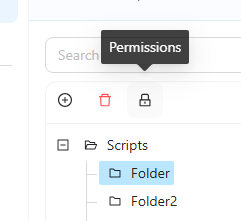
I agree that you should be able to select a resource directly on the permissions page would be nice. I'll open an issue for that as well as schedule folder permissions.
Adam Driscoll
PowerShell Expert and Software Architect at Devolutions
8180b518-63ab-48bb-9611-3bb2f53cfabb.png
I recently upgraded to 2026.3.3, and I'm not sure if I missed that Icon on the Scripts view on 2026.2.5 or if it was missing. I can indeed add permissions on the folders in 2026.3.3.
It does seem like the choice of "\" or "/" is somewhat arbitrary. When creating a permission for a script it seems to use automation.scripts.Folder\ScriptName.ps1/permission, however for folders using the GUI it creates them automation.scripts.Folder/*/permission. Manually created permissions like automation.scripts.Folder\*/permission work fine though they don't show up in the GUI.
Additionally, on the Secure/Permissions page and the Create Permission button only lets you select from a list of resources, not enter a valid string. I think it should allow free text. My use case is allowing execute permissions to any Get-* script in a folder, so I want to create a permission for automation.scripts.Folder\Get-*/execute but while that pattern does work as intended there is no where I can enter it in the GUI.
@Adam Driscoll when I create permissions for a folder in the GUI the fact that the slashes are inverted seems to break the permissions for my users. If I manually go and correct the slashes to be back slashes the permissions apply and the users can perform the actions they should be able to, but then the permissions do not show up in the GUI.
Are you maybe building and testing on Linux with forward slashes in the path?
For now I'm adding the rules manually again, but this seems like a very inconvenient issue for those who are not comfortable updating the tables manually.
Example rule created using GUI: automation.scripts.Security/*/execute
Example working rule created manually: automation.scripts.Security\*/execute
For reference I'm seeing this on 2026.3.3 running on Windows 2022.
I also noted that if the permission is created for a sub-folder the sub-folder has a slash in it instead of a period. i.e. automation.scripts.TopLevelFolder/SubFolder/*/execute, it seems like you are using these as regex patterns based on the way they are surfaced in the user settings, so it seems likely this could cause an issue as well.
Thanks. The Windows version and the working/non-working examples are helpful. This looks like a permission-path consistency issue rather than just incorrect documentation. I’ll look into how we can resolve this so it's consistent and displays and generates properly.
I’ll keep custom resource-pattern entry and schedule-folder delegation as separate enhancements so they don’t hold up the bug fix. We should also provide a supported way to author these rules without editing database tables.
Adam Driscoll
PowerShell Expert and Software Architect at Devolutions