Setting default names for custom fields

Hi,
I am planning to start using the Devolutions Password Manager application throughout our organisation. We are currently using a product that you do not support for direct importing (Password Manager XP) and have to import all of the data through the generic import option.
Is there a way to set the default name for custom fields to propagate through a vault?
I wish to label Custom #1 as "URL" (the URL field doesn't show up or allow importing into) and Custom #5 as "Notes" through an entire vault for consistency.
While I can do this manually, I will be importing several thousand credentials.
Any assistance is appreciated.
Regards
Glenn
All Comments (3)
Hi Glenn,
Good news, you don't actually need custom fields for this.
Devolutions password manager's generic import maps columns by their header name straight to the native fields. So instead of routing URL into Custom #1, just rename your CSV header row to use recognized names: Name, Username, Password, URL, Notes, Folder. The URL field is importable that way (it creates Website entries), it just needs a column literally named url, website, site, link or address. Same idea for Notes (notes, note, comment, description, memo).
A single find-and-replace on the first line of your CSV applies this to all several thousand records at once, no per-entry work. Note there's no per-vault "default custom field name" setting but with native URL/Notes columns you won't need one. (Any unrecognized column just gets appended into the entry's Notes.)
If you genuinely need named custom fields at scale, Remote Desktop Manager connects to the same workspace DPM reads from and adds two tools the standalone import doesn't have: the CSV Wizard + Entry Templates (map columns to named custom fields), and the PowerShell module (New-RDMEntry / Set-RDMEntry) to script thousands of entries with exact field titles.
Best regards,
Sébastien Aubin
Product manager - Password Management
Hi Sébastien,
Looking at the UI and trying to use the URL and Description fields it appears that I can have one or the other, not both. If I select Description and enter some information and then switch to the URL and enter the URL, it will only save the one I have currently selected, and not the other and the entry page only shows the one selected. I have not found a Notes field to enter information into in the UI without using one of the Custom fields.
As I stated before, I am migrating from Password Manger XP. We have been using this product for over 10 years, and our users will be reluctant to change unless the functionality is at least similar. The standard layout for entering information is as follows: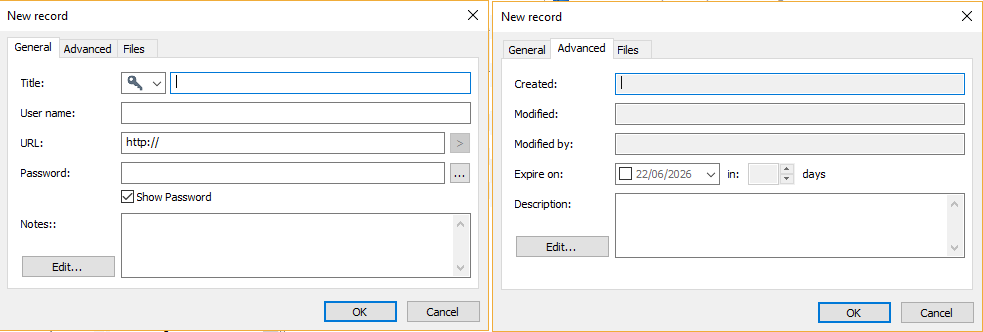
 As shown, all of these fields are visible in the browse view for each folder, but with DPM it appears that I cannot have both a Description and URL field for any record.
It would be good to be able to set Custom fields in a particular vault to default values for all existing and new entries.
Hope this gives a better understanding of our requirements.
Kind Regards
Glenn
29bd9cf5-0631-4ed4-95b8-8f23efab4ff8.png
028e2f8c-c121-4fa6-84a4-3e438010ac73.png
Hi Glenn,
Thank you for the additional details. We do support having both a URL and a Description on the same Website entry. The key is to use the native fields instead of custom fields.
The URL can be entered under General > URL: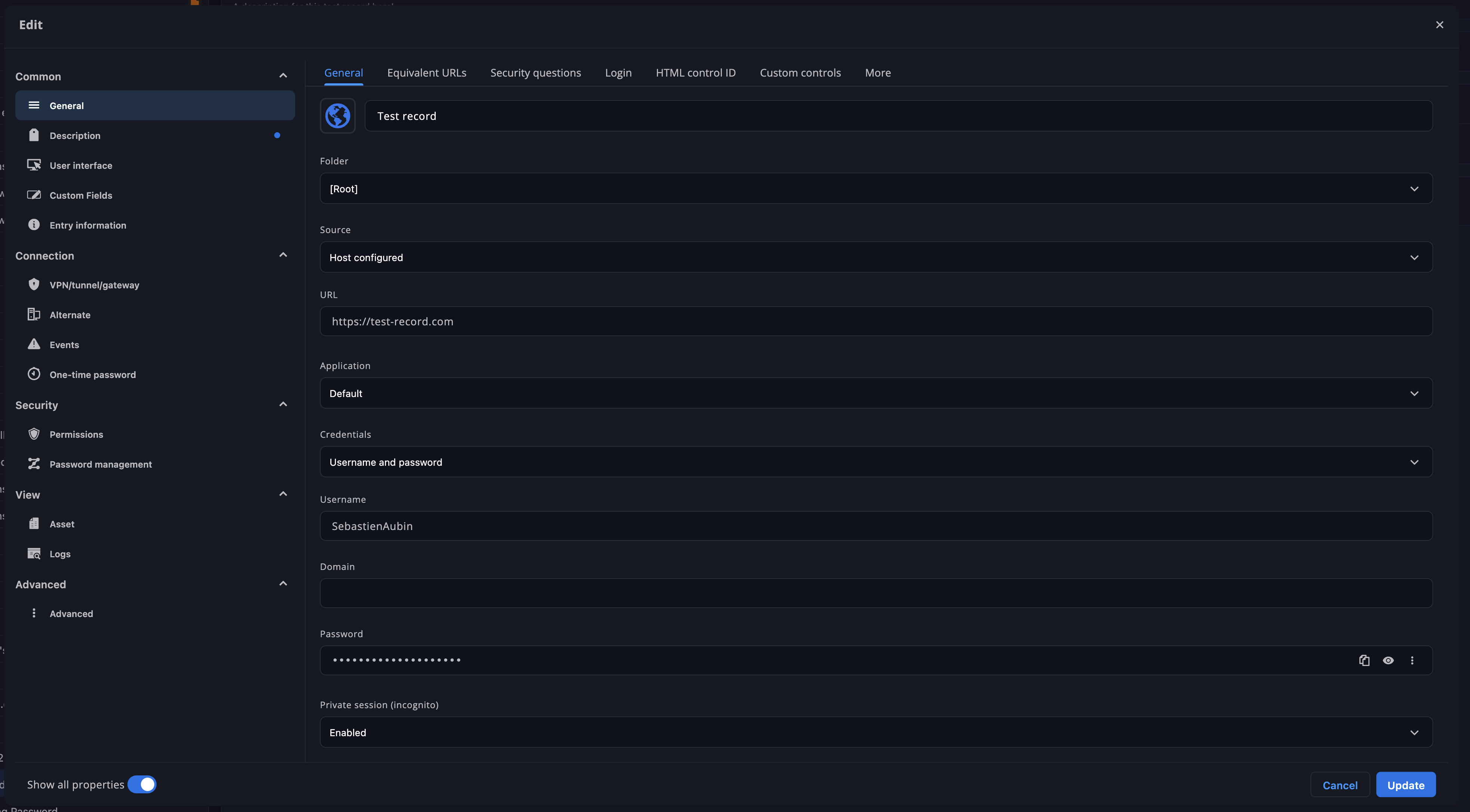
The description/notes can be entered under Description > Description: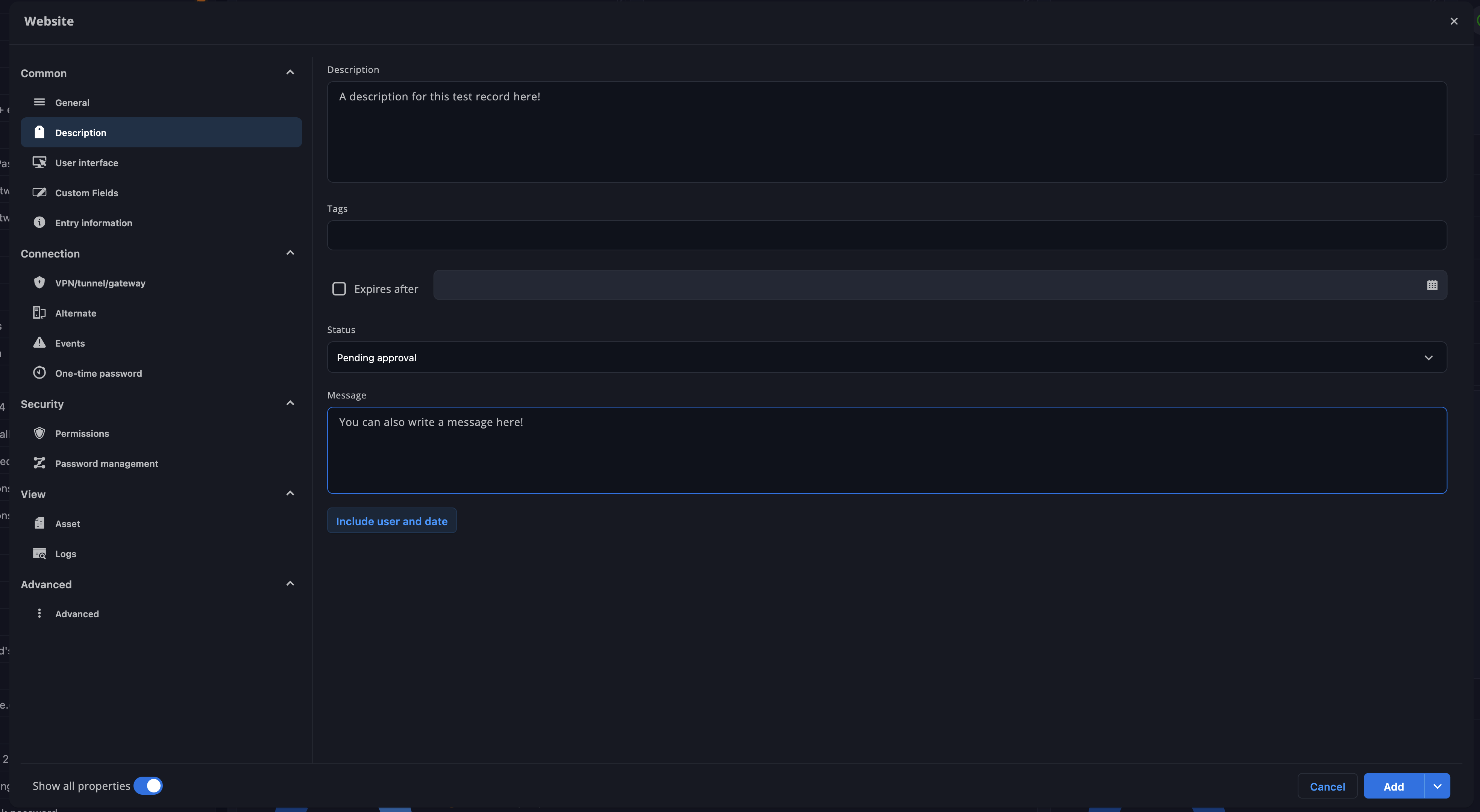
After saving the entry, both values are kept and displayed in the entry Overview: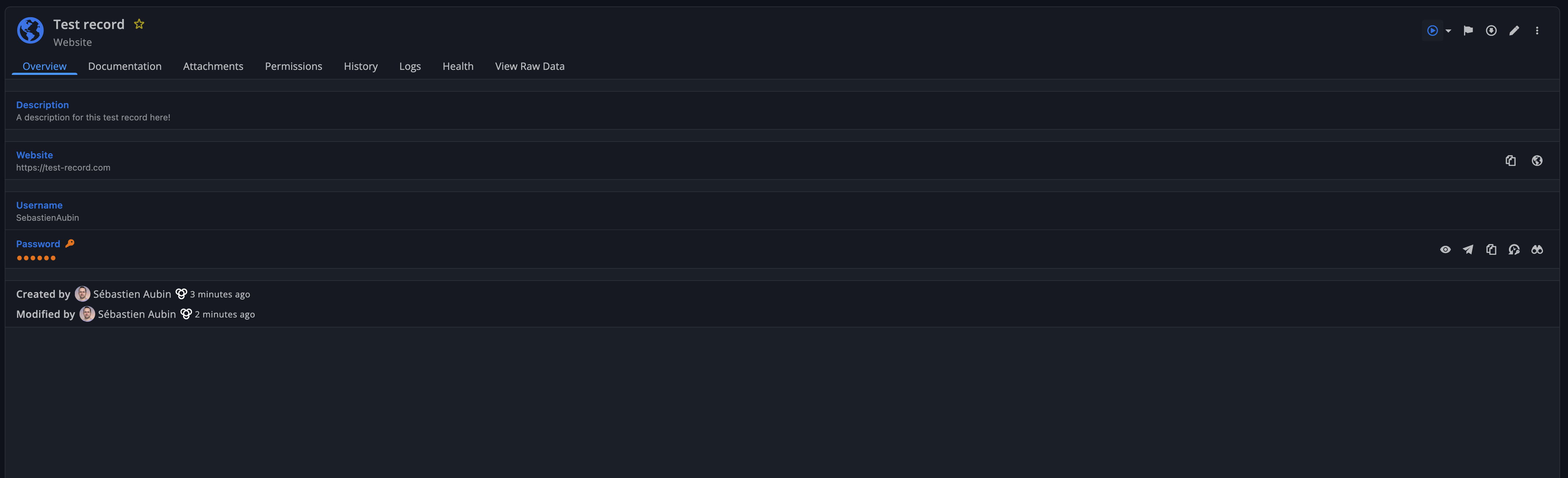
So for this specific use case, you should not need to use Custom #1 for the URL or Custom #5 for the notes/description. If only one of the two values is being saved on your side, that is not the expected behavior. Could you confirm which workspace you are using: Cloud or DVLS?
Regarding the ability to define default custom field names at the vault level, this is not currently available as a vault-level setting in DPM. However, for the requirement you described, the native Website URL and Description fields should cover the layout you are looking for.
Best regards,
Sébastien Aubin
Product manager - Password Management
Pasted Graphic 3.png
Pasted Graphic 1.png
Pasted Graphic 2.png