Assign Roles without natively "Authenticating" in PSU. Is that possible?
Assign Roles without natively "Authenticating" in PSU. Is that possible?

Product: PowerShell Universal
Version: 4.1.6
Dear All
Maybe somebody of you has already achieved / built something similar?
Basically what we’re trying to build is a user enrollment portal. The user will authenticate using his email, and a Push Notification or E-Mail OTP .
This already works fine.
However what I wasn’t yet able to figure out is, how can I now “assign roles” to a user that has been authenticated using our method instead of the native PSU built-in auth (forms authentication for example)?
You probably understand where we’re going with this:
We don’t want / need to manage a User DB ourself like LDAP, AD or even local accounts.
We want to leave everything “dynamic” based on our “Enrollment Page” where the user authenticates with his e-mail address… and from there, we know then if a user is a “Power User”, “Admin” “Normal User”, etc.
I tried to basically “set” the $Roles array, but that doesn’t work… for obvious reasons And as long as I don’t have the $Roles populated, I’m not able to restrict access on other App Pages using for example Protect-UDSection.
Any advice is much appreciated!
Thanks a lot and take care,
Don
Recommended Answer
Alright. I’ve come up with a solution. It wasn’t quite as straight forward as I first thought but it works.
I have 2 apps.
New-PSUApp -Name "a" -FilePath "dashboards\a\a.ps1" -BaseUrl "/app" -AutoDeploy
New-PSUApp -Name "App2" -FilePath "dashboards\App2\App2.ps1" -BaseUrl "/app2" -Authenticated -AutoDeploy
/app is used for the login. The idea with this is that the user enters their email address. For my test, I’m just setting a URL into the clipboard but this would be the URL you would include with the email.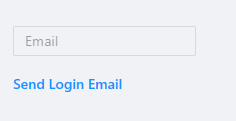
We generate a passcode and include it in the query string for the URL. We set that passcode into the server cache with a 5 minute expiration. We redirect back to this dashboard and construct a JavaScript command that calls the login API with the user name and passcode.
New-UDApp -Content {
    if ($Query["passcode"]) {
        New-UDDynamic -Content {
            $JavaScript = "fetch('http://localhost:5000/api/v1/signin', {
            method: 'POST',
            body: JSON.stringify({
                username: '$($Query['email'])',
                password: '$($Query['passcode'])'
            }),
            credentials: 'include',
            headers: {
                'Content-type': 'application/json; charset=UTF-8'
            }
        })
        .then((response) => response.json()).
        then(() => {
            window.location.href = 'http://localhost:5000/app2'
        });"
            Invoke-UDJavaScript -JavaScript $JavaScript
        }
    }
    else {
        New-UDForm -Content {
            New-UDTextbox -Placeholder "Email" -Id 'email' -Type email
        } -OnSubmit {
            $Password = (New-Guid).ToString()
            # Send Email Here with a link like: http://localhost:5000/app?email=email&passcode=$Password

            # For Testing
            Set-UDClipboard -Data "http://localhost:5000/app/Home?email=$($EventData.email)&passcode=$Password" -ToastOnSuccess

            # Set cache with email + passcode. User has 5 minutes to click link in email before it expires
            Set-PSUCache -Key $EventData.email -Value $Password -AbsoluteExpirationFromNow ([TimeSpan]::FromMinutes(5))
            New-UDAlert -Text "Please check your email!"

        } -SubmitText "Send Login Email"
    }
}
After submitting the form, the user will see this.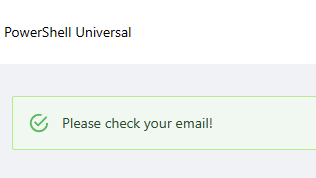
A URL is generated and set into the clipboard.
http://localhost:5000/app/Home?email=adam@ironmansoftware.com&passcode=618cbbb2-a9c0-4be3-9cf1-6b4c7fa69beb
Visiting this URL will run the same app again but extract the email and pass code from the query string. It will then invoke the JS from the user’s browser and redirect them to the authenticated app2.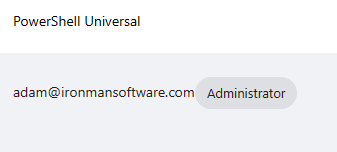
App2 just consists of a display of the username and roles.
New-UDApp -Title 'PowerShell Universal' -Content {
    New-UDTypography $User
    $Roles | ForEach-Object {
        New-UDChip -Label $_
    }
}
The secret sauce actually consists of implementing a form login that can check the server cache for email + passcode pairs. If they are valid, then we can authenticate the user and assign a role.
    param(
        [PSCredential]$Credential
    )


    # Check the cache to see if this email + passcode combination is valid
    $Passcode = Get-PSUCache -Key $Credential.UserName
    if ($Passcode -eq $Credential.GetNetworkCredential().Password) {
        New-PSUAuthenticationResult -Claims {
            New-PSUAuthorizationClaim -Type ([System.Security.Claims.ClaimTypes]::Role) -Value 'Administrator'
        } -UserName $Credential.UserName -Success
    }

    # Do standard form login here
    New-PSUAuthenticationResult -ErrorMessage 'Bad username or password'
Adam Driscoll
PowerShell Expert and Developer at Devolutions
42b1468d2b98bb1edb6d58246777246c99b8f1b5.png
0b9a92cf9c892e6f256cec85ef53a52633b17632.png
8a470e2db22ff79cc3dca87ad396d0c1508bc6b2.png
All Comments (6)
This sounds like you are using a form of SSO, am I correct?
If you are then PSU has a system for handling this already, we use Azure for example, and people are granted roles via group membership in Azure which looks something like this…
New-PSURole -Name "SupportCrew" -Description "support team role" -ClaimType "http://schemas.microsoft.com/ws/2008/06/identity/claims/groups" -ClaimValue "{GUID}"
Again, if the auth system you are using supports OpenID or SAML2 then this might get you where you are looking to go:
docs.powershelluniversal.com
or
docs.powershelluniversal.com
Otherwise I think we will need more detail if anyone is going to be able to help you.
Cheers
Hey @AnonymousUser
Thanks a lot for being willing to help. Really appreciate it.
No, I don’t think this is what we need because all these methods imply that you already authenticate using one of the supported methods (via /login and using one of the implemented Authentication Methods).
Based on the following docs page it should be possible to “override” the login page:
docs.powershelluniversal.com
There it’s stated: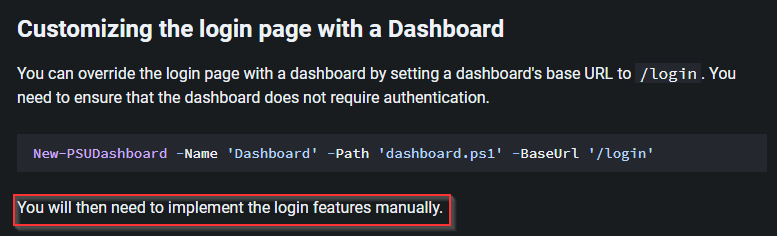
So this is what I’m trying to achieve… Having a custom login page (dashboard) w/o Authentication… The Auth will be done there based on a couple of attributes that are requested and the user has to enter. There is no IDP that we can “ask” at that moment, because imagine that the user has to enroll himself first.
Once enrolled, we “know” him and could continue to work with it’s freshly created identity. But we can assign roles only AFTER he has enrolled (or “logged-in”).
From my understanding the roles can only be assigned if you “authenticate” via /login (or custom page). There is no way (yet) to assign roles to a user for example via a cmdlet such as:Assign-PSURole
I know, everything sound a bit complicated maybe. Sorry for that. If it’s still unclear what we’re trying to do, I’ll try to explain the use case better… hoping that I can manage to do so…
Best regards and have a very good weekend,
Don
9b24f1f7c944090a5e71672a0d20901e0a792ac0.png
Hey guys just another thought.
I was thinking about it this weekend and saw that the docs suggest that you can also do something like this:
New-PSUAuthenticationResult -Success -UserName 'john.doe' -Claims {
                    New-PSUAuthorizationClaim -Type 'TestRole' -Value 'Whatever' -ValueType 'String' -Issuer 'Something'
                }
Unfortunately I wasn’t able to get it to work. It seems that this can only be achieved from the “authentication context” and not from somwhere else… Maybe I’m wrong?
So basically if it would be possible to trigger an AuthResult after my login pre-check page (w/o PSU Auth enabled)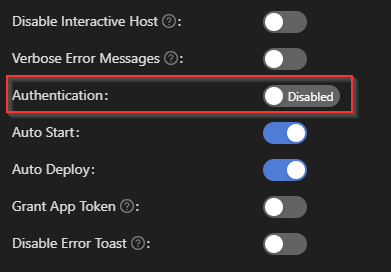
This would resolve my whole issue.
Hope somebody has some more ideas and is willing to help me with that.
Best regards,
Don
903b2c45cd0e00f38fda087cab32410086ec7913.png
OK guys I think I tried everything that is achievable and that, in my opinion, could make sense:
I went through the docs again here where everything about forms auth is documented, also regarding overriding the /login page:
docs.powershelluniversal.com
I then tried to make a new “Login Dashboard” w/o authentication (as stated in the docs).
Here are the code bits:
    New-UDTextbox -Id "tboxLoginUsername" -Label "Username" -Icon (New-UDIcon -Icon 'user') -Placeholder "john.doe@company.com"
    New-UDElement -Tag "br"
    New-UDTextbox -Label "Password" -Icon (New-UDIcon -Icon 'key') -Type password
    New-UDElement -Tag "br"
    New-UDButton -Text "Login" -Icon (New-UDIcon -Icon 'checkdouble') -OnClick {

        # Get Typed Username
        $Session:LoginUsername = (Get-UDElement -Id 'tboxLoginUsername').value

        # Get Typed Password
        $Session:LoginPasword = (Get-UDElement -Id 'tboxLoginPassword').value

        # Try to set the Authentication Result
        if ($Session:LoginUsername -eq 'Admin') {

            $Result = [Security.AuthenticationResult]::new()
            $Result.UserName = 'admin'
            $Result.Success = $true
            $authResult = New-PSUAuthenticationResult -Success -UserName 'admin' -Claims {
                New-PSUAuthorizationClaim -Type 'TestRole' -Value 'HelloWorld'
            }

            Show-UDToast ($authResult | Out-String) -Duration 5000
            Start-Sleep -Seconds 3

            # redirecting to dashboard with Authentication enabled... but doesn't work. :-(
            Invoke-UDRedirect 'https://localhost:5000/dashboard2/playground' -OpenInNewWindow
        }
    }
As you can see, at the end of the execution, if the user equals “admin” it should redirect to my dashboard2 which obviously has auth enabled…
Result?
Doesn’t work… You can try it yourself…
@Adam Driscoll Sorry for mentioning you… I really hate doing this… But could it be that there is an issue or a bug with the New-PSUAuthenticationResult or $Result.Success when called outside of your standard /Login form?
Or am I missing something else?
Sorry but I really don’t know how to proceed right now…
Thanks for your help,
Don
Alright. I’ve come up with a solution. It wasn’t quite as straight forward as I first thought but it works.
I have 2 apps.
New-PSUApp -Name "a" -FilePath "dashboards\a\a.ps1" -BaseUrl "/app" -AutoDeploy
New-PSUApp -Name "App2" -FilePath "dashboards\App2\App2.ps1" -BaseUrl "/app2" -Authenticated -AutoDeploy
/app is used for the login. The idea with this is that the user enters their email address. For my test, I’m just setting a URL into the clipboard but this would be the URL you would include with the email.
We generate a passcode and include it in the query string for the URL. We set that passcode into the server cache with a 5 minute expiration. We redirect back to this dashboard and construct a JavaScript command that calls the login API with the user name and passcode.
New-UDApp -Content {
    if ($Query["passcode"]) {
        New-UDDynamic -Content {
            $JavaScript = "fetch('http://localhost:5000/api/v1/signin', {
            method: 'POST',
            body: JSON.stringify({
                username: '$($Query['email'])',
                password: '$($Query['passcode'])'
            }),
            credentials: 'include',
            headers: {
                'Content-type': 'application/json; charset=UTF-8'
            }
        })
        .then((response) => response.json()).
        then(() => {
            window.location.href = 'http://localhost:5000/app2'
        });"
            Invoke-UDJavaScript -JavaScript $JavaScript
        }
    }
    else {
        New-UDForm -Content {
            New-UDTextbox -Placeholder "Email" -Id 'email' -Type email
        } -OnSubmit {
            $Password = (New-Guid).ToString()
            # Send Email Here with a link like: http://localhost:5000/app?email=email&passcode=$Password

            # For Testing
            Set-UDClipboard -Data "http://localhost:5000/app/Home?email=$($EventData.email)&passcode=$Password" -ToastOnSuccess

            # Set cache with email + passcode. User has 5 minutes to click link in email before it expires
            Set-PSUCache -Key $EventData.email -Value $Password -AbsoluteExpirationFromNow ([TimeSpan]::FromMinutes(5))
            New-UDAlert -Text "Please check your email!"

        } -SubmitText "Send Login Email"
    }
}
After submitting the form, the user will see this.
A URL is generated and set into the clipboard.
http://localhost:5000/app/Home?email=adam@ironmansoftware.com&passcode=618cbbb2-a9c0-4be3-9cf1-6b4c7fa69beb
Visiting this URL will run the same app again but extract the email and pass code from the query string. It will then invoke the JS from the user’s browser and redirect them to the authenticated app2.
App2 just consists of a display of the username and roles.
New-UDApp -Title 'PowerShell Universal' -Content {
    New-UDTypography $User
    $Roles | ForEach-Object {
        New-UDChip -Label $_
    }
}
The secret sauce actually consists of implementing a form login that can check the server cache for email + passcode pairs. If they are valid, then we can authenticate the user and assign a role.
    param(
        [PSCredential]$Credential
    )


    # Check the cache to see if this email + passcode combination is valid
    $Passcode = Get-PSUCache -Key $Credential.UserName
    if ($Passcode -eq $Credential.GetNetworkCredential().Password) {
        New-PSUAuthenticationResult -Claims {
            New-PSUAuthorizationClaim -Type ([System.Security.Claims.ClaimTypes]::Role) -Value 'Administrator'
        } -UserName $Credential.UserName -Success
    }

    # Do standard form login here
    New-PSUAuthenticationResult -ErrorMessage 'Bad username or password'
Adam Driscoll
PowerShell Expert and Developer at Devolutions
42b1468d2b98bb1edb6d58246777246c99b8f1b5.png
0b9a92cf9c892e6f256cec85ef53a52633b17632.png
8a470e2db22ff79cc3dca87ad396d0c1508bc6b2.png
Hi @Adam Driscoll
Thank you very much for your help and this very detailed and comprehensive example!
Indeed, this is exactly what I was trying to figure out and this example clarifies everything.
As already mentioned in this other thread I would also advice to include this example in this documentation section here:
docs.powershelluniversal.com
I’m sure that this will help others that may need to build something similar.
Just a clarififcation for others that may are unsure.
This peace of code here has to go into the “authentication.ps1” part:
param(
        [PSCredential]$Credential
    )


    # Check the cache to see if this email + passcode combination is valid
    $Passcode = Get-PSUCache -Key $Credential.UserName
    if ($Passcode -eq $Credential.GetNetworkCredential().Password) {
        New-PSUAuthenticationResult -Claims {
            New-PSUAuthorizationClaim -Type ([System.Security.Claims.ClaimTypes]::Role) -Value 'Administrator'
        } -UserName $Credential.UserName -Success
    }

    # Do standard form login here
    New-PSUAuthenticationResult -ErrorMessage 'Bad username or password'
Here to be more precise… 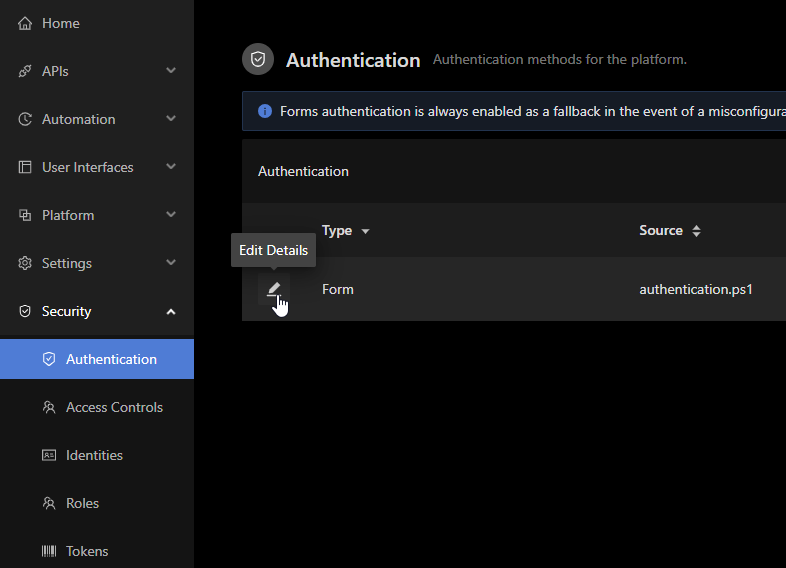
Thanks a lot again and take care,
Don
9e94fe68ff32f74e19abf2540f91e3b42f29ab5d.png