Limit browser extension to show only 1 vault?

Is there a way to configure RDM or the Workspace Browser Extension to only show entries from one vault, in my case specifically the User Vault?
My team uses the RDM main DB vault as a master list with no credentials configured. Those entries are then copied by the user into their User vault so domain credentials can be linked (from an external cred manager) to devices that use our domain logins.
These "duplicate" entries in RDM result in duplicate entries appearing in the Workspace Browser Extension. It makes perfect sense why RDM and the browser extension work this way, but I'm hoping there's some way to bend the app to work with our workflow.
Any tips, tricks or confirmation this isn't possible is welcome. Thank you in advance.
All Comments (7)
Hi Kevin, I moved this thread in the Workspace forum section and notified the Workspace team so they can assist you.
Sébastien Duquette
Hi,
You can select which vaults to sync when the Workspace browser extension is connected directly to Devolutions Hub or Devolutions Server.
When connected to Remote Desktop Manager, you can disable the user vault (while keeping the shared vault active) by going to File -> Settings -> Browser Extensions and unchecking Enable User Vault. Note that this setting applies only to the local instance of Remote Desktop Manager.
To prevent specific website entries from appearing in the Workspace browser extension for all users (current and future) accessing your data source, set the Allow Workspace Browser Extension Autofill option to Disabled for the entries you want to exclude.
The quickest way to do this is to select the website entries in the Tree View in Remote Desktop Manager, right-click, and choose Edit -> Batch Edit -> Edit Entries (Session Type Settings). In the window that opens, navigate to the Browser Extension tab, check Override, and select Disabled from the Allow Workspace Browser Extension Autofill dropdown.
This configuration will automatically apply across all users using the shared vault, ensuring these entries are universally excluded without requiring individual adjustments.
Best regards,
Olivier Désalliers
Hi,
You can select which vaults to sync when the Workspace browser extension is connected directly to Devolutions Hub or Devolutions Server.
When connected to Remote Desktop Manager, you can disable the user vault (while keeping the shared vault active) by going to File -> Settings -> Browser Extensions and unchecking Enable User Vault. Note that this setting applies only to the local instance of Remote Desktop Manager.
To prevent specific website entries from appearing in the Workspace browser extension for all users (current and future) accessing your data source, set the Allow Workspace Browser Extension Autofill option to Disabled for the entries you want to exclude.
The quickest way to do this is to select the website entries in the Tree View in Remote Desktop Manager, right-click, and choose Edit -> Batch Edit -> Edit Entries (Session Type Settings). In the window that opens, navigate to the Browser Extension tab, check Override, and select Disabled from the Allow Workspace Browser Extension Autofill dropdown.
This configuration will automatically apply across all users using the shared vault, ensuring these entries are universally excluded without requiring individual adjustments.
Best regards,
Thank you, I appreciate the response. These options you provided unfortunately do not address my situation.
We are only using RDM with an on-prem hosted DB; no Devolutions Hub or Server. My hope is to have entries only from the User Vault appear in the browser. I've batch edited our shared vault to make sure all credential settings are set to None instead of empty Username and Password but that hasn't accomplished what I was hoping.
If each user only had two sets of creds, we could set those "My privileged account", and My user credentials" on entries in the shared vault and then RDM presumably would use the credentials each user defines for those defaults, but we have several domains and all variations of login name formats so we have to use linked credentials for those and do that all in the User Vault.
Hi,
The setting to allow or disallow the Workspace browser extension for website entries is independent of Devolutions Hub or Devolutions Server. This setting can be configured within any data source using Remote Desktop Manager (RDM), including an on-premises hosted database.
You can find this setting in the following locations: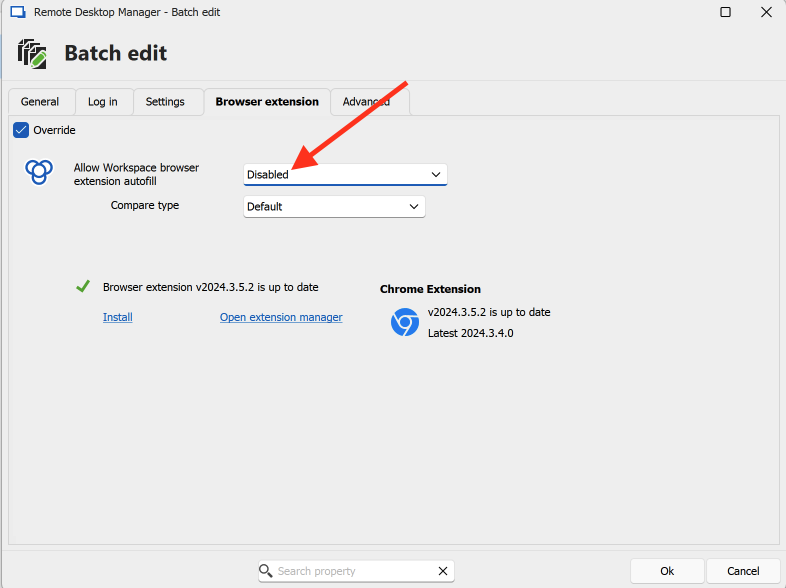
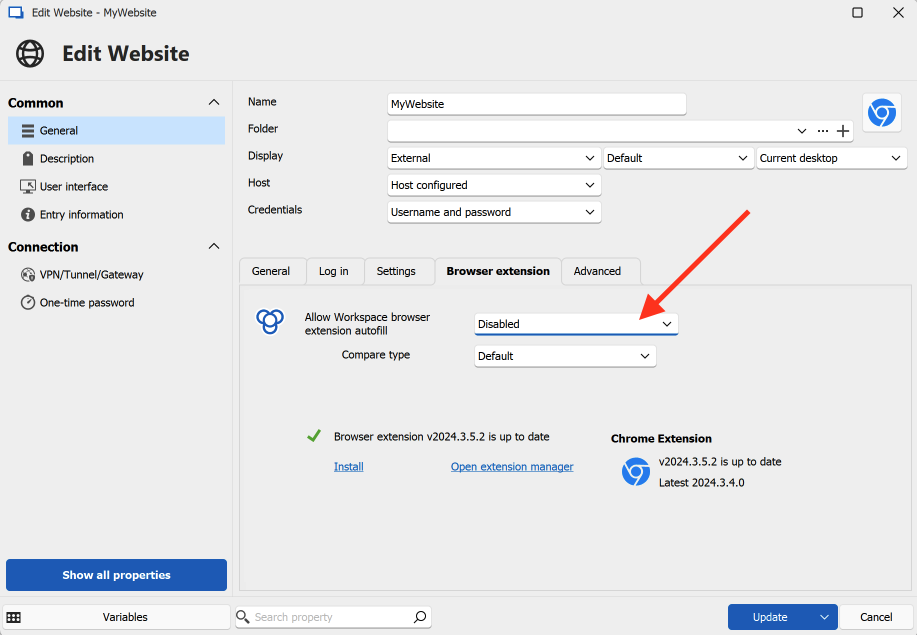
Best regards,
Olivier Désalliers
DisableWBEX2.png
DisableWBEX1.png
Hi,
The setting to allow or disallow the Workspace browser extension for website entries is independent of Devolutions Hub or Devolutions Server. This setting can be configured within any data source using Remote Desktop Manager (RDM), including an on-premises hosted database.
You can find this setting in the following locations:
Best regards,
Hi Olivier, this is the solution I'm looking for, thank you so much. I really appreciate you taking the time to help.
Hi Kevin
Sorry to barge in on your thread, but I just feel like this could be optimized. I am talking with experience from a Devolutions server setup, so I apologize if my suggestion isn't viable for your setup.
But can't you set up the entries in the shared vault to “Linked (User vault)” and type the name of the credential entry in the user vault? (Or it this a DVLS thing 🤔)
All your team members will of cause need to call the entry the exact same name.
Regards Lars
Remote Desktop Manager connected with Devolutions Server running newest versions.
------------------------Signature------------------------
Sorry if any of above sounds harsh or provoking, it is NOT meant as such, but I have Asperger's and don't always know.
My intentions is always to be friendly.
-------------------------------------------------------------
Hi Kevin
Sorry to barge in on your thread, but I just feel like this could be optimized. I am talking with experience from a Devolutions server setup, so I apologize if my suggestion isn't viable for your setup.
But can't you set up the entries in the shared vault to “Linked (User vault)” and type the name of the credential entry in the user vault? (Or it this a DVLS thing 🤔)
All your team members will of cause need to call the entry the exact same name.
Regards Lars
Hi Lars,
Thank you for taking the time to offer the solution! I appreciate it. We're using RDM with a local MS SQL database server. Another recommendation above by Olivier ending up being the solution that worked for my specific scenario.
That said, my scenario has changed for the better, so this is all moot now. I've since been enlightened to the ability for users to set their own "user specific settings" (including linking their personal creds) on the primary Vault entries, so that eliminated the need for me to have duplicates of entries between the primary vault and users' vaults.
Cheers, friend!