Apple Remote Desktop unlocks host machine screen

Whenever I connect to my Mac via ARD, the host machine screen got unlocked as well, with every keystroke/cursor move reflected on it. I want it to behave like Microsoft RDP that is when connected the host machine screen remain locked. Anyway to achieve that? Or is it an Apple thing?
All Comments (16)
Hello
This is the way Apple Remote Desktop works - it's like VNC, you're connected to the system console directly, not to a session inside the console.
There is a hidden feature of the protocol that allows locking the remote display. I don't think we support that on mobile currently, I will check with the team if we can add it. I'll open a ticket about it here and we can update you once there is some progress.
Please, let me know if you have further questions or comments
Kind regards,
Richard Markievicz
Hello
This is the way Apple Remote Desktop works - it's like VNC, you're connected to the system console directly, not to a session inside the console.
There is a hidden feature of the protocol that allows locking the remote display. I don't think we support that on mobile currently, I will check with the team if we can add it. I'll open a ticket about it here and we can update you once there is some progress.
Please, let me know if you have further questions or comments
Kind regards,
Hi Richard,
Good to hear it's been taken into consideration! I do look forward to this feature. Appreciate your effort!
For now I have no more questions.
Best regards,
Hi,
I just wanted to confirm that we will be able to implement the feature mentioned by Richard.
Curtain Mode will freeze the host machine screen. While active, nothing you do will be reflected on it.
The button for Curtain Mode will not be on the session toolbar by default, but it will be possible to add it from the toolbar customization screen.
This feature should be available in the next major release.
Best Regards,
Bea Racine
Hi,
I just wanted to confirm that we will be able to implement the feature mentioned by Richard.
Curtain Mode will freeze the host machine screen. While active, nothing you do will be reflected on it.
The button for Curtain Mode will not be on the session toolbar by default, but it will be possible to add it from the toolbar customization screen.
This feature should be available in the next major release.
Hi Benoit,
Thank you very much for implementing the feature I requested!
Best regards,
Hi,
I just wanted to confirm that we will be able to implement the feature mentioned by Richard.
Curtain Mode will freeze the host machine screen. While active, nothing you do will be reflected on it.
The button for Curtain Mode will not be on the session toolbar by default, but it will be possible to add it from the toolbar customization screen.
This feature should be available in the next major release.
Hi Benoit,
It seems the major update has been released, but I don’t really find the option in the toolbar customisation menu. Is it for the desktop version only?
Best,
Hi,
I just wanted to confirm that we will be able to implement the feature mentioned by Richard.
Curtain Mode will freeze the host machine screen. While active, nothing you do will be reflected on it.
The button for Curtain Mode will not be on the session toolbar by default, but it will be possible to add it from the toolbar customization screen.
This feature should be available in the next major release.
Oh sorry just found the small curtain icon. It doesn't seem to work though when I enable it the screen doesn't turn off. I'm using an external screen with a Mac mini.
Hi,
It's normal that the screen doesn't turn off, but it should no longer show what you are doing from your phone.
As an example, if you type text from your phone it shouldn't appear on the Mac mini screen.
Can you confirm that even with curtain mode enabled, the Mac mini screen continues to show what you do from your phone in real time?
Thank you
Best Regards,
Bea Racine
Hi,
It's normal that the screen doesn't turn off, but it should no longer show what you are doing from your phone.
As an example, if you type text from your phone it shouldn't appear on the Mac mini screen.
Can you confirm that even with curtain mode enabled, the Mac mini screen continues to show what you do from your phone in real time?
Thank you
Hi,
Not sure if I'm using it right but the tool bar looks like this. I enabled the curtain before inputting my password.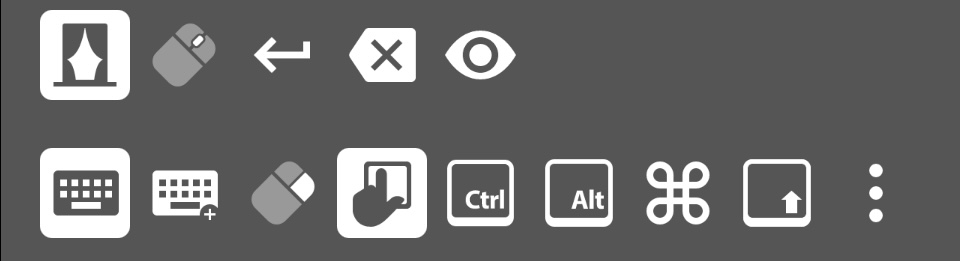
And I can confirm the screen can still show my cursor move and text input etc. Both the iPhone and Mac are on the latest OS, as well RDM itself.
Best,
IMG_0631.jpeg
Hi,
From the information you provided you seem to be doing everything correctly, so something seems to be wrong on our end.
I will investigate the issue and get back to you.
Best Regards,
Bea Racine
Hello ec
Can you please let me know the macOS version(s) you are connecting to?
Thanks and kind regards,
Richard Markievicz
Hello ec
Can you please let me know the macOS version(s) you are connecting to?
Thanks and kind regards,
Hi,
macOS Sequoia 15.0.1 (24A348)
iOS 18.0.1 (22A3370)
RDM 2024.3.1.0
All latest.
Best,
Hello
You'll need to make sure that your Mac is configured for sharing by "Remote Management" instead of "Screen Sharing". Please note it might be dangerous to change the configuration over a remote session - if things are only left partially configured, you might not be able to remotely access your Mac until the configuration is finished.
This is how it looks in the system "Sharing" preferences pane: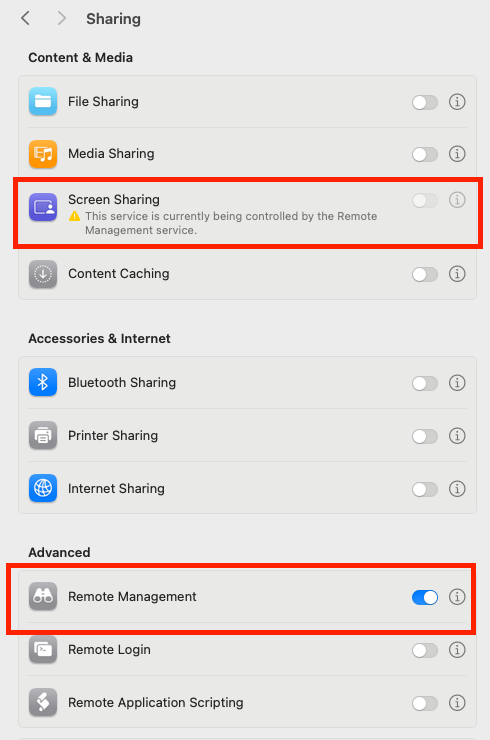
In the remote management options, you'll need to enable at least "Observe" and "Control":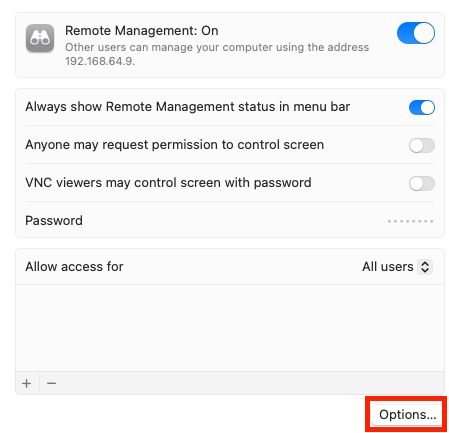
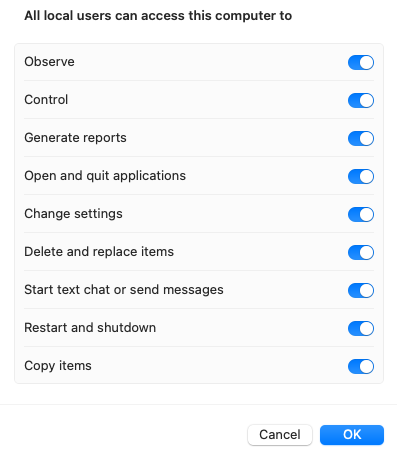
After updating the configuration and verifying that you still have remote connectivity, please reboot the Mac and verify if you're now able to curtain the remote display.
Please also let me know if something isn't clear or you have further questions
Kind regards,
Richard Markievicz
Screenshot 2024-10-23 at 12.14.26.png
Screenshot 2024-10-23 at 12.14.20.png
Screenshot 2024-10-23 at 12.14.01.png
Hello
You'll need to make sure that your Mac is configured for sharing by "Remote Management" instead of "Screen Sharing". Please note it might be dangerous to change the configuration over a remote session - if things are only left partially configured, you might not be able to remotely access your Mac until the configuration is finished.
This is how it looks in the system "Sharing" preferences pane:
In the remote management options, you'll need to enable at least "Observe" and "Control":
After updating the configuration and verifying that you still have remote connectivity, please reboot the Mac and verify if you're now able to curtain the remote display.
Please also let me know if something isn't clear or you have further questions
Kind regards,
Hi Richard,
Thank you for the instruction! Now it works as expected. I would argue it's not that obvious for average users to realise the misconfiguration though. After all "screen" is the more intuitive word.
Best,
Hello
I agree this is confusing. "Screen Sharing" is Apple's own VNC server implementation that offers the screen sharing feature. "Remote Management" needs to be enabled to use Apple's Remote Desktop application which provides management functionality, but also incorporates all of "Screen Sharing". I don't understand why they can't be enabled simultaneously.
Moreover - this specific feature is actually part of "Screen Sharing" at the protocol level, so it really doesn't make sense to me that it doesn't work in just "Screen Sharing" mode (except for the fact that Apple doesn't allow you to use it in their own ScreenSharing.app, only via their Remote Desktop application).
So yes, it is confusing; but overall I'm happy that this is working now.
A final note of caution: you shouldn't be affected on Sequoia; but some older versions of macOS have a bug here: normally, if you curtain the remote machine and then disconnect, the curtain should be removed automatically on the Remote Desktop. But on some older macOS versions (I'm not sure specifically which ones), that doesn't happen and the machine is left in an unrecoverable state (there is no way to unlock the remote machine, and it must be hard rebooted to proceed). I thought I would mention that as something to be careful of if you use this feature on any older systems.
As always, don't hesitate with further questions or comments
Kind regards,
Richard Markievicz
Hello
I agree this is confusing. "Screen Sharing" is Apple's own VNC server implementation that offers the screen sharing feature. "Remote Management" needs to be enabled to use Apple's Remote Desktop application which provides management functionality, but also incorporates all of "Screen Sharing". I don't understand why they can't be enabled simultaneously.
Moreover - this specific feature is actually part of "Screen Sharing" at the protocol level, so it really doesn't make sense to me that it doesn't work in just "Screen Sharing" mode (except for the fact that Apple doesn't allow you to use it in their own ScreenSharing.app, only via their Remote Desktop application).
So yes, it is confusing; but overall I'm happy that this is working now.
A final note of caution: you shouldn't be affected on Sequoia; but some older versions of macOS have a bug here: normally, if you curtain the remote machine and then disconnect, the curtain should be removed automatically on the Remote Desktop. But on some older macOS versions (I'm not sure specifically which ones), that doesn't happen and the machine is left in an unrecoverable state (there is no way to unlock the remote machine, and it must be hard rebooted to proceed). I thought I would mention that as something to be careful of if you use this feature on any older systems.
As always, don't hesitate with further questions or comments
Kind regards,
Hi,
Thanks for the extra tips! Maybe you can put some kind of hint on the toolbar customisation page? Just in case someone like me bumping into this again?
Best,
Hello
Thank you, it's a good idea. My colleagues on the mobile team have created a ticket to address that.
Best regards,
Richard Markievicz