PowerShell query for filtered list of entries

Hello all,
We previously used the MSSQL shared data source and in one of my scripts I would pull a filtered list of entries from RDM using this:
Import-Module -Name Devolutions.PowerShell -Force
$RdmList = Get-RDMSession | Where-Object { $_.ConnectionType -like "RDP*" -or $_.ConnectionType -like "SSH*" }
Now we use the Devolutions Server data source and this no longer appears to work. Can someone point me in the right direction of how I would go about getting a filtered list of entries from the data source using PowerShell 7, Remote Desktop Manager 2024.1.25.0 or newer, and Devolutions Server 2024.1.11.0 or newer?
Thank you!
--
Griffeth Barker
💻 Call/Chat on Microsoft Teams
📧 Send me an email
🔗 Connect on LinkedIn
All Comments (7)
Hello,
Have you updated the Devolutions.PowerShell module to the latest version 2024.1.5? To get the current installed version, you can use the Get-RDMInstance cmdlet.
https://www.powershellgallery.com/packages/Devolutions.PowerShell/2024.1.5
Here is the command to update it.
Update-Module -Name Devolutions.PowerShell -RequiredVersion 2024.1.5 -Force
The command you use should work on a DVLS data source. Are you connected to your DVLS data source from PowerShell?
Method 1 from the following article explains how to create a DVLS data source in RDM using an Application Key. To list the entries, you need to grant proper permissions to the application key on the vault where the entries are located.
https://docs.devolutions.net/kb/devolutions-powershell/devolutions-server/powershell-connectivity/
Let us know if you have any more questions.
Best regards,
Érica Poirier
Hello,
Have you updated the Devolutions.PowerShell module to the latest version 2024.1.5? To get the current installed version, you can use the Get-RDMInstance cmdlet.
https://www.powershellgallery.com/packages/Devolutions.PowerShell/2024.1.5
Here is the command to update it.
Update-Module -Name Devolutions.PowerShell -RequiredVersion 2024.1.5 -Force
The command you use should work on a DVLS data source. Are you connected to your DVLS data source from PowerShell?
Method 1 from the following article explains how to create a DVLS data source in RDM using an Application Key. To list the entries, you need to grant proper permissions to the application key on the vault where the entries are located.
https://docs.devolutions.net/kb/devolutions-powershell/devolutions-server/powershell-connectivity/
Let us know if you have any more questions.
Best regards,
Hi, Erica,
Thank you for your quick response! I forgot to update the module when I upgraded my RDM client. I used the command you provided to upgrade it and it showed successful but Get-RDMInstance still returns an ApplicationVersion of 2024.1.3.0 for some reason.
I figure I need to resolve that before tackling the error I'm getting when setting the data source using Method 1 from the documentation you linked, which is as shown below: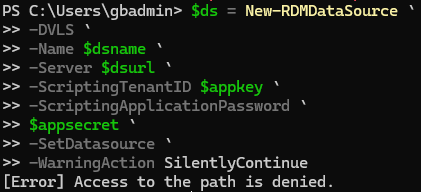
--
Griffeth Barker
💻 Call/Chat on Microsoft Teams
📧 Send me an email
🔗 Connect on LinkedIn
b269d351-203d-47fd-9dd9-e38862b9466a.png
Hello Griffeth,
Thank you for your feedback.
It seems that this PowerShell session cannot modify the file containing the data sources. The destination path can be obtained with the Get-RDMInstance cmdlet. Make sure you have the right to create and modify files in that location.
Best regards,
Érica Poirier
Hi, Erica,
I checked on this and can confirm I do have rights to create and modify files in that location:
PS C:\Users\REDACTED>
PS C:\Users\REDACTED> $rdmPath = (Get-RDMInstance).OptionFileName

PS C:\Users\REDACTED> (Get-Acl -Path ((Get-RDMInstance).OptionFileName)).Access | Format-Table -IdentityReference, FileSystemRights -AutoSize

IdentityReference      FileSystemRights
-----------------      ----------------
NT AUTHORITY\SYSTEM         FullControl    # I also tried from the SYSTEM context, but had the same issue
BUILTIN\Administrators      FullControl    # This is the local administrators group of which I am also a member
REDACTED\REDACTED           FullControl    # This is my privileged account that is running my PowerShell session

PS C:\Users\REDACTED>
Not sure what is causing the issue, but I'll keep poking at it. I appreciate your help along the way!
--
Griffeth Barker
💻 Call/Chat on Microsoft Teams
📧 Send me an email
🔗 Connect on LinkedIn
Hello Griffith,
Thank you for your feedback.
The New-RDMDataSource will try to create the data source in the folder you get with the Get-RDMInstance cmdlet. You must have the proper rights to the files in that folder.
Just so you know, when we update the module, we need to close and re-open the PowerShell window to see the new module version displayed with the Get-RDMInstance cmdlet.
Let us know if you have found the reason for the access error message.
Best regards,
Érica Poirier
4fd8bb02-2065-4f00-9a5d-d59bdbba6229.png
Hello, all,
I ended up having the reinstall Windows on my laptop due to some OS stability issues I was having, and when I set the PowerShell module back up again, it worked just fine.
This thread can be archived or whatnot.
Thank you for your assistance!
--
Griffeth Barker
💻 Call/Chat on Microsoft Teams
📧 Send me an email
🔗 Connect on LinkedIn
Hello,
Thank you for sharing with our community that you have solved the problem.
Best regards,
Érica Poirier