how to use TOTP with RDM for forums.devolutions.net ?

My entry for forum.devolutions.net:
- type: Website (legacy)
- Website:
- Credentials: Linked (User Vault)
On my account, I have OTP set up, using Authy.
I want RDM to handle the OTP part, so I can remove the key from Authy.
I'm logged in on this forum
- click on my avatar at the top right corner
- click 'Manage Account'
- click 'Sign-In & Security'
- click 'Manage' next to 'Two-Step Verification'
- I already have Authy installed, I don't need/want the 'Devolutions Workspace' app
- I copy the key (next to the barcode) into the OTP 'Key' field in RDM (Source: 'Custom')
- the 'Wait for application synchronization.' times out
How can I use TOTP from within RDM on this very forum without installing yet another app?
All Comments (6)
Hello,
When configuring your 2FA in your Devolutions Account, could you use "Authenticator App" instead? : 
From there, copy the key in your OTP entry, which will generate a code that you will be able to set 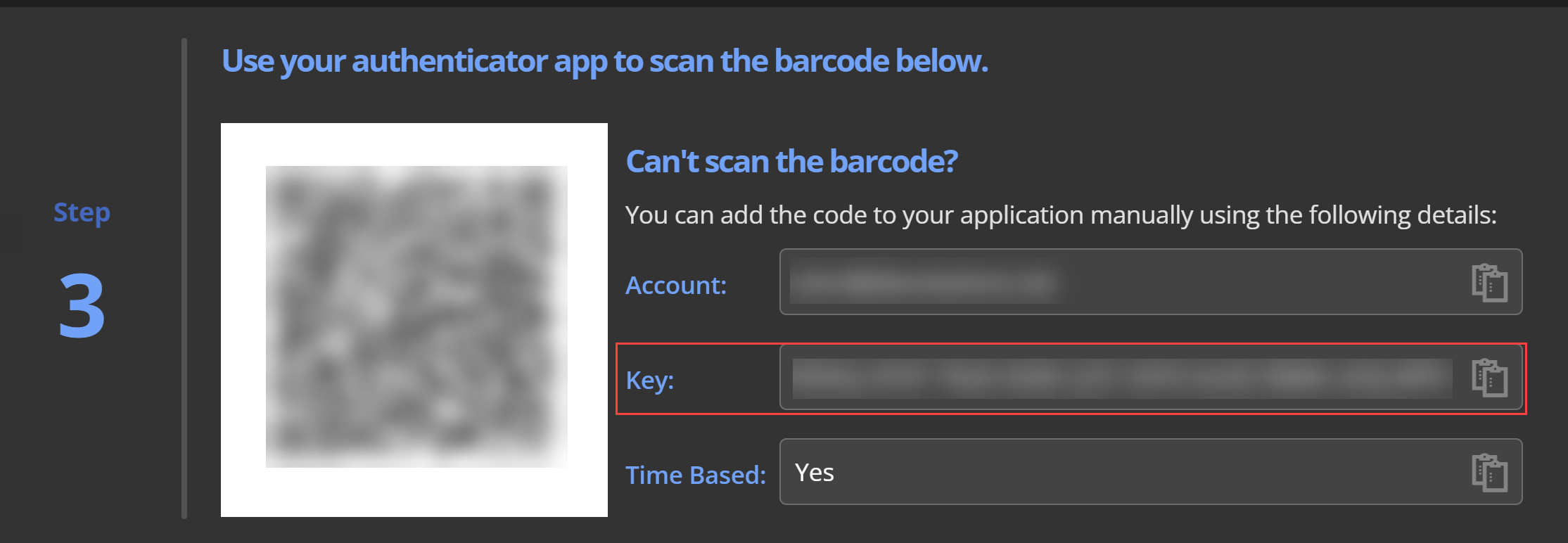
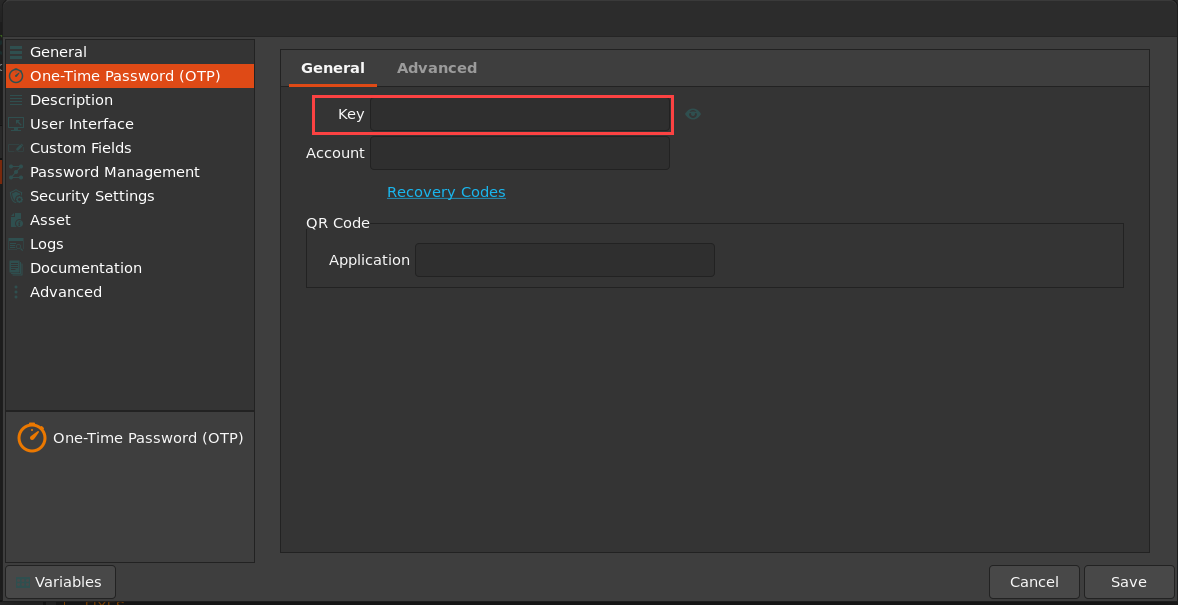
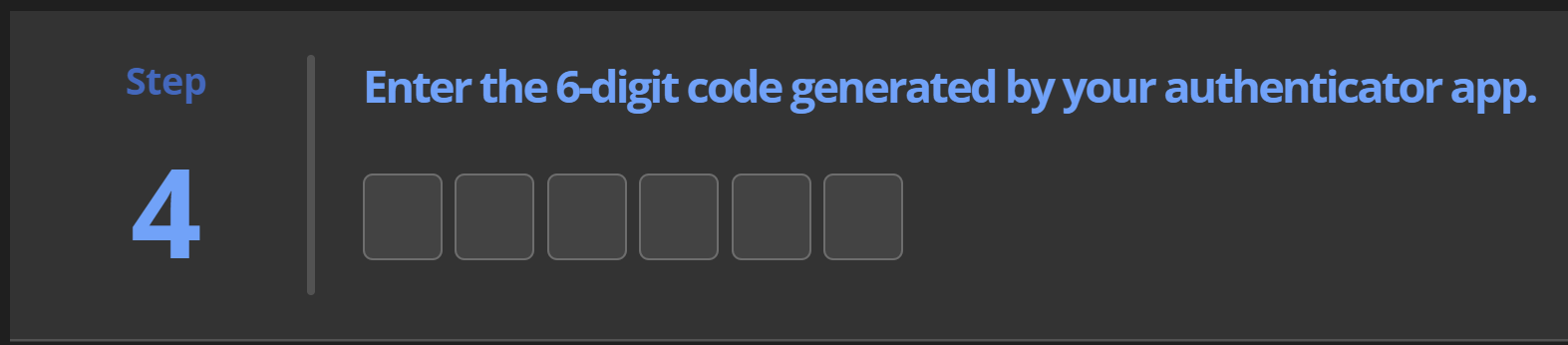
This way, you will not need any (mobile) application to setup your 2FA.
Best Regards,
Etienne Lord
8be59086-ad9f-4698-bd47-fb8a44885aed.png
5510236b-31e2-467c-a231-5cf7419c9a37.png
3e2f9a9d-04f4-43a1-82f2-9ed1dd7ba96c.png
aad9e41c-6932-452c-acab-99251a28d424.png
I would, but I can't.
When I click the 'Two-Step Verification' link in the 'Sign-In & Security' section of my Profile management page, I get: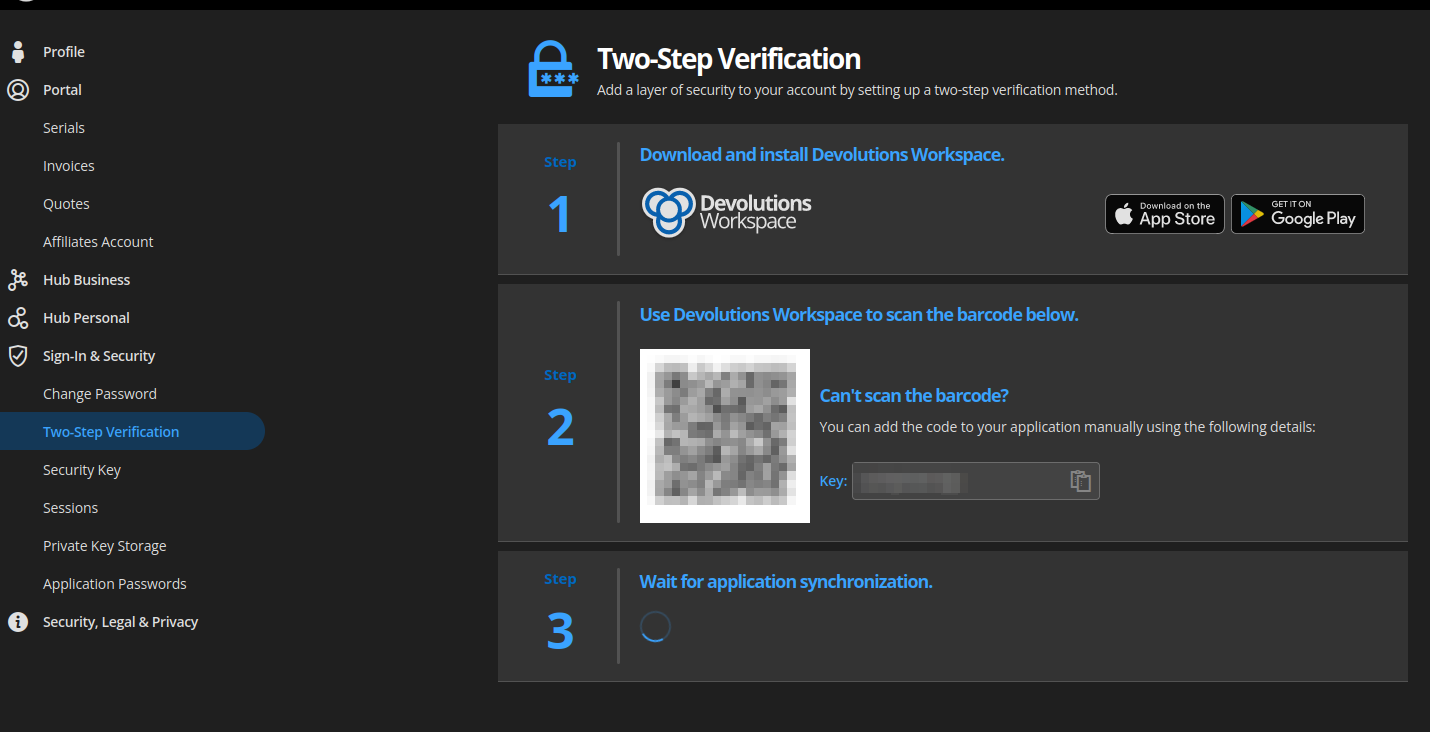
Using Brave Browser Version 1.49.132 Chromium: 111.0.5563.147, or Firefox 102.10.0esr (64-bit), on Ubuntu 22.04.
48cd88fe-1200-4e0b-9b81-554596640eb4.png
well, well
There are two different pages for 'Two-Step Verification':
Page 1:
- go to the 'Manage Account' page
- click 'Sign-In & Security' in the left menu
- click 'Manage' in the 'Two-Step Verification' panel
- you get a page asking you to download the 'Devolutions Workspace' app
- the 'Two-Step Verification' button in the left menu is highlighted
Alternative page:
- go to the 'Manage Account' page
- click the 'Two-Step Verification' link in the left menu
- now I get to see a page that looks more like the one you were referring to, but it is not (see below)
- the same 'Two-Step Verification' button in the left menu is highlighted
But here too, I can not choose 'Authenticator App':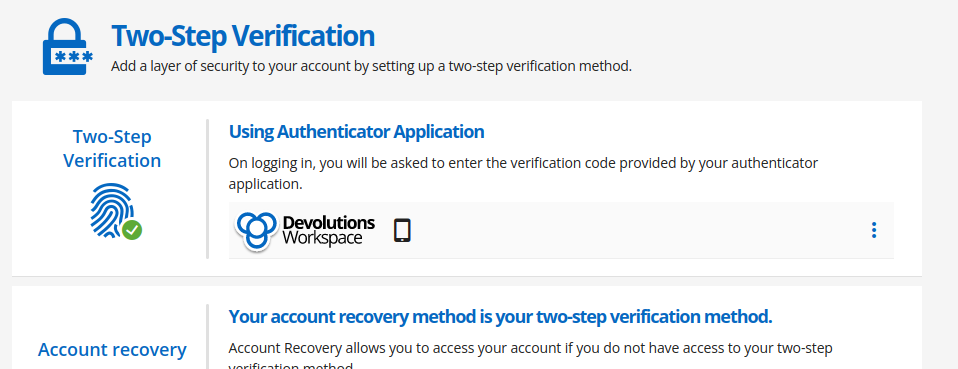
The 'hamburger menu' shows: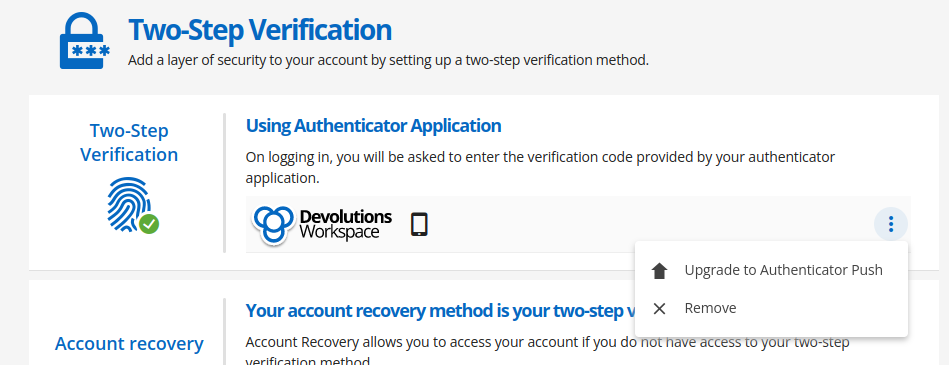
Trying the 'Remove' option...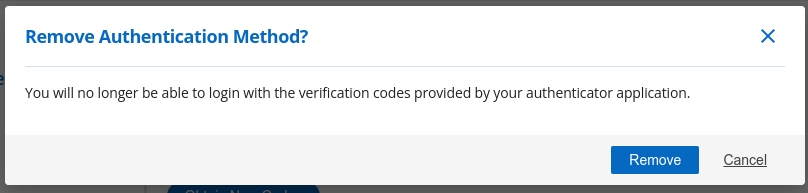
I hope it only means I am disabling 2FA, and not that I will no longer be able to login.
Committing this post, before clicking 'Remove'.
Fingers crossed...
070af9d6-c8ed-4e05-907a-872436f2c7a9.png
73ecd212-0753-4f49-953c-303fae1e1e97.png
ad082e25-20be-4e17-a396-9c2275db1671.png
Looks like I'm still logged in.
After clicking 'Remove', I am presented with: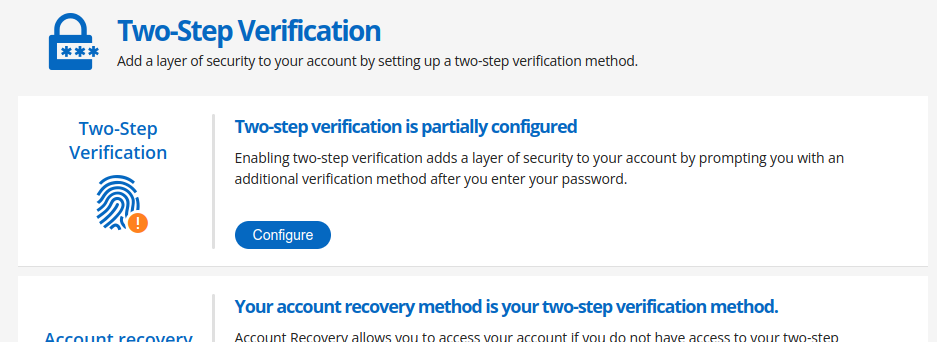
Not very reassuring, but there is only 1 thing I can do right now: 'Configure'.
(Logging out, and back in at this stage: verification code is sent to my account recovery e-mail address.)
Using the 'Configure' option, I can continue to set up TOTP. But ...
- I use the 'copy' button to copy the 'Key'
- I paste the key in the 'Key' field in RDM
- I save the changes
- I try a generated OTP sequence => ERROR (something about the code not being valid)
It turns out that the 'Key' has spaces in it. When I remove those spaces, the generated codes work.
b6463728-da69-4cd7-85fc-aa2e6b971418.png
That 'solved' it for me; but I encountered some serious UX issues.
Hello,
Thank you for letting us know about the solution! Glad that you were able to find the alternative.
Best Regards,
Etienne Lord